
If you've recently noticed that your phone screen has taken on a warm, yellowish tint—especially when it didn’t look that way before—it can be disorienting. Text may appear dull, photos lose their vibrancy, and white backgrounds seem off. The good news is that this change is usually not due to hardware damage. More often than not, it's a software or setting-related adjustment triggered by built-in features designed to reduce eye strain. Understanding the root cause allows you to restore your display to its original clarity quickly and safely.
This article breaks down the most common reasons behind a suddenly yellow phone screen, explains how display technologies contribute to color shifts, and provides detailed steps to diagnose and correct the issue across both Android and iOS devices. Whether the shift happened after an update, a dropped phone, or seemingly out of nowhere, you’ll find practical fixes here.
Why Your Phone Screen Might Suddenly Appear Yellow
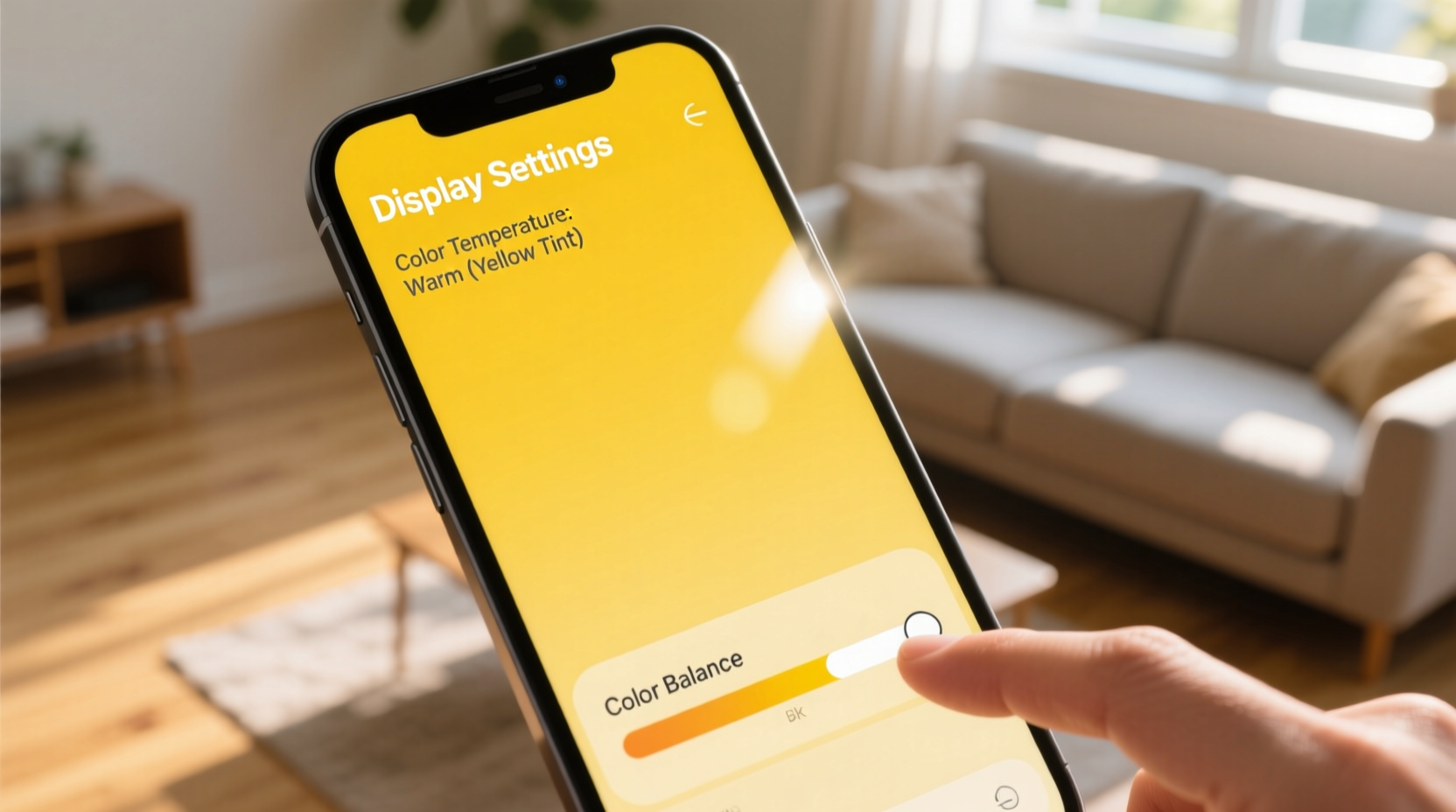
A yellow-tinted display typically results from changes in color temperature, brightness calibration, or automated night modes. While it may feel like a defect, modern smartphones are engineered with adaptive display systems that adjust based on time of day, ambient lighting, and user preferences. Here are the primary culprits:
- Night Mode / Blue Light Filter Activation: Many phones automatically enable a warmer screen tone at night to reduce blue light exposure, which can interfere with melatonin production and sleep.
- Color Inversion or Accessibility Settings: Features like grayscale mode or color correction for vision impairments can unintentionally alter screen appearance.
- Software Update Glitches: System updates sometimes reset display settings or introduce bugs affecting color rendering.
- Auto-Brightness or Adaptive Display Algorithms: These may misinterpret ambient light conditions and shift colors toward warmer tones.
- Accidental Manual Adjustment: You might have changed the color balance or warmth slider without realizing it.
Step-by-Step Guide to Fix a Yellow Phone Screen
Follow this systematic troubleshooting process to identify and resolve the issue. Start with the simplest fixes and progress to deeper diagnostics if needed.
- Check for Active Night Mode Features
- iOS: Open Settings > Display & Brightness > Night Shift. Ensure it’s turned off or set to manual scheduling only.
- Android: Go to Settings > Display > Night Light (varies by brand). Disable it temporarily to test.
- Review Color Balance or Temperature Settings
- Some Samsung, Google Pixel, and OnePlus devices allow manual adjustment of screen warmth under Display > Advanced > Colors & Contrast.
- Slide the temperature bar toward “Cool” or “Default” to neutralize yellow tones.
- Disable Adaptive or Eye Comfort Modes
- Brands like Xiaomi, Oppo, and Huawei include “Reading Mode” or “Eye Comfort Shield,” which applies a persistent warm filter.
- Turn these off via Settings > Display.
- Reset Display Settings to Default
- No direct “reset display” option exists, but you can manually revert all visual adjustments: disable filters, reset wallpaper to white, and turn off dark mode.
- Restart Your Phone
- A soft reboot clears temporary glitches that may affect GPU rendering or sensor input.
- Update or Reinstall Display Drivers (if applicable)
- While mobile OS updates handle drivers, ensure your system is current: Settings > Software Update.
Mini Case Study: Recovering Normal Display After Accidental Setting Change
Sarah, a freelance designer using an iPhone 14, noticed her screen looked unnaturally yellow one morning. She initially feared screen burn-in or OLED degradation. After ruling out physical damage, she recalled installing a new app the previous evening. Upon checking her settings, she discovered that “Night Shift” had been scheduled from 6 PM to 8 AM—but the end time was mistakenly set for 8 PM instead of AM. This meant the warm filter remained active throughout the next day. Disabling Night Shift immediately restored the screen to its natural color balance. The issue wasn’t hardware or software failure, just a minor scheduling error amplified by automatic behavior.
Do’s and Don’ts When Dealing With a Yellow-Tinted Screen
| Do’s | Don’ts |
|---|---|
| ✅ Check Night Shift / Night Light settings first | ❌ Assume the screen is physically damaged |
| ✅ Restart your device after making changes | ❌ Use third-party \"screen calibrator\" apps—they often lack access to true display controls |
| ✅ Compare your screen to another device using the same image | ❌ Apply screen protectors claiming to \"correct color\"—most are ineffective |
| ✅ Adjust color temperature back to neutral or cool | ❌ Ignore recent software updates that may have altered defaults |
| ✅ Test in different lighting environments | ❌ Factory reset unless absolutely necessary—try other fixes first |
Expert Insight: Why Warm Screens Are Designed Into Modern Devices
“Blue light suppression isn't just marketing hype. Clinical studies show that reducing blue spectrum exposure in the evening improves sleep onset and quality. That’s why manufacturers bake warm display modes into every flagship phone.” — Dr. Lena Patel, Digital Health Researcher at Stanford Medicine
The intentional design of warmer screens during nighttime hours reflects growing awareness of circadian rhythm disruption caused by digital devices. However, when these features activate unexpectedly or persist beyond their intended window, they create confusion. The key is understanding that the yellow hue is often a feature, not a flaw—albeit one that needs proper configuration.
Device-Specific Fixes by Platform
Different operating systems and brands implement display controls differently. Below are targeted instructions based on your device type.
For iPhone Users (iOS 13 and Later)
- Open Settings > Display & Brightness.
- Select Night Shift.
- Toggle off Scheduled or adjust the time range.
- To disable entirely, tap Off under “Scheduled”.
- Optionally, adjust the Color Temperature slider to “Less Warm”.
For Samsung Galaxy Devices (One UI)
- Navigate to Settings > Display > Eye Comfort Shield.
- Turn off the toggle or adjust the intensity slider to 0%.
- To prevent future activation, disable scheduling under “Turn on automatically”.
- Also check Accessibility > Color Vision to ensure no color correction is enabled.
For Google Pixel Phones (Stock Android)
- Go to Settings > Display > Night Light.
- Tap the toggle to disable it.
- Under “Schedule,” switch from “Sunset to Sunrise” to “Custom” or turn scheduling off.
- Adjust the “Strength” bar to reduce warmth if full disable isn’t desired.
For Other Android Brands (Xiaomi, Oppo, OnePlus, etc.)
Look for terms like:
- Reading Mode
- Screen Color Adjustment
- Adaptive Display
- Vision Enhancement
These are typically found under Settings > Display or Settings > Accessibility. Disable any active filters and reset color profiles to default.
Frequently Asked Questions
Can a yellow screen indicate hardware failure?
In rare cases, yes—especially if the discoloration is uneven (e.g., one corner is more yellow), flickering occurs, or lines appear. However, uniform yellowing across the entire screen is almost always software-related. True hardware issues like failing OLED panels or backlight damage are uncommon and usually accompanied by other visual artifacts.
Will turning off Night Mode affect my battery life?
No. Night Mode and blue light filters are purely visual overlays with negligible impact on power consumption. Battery drain is more influenced by brightness levels, refresh rate, and background processes than color temperature.
Is it bad to keep my screen on a cooler color setting all the time?
Not inherently. Cooler (bluer) screens enhance alertness and color accuracy, making them ideal for daytime use, especially for creative work. However, prolonged exposure late at night may interfere with sleep. Best practice is to use automatic scheduling so your phone shifts to warmer tones in the evening without manual intervention.
Final Checklist: Restore Your Natural Screen Color
- ☑️ Disable Night Shift (iPhone) or Night Light (Android)
- ☑️ Turn off Eye Comfort, Reading Mode, or similar filters
- ☑️ Reset color temperature to neutral or cool
- ☑️ Restart your phone after changes
- ☑️ Verify no accessibility features (grayscale, color inversion) are active
- ☑️ Check for pending system updates
- ☑️ Compare screen output with another device using the same image
Conclusion
A yellow-tinted phone screen is rarely a sign of permanent damage. More often, it’s the result of thoughtful—but sometimes overzealous—software features designed to protect your eyes and improve sleep. By methodically reviewing your display settings, understanding platform-specific tools, and knowing what to look for, you can restore accurate color representation in minutes. Don’t rush to replace your device or visit a repair shop; start with the settings you already control. Once corrected, consider re-enabling warm modes—but schedule them appropriately so they don’t interfere with daytime usability.




 浙公网安备
33010002000092号
浙公网安备
33010002000092号 浙B2-20120091-4
Comments
No comments yet. Why don't you start the discussion?