
If you’ve noticed that your phone’s display appears warmer or more yellow than it used to, you’re not alone. Many users report a sudden shift in screen tone—especially after software updates or new feature activations. While this change can be alarming at first, it's often intentional, designed to reduce eye strain and improve sleep hygiene. However, not every yellow tint is beneficial. Understanding the root cause and knowing how to fine-tune your settings ensures your screen remains both comfortable and accurate.
The yellowish hue on your phone screen typically stems from built-in display features like Night Light, Blue Light Filter, or adaptive color modes. These functions alter the color temperature—the balance between cool (blue) and warm (yellow/red) tones—to make screens easier on the eyes, particularly in low-light environments. But when misconfigured or left on unintentionally, they can distort colors, affect photo editing accuracy, or simply feel unpleasant to view.
What Is Color Temperature and Why It Matters
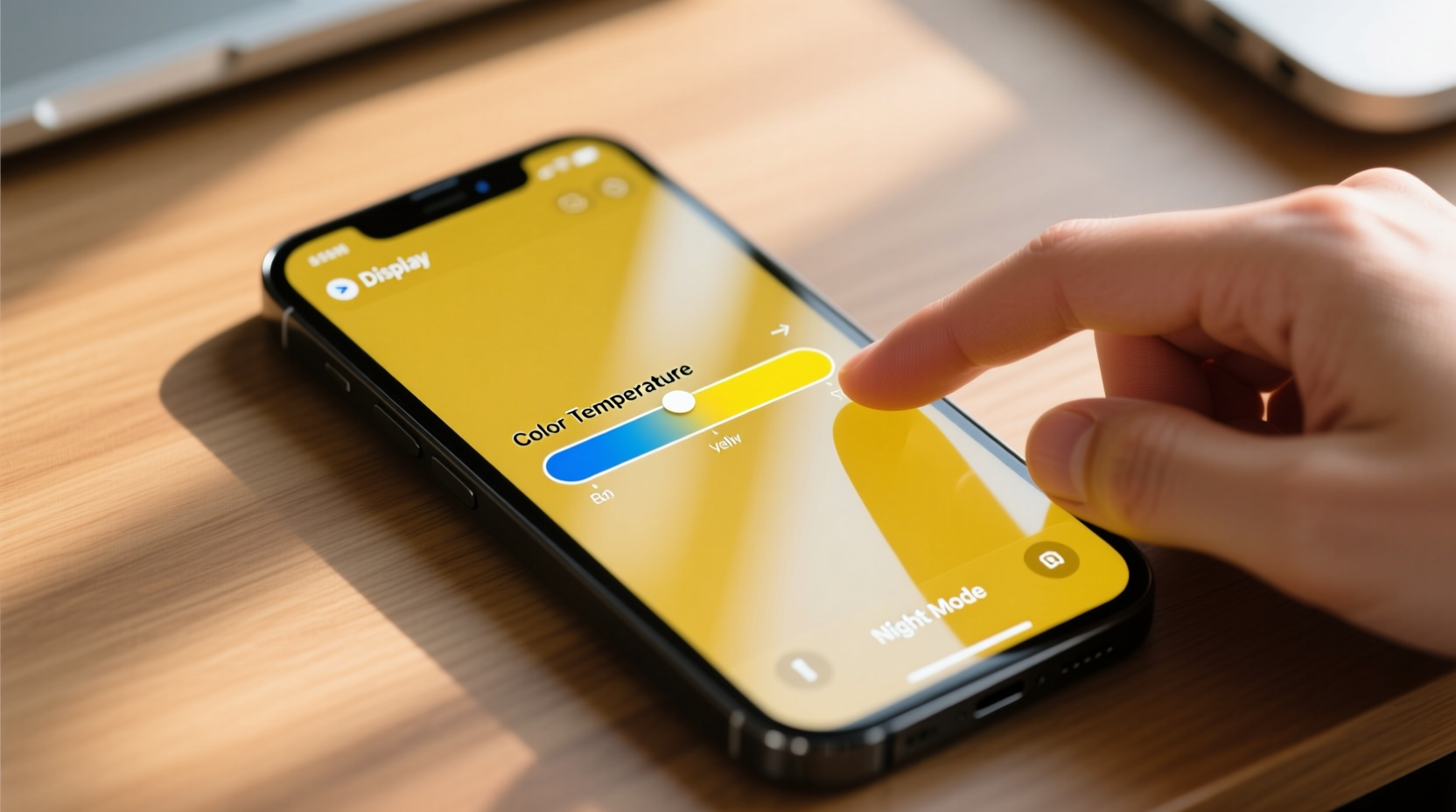
Color temperature refers to the warmth or coolness of light emitted by a screen, measured in Kelvin (K). Lower values (around 2700K–4000K) produce warmer, yellowish light, while higher values (6500K+) create cooler, bluish-white illumination. Natural daylight averages around 5500K–6500K, which most devices use as a default “neutral” white point.
Your perception of color is highly context-dependent. In a dimly lit room, a cool screen may appear harsh and glaring, whereas a warm screen feels softer and more natural. This is why modern smartphones automatically adjust color temperature based on time of day and ambient lighting. The goal isn’t just visual comfort—it’s also physiological. Exposure to blue light in the evening can suppress melatonin production, disrupting sleep patterns.
“Evening screen warmth isn't just about comfort—it's a circadian intervention. Warmer screens help signal to the brain that it’s time to wind down.” — Dr. Lena Patel, Sleep Science Researcher, Stanford Center for Human Sleep
That said, an overly aggressive warm filter can make whites look distinctly yellow, especially if you're comparing your phone side-by-side with another device. This discrepancy becomes problematic when color accuracy matters—such as when viewing photos, editing videos, or reading documents under consistent lighting.
Common Causes of a Yellowish Phone Screen
Before adjusting settings, identify what’s causing the yellow tint. Some causes are software-based and easily reversible; others may indicate hardware issues.
- Night Light / Blue Light Filter Enabled: Most Android and iOS devices include a night mode that shifts colors toward amber during evening hours.
- Scheduled Display Modes: Automatic schedules based on sunset/sunrise times may activate without user awareness.
- Third-Party Apps: Battery savers, screen filters, or “eye protection” apps can override system settings.
- Adaptive Display Features: High-end phones use ambient light sensors to dynamically adjust color temperature.
- Display Calibration Drift: Rarely, firmware glitches or updates can misalign default color profiles.
- Hardware Damage: Physical damage to the OLED panel or backlight may result in permanent discoloration.
How to Adjust Color Temperature on Major Platforms
Adjusting your screen’s warmth is straightforward once you know where to look. Below are step-by-step instructions for the most common operating systems.
For Android Devices (Samsung, Google Pixel, etc.)
- Open Settings.
- Go to Display > Screen timeout & brightness (varies by brand).
- Select Night Light, Blue Light Filter, or Eye Comfort Shield.
- Toggle off the feature temporarily to test if the yellow disappears.
- To keep it active but less intense: tap Temperature or Intensity and slide toward “Less Warm.”
- Adjust schedule: choose custom hours or disable automatic scheduling.
On Samsung Galaxy phones, additional options exist under Settings > Display > Advanced > Color Balance. Here, you can manually drag sliders between blue and yellow axes to achieve a neutral white.
For iPhones (iOS 10 and Later)
- Open Settings.
- Tap Display & Brightness.
- Select Night Shift.
- Choose Manual Enable Until Tomorrow or toggle it off completely.
- Under Schedule, switch to “Custom” or turn scheduling off.
- Adjust Color Temperature: slide toward “More Cool” for a whiter display.
Note: iOS doesn’t allow full manual calibration like some Android devices. For greater control, explore Accessibility > Display & Text Size > Color Filters, where you can disable any active filters or recalibrate.
For Other Devices (Foldables, Tablets, Wearables)
Foldable phones and tablets often inherit the same OS-level controls. However, dual-screen devices might apply different profiles per display. Always check both primary and secondary screen settings independently. On wearables like smartwatches, color adjustments are limited, but dark mode or ambient display settings can influence perceived warmth.
Do’s and Don’ts: Managing Screen Color Effectively
| Action | Recommended? | Reason |
|---|---|---|
| Use Night Light only during evening hours | ✅ Yes | Supports circadian rhythm without distorting daytime visuals |
| Set color temperature too warm during daylight | ❌ No | Makes colors inaccurate and hard to read |
| Install multiple screen-filtering apps | ❌ No | Can conflict and cause lag or excessive yellowing |
| Calibrate using a known white reference | ✅ Yes | Ensures neutrality—e.g., compare against printer paper under even light |
| Leave adaptive brightness on with color tuning | ✅ Yes | Allows dynamic adjustment while preserving intent |
| Ignore persistent yellow spots or patches | ❌ No | Could indicate hardware failure, not software |
Mini Case Study: Recovering Accurate Colors After an Update
Jamal, a freelance photographer, updated his Samsung Galaxy S23 to the latest One UI version and immediately noticed his photo previews looked unnaturally warm. Editing on-the-go became difficult—whites appeared cream-colored, and skin tones looked off. At first, he assumed the OLED panel was failing.
After testing in Safe Mode and confirming the issue persisted, he dug into settings. He discovered that the update had re-enabled “Eye Comfort Shield” with maximum warmth and an extended schedule—from 5 PM to 9 AM. Though well-intentioned, this setting clashed with his workflow.
He disabled the automatic schedule, reduced intensity to 20%, and manually adjusted the color balance slider slightly toward blue. The result? A subtle warmth in evenings without sacrificing daytime accuracy. He now checks display settings quarterly after major updates.
This case illustrates how automated wellness features, while helpful, can interfere with professional needs. Regular audits of display settings prevent long-term frustration.
Troubleshooting Persistent Yellow Tints
If adjusting standard settings doesn’t resolve the yellow appearance, consider these deeper fixes:
Check for Conflicting Accessibility Settings
Some accessibility tools—like grayscale mode, color correction, or magnification filters—can inadvertently introduce tints. On Android:
- Go to Settings > Accessibility > Display.
- Turn off Color Correction or Color Enhancement.
- Ensure no filters are active under “Magnification” or “High Contrast Text.”
On iPhone:
- Navigate to Settings > Accessibility > Display & Text Size.
- Disable Color Filters unless actively needed.
- Verify Invert Colors is off.
Reset Display Calibration (If Supported)
Some manufacturers offer factory reset options for display profiles. For example:
- Google Pixel: No direct reset, but uninstalling system updates temporarily can revert changes.
- Samsung: Use Settings > Display > Advanced > Reset > Reset All Settings (does not erase data).
- OnePlus/Oppo: Look for “Vision” or “Color Mode” reset in Display settings.
Test Hardware Integrity
If only part of the screen appears yellow (e.g., corners or edges), or if the tint remains across all modes—including recovery mode—it may be a hardware defect. Common culprits include:
- OLED degradation (common in older devices)
- Backlight bleed or uneven filtering layers
- Water or moisture damage affecting polarizers
In such cases, contact the manufacturer or authorized service center. Software fixes won’t correct physical display flaws.
FAQ
Is a yellow screen bad for my eyes?
No—in fact, a slightly warm screen in low light is generally better for eye comfort and sleep quality. The problem arises when the yellow tint is too strong or present during daylight, causing visual fatigue due to poor contrast and color distortion.
Why did my screen suddenly turn yellow after a software update?
Manufacturers often enable wellness features like Night Light or Eye Comfort by default after updates. Additionally, new versions may tighten blue light reduction policies, especially if the device detects frequent nighttime usage. Check your display settings post-update to confirm.
Can I make my screen truly color-accurate?
Yes, but it requires careful calibration. Use a standardized white reference under consistent lighting, disable all automatic filters, and manually adjust color balance. For professionals, external colorimeters and calibration apps (on rooted or jailbroken devices) offer precision, though most users find manual tweaks sufficient.
Checklist: Fixing a Yellowish Phone Screen
- ✅ Determine if the yellow tint is uniform or patchy.
- ✅ Disable Night Light, Blue Light Filter, or Night Shift temporarily.
- ✅ Check for third-party screen-filtering apps and uninstall if unnecessary.
- ✅ Review accessibility settings for active color filters or corrections.
- ✅ Manually adjust color temperature toward cooler tones.
- ✅ Recalibrate using a white reference under neutral lighting.
- ✅ Test screen in Safe Mode to rule out app interference.
- ✅ If unresolved, assess for hardware damage or seek professional repair.
Conclusion
A yellowish phone screen is rarely a malfunction—it’s usually a feature working as intended. But intention doesn’t always align with personal preference or practical need. Whether you're a casual user seeking visual comfort or a creative professional requiring color fidelity, understanding how to manage color temperature empowers you to tailor your experience.
Don’t let default settings dictate your viewing quality. Take a few minutes to audit your display preferences, especially after updates. Small adjustments can restore clarity, protect your sleep, and preserve the integrity of digital content. Your eyes—and your productivity—will thank you.




 浙公网安备
33010002000092号
浙公网安备
33010002000092号 浙B2-20120091-4
Comments
No comments yet. Why don't you start the discussion?