
It’s a familiar frustration: you’re in the middle of an important call, and suddenly your phone’s screen goes completely black. You can still hear the other person, but you can’t see anything—no end-call button, no timer, nothing. After hanging up, the screen returns to normal. This behavior is usually intentional, not a malfunction. It’s caused by your phone’s proximity sensor doing its job. But when it doesn’t work correctly—either turning off too early or staying off too long—it becomes more than just an annoyance. Understanding how this sensor works and how to fix common issues can restore reliability to your calling experience.
How the Proximity Sensor Works During Calls
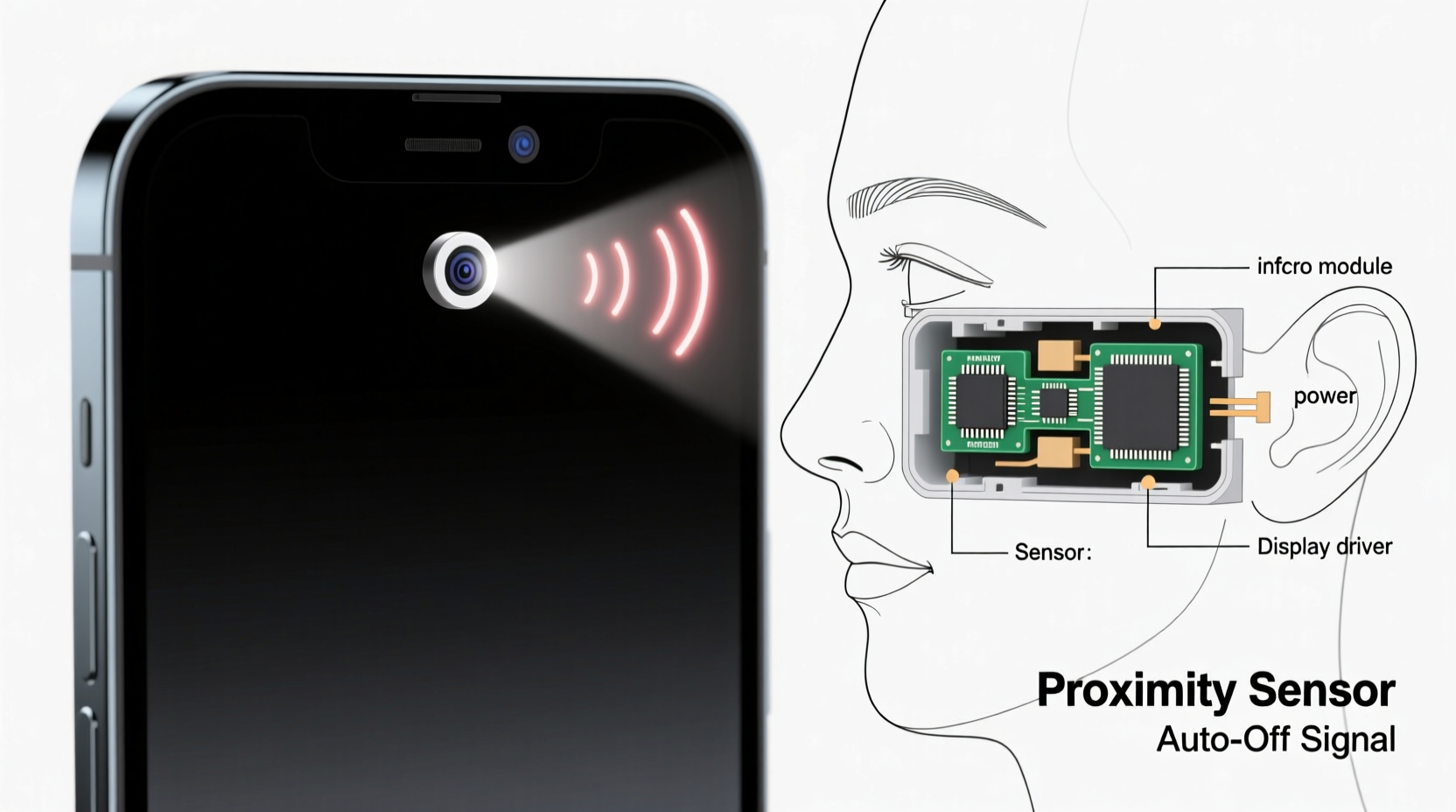
Modern smartphones are equipped with a small hardware component called the proximity sensor, typically located near the earpiece at the top of the front panel. Its primary function is to detect when the phone is close to your face during a call. When triggered, it automatically turns off the display to prevent accidental touches—like pocket dialing or muting the call with your cheek.
The sensor uses infrared light to measure the distance between the phone and nearby objects. If it detects something within a few centimeters (such as your ear), it signals the operating system to deactivate the touchscreen and dim the display. Once you pull the phone away, the sensor notices the increased distance and reactivates the screen.
This feature saves battery life and improves usability, but problems arise when the sensor misreads its environment. A screen that stays black for too long—or fails to reactivate—can disrupt your ability to manage the call effectively.
Common Causes of Proximity Sensor Malfunctions
When your screen remains black during a call, the issue may not be the sensor itself but rather interference or software glitches. Here are the most frequent causes:
- Physical obstructions: Dirt, dust, smudges, or improperly installed screen protectors can block the sensor.
- Poorly designed accessories: Some third-party cases or covers may press against the sensor or shield it from detecting changes.
- Software bugs: Operating system updates or app conflicts can interfere with sensor functionality.
- App interference: Certain apps, especially those with floating widgets or overlays, may prevent the screen from reactivating.
- Hardware failure: In rare cases, the sensor itself may be damaged due to drops, water exposure, or manufacturing defects.
Before assuming hardware damage, it’s essential to rule out simpler explanations. Most issues are fixable without professional repair.
Step-by-Step Guide to Diagnose and Fix the Issue
Follow this structured approach to identify and resolve why your screen stays black during calls.
- Check for physical blockages. Inspect the area around the earpiece. Use a soft, dry microfiber cloth to gently clean the sensor. Avoid using liquids or abrasive materials.
- Remove accessories. Take off your case and screen protector temporarily. Test a call without them. If the screen behaves normally, the accessory was likely interfering.
- Test the sensor manually. Use a built-in diagnostic tool:
- On Android: Dial
*#0*#to access the hidden service menu. Tap “Proximity Sensor” and follow the on-screen instructions. Cover and uncover the sensor to verify responsiveness. - On iPhone: Go to Settings > Accessibility > Touch > Call Audio Routing. While on a FaceTime or regular call, switch routing between Speaker and Earpiece to test sensor behavior.
- On Android: Dial
- Restart your phone. A simple reboot clears temporary glitches affecting sensor performance.
- Boot in Safe Mode (Android). This disables third-party apps. If the sensor works in Safe Mode, an app is likely causing the conflict. Uninstall recently added apps one by one to isolate the culprit.
- Update your OS. Manufacturers often release patches that fix sensor-related bugs. Check for updates under Settings > System > Software Update.
- Clear cache partition (Android). This resets system caches without deleting personal data. The method varies by brand:
- Samsung: Power off, then hold Volume Up + Bixby + Power until the logo appears.
- Google Pixel: Hold Power + Volume Down, use volume keys to select “Recovery Mode,” then press Power.
- Reset all settings. On both iOS and Android, resetting settings (not data) can resolve deep-seated configuration errors affecting sensors.
When Hardware Repair Is Necessary
If none of the above steps resolve the issue, the sensor may be physically damaged. Signs include:
- The screen never turns back on during calls.
- The sensor test fails consistently.
- The problem persists across multiple cases and after factory reset.
“Over 70% of reported proximity sensor issues are resolved with cleaning or software updates. True hardware failure is less common than users assume.” — David Lin, Senior Mobile Technician at TechCare Solutions
Do’s and Don’ts: Best Practices for Sensor Maintenance
| Do’s | Don’ts |
|---|---|
| Clean the sensor area weekly with a dry, soft cloth | Use alcohol or cleaners near the sensor |
| Use slim, well-fitted cases that don’t cover the top bezel | Apply screen protectors that overlap the earpiece or sensor |
| Regularly update your phone’s operating system | Ignore persistent sensor warnings or erratic behavior |
| Test sensor function after installing new apps | Attempt DIY hardware repairs without expertise |
Real-World Example: Maria’s Persistent Black Screen Issue
Maria, a sales representative, relied heavily on her Android phone for client calls. Over two weeks, she noticed her screen would stay black throughout calls, forcing her to end conversations blindly. At first, she assumed it was a setting issue and toggled various options in Accessibility and Display menus. No change.
She cleaned the phone thoroughly but saw no improvement. Then, recalling a recent screen protector installation, she removed it. The sensor responded instantly during her next test call. The protector had a slight overhang that blocked the infrared emitter. After replacing it with a precision-cut model, the problem disappeared.
Maria’s case highlights how minor physical changes can have major functional consequences. A $10 accessory nearly disrupted her professional communication—until she identified the root cause through systematic testing.
FAQ: Common Questions About Proximity Sensors
Why does my screen go black only during some calls?
Inconsistent behavior may stem from app-specific issues. For example, VoIP apps like WhatsApp or Zoom sometimes bypass standard sensor protocols. Try making a native phone call to compare results. If the issue only occurs in certain apps, check their permissions and update or reinstall them.
Can I disable the proximity sensor permanently?
While not recommended, some Android devices allow disabling the sensor via developer options or third-party apps. However, doing so increases the risk of accidental touches during calls. On iPhones, there is no official way to disable the sensor—it’s integral to the calling experience.
Does a cracked screen affect the proximity sensor?
Yes. Even if the crack isn’t near the top of the phone, internal damage from impact can disrupt sensor connections. Additionally, moisture entering through cracks can corrode components. If your phone has been dropped, sensor malfunction could be a symptom of broader internal damage.
Preventive Checklist for Long-Term Sensor Health
To avoid recurring issues, adopt these habits:
- ✅ Clean the front sensor area every time you clean your phone
- ✅ Use only high-quality, model-specific accessories
- ✅ Install OS updates promptly
- ✅ Monitor app behavior after installation
- ✅ Perform a sensor test monthly, especially after updates
- ✅ Avoid exposing the phone to extreme temperatures or humidity
- ✅ Enable automatic backups before attempting system resets
Conclusion: Regain Control of Your Calling Experience
A black screen during calls doesn’t have to be a permanent nuisance. In most cases, the solution lies in simple maintenance, proper accessories, or timely software updates. The proximity sensor is a small but critical component designed to enhance usability—not hinder it. By understanding how it functions and responding proactively to signs of trouble, you can ensure smooth, uninterrupted communication.
Start with the basics: clean the sensor, remove obstructive accessories, and run a diagnostic test. Move systematically through software fixes before considering hardware intervention. With patience and attention to detail, you’ll likely restore full functionality without needing professional help.




 浙公网安备
33010002000092号
浙公网安备
33010002000092号 浙B2-20120091-4
Comments
No comments yet. Why don't you start the discussion?