
It’s one of the most frustrating experiences in modern mobile life: your phone displays full signal bars, yet nothing loads. Websites stall, messages fail to send, and apps spin endlessly. Despite strong reception, you’re effectively offline. This disconnect between signal strength and actual internet access can stem from a variety of sources—some technical, some environmental, and others entirely within your control. Understanding the root cause is the first step toward restoring reliable connectivity.
Signal bars reflect cellular reception, not internet functionality. A full bar count means your device has successfully connected to a nearby cell tower, but it doesn’t guarantee data transmission. The issue may lie in network configuration, carrier settings, software glitches, or even temporary outages. This guide breaks down the most common reasons behind this paradox and provides actionable steps to diagnose and resolve the problem quickly.
Understanding Signal vs. Internet Access
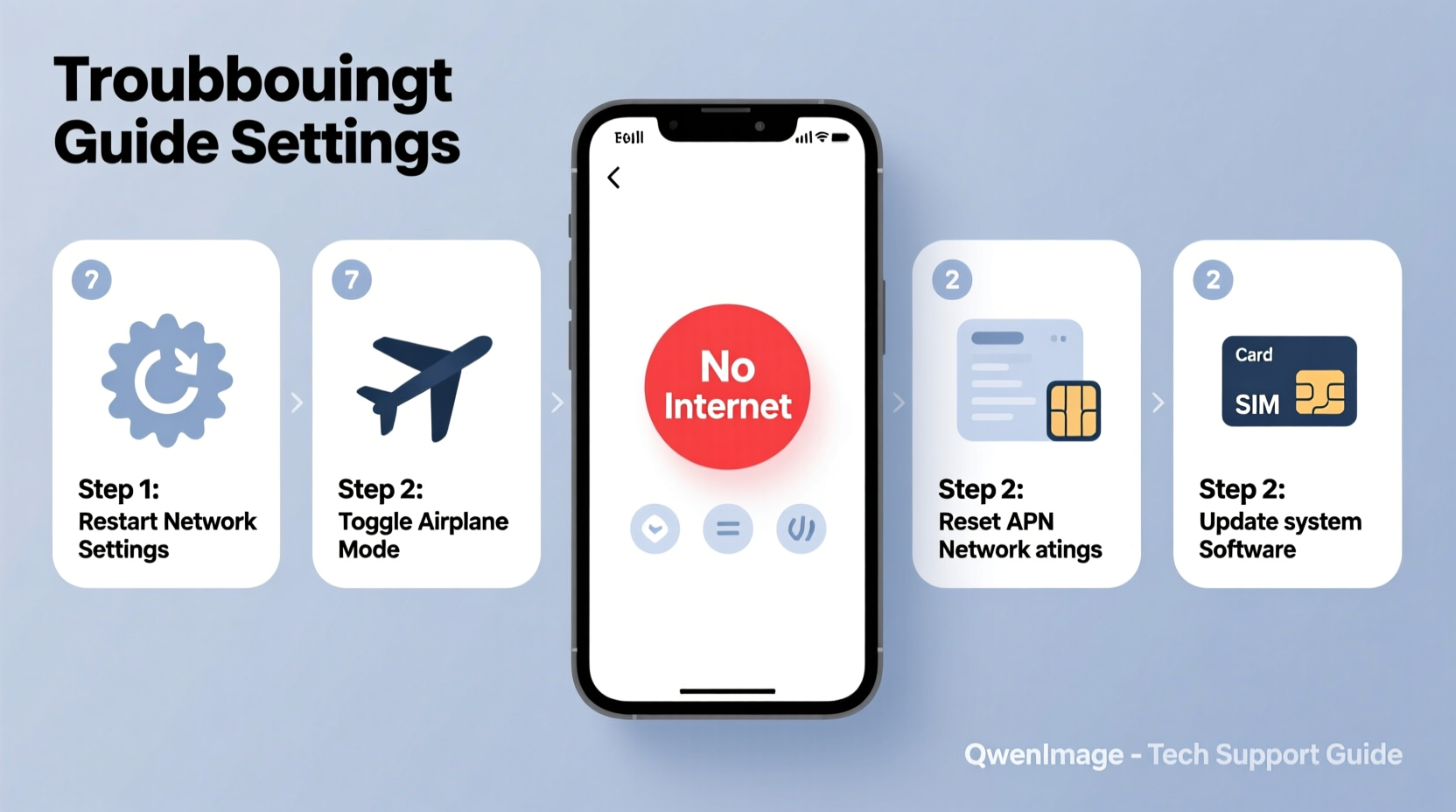
The distinction between “signal” and “internet” is often misunderstood. When your phone shows full bars, it indicates strong radio frequency (RF) reception from a cell tower. This allows voice calls and SMS to function under many conditions. However, mobile data requires additional backend processes: authentication with your carrier, IP address assignment, DNS resolution, and routing through the internet backbone.
Think of it like a highway system. Full bars mean your car is on the on-ramp with a clear view of the road ahead. But if there’s a toll gate malfunction, a road closure, or a traffic jam further down, you won’t reach your destination—even though the entrance looks perfect.
Common breakdowns include:
- Network congestion: Too many users on the same tower can slow or block data.
- DNS failures: Your phone can’t translate website names into IP addresses.
- Carrier throttling: Data speeds are reduced after hitting a threshold.
- APN misconfiguration: Incorrect settings prevent data routing.
- Software bugs: OS or app-level issues disrupt connectivity.
“Signal strength is just the first link in the chain. If any downstream component fails, the user experiences ‘no internet’ despite excellent reception.” — Dr. Lena Torres, Wireless Network Engineer at Mobile Insights Group
Step-by-Step Troubleshooting Guide
Follow this systematic approach to identify and fix the underlying issue. Start with the simplest solutions before moving to more advanced options.
1. Toggle Airplane Mode
This forces your phone to reset its wireless connections. Turn on Airplane Mode for 15 seconds, then disable it. This reinitializes Wi-Fi, Bluetooth, and cellular radios.
2. Restart Your Phone
A reboot clears temporary memory glitches that may interfere with data services. Many connectivity hiccups resolve after a simple restart.
3. Check for Carrier Outages
Visit your carrier’s status page (e.g., Verizon Status, AT&T Service Outage Map) or use third-party tools like Downdetector.com. Enter your ZIP code to see if others in your area report similar issues.
4. Verify Mobile Data Is Enabled
Navigate to Settings > Mobile Data (or Network & Internet > Mobile Network). Ensure the toggle is on. Some phones disable data during battery-saving modes.
5. Test Wi-Fi vs. Cellular
Connect to a known working Wi-Fi network. If internet works over Wi-Fi but not cellular, the issue is specific to your mobile data connection.
6. Reset Network Settings
This clears saved Wi-Fi networks, Bluetooth pairings, and cellular configurations. On iOS: Settings > General > Transfer or Reset iPhone > Reset > Reset Network Settings. On Android: Settings > System > Reset Options > Reset Wi-Fi, Mobile & Bluetooth.
Note: You’ll need to re-enter Wi-Fi passwords after this step.
7. Update Carrier Settings
Carriers push updates that improve network compatibility. On iPhone: Settings > General > About. If an update is available, a prompt will appear. On Android: Check under Settings > Network & Internet > Carrier Settings.
8. Manually Select Network Operator
In rare cases, your phone may connect to a tower with poor backhaul. Go to Settings > Mobile Network > Network Operators and disable automatic selection. Choose your carrier manually from the list.
9. Inspect APN Settings
Access Point Names (APNs) route your data correctly. Incorrect settings can block internet access. These vary by carrier. Example for major U.S. carriers:
| Carrier | APN | MCC/MNC |
|---|---|---|
| Verizon | vzwinternet | 311/480 |
| AT&T | phone | 310/410 |
| T-Mobile | fast.tmobile.com | 310/260 |
| Visible (Verizon MVNO) | smartradio.net | 311/480 |
To check APN: iOS – Settings > Cellular > Cellular Data Network. Android – Settings > SIM Cards & Mobile Networks > Access Point Names.
10. Remove and Reinsert SIM Card
Physical contact issues can disrupt data service. Power off the phone, eject the SIM tray, clean the card gently with a dry cloth, and reinsert it securely.
Common Causes and Their Solutions
Not all connectivity problems are equal. Below are frequent culprits behind full bars with no internet, along with targeted fixes.
Network Congestion
In densely populated areas—stadiums, concerts, urban centers—cell towers can become overloaded. Voice calls may go through, but data slows or drops.
Solution: Wait until peak usage ends or switch to Wi-Fi. Consider using a signal booster if this occurs regularly at home.
Outdated or Corrupted Carrier Profile
Carrier profiles contain network-specific settings. If outdated, your phone may authenticate incorrectly.
Solution: Update via Settings or contact your carrier for the latest profile.
Background App Interference
Some apps run persistent network checks or consume bandwidth silently, causing conflicts.
Solution: Boot into Safe Mode (Android) or monitor Background App Refresh (iOS) to identify resource-heavy apps.
Location-Based Signal Quality
You might have strong signal indoors due to signal boosters or repeaters, but poor backhaul infrastructure limits actual throughput.
Solution: Move closer to windows or higher floors. Use Wi-Fi calling when available.
Account-Level Restrictions
Your carrier may suspend data due to unpaid bills, plan limitations, or reaching a deprioritization threshold.
Solution: Log into your account portal or call customer service to verify data status.
Troubleshooting Checklist
Use this checklist to methodically eliminate possible causes:
- ✅ Restart your phone
- ✅ Toggle Airplane Mode on/off
- ✅ Confirm mobile data is enabled
- ✅ Check for carrier outages in your area
- ✅ Connect to Wi-Fi to test internet access
- ✅ Update your phone’s operating system
- ✅ Update carrier settings
- ✅ Reset network settings
- ✅ Verify APN configuration matches your carrier
- ✅ Clean and reseat the SIM card
- ✅ Contact your carrier to confirm account status
Real-World Example: Office Building Connectivity Issue
Jamal, a project manager in downtown Chicago, frequently experienced full bars but no internet while working from his high-rise office. Calls went through, but Slack messages wouldn’t send, and Google Docs timed out. At first, he assumed poor signal, but colleagues on different carriers had no issues.
After testing Wi-Fi (which worked), he realized the problem was isolated to his cellular data. He reset network settings—no change. Then he checked APN settings and found his carrier had recently changed their default APN from “fast.tmobile.com” to “epc.tmobile.com” for improved 5G integration. His phone hadn’t updated automatically.
Manually updating the APN restored full data functionality within minutes. The lesson? Even with perfect signal, outdated configurations can sever internet access completely.
Frequently Asked Questions
Can a virus or malware cause no internet despite full signal?
While rare, malicious apps can hijack DNS settings or flood the network with background traffic, making internet appear broken. Install reputable security software and review recently installed apps. Uninstall anything suspicious and reset network settings afterward.
Why does my phone work fine at home but not at work?
This typically points to localized interference or weak backhaul at your workplace. Thick concrete walls, metal framing, or electronic equipment can distort signals. Additionally, the building may rely on an older distributed antenna system (DAS) with limited capacity. Try Wi-Fi calling or a femtocell if available.
Does 5G affect this issue more than 4G?
Yes. 5G networks, especially mmWave, have shorter range and poorer wall penetration. You might show strong signal near a window but lose connectivity when stepping inside. Also, 5G uses dynamic spectrum sharing (DSS), which can cause instability if the network isn’t optimized. Switching to LTE temporarily may provide more stable data.
Conclusion: Regain Control Over Your Connection
Full bars with no internet is a misleading but solvable problem. By understanding that signal strength and data access are separate systems, you gain the clarity needed to troubleshoot effectively. Most issues stem from configuration errors, temporary outages, or overlooked settings—not hardware failure. With the right diagnostic steps, you can restore connectivity in minutes.
Don’t accept spotty service as inevitable. Use the checklist, verify your APN, and stay proactive about updates. If problems persist, your carrier owes you support—especially if you’re paying for data you can’t use. Share your experience below: what fixed your “full bars, no internet” issue? Your insight could help someone else get back online faster.




 浙公网安备
33010002000092号
浙公网安备
33010002000092号 浙B2-20120091-4
Comments
No comments yet. Why don't you start the discussion?