
It’s a familiar frustration: you go to bed with 30% of your phone’s storage free, only to wake up and find it nearly full—with no explanation. You didn’t download anything new, install updates, or take hundreds of photos. So where did all that space go? The answer often lies in background processes, app behaviors, and hidden system files that operate silently while you sleep. Understanding these invisible culprits is the first step toward regaining control over your device’s performance and longevity.
How Apps Secretly Consume Storage Overnight
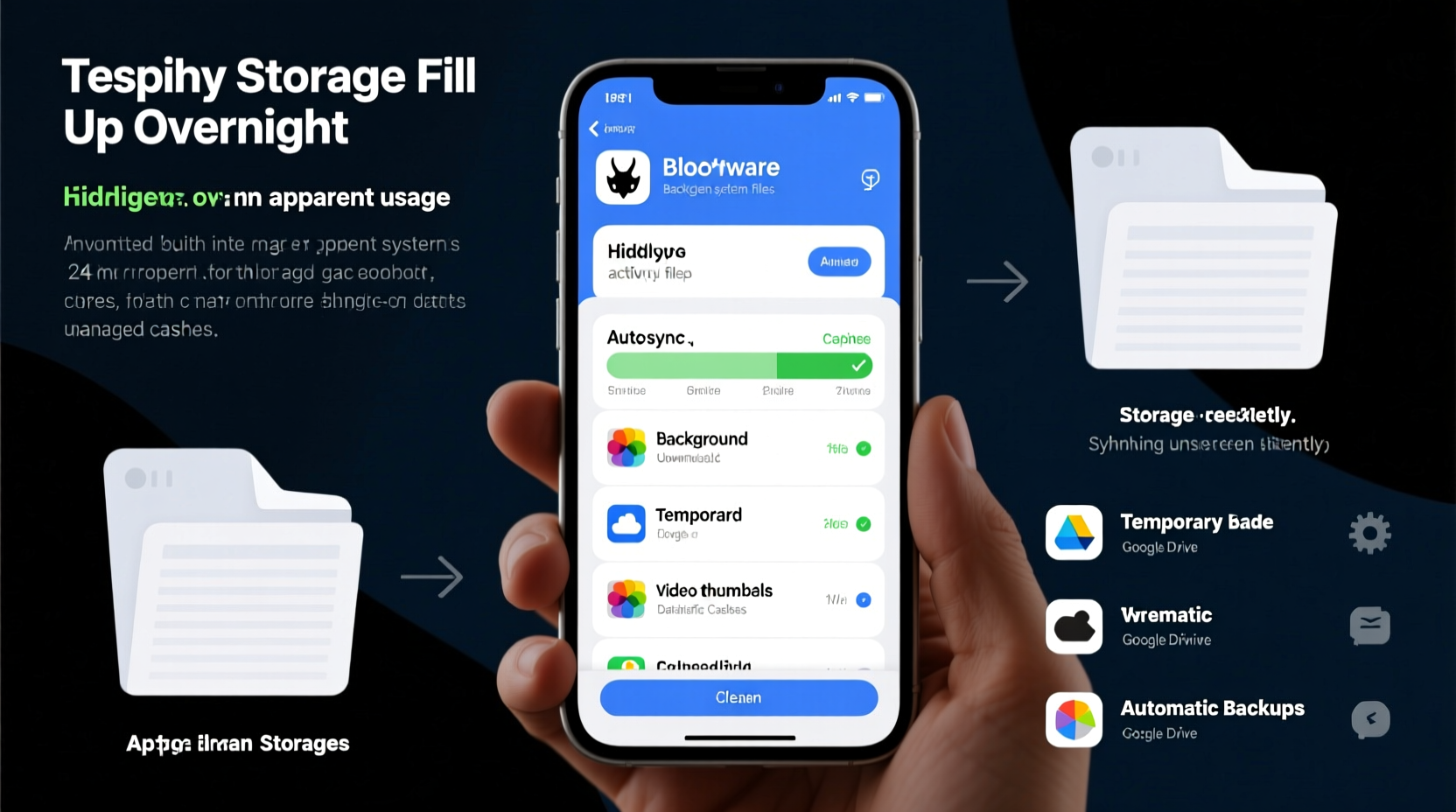
Modern smartphones are designed to stay connected, even when idle. Messaging apps, social media platforms, email clients, and cloud services run in the background, syncing data, downloading media, and caching content—all without user input. These operations can accumulate gigabytes of temporary files over time, especially if left unchecked.
For example, WhatsApp automatically downloads media from chats—photos, videos, voice notes—even if you haven’t opened them. Similarly, Facebook and Instagram cache high-resolution images and reels so they load faster the next time you scroll. While this improves user experience, it also eats up storage rapidly, particularly on devices with limited capacity like 64GB models.
Streaming apps like Spotify and YouTube Music may preload songs or videos based on your listening habits. Google Photos might be backing up thousands of images in the background, creating duplicates or keeping local copies after upload. Even system apps like Google Play Services generate logs and cache data that grow silently.
The Hidden Files You Can't See (But They're There)
Beyond visible apps and media, your phone generates numerous hidden files that contribute to storage bloat. These include:
- Cache files: Temporary data stored by apps to speed up loading times.
- Log files: Diagnostic records created by the operating system and apps.
- App leftovers: Residual data from uninstalled apps that wasn’t fully removed.
- Thumbnails: Small preview images generated for every photo and video.
- Downloaded updates: Partial OS or app update files stored during failed installations.
These files are typically buried deep within internal directories such as /Android/data/, /cache/, or .thumbnails. Most users never see them because file managers hide folders starting with a dot (.) or system-protected paths. Yet collectively, they can occupy several gigabytes.
“Hidden caches and orphaned app data account for up to 25% of perceived ‘missing’ storage on Android devices.” — Dr. Lena Patel, Mobile Systems Analyst at TechInsight Labs
Common Culprits Behind Sudden Storage Drain
Certain apps and services are notorious for aggressive background behavior. Identifying them early can prevent recurring issues.
| App Type | Storage Impact | Why It Fills Space |
|---|---|---|
| Messaging Apps (WhatsApp, Telegram) | High | Auto-downloads media, stores backups locally, caches messages |
| Social Media (Instagram, TikTok) | High | Caches videos, stories, reels; saves temporary files |
| Email Clients (Gmail, Outlook) | Moderate | Downloads attachments, syncs large mailboxes |
| Cloud Services (Google Drive, Dropbox) | Variable | Keeps offline copies, syncs versions, caches previews |
| System Processes (Android OS, iOS Updates) | High (temporary) | Downloads update packages, creates rollback files |
Real Example: Maria's Mystery Storage Drain
Maria, a freelance photographer using a 128GB iPhone, noticed her storage dropping from 40GB free to less than 5GB overnight. She hadn’t taken new photos or installed apps. After investigating, she discovered that Google Photos was set to “Back Up & Sync” but had failed to upload over 1,200 RAW images due to spotty Wi-Fi. Instead of pausing, the app kept retrying and storing duplicate compressed versions locally. Additionally, her messaging app had downloaded 4K video clips from a group chat automatically. By adjusting her settings and clearing cache, she reclaimed 28GB instantly.
Step-by-Step Guide to Reclaim Lost Storage
Follow this practical sequence to identify and eliminate hidden storage hogs:
- Check current storage usage: Go to Settings > Storage to see which categories dominate (Apps, Photos, System, etc.).
- Review largest apps: Tap into each major app and check its size breakdown (e.g., “Data” vs “Cache”).
- Clear app caches: For Android, tap “Clear Cache” under individual apps. On iOS, offload unused apps or delete/reinstall bloated ones.
- Delete unnecessary downloads: Open your Downloads folder and remove old files, APKs, or documents.
- Scan for duplicates: Use tools like Google’s “Files” app or iOS Shortcuts to detect duplicate photos and videos.
- Disable auto-backup features: Turn off automatic media saving in WhatsApp, Telegram, and similar apps.
- Use a file manager: Access hidden folders (on Android) to manually delete .thumbnails, log files, or leftover update packages.
- Restart your phone: This clears volatile cache and resets background processes.
Prevention Checklist: Stop Storage Bloat Before It Starts
To avoid waking up to a full phone again, implement these habits:
- ✅ Disable automatic media downloads in all messaging apps
- ✅ Set cloud backups to Wi-Fi only and monitor completion status
- ✅ Regularly clear browser and app cache (weekly recommended)
- ✅ Uninstall apps you haven’t used in over a month
- ✅ Move photos and videos to external storage or cloud with original deletion enabled
- ✅ Avoid using your phone as long-term storage for documents, PDFs, or music files
- ✅ Enable “Optimize Phone Storage” (iOS) or “Free Up Space” (Android)
When System Updates Are the Real Villain
Sometimes, the storage issue isn’t caused by apps at all—but by the operating system itself. When a new Android or iOS update is available, your phone may begin downloading the package in the background, often exceeding 2–5GB. If the installation fails or is postponed, the file remains stored until manually deleted.
On iPhones, iOS keeps a full copy of the previous system version for 7–10 days after an update, allowing rollback if needed. This “rollback file” can take up significant space. Similarly, Samsung and other Android manufacturers store firmware upgrade packages in hidden partitions.
If you suspect an update is responsible:
- Go to Settings > General > iPhone Storage (iOS) or Settings > Software Update.
- Look for messages like “Software Update Downloaded” or “Install Now.”
- If you don’t plan to install immediately, delete the update to free space.
“Firmware downloads are one of the most overlooked causes of sudden storage loss—especially when users ignore update prompts for weeks.” — Rajiv Mehta, Senior Firmware Engineer at MobileCore Solutions
Frequently Asked Questions
Can malware cause my phone storage to fill up?
Yes, though rare. Malicious apps can generate fake logs, download junk files, or mine cryptocurrency in the background. Stick to official app stores, review permissions carefully, and use built-in security scanners (like Google Play Protect) regularly.
Why does my storage show different amounts after restarting?
This happens because cached data is temporarily counted toward used space until the system recalculates during boot. Some cached files are cleared automatically on restart, giving the illusion of regained space. Persistent bloat indicates deeper issues with app data or residual files.
Is it safe to delete hidden files like .thumbnails or cache folders?
Generally yes—for user-generated cache and thumbnails. The system will regenerate them as needed. However, avoid deleting files in system-critical directories like /system/ or .android_secure unless you’re certain of their purpose.
Conclusion: Take Control of Your Digital Space
Your phone shouldn’t turn into a digital landfill overnight. The silent accumulation of app data, hidden caches, and background processes is a common but solvable problem. By understanding how modern apps behave and taking proactive steps to manage storage, you can maintain smooth performance and extend your device’s usable life. Don’t wait until your phone warns you about low storage—start auditing your usage today. A few minutes of maintenance now can save hours of frustration later.




 浙公网安备
33010002000092号
浙公网安备
33010002000092号 浙B2-20120091-4
Comments
No comments yet. Why don't you start the discussion?