
Waking up to a “Storage Full” notification on your smartphone can be frustrating—especially when you haven’t downloaded anything new. If you’ve noticed your phone’s available space shrinking overnight, the culprit might not be your habits. Behind the scenes, automatic app fixes, system updates, background processes, and hidden cache accumulation could be silently consuming gigabytes of storage. Understanding what triggers these changes is essential for regaining control over your device’s performance and longevity.
This issue affects both Android and iOS users, though the mechanisms differ slightly between platforms. Whether you’re using a flagship iPhone or a mid-range Android device, unexplained storage loss often stems from software behaviors designed to improve stability and security—but at the cost of your limited disk space.
How Automatic App Fixes Work—and Why They Use Storage
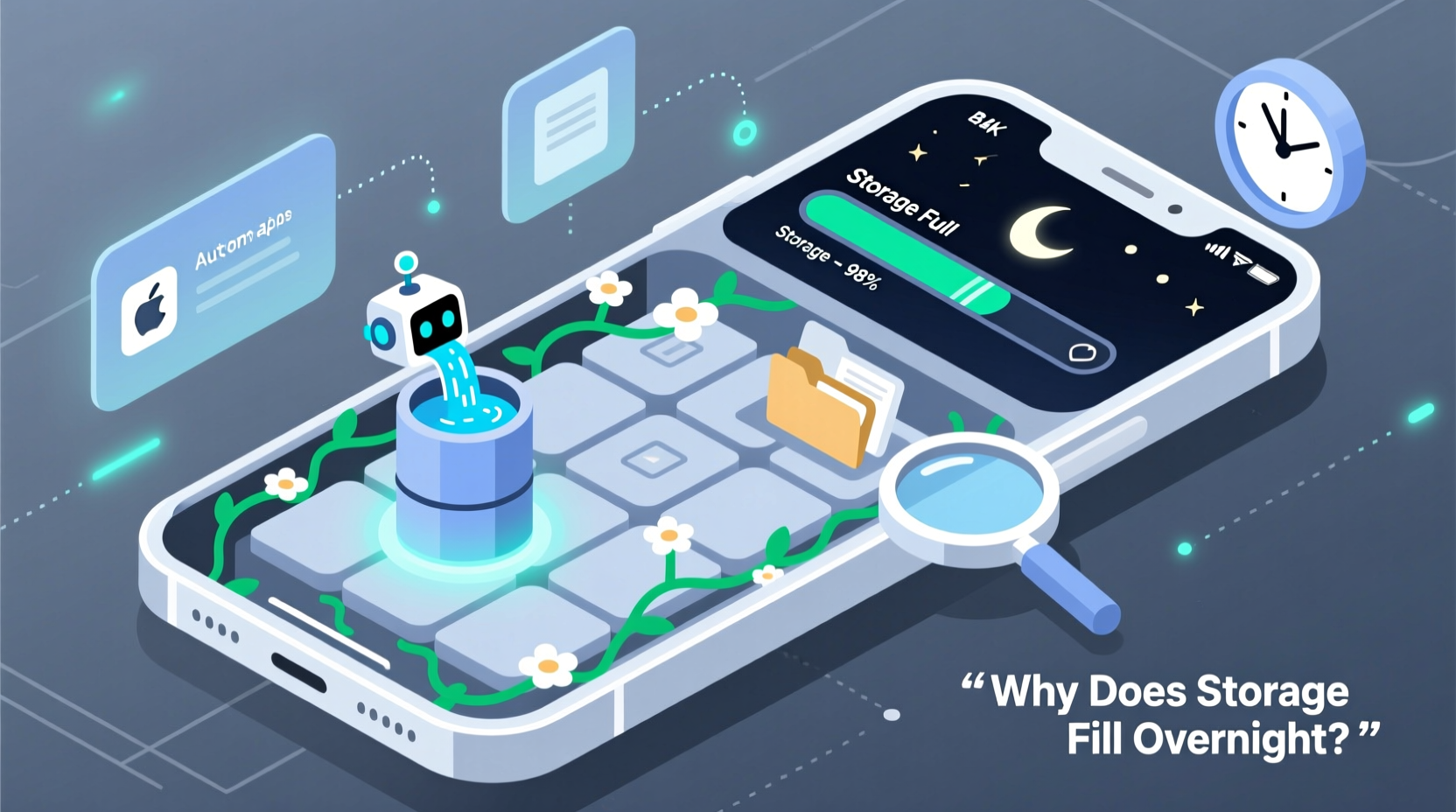
Modern smartphones are designed to self-maintain. When apps crash, behave abnormally, or become outdated, operating systems may initiate automatic fixes. These include background updates, patch installations, corrupted file replacements, and cache regeneration—all aimed at ensuring smooth operation without user intervention.
For example, Google Play Services on Android routinely checks installed apps for integrity issues. If it detects a missing component or corrupted data, it may automatically re-download parts of the app. Similarly, iOS uses background app refresh and automatic updates to keep apps current and functional. While helpful, these processes store temporary files, updated binaries, and logs that accumulate quickly.
The problem intensifies when multiple apps receive updates simultaneously overnight. A single update might use 50–100MB, but five such updates add up to half a gigabyte—enough to trigger low-storage warnings on devices with 32GB or less.
Common Background Processes That Consume Storage Overnight
Several system-level operations run silently while your phone charges or rests. Many are beneficial, but they contribute significantly to storage depletion:
- System Updates: Both Android and iOS download full OS patches in the background. These can exceed 1GB and remain stored until installation or deletion.
- App Cache Regeneration: After an update, apps rebuild cache files for faster loading. This includes thumbnails, session data, and preloaded content.
- Cloud Sync Backups: Apps like WhatsApp, Google Photos, or iCloud Drive may temporarily store local copies before syncing to the cloud.
- Bug Fix Patches: Developers sometimes push emergency fixes through app stores, which install automatically if enabled.
- Log File Accumulation: Diagnostic logs generated by failed processes or repeated crashes can grow large over time.
These functions typically activate during off-peak hours—usually between midnight and 6 AM—when the phone is connected to Wi-Fi and charging. The result? You go to bed with 2GB free and wake up with only 500MB.
“Automatic maintenance features are crucial for device reliability, but they assume users have ample storage. On entry-level devices, this creates a real usability conflict.” — Dr. Lena Torres, Mobile Systems Researcher at TechInsight Labs
Step-by-Step Guide to Diagnose and Stop Unwanted Storage Drain
If your phone consistently loses storage overnight, follow this diagnostic timeline to identify and resolve the root cause:
- Check Recent Storage Changes (Morning): Go to Settings > Storage and review which category increased overnight—Apps, System, Cache, or Photos.
- Review Installed Updates: On Android, open Google Play Store > Manage Apps & Device. Check “Updated recently.” On iOS, go to Settings > General > iPhone Storage and look for recently modified apps.
- Disable Auto-Updates Temporarily: In Google Play Store, tap your profile > Settings > Network Preferences > Auto-update apps > Don’t auto-update. On iPhone, disable App Updates under Settings > App Store.
- Clear System Cache (Android Only): Reboot into recovery mode and select “Wipe Cache Partition.” This removes temporary system files without deleting personal data.
- Monitor Background Activity: Use Digital Wellbeing (Android) or Screen Time (iOS) to see which apps ran overnight. Look for unexpected network or storage usage.
- Delete Pending OS Update Files: If a system update was downloaded but not installed, delete it manually via Settings > System > Software Update (or equivalent).
- Restart Your Phone: A reboot clears residual cache and stops rogue background tasks.
Repeat this process for two nights. If storage remains stable, automatic updates were likely the source. If the issue persists, investigate individual apps more closely.
Do’s and Don’ts: Managing Automatic Fixes Without Sacrificing Security
| Do’s | Don’ts |
|---|---|
| Enable automatic security updates only (not full app updates) | Allow all apps to auto-update without monitoring |
| Schedule updates during daytime when you can supervise | Ignore storage warnings—act immediately |
| Use built-in storage cleaners monthly | Delete system folders manually via file managers |
| Set Wi-Fi-only update rules | Store critical files in internal storage without backup |
| Review app permissions related to storage and background activity | Assume “optimized” means zero storage impact |
Real Example: How Sarah Recovered 3GB Lost Overnight
Sarah, a freelance designer using a Google Pixel 4a with 64GB storage, began receiving low-memory alerts every morning. She hadn’t installed new apps or taken extra photos. After checking her storage log, she found that “System” had grown from 8.2GB to 10.7GB overnight—a 2.5GB jump.
She reviewed recent updates and discovered that Chrome, Gmail, and Google Maps had all been updated simultaneously. Further investigation revealed that each app had regenerated extensive cache files post-update. Additionally, Android had downloaded a pending feature drop (Android 13 QPR3), storing the 1.4GB package in the system partition.
Sarah disabled automatic app updates, installed the pending OS update (which removed the cached file after installation), and cleared the cache for each updated app. Her available space returned to normal, and no further overnight losses occurred after adjusting her settings.
This case highlights how multiple small processes can combine into a major storage event—especially on devices nearing capacity.
Expert Tips to Prevent Recurrence
Maintaining long-term storage health requires proactive habits. Consider these strategies:
- Offload Unused Apps: iOS allows offloading; Android users can uninstall and reinstall later. Both preserve app data.
- Use Cloud Storage for Media: Enable Google Photos or iCloud with “Optimize Phone Storage” to keep only thumbnails locally.
- Limit Background Data: Restrict background data usage for non-essential apps in settings.
- Set Monthly Maintenance Routines: Schedule one day per month to clear caches, review updates, and back up critical data.
- Upgrade Storage When Possible: For heavy users, moving to 128GB+ devices reduces pressure from automatic processes.
“The average smartphone user underestimates background resource consumption by 300%. Awareness and routine checks are the best defense.” — Marcus Reed, Senior Analyst at MobileTrend Insights
Frequently Asked Questions
Can automatic app fixes harm my phone?
No, automatic fixes are designed to improve stability and security. However, excessive cache generation or incomplete updates may temporarily slow down your device or consume storage. These are rarely harmful but should be monitored on low-storage models.
Why does my storage decrease even when I don’t use the phone?
Your phone remains active at night. It checks for updates, syncs data, runs diagnostics, and downloads patches. These background tasks create temporary files and updated app versions that occupy space until cleaned or replaced.
Is it safe to delete system cache or update files manually?
Yes, if done correctly. Deleting a downloaded OS update file won’t harm your device—it will simply need to redownload it later. Clearing app cache is also safe. Avoid deleting unknown folders in internal storage, as this may corrupt system data.
Conclusion: Take Control Before Performance Suffers
Overnight storage loss due to automatic app fixes isn’t a glitch—it’s a side effect of modern smartphone automation. While these features aim to enhance user experience, they can overwhelm smaller storage capacities. By understanding what drives these changes and implementing smart management practices, you can prevent surprise alerts and maintain optimal device performance.
Start today by auditing your update settings, clearing unnecessary cache, and setting up a simple monthly cleanup routine. Small adjustments now can save you from constant storage anxiety later. Your phone works hard for you—even at night. Make sure it has the space it needs to do its job efficiently.




 浙公网安备
33010002000092号
浙公网安备
33010002000092号 浙B2-20120091-4
Comments
No comments yet. Why don't you start the discussion?