
You charge your phone at night with 30% storage free. By morning, it’s nearly full. No new apps, no downloads—just an invisible drain. This isn’t a glitch. It’s the result of hidden cache accumulation, background app behavior, and system processes silently consuming space. The frustration is real, but so are the solutions. Understanding what happens while you sleep—and how to stop it—is key to regaining control over your device’s performance.
Smartphones today run dozens of services in the background: syncing messages, updating apps, caching media, storing logs, and preloading content. While these features enhance user experience, they often operate without transparency. Over time, cached data piles up unnoticed, especially when apps misbehave or system bugs occur. The good news? You can diagnose, clean, and prevent this issue with targeted actions.
What Is Cache, and Why Does It Grow Overnight?
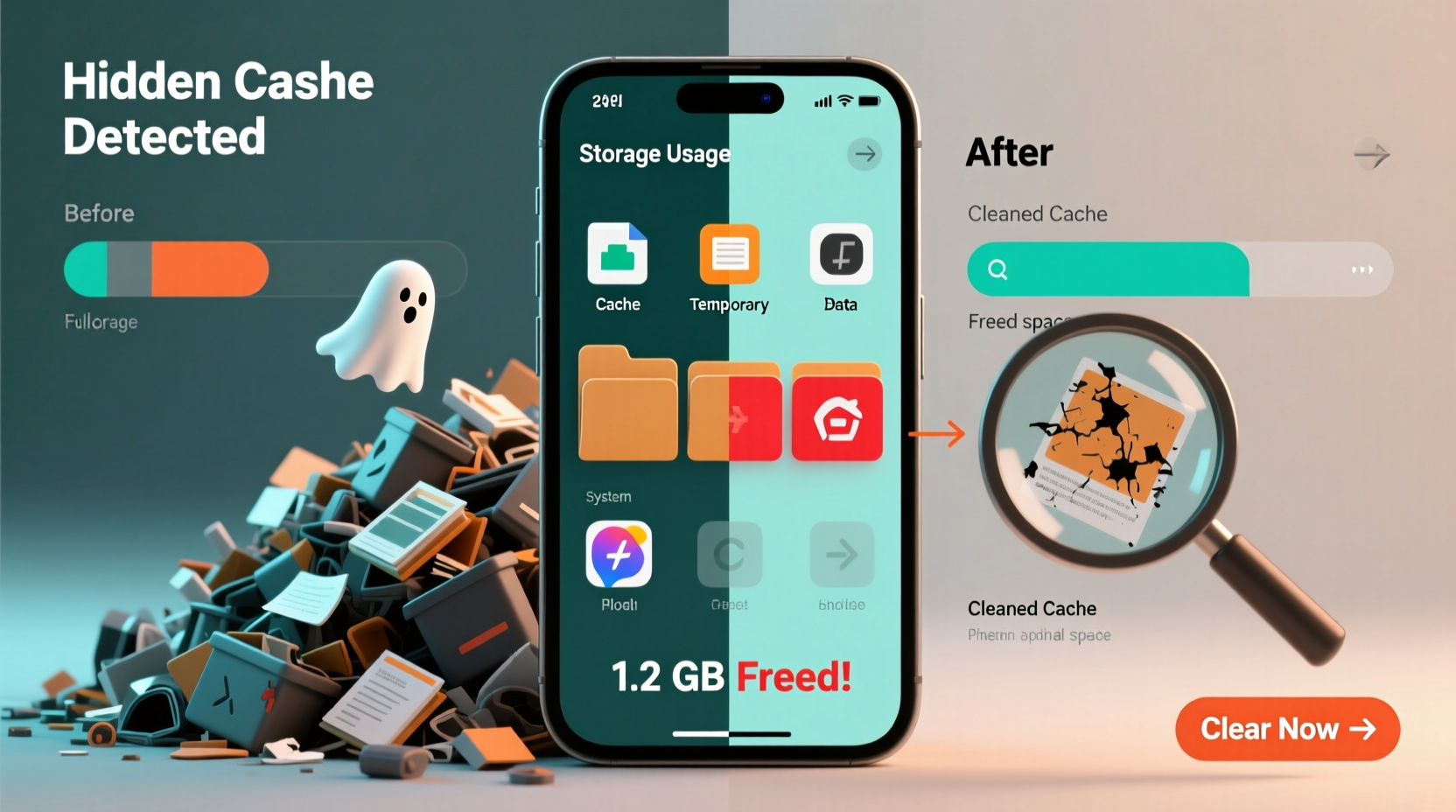
Cache is temporary data stored by apps and the operating system to speed up performance. When you open Instagram, for example, it caches profile images, stories, and video thumbnails so they load faster on repeat visits. Similarly, messaging apps like WhatsApp or Telegram store previews of media files before you choose to download them. This is normal—and useful—up to a point.
The problem arises when cache isn’t cleared automatically. Some apps fail to manage their cache lifecycle properly. Others accumulate data aggressively during off-peak hours (like overnight) when your phone is charging and connected to Wi-Fi. Background syncs, cloud backups, predictive loading, and software updates all contribute to this silent expansion.
For instance, Google Photos may begin backing up hundreds of photos after midnight. Spotify could be downloading recommended playlists based on your listening habits. Even Chrome might be pre-rendering web pages you’re likely to visit next. These actions generate temporary files that stay behind unless manually removed.
Common Hidden Culprits Behind Overnight Storage Drain
Not all storage consumption is visible. Below are the most frequent hidden sources of cache buildup:
- App auto-updates: Apps updated overnight create backup versions and temporary install files.
- Background media caching: Streaming services preload videos or songs during idle times.
- System logs and diagnostics: Android and iOS record usage patterns, errors, and network activity nightly.
- Synced messages and attachments: Messaging apps cache image, audio, and document previews—even if you never open them.
- Duplicate photo backups: Cloud services sometimes re-upload edited versions or duplicates.
- Residual update files: OS updates leave behind large installation packages after completion.
A 2023 report by Android Authority found that over 60% of users experiencing unexplained storage loss had more than 5 GB of undetected cache from just three apps: Facebook, YouTube, and Google Play Services. In some cases, cache grew by over 1 GB per week without user interaction.
“Many users don’t realize that background processes can consume gigabytes monthly. The system shows ‘Apps’ as using space, but doesn’t break down cache vs. actual content.” — Lena Torres, Mobile Systems Analyst at TechInsight Labs
Step-by-Step Guide to Diagnose and Clean Hidden Cache
Follow this structured approach to identify and eliminate unnecessary cache buildup.
- Check total storage usage: Go to Settings > Storage. Note the amount used and review category breakdowns (Apps, Photos, System, etc.).
- Sort apps by size: Tap “Apps” or “Manage Apps” and sort by size. Look for apps with unusually high storage use—especially those with large “Cache” values.
- Clear individual app cache: Open each suspicious app’s settings and tap “Clear Cache.” Do not tap “Clear Data” unless necessary, as it deletes login info and preferences.
- Use built-in cleanup tools: On Android, use “Phone Cleaner” (Samsung) or “Files by Google.” On iPhone, enable “Offload Unused Apps” and use “Review Large Attachments” in Messages.
- Delete old system update files: Android users: go to Settings > Software Update > Storage > Delete older update package. iPhone users: Settings > General > iPhone Storage > look for “iOS Update” and delete if present.
- Disable auto-play and preloading in media apps: In YouTube, Spotify, and TikTok, turn off “Preload videos” or “Download similar content.”
- Restrict background data: On Android: App Battery & Data Usage > restrict background data. On iOS: Settings > General > Background App Refresh > disable for non-essential apps.
- Restart your phone: After clearing cache, restart to ensure all temporary files are purged from memory.
This process typically recovers between 500 MB and 5 GB of space, depending on device age and usage history.
Do’s and Don’ts: Managing Cache Effectively
| Action | Do | Don't |
|---|---|---|
| Clearing cache | Monthly for heavy-use apps; weekly for browsers and social media | Never clear cache daily—it defeats its purpose of improving speed |
| Storage monitoring | Check storage weekly using native tools | Ignore warnings about low storage—they escalate quickly |
| Cloud backups | Enable automatic photo backup with original quality only on Wi-Fi | Allow unlimited uploads without reviewing what’s being backed up |
| App permissions | Allow storage access only to apps that need it (e.g., file managers) | Grant broad storage access to games or utility apps unnecessarily |
| OS updates | Install promptly, then delete installation files afterward | Leave old update packages sitting for months |
Mini Case Study: Recovering 7 GB from Hidden Cache
Sarah, a freelance photographer in Portland, noticed her iPhone 13 was running out of space despite deleting old photos and videos. She had 64 GB of storage, and within two weeks, it went from 20% full to completely full—overnight.
After consulting a technician, she discovered that the Photos app was caching multiple versions of edited images, even after she exported the final ones. Additionally, WhatsApp had accumulated over 3 GB of cached voice messages and image previews from group chats she rarely checked. The Mail app was also storing offline copies of large email attachments.
By following a targeted cleanup plan—clearing cache in Photos, disabling message auto-download in WhatsApp, and removing offline mail data—she reclaimed 7.2 GB of space. She now schedules a biweekly storage audit and uses iCloud Photo Library efficiently, avoiding local duplication.
Her case highlights how passive usage can lead to aggressive cache accumulation, especially with media-heavy apps.
Prevent Future Buildup: Long-Term Strategies
Reclaiming space is important, but preventing recurrence is essential. Implement these habits to maintain optimal storage health:
- Schedule monthly maintenance: Set a calendar reminder to review top storage-consuming apps and clear cache.
- Use cloud-first workflows: Store documents, photos, and videos in Google Drive, iCloud, or Dropbox instead of locally.
- Turn off auto-save in messaging apps: In WhatsApp, Telegram, and Signal, disable automatic download of media by type and size.
- Enable smart storage features: Use “Optimize Phone Storage” (iOS) or “Manage Device Storage” (Android) to keep full-resolution photos in the cloud.
- Limit app installations: Uninstall apps you haven’t used in 30 days. Each app carries baseline cache overhead.
- Monitor background activity: Check battery usage stats—they often correlate with data and cache usage.
Frequently Asked Questions
Is clearing cache safe?
Yes. Clearing cache only removes temporary files. It won’t delete your photos, messages, or account logins (though some apps may ask you to log in again). It can improve performance by removing corrupted or outdated temporary data.
Why does my cache keep coming back after I delete it?
Because apps regenerate cache as you use them. This is normal. The goal isn’t to eliminate cache entirely, but to prevent excessive buildup. Regular maintenance and adjusting app settings reduce the rate of return.
Can malware cause hidden cache growth?
Rarely, but possible. Malicious apps disguised as utilities or games may generate fake logs or duplicate files to consume space or hide activities. Only install apps from official stores and check reviews and permissions carefully.
Conclusion: Take Control of Your Phone’s Storage Today
Your phone shouldn’t become slower or less functional simply because unseen data accumulates overnight. Hidden cache issues are common, but they’re not inevitable. With awareness and routine management, you can stop unexpected storage loss before it impacts your productivity or peace of mind.
The steps outlined here—diagnosing cache sources, cleaning responsibly, adjusting settings, and maintaining long-term habits—are proven methods used by tech professionals and everyday users alike. Whether you’re dealing with 500 MB or 10 GB of phantom storage use, the solution starts with inspection and ends with control.




 浙公网安备
33010002000092号
浙公网安备
33010002000092号 浙B2-20120091-4
Comments
No comments yet. Why don't you start the discussion?