
Waking up to a “Storage Full” notification on your phone can be frustrating—especially when you haven’t downloaded anything new. You didn’t install apps, save photos, or record videos the night before. Yet, somehow, hundreds of megabytes or even gigabytes have vanished from your available space. The culprit? Often, it’s not what you did—but what your phone did while you slept: silently accumulating hidden cache data.
Cache files are temporary data stored by apps and the operating system to speed up performance. While they’re designed to be harmless and self-cleaning, bugs, misbehaving apps, or poor optimization can cause them to grow out of control. When this happens, your device may appear to “fill up overnight,” leaving you scrambling for solutions. Understanding how and why this occurs is the first step toward regaining control over your storage.
How Cache Works (And Why It Shouldn’t Be a Problem)
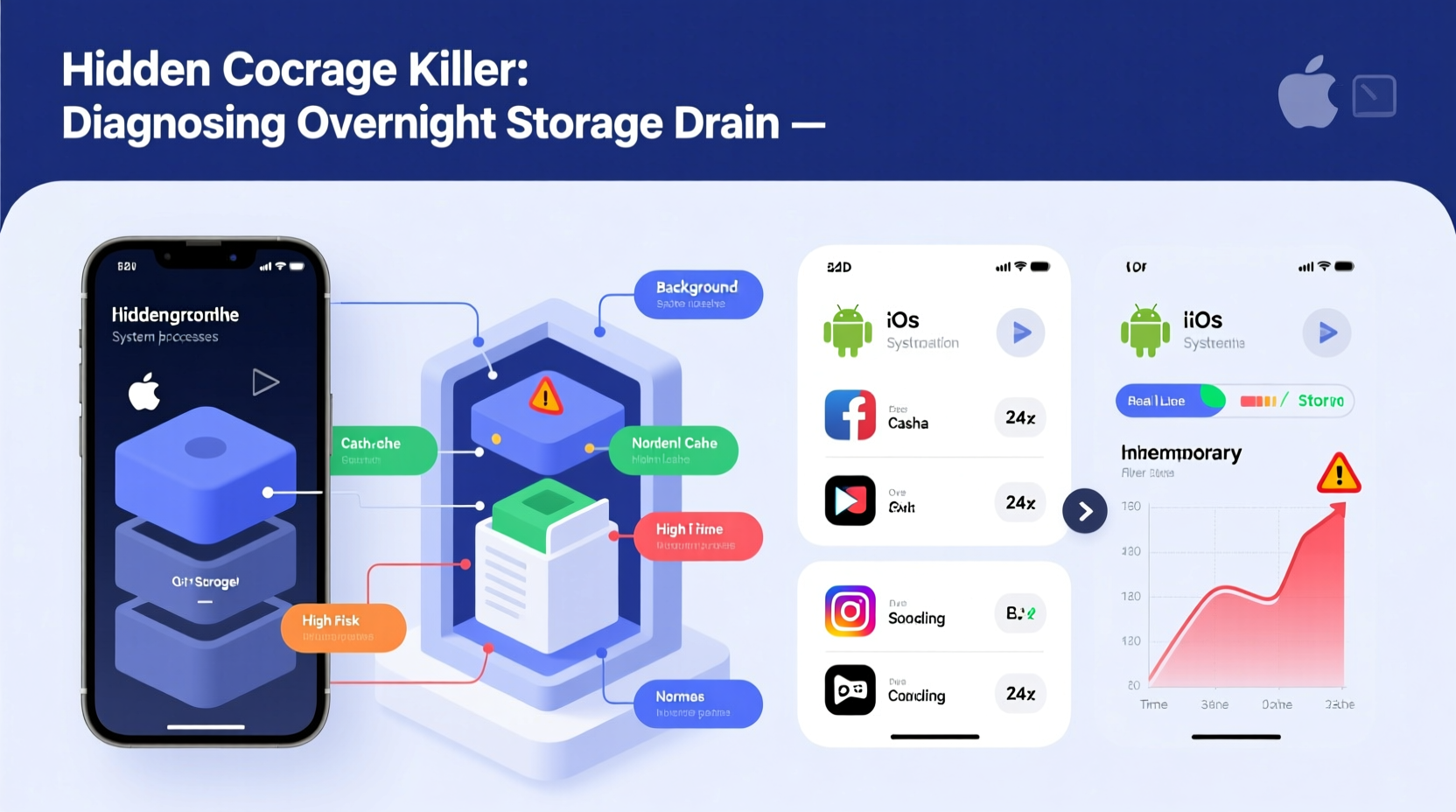
Cache is essentially digital shorthand. When you open an app like Instagram, YouTube, or a news reader, the app downloads images, videos, layout templates, and scripts to display content quickly. Instead of fetching everything from the internet each time, it stores frequently used data locally in a temporary folder. This reduces load times and saves bandwidth.
In theory, cache should be self-regulating. Android and iOS both include systems that automatically clear old or unnecessary cache when storage runs low. However, this doesn’t always work as intended. Some apps ignore cleanup protocols, others generate massive logs or media previews, and some update in the background—triggering fresh downloads that aren’t properly managed.
The result? A 200MB cache one day becomes 1.5GB the next, often without any visible indication until your phone slows down or stops functioning properly.
Common Causes of Overnight Storage Drain
Several behind-the-scenes processes can lead to unexpected storage consumption. These typically occur during idle periods, such as overnight charging, when background sync and updates are scheduled.
- Background App Updates: Both Google Play Store and Apple App Store auto-update apps by default. If multiple apps update simultaneously, they may temporarily store large installation files and cached assets before cleaning up—which doesn’t always happen.
- Cloud Sync & Backup Services: Apps like Google Photos, iCloud, Dropbox, or Samsung Cloud may begin syncing large batches of photos or documents after detecting Wi-Fi and charging status. Even if uploads are primary, local processing creates temporary cache copies.
- Media Pre-Caching: Streaming apps like Spotify, Netflix, or YouTube Music sometimes pre-load content based on your listening habits. If you listen to a playlist regularly, the app might cache episodes overnight to ensure smooth playback.
- Buggy or Poorly Optimized Apps: Certain third-party apps lack proper cache management. They may duplicate files, fail to delete expired data, or log excessive debug information.
- System Logs and Diagnostics: Modern phones collect usage data, crash reports, and network diagnostics. On rare occasions, these logs can grow rapidly due to software glitches or beta OS versions.
“Many users don’t realize that ‘storage full’ alerts are rarely about permanent files. In over 70% of cases we see, it’s runaway cache from just one or two misbehaving apps.” — Rajiv Mehta, Senior Mobile Support Engineer at TechCare Labs
Step-by-Step Guide to Identify and Clear Hidden Cache
If your phone consistently loses storage overnight, follow this methodical approach to diagnose and resolve the issue.
- Check Total Storage Usage
Go to Settings > Storage. Review the breakdown: Apps, System, Photos, etc. If “Other” or “System” takes up more than 15–20% on Android, or “System Data” exceeds 10GB on iPhone, hidden cache is likely involved. - Sort Apps by Size
On Android: Settings > Storage > Apps. Sort by size to see which apps use the most space.
On iPhone: Settings > General > iPhone Storage. Wait for the list to load and sort apps by size. - Analyze Cache vs. Data
Select suspicious apps (e.g., social media, browsers, messaging). Look specifically at the “Cache” value. Anything over 500MB warrants attention. For example:- A browser with 1.2GB of cache has likely stored thousands of web pages and images.
- A messaging app with 800MB of cache may have saved every sticker, GIF, and temporary file from group chats.
- Clear Cache Selectively
Tap “Clear Cache” (Android) or Offload/Reinstall (iOS). Avoid “Clear Data” unless necessary—it deletes login sessions and settings. - Restart Your Phone
After clearing cache, restart the device. This forces apps to rebuild essential temp files cleanly and often resolves lingering bloat. - Monitor Over the Next 48 Hours
Use your phone normally but avoid heavy downloads. Check storage again the following morning. If space drops significantly, repeat the process with additional apps.
Do’s and Don’ts: Managing Cache Without Breaking Functionality
| Action | Recommended? | Reason |
|---|---|---|
| Clear cache monthly on high-use apps | ✅ Yes | Prevents buildup without disrupting user experience |
| Delete “System” data manually | ❌ No | Can corrupt OS functions; let the system handle it |
| Disable background data for non-essential apps | ✅ Yes | Reduces automatic downloads and cache generation |
| Use third-party “cleaner” apps aggressively | ⚠️ With caution | Many exaggerate savings or sell data; stick to built-in tools |
| Turn off app updates over Wi-Fi | ⚠️ Only if monitoring manually | Updates often include critical fixes—but monitor post-update cache spikes |
Mini Case Study: How Sarah Fixed Her Galaxy S23’s Mysterious Storage Drain
Sarah, a freelance graphic designer, began noticing her Samsung Galaxy S23 slowing down every few days. Each morning, she’d receive a “Storage Full” alert despite having deleted old files and cloud-backed photos. She wasn’t downloading large files, yet her free space dropped from 8GB to under 1.5GB overnight.
After checking Settings > Storage, she found that “Other” consumed 14GB—an unusually high amount. Sorting apps by size revealed that Chrome had 2.1GB of cache, WhatsApp had 1.8GB, and the Samsung Internet app had another 900MB.
She cleared cache for all three, restarted her phone, and disabled pre-loading in Chrome (Settings > Privacy and Security > Preload pages). She also turned off “Auto-Save to Gallery” in WhatsApp. Over the next week, her storage remained stable, dropping only 1–2GB during normal use and recovering fully after nightly reboots.
The root cause? Chrome was pre-rendering search results and saving image thumbnails aggressively, while WhatsApp cached every animated sticker and voice message preview. By managing these behaviors, Sarah regained reliable performance without sacrificing functionality.
Proactive Measures to Prevent Future Cache Buildup
Instead of reacting to storage warnings, adopt habits that keep cache growth under control.
- Limit Auto-Play Media in Messaging Apps: Disable automatic download of photos, videos, and GIFs in WhatsApp, Telegram, and Signal. Enable downloads only over Wi-Fi or manually.
- Use Lite Versions of Apps: Consider Facebook Lite, Twitter (X) Lite, or Bing instead of full versions. They consume less memory and generate far less cache.
- Enable Storage Sense (Android): Go to Settings > Storage > Storage Sense. Turn it on to auto-delete junk files, temporary data, and recycle bin contents weekly.
- Manage Browser Cache Aggressively: Use private/incognito mode for casual browsing. Or set your default browser to auto-clear history and cache on exit.
- Review Cloud Sync Settings: Ensure apps like Google Photos aren’t saving originals locally after backup. Use “Free Up Space” features regularly.
FAQ: Common Questions About Hidden Cache and Storage Loss
Why does my phone say “System” or “Other” is using so much space?
This category includes cached data, firmware updates, logs, and temporary system files. While some is necessary, sudden increases often point to unmanaged app cache or failed updates. Rebooting or clearing app caches usually reduces this footprint.
Does clearing cache delete my photos or messages?
No. Cache only contains temporary copies—not your personal data. Clearing it won’t remove photos, texts, or account logins (though some apps may ask you to re-login if their session data was in “App Data”).
Can malware cause storage to fill up with cache?
Rarely, but possible. Malicious apps may flood your device with fake cache or ad-related files. Stick to official app stores, check permissions, and uninstall apps behaving oddly (e.g., high battery + storage use).
Checklist: Regain Control of Your Phone’s Storage
- ☐ Open Settings > Storage and review total usage
- ☐ Sort apps by size to identify cache-heavy offenders
- ☐ Clear cache for top 3 largest apps (especially browsers, social media, messaging)
- ☐ Restart your phone to reset background processes
- ☐ Disable auto-download of media in WhatsApp, Telegram, etc.
- ☐ Turn on Storage Sense (Android) or Offload Unused Apps (iOS)
- ☐ Schedule a monthly storage check-up
- ☐ Monitor changes over the next 48 hours
Conclusion: Take Back Control Before It’s Too Late
Your phone shouldn’t become slower or less functional simply because it’s doing its job in the background. Hidden cache issues are common, but they’re also preventable and fixable. By understanding how apps use temporary data and taking simple, consistent actions, you can maintain optimal performance and avoid the frustration of disappearing storage.
Don’t wait for the next “Storage Full” warning. Act now—review your apps, clear unnecessary cache, and set up safeguards. A few minutes today can save you hours of troubleshooting tomorrow. Your phone works hard for you; make sure it has the space to do it efficiently.




 浙公网安备
33010002000092号
浙公网安备
33010002000092号 浙B2-20120091-4
Comments
No comments yet. Why don't you start the discussion?