
Waking up to a “Storage Full” notification despite not installing new apps or downloading large files is a common frustration. Your phone didn’t magically shrink in capacity—but something did consume space while you slept. The culprit? Hidden data sources quietly accumulating in the background. From system logs to cached media and automatic updates, modern smartphones are designed to work autonomously, often at the cost of your storage. Understanding these invisible processes is the first step toward regaining control and preventing recurring issues.
The Silent Storage Thieves: What’s Really Filling Up Your Phone
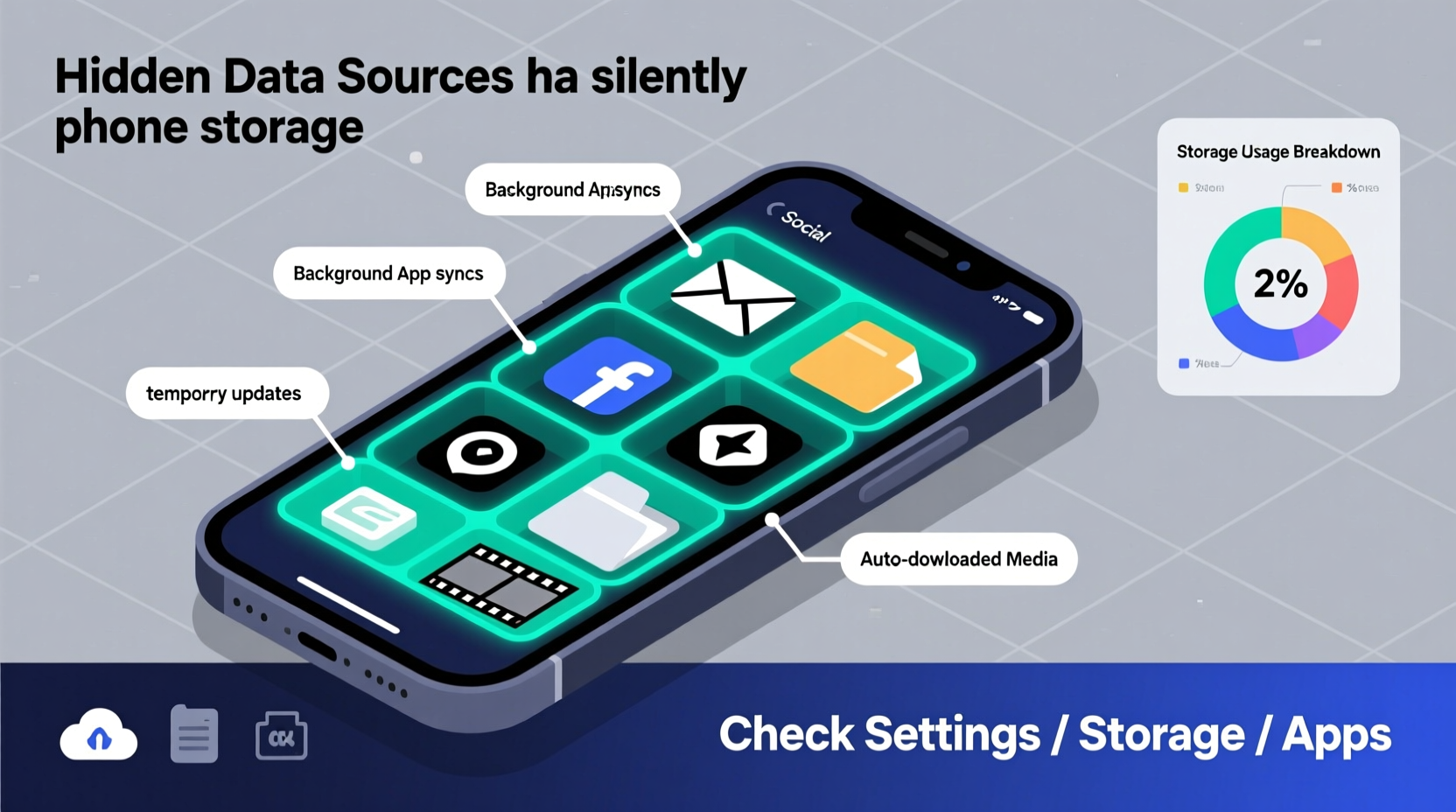
Most users assume that storage consumption comes from visible actions: taking photos, downloading videos, or installing apps. However, behind-the-scenes operations can be just as impactful—sometimes even more so. These silent contributors operate without user interaction, making them difficult to detect until they trigger warnings. Key culprits include:
- App cache accumulation: Temporary files stored by apps for faster loading.
- System and app updates: Automatic downloads initiated overnight.
- Media backups and syncing: Cloud services like Google Photos or iCloud may store local copies during syncs.
- Downloaded logs and diagnostics: Built-in tools recording performance or usage patterns.
- Hidden media files: Screenshots, voice memos, or temporary recordings saved automatically.
These elements don’t appear in obvious folders and rarely prompt confirmation before using space, which explains the sudden shortage.
Automatic App and System Updates: The Nighttime Downloaders
Smartphones are programmed to update software when idle—typically overnight when connected to Wi-Fi and charging. While this ensures security patches and feature improvements, it also means multi-gigabyte downloads happening without active consent. A single major OS update (like Android 14 or iOS 17) can require 3–5 GB of space. Even minor app updates, when aggregated across dozens of installed applications, add up quickly.
For example, if you have 50 apps with average update sizes of 50 MB each, that's 2.5 GB consumed in one go. And because the system needs space to unpack and install the update, it temporarily requires even more room than the download size suggests.
“Many users don’t realize their phones are downloading full OS images at night. That alone can explain a sudden drop from 20% to 5% storage.” — Dr. Lena Torres, Mobile Systems Analyst at TechInsight Labs
How to Manage Update-Related Storage Use
- Navigate to Settings > Software Update (Android) or Settings > General > Software Update (iOS).
- Disable “Automatic Updates” or set them to notify only.
- On Android, use Adaptive Battery & Data settings to restrict background data per app.
- Choose to update manually when you have sufficient free space and access to a stable network.
Cloud Syncing and Local Backups: Double-Dipping on Storage
Services like Google Photos, iCloud, Dropbox, and Samsung Cloud offer seamless photo and document backup. But many users overlook a critical detail: these services often keep a local copy of recently synced or “optimized” media. For instance, Google Photos’ “High Quality” backup still retains original-resolution versions on-device until you manually delete them via the “Free Up Space” option.
This creates a paradox: your photos are safely backed up in the cloud, yet they continue occupying device storage. Worse, some apps create duplicates during failed sync attempts or when switching between accounts.
Real Example: Sarah’s Storage Mystery
Sarah, a freelance photographer, noticed her iPhone storage dropping from 15% free to nearly full within two days. She hadn’t taken hundreds of new photos. After investigation, she discovered that her iPhone was re-downloading previously uploaded images due to a glitch in iCloud Photo Library syncing. The system had marked several albums as “pending sync,” triggering repeated downloads. By turning off and re-enabling iCloud Photos, then tapping “Optimize iPhone Storage,” she reclaimed over 6 GB instantly.
Cache Files and Residual Data: The Invisible Junkyard
Every time you browse the web, watch a video, or scroll through social media, your phone stores fragments of data—cached images, scripts, cookies, and temporary files—to speed up future visits. Over time, this cache grows silently. Messaging apps like WhatsApp, Telegram, and Facebook Messenger are especially aggressive in caching media previews, voice notes, and stickers.
For example, WhatsApp auto-saves received photos and videos unless disabled in settings. A single group chat with daily memes and clips can generate hundreds of MB per week—all stored locally by default.
| App Type | Common Hidden Data Source | Average Monthly Growth (Typical User) |
|---|---|---|
| Social Media | Image/video previews, stories cache | 300–800 MB |
| Messaging | Auto-saved media, voice messages | 500 MB – 2 GB |
| Browsers | Site data, offline pages, cookies | 200–600 MB |
| Streaming | Offline content, preview thumbnails | 1–5 GB (if used frequently) |
Clearing Cache Without Losing Data
You can safely clear cache without deleting personal files. Here’s how:
- Go to Settings > Storage.
- Select Cache or tap individual apps under “Apps & Notifications.”
- Tap “Clear Cache” (not “Clear Data,” which erases login info and settings).
- Repeat for high-use apps: Chrome, Instagram, TikTok, Spotify, etc.
Some Android devices offer a “Clean Now” button in the Storage section, which automates junk file removal.
Hidden Media and Logs: What You Can’t See But Still Counts
Your phone generates files you never intentionally created. These include:
- Screen recordings and voice memos: Accidentally started and forgotten.
- Call recordings: Enabled by default on some regional firmware versions.
- Diagnostic logs: Generated after crashes or connectivity issues.
- Residual app data: Leftovers from uninstalled apps that weren’t fully purged.
These files often reside in system folders inaccessible through standard file browsers. On Android, they may be located in /Android/data/ or .thumbnails/ directories. iOS keeps similar data in app-specific containers that only show up as part of the app’s total storage footprint.
Using a file manager with root access (on Android) or iTunes/Finder backups (on iOS) can help identify unusually large folders. Alternatively, third-party tools like DiskUsage (Android) or iMyFone Umate (iOS) visualize storage distribution, revealing hidden space hogs.
“Over 30% of ‘Other’ storage on iOS devices consists of cached system files and residual logs. Many users don’t know they can force a refresh by resetting all settings.” — James Reed, Senior Mobile Support Engineer at AppleCare Insights
Step-by-Step Guide to Reclaim Overnight Lost Space
If your storage suddenly filled up overnight, follow this diagnostic and cleanup process:
- Check recent storage changes: Go to Settings > Storage and review the breakdown. Look for spikes in “Apps,” “Photos,” or “Other.”
- Identify large apps: Sort apps by size. Focus on social, streaming, and messaging platforms.
- Clear cache selectively: Tap into top 5 largest apps and clear cache (not data).
- Review automatic updates: Check if a system or app update downloaded recently. Uninstall updates if necessary, then reinstall later when space allows.
- Scan for duplicate or old media: Use built-in tools like “Review Downloaded Photos” (Google Photos) or “Recently Deleted” album (iOS).
- Delete unnecessary offline content: Remove downloaded movies, podcasts, or maps no longer needed.
- Restart your device: Clears temporary system files and resets memory allocation.
- Monitor for 24 hours: Track whether storage stabilizes or continues shrinking.
Prevention Checklist: Stop Hidden Data Buildup Before It Starts
- ✅ Run a cache cleanup on top 10 apps
- ✅ Enable “Optimize Storage” for cloud photo services
- ✅ Disable auto-download of media in messaging apps
- ✅ Review and delete unused apps (especially those with high storage use)
- ✅ Turn off automatic system updates or schedule them manually
- ✅ Scan for duplicate photos or voice memos
- ✅ Restart phone to clear transient system files
Frequently Asked Questions
Why does my storage decrease even when I’m not using my phone?
Background processes like automatic updates, cloud syncs, app refreshes, and cache generation occur when your phone is idle, often overnight. These functions use storage without requiring user input, leading to unexplained space loss.
What is “Other” storage on iPhone, and can I delete it?
“Other” includes system files, caches, logs, and residual data. You cannot directly delete it, but clearing Safari history, restarting the device, or updating iOS often reduces its size. Avoid third-party cleaners claiming to remove “junk”—many are ineffective or risky.
Can malware cause sudden storage consumption?
Rarely on official app stores, but possible. Malicious apps might generate fake logs or download hidden files. If you notice rapid storage loss alongside battery drain or overheating, uninstall recently added apps and run a security scan using trusted antivirus tools like Google Play Protect or Malwarebytes.
Take Control of Your Phone’s Storage Today
Your phone shouldn’t feel slower or less functional just because unseen processes took over. By understanding the hidden sources of storage consumption—automatic updates, cloud sync behavior, app caches, and system logs—you gain the power to manage space proactively. Don’t wait for the red warning bar to act. Implement regular maintenance, adjust default settings, and audit your digital habits monthly. A few minutes of attention now can save hours of troubleshooting later.




 浙公网安备
33010002000092号
浙公网安备
33010002000092号 浙B2-20120091-4
Comments
No comments yet. Why don't you start the discussion?