
One day your phone is running smoothly with plenty of free space—then overnight, it warns you that storage is nearly full. No new apps, photos, or downloads explain the sudden change. This frustrating scenario affects millions of smartphone users every year. While modern phones are designed to manage data efficiently, hidden processes, system behaviors, and overlooked settings can silently consume gigabytes without warning. Understanding the root causes behind this issue is the first step toward regaining control over your device’s performance and longevity.
Hidden Culprits Behind Sudden Storage Loss
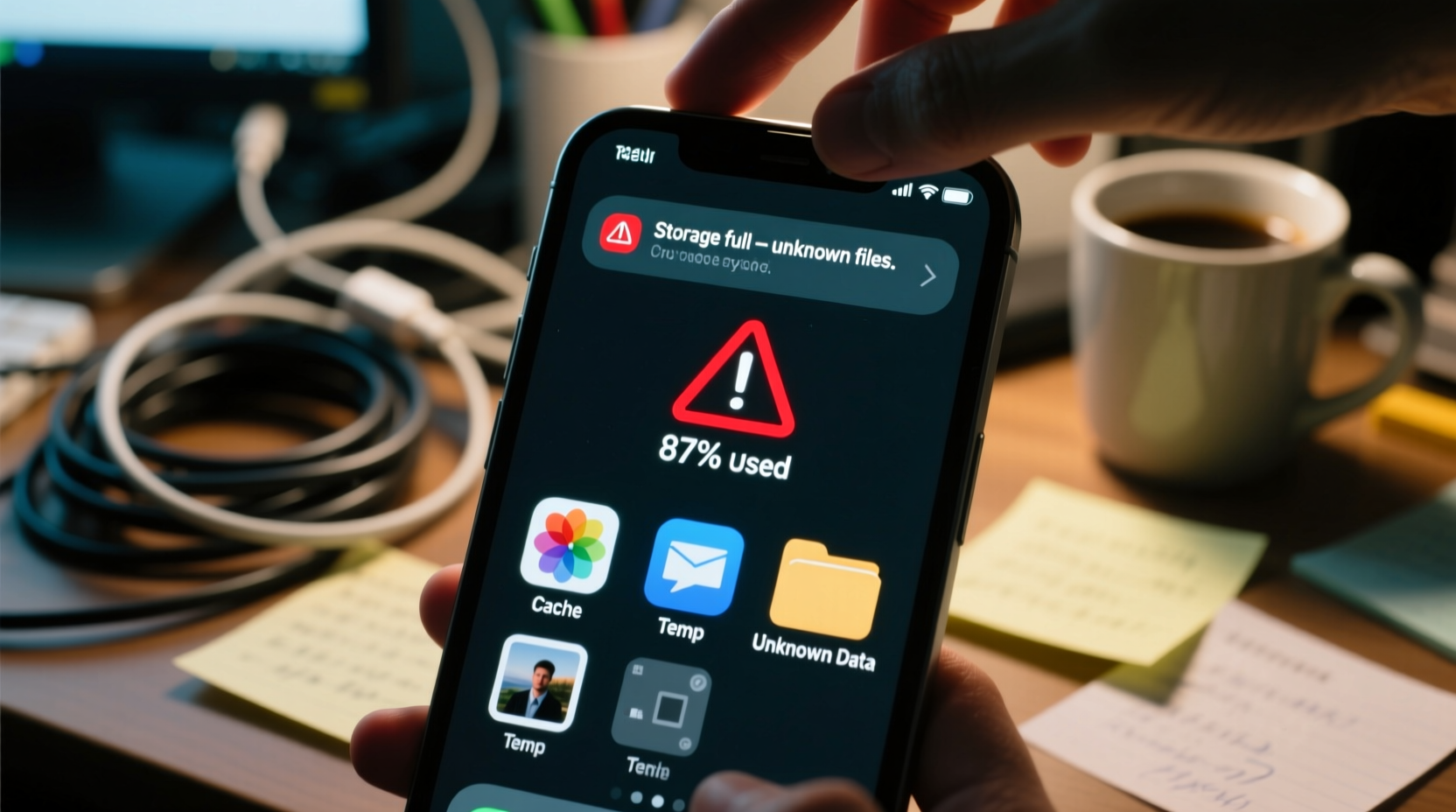
The most common reason for unexplained storage consumption lies beneath the surface: cache files, app data bloat, and background system operations. Unlike visible media such as photos or videos, these elements don’t appear in your gallery or file manager but can accumulate rapidly over time.
For example, messaging apps like WhatsApp, Telegram, or iMessage automatically save images, videos, voice notes, and documents unless configured otherwise. These files may be deleted from the chat interface but often remain stored locally on your device. Similarly, social media platforms such as Instagram, TikTok, and Facebook generate extensive caches to speed up content loading, which can grow into several gigabytes unnoticed.
System-level functions also contribute. Android and iOS both use dynamic storage allocation for temporary files, logs, and update remnants. When an OS update fails or gets interrupted, partial download files may linger. On iPhones, the “Other” category in storage settings—a mix of caches, logs, Siri voices, and system data—can balloon unexpectedly after major updates.
App Data Bloat: The Silent Space Hog
Many apps store far more than users realize. Take streaming services like Spotify or YouTube Music—they allow offline listening by downloading tracks directly to internal memory. If you’ve ever downloaded playlists for travel or commuting, those files might still exist even if you haven’t opened the app in weeks.
Similarly, gaming apps frequently expand beyond their original size due to downloadable content (DLC), texture packs, and saved progress. A game that started at 100MB can grow to over 2GB after extended use. Worse, some games lack proper cleanup mechanisms, meaning old save files aren’t purged when deleted in-game.
Consider the case of Maria, a graphic designer who noticed her iPhone storage jumped from 60% to 95% usage overnight. She hadn’t installed anything new, but upon inspection found that Adobe Fresco had accumulated over 7GB of auto-saved drafts and cached brushes. Disabling automatic cloud sync while working on large projects led to local-only saves piling up. After clearing the cache and enabling background upload limits, she reclaimed nearly all the lost space.
“Users often underestimate how much auxiliary data apps collect. It's not just what you see—it's what runs behind the scenes.” — David Lin, Mobile Systems Analyst at TechInsight Labs
Step-by-Step Guide to Diagnose and Free Up Space
If your phone storage has filled up suddenly, follow this structured approach to identify and resolve the issue:
- Check Total Storage Usage: Go to Settings > Storage (iOS: Settings > General > iPhone Storage). Review the breakdown by app and system categories.
- Sort Apps by Size: Identify the top three space-consuming apps. Look for anomalies—e.g., a note-taking app using 3GB is suspicious.
- Inspect Cache and Documents: Tap each large app to view its specific data usage. Clear cache where possible. Avoid clearing \"Documents & Data\" unless you’re certain about backups.
- Scan for Duplicate or Hidden Media: Use tools like Google Photos' “Files” tab (Android) or third-party cleaners such as Phone Cleaner or CleanMyPhone to detect duplicates, screenshots, or old downloads.
- Delete Old Backups and Local Snapshots: iOS devices create local iTunes backups if connected to a computer. Android phones may retain old Nandroid backups if rooted. Remove obsolete ones via Finder (Mac) or File Explorer (Windows).
- Restart Your Device: Sometimes, inaccurate storage reporting occurs due to software glitches. A reboot can refresh the system readout and correct false positives.
- Update Your Operating System: Bugs in older firmware versions have been known to misreport storage or fail to clear temp files. Install pending updates to patch known issues.
Do’s and Don’ts of Managing Phone Storage
| Action | Do | Don't |
|---|---|---|
| Clearing Cache | Regularly clear cache in high-use apps like browsers and social media | Never delete unknown folders manually through file managers |
| Photo Management | Enable cloud backup with auto-delete after sync | Don’t keep multiple copies across Gallery, Downloads, and WhatsApp folders |
| App Installation | Review permissions and storage needs before installing | Avoid sideloading apps from untrusted sources—they may include bloatware |
| Storage Monitoring | Use native tools weekly to track changes | Ignore warnings until the device becomes unusable |
When Cloud Sync Goes Wrong
Cloud integration is meant to reduce reliance on local storage, but misconfigurations can have the opposite effect. For instance, iCloud Photo Library may download full-resolution versions to your iPhone even when Optimized Storage is enabled—especially if Wi-Fi is consistently available. Similarly, Google Drive or Dropbox apps may be set to “sync all files” instead of selective folders, pulling hundreds of megabytes into local cache.
Another common issue involves email accounts. IMAP configurations on smartphones often download complete message histories, including attachments. A single forgotten work email with a 50MB PowerPoint attachment can multiply across dozens of messages, especially if multiple accounts are linked.
To prevent this, adjust sync settings:
- In Gmail: Go to Settings > [Account] > Sync Email > choose “Last 30 days” instead of “All.”
- In Outlook: Disable automatic download of attachments under Settings > Mail > Download Content.
- In iCloud: Confirm that Messages in iCloud is enabled so conversations sync online rather than storing locally.
Checklist: Immediate Actions to Reclaim Lost Space
If your phone is already showing low storage, act quickly with this checklist:
- ✅ Restart your phone to refresh storage indexing
- ✅ Open Settings > Storage and sort apps by size
- ✅ Clear cache in messaging, social, and streaming apps
- ✅ Delete recent duplicate photos and screenshots
- ✅ Offload unused apps (iOS) or uninstall bloatware (Android)
- ✅ Run a dedicated cleaner tool (e.g., Files by Google or CCleaner)
- ✅ Verify cloud backup status and enable auto-delete
- ✅ Disconnect from Wi-Fi temporarily to stop active syncs during cleanup
Could Malware Be to Blame?
While rare on iOS due to strict sandboxing, Android devices are vulnerable to malicious apps that generate fake logs, hidden downloads, or cryptocurrency miners that write persistent files. Symptoms include rapid battery drain, excessive heat, and unexplained data usage alongside storage depletion.
If you suspect malware:
- Boot into Safe Mode (press power button > long-press “Power off” > tap Safe Mode). This disables third-party apps.
- If storage normalizes in Safe Mode, a recently installed app is likely responsible.
- Uninstall apps one by one, starting with those from unknown developers.
- Install a reputable antivirus like Bitdefender or Malwarebytes for Android to scan deeply.
Note: Official app stores like Google Play and Apple App Store filter most threats, but phishing links or fake APKs bypass these protections. Always verify app legitimacy before installation.
Frequently Asked Questions
Why did my storage fill up overnight with no new downloads?
This usually results from background processes: automatic app updates, media auto-saves from messaging apps, or system logs generated during OS tasks. Some apps, like navigation tools, may have downloaded offline maps without explicit confirmation.
Can I trust third-party cleaning apps to fix this?
Proceed with caution. While tools like Files by Google or CleanMyPhone (by MacPaw) are reliable, many “booster” or “cleaner” apps exaggerate claims and may collect personal data. Stick to well-reviewed options from established developers.
Is it safe to delete “Other” or “System” storage on iPhone?
You cannot directly delete “Other” storage, but you can reduce it by updating iOS, offloading apps, or resetting all settings (Settings > General > Reset > Reset All Settings). This clears caches without deleting personal data.
Conclusion: Take Control Before It’s Too Late
Sudden storage exhaustion isn’t magic—it’s the result of compounding digital habits, automated behaviors, and overlooked settings. The key to prevention is awareness and routine maintenance. Waiting until your phone freezes or fails to take photos creates unnecessary stress. By understanding how apps and systems use space, applying smart configurations, and performing regular checkups, you ensure your device remains fast, responsive, and ready for daily use.
Don’t wait for the next alert. Open your storage settings now, identify the largest consumers, and apply the fixes outlined here. Small actions today prevent major headaches tomorrow.




 浙公网安备
33010002000092号
浙公网安备
33010002000092号 浙B2-20120091-4
Comments
No comments yet. Why don't you start the discussion?