
Your smartphone knows where you are—most of the time. But occasionally, it confidently places you hundreds of miles from home, showing weather for Des Moines while you’re sipping coffee in Denver, or routing your navigation through a city you’ve never visited. This isn’t just annoying; it can disrupt apps that rely on accurate location data, from food delivery to banking security. The root cause usually lies in how your device determines position—not just GPS, but a mix of signals that can sometimes misfire. Understanding why this happens and how to fix it is essential for anyone who depends on accurate location services.
How Smartphones Determine Your Location
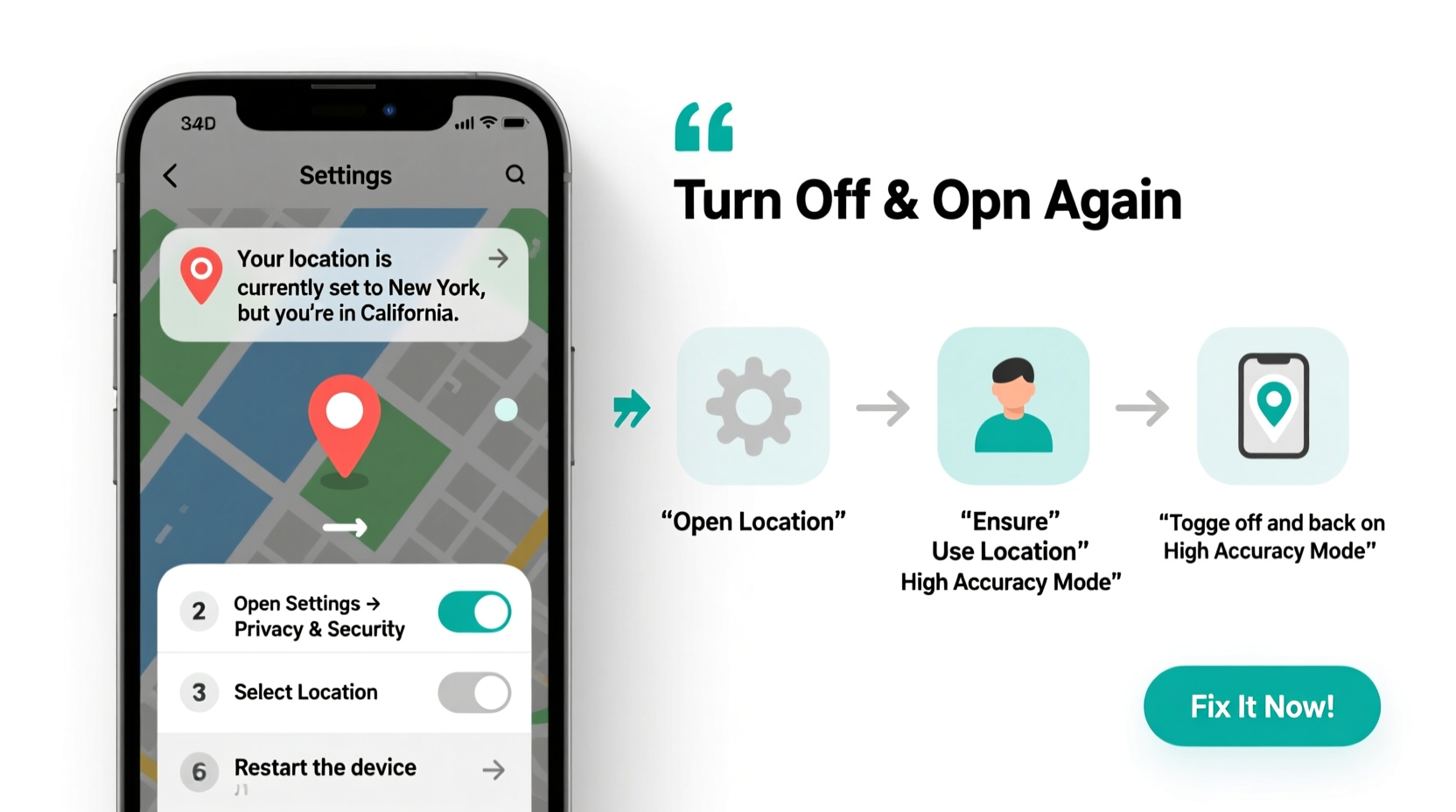
Contrary to popular belief, your phone doesn’t use GPS alone to pinpoint your location. Instead, it combines multiple sources:
- GPS (Global Positioning System): Uses satellite signals for precise outdoor positioning.
- Wi-Fi Positioning: Detects nearby networks and matches them to a global database of known router locations.
- Cellular Triangulation: Estimates position based on signal strength from nearby cell towers.
- Bluetooth & Nearby Devices: Some systems use Bluetooth beacons or device-to-device signals in dense urban areas.
While GPS is highly accurate outdoors with clear sky visibility, Wi-Fi and cellular data help maintain location tracking indoors or in areas with poor satellite reception. However, these alternative methods can introduce errors—especially if outdated Wi-Fi databases incorrectly associate your current network with a location in another state.
“Location accuracy on smartphones is a balancing act between speed, battery life, and precision. Sometimes, convenience sacrifices correctness.” — Dr. Lena Torres, Mobile Geolocation Researcher, MIT Media Lab
Common Causes of Incorrect State Detection
Several factors can trick your phone into thinking you're elsewhere. Here are the most frequent culprits:
Outdated or Inaccurate Wi-Fi Location Databases
When your phone connects to Wi-Fi, it may use the router’s registered physical address to estimate your location. If that address was incorrectly logged in a database—or hasn't been updated after the router was moved—it could place you in a completely different city or state.
VPN or Proxy Services
Using a virtual private network (VPN) masks your real IP address and routes traffic through servers in other regions. Many apps, especially web-based ones, rely on IP geolocation, which interprets your connection as coming from the server’s location—not yours.
Poor GPS Signal or Delayed Updates
In dense urban environments, underground spaces, or near large buildings, GPS signals can be blocked or reflected (a phenomenon called multipath interference). When GPS fails, your phone defaults to less accurate methods, potentially reverting to an old or incorrect location.
Aggressive Battery-Saving Settings
To conserve power, some phones limit background location access or reduce GPS polling frequency. This can result in stale location data being used across apps, making it appear as though you haven’t moved—or worse, that you’ve jumped states.
Step-by-Step Fixes to Correct Your Phone's Location
If your phone insists you're somewhere you’re not, follow this systematic approach to restore accurate positioning:
- Toggle Airplane Mode On and Off
This forces all wireless connections—Wi-Fi, cellular, and Bluetooth—to reset. Doing so clears temporary glitches in network-based location detection. - Turn Location Services Off and Back On
Go to Settings > Location (Android) or Privacy > Location Services (iOS), disable it for 10 seconds, then re-enable. This refreshes the location stack. - Clear Location Cache (Android Only)
Navigate to Settings > Location > Google Location History (or Location Services) > Clear Location History. Also consider clearing cache in Google Maps via App Settings. - Update Date, Time, and Time Zone Settings
Incorrect system time can interfere with GPS calculations. Ensure “Set Automatically” is enabled under Date & Time settings. - Forget and Reconnect to Wi-Fi Networks
If you suspect a rogue Wi-Fi location entry, go to Wi-Fi settings, tap the network, and select “Forget.” Reconnect and allow fresh location tagging. - Restart Your Device
A full reboot resolves many transient software issues affecting sensor coordination and location daemons. - Check for System and App Updates
Outdated operating systems or mapping apps may contain bugs related to geolocation processing. Install any pending updates.
Do’s and Don’ts of Fixing Location Errors
| Do | Don’t |
|---|---|
| Use high-accuracy mode (GPS + Wi-Fi + cellular) when precision matters | Rely solely on IP-based location estimates (e.g., website geolocation) |
| Calibrate your compass and motion sensors regularly | Assume GPS is always active—check app permissions |
| Test location accuracy using Google Maps or Apple Find My | Ignore persistent errors—they often indicate deeper configuration issues |
| Disable VPN when accurate location is required | Store routers or hotspots with outdated physical addresses in location databases |
Real-World Example: The Remote Worker Misplaced by Wi-Fi
Sarah, a freelance graphic designer living in Boise, Idaho, began noticing strange behavior after switching internet providers. Her iPhone kept displaying local news and weather for Columbus, Ohio. Ride-sharing apps quoted prices for trips around a city she’d never visited. After troubleshooting, she discovered her new ISP had reused a block of IP addresses previously assigned to a business in Ohio. Additionally, her Wi-Fi router’s MAC address was still listed in Google’s geolocation database under its old physical address. By forgetting the network, restarting her phone, and submitting a location correction to Google via maps.google.com/feedback, Sarah restored accurate location reporting within 48 hours.
Checklist: Restore Accurate Location in 5 Minutes
Quick Fix Checklist:
- ☐ Enable Airplane Mode for 15 seconds, then disable
- ☐ Toggle Location Services off and on
- ☐ Restart your phone
- ☐ Ensure \"Set Time Automatically\" is enabled
- ☐ Open Google Maps or Apple Maps and wait for blue dot to stabilize
- ☐ Disable any active VPN connection
- ☐ Forget and reconnect to your primary Wi-Fi network
Frequently Asked Questions
Why does Google Maps show me in another state?
This typically happens due to inaccurate Wi-Fi positioning, outdated location caches, or reliance on IP geolocation when GPS is unavailable. Resetting location settings and ensuring GPS access is enabled for Maps should resolve it.
Can a SIM card affect my phone’s location?
Not directly. While your carrier knows your general area via cell tower triangulation, your physical SIM doesn’t store location data. However, carrier-assisted GPS (A-GPS) uses network data to speed up satellite lock—so poor cellular service can delay accurate fixes.
How do I report a wrong location to Google or Apple?
On Android: Visit maps.google.com/feedback, zoom to your correct location, and submit a correction. On iOS: Use the “Report a Problem” link at the bottom of Apple Maps for similar feedback.
Conclusion: Take Control of Your Digital Location
Your phone’s ability to know where you are enhances everything from navigation to personal safety. When it gets it wrong, the ripple effects can be frustrating or even disruptive. The good news is that most location errors are fixable with a few targeted steps. By understanding how location services work and proactively managing settings, Wi-Fi connections, and app permissions, you can ensure your device reflects your true whereabouts. Accuracy starts with awareness—and a little maintenance goes a long way.




 浙公网安备
33010002000092号
浙公网安备
33010002000092号 浙B2-20120091-4
Comments
No comments yet. Why don't you start the discussion?