
It’s a familiar sensation: you feel a subtle buzz in your pocket or on the table, only to check your phone and find no new messages, calls, or notifications. These unexplained vibrations—commonly known as “phantom alerts”—can be more than just annoying. Over time, they erode trust in your device, cause unnecessary stress, and disrupt focus. The good news is that most causes are fixable with a few targeted adjustments. Whether you’re using an Android device or an iPhone, understanding the root of random vibrations is the first step toward eliminating them.
Understanding Phantom Vibrations: What They Are and Why They Happen
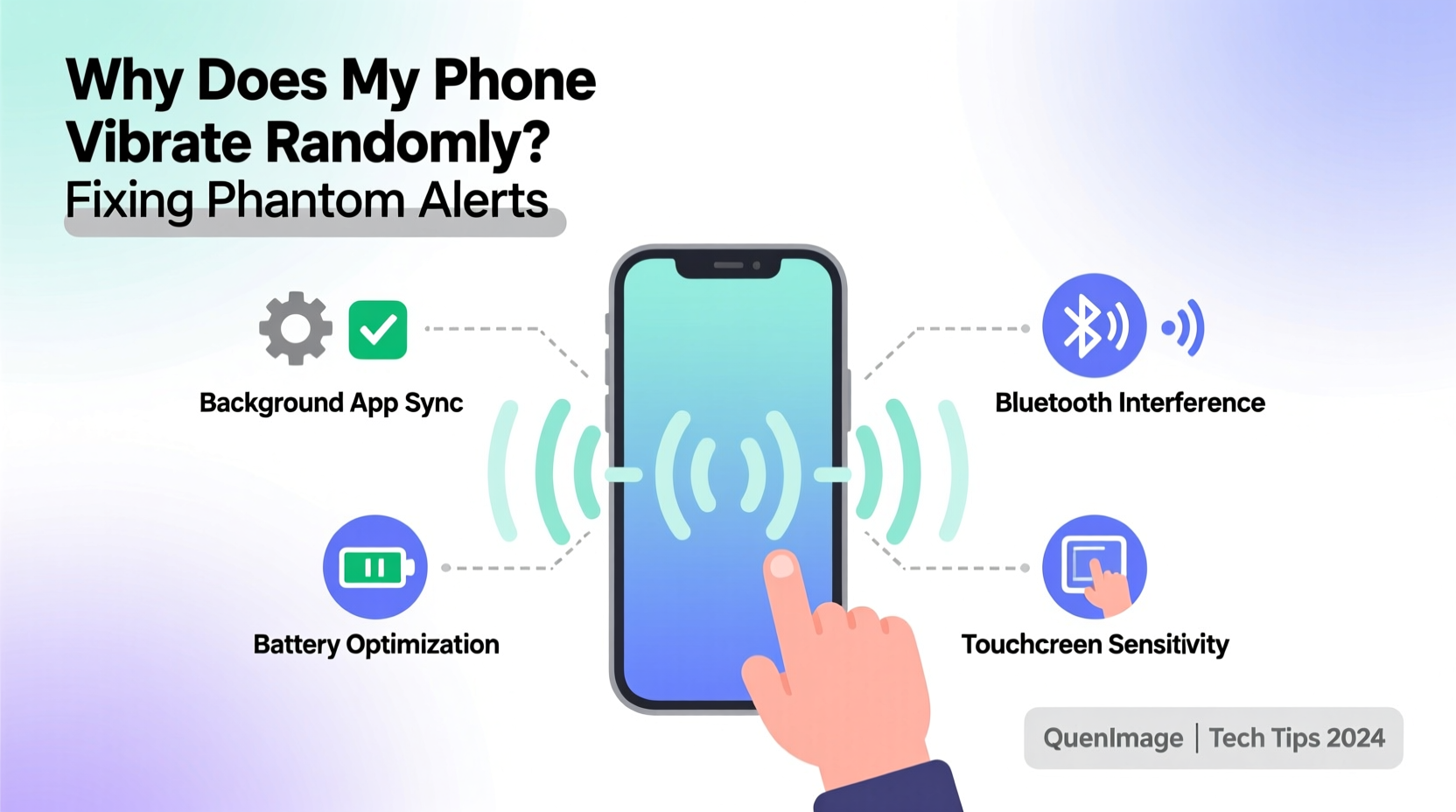
Phantom vibrations occur when your phone appears to alert you—usually through haptic feedback—but no actual notification has been delivered. Sometimes, the screen doesn’t even light up. This phenomenon can stem from software glitches, misconfigured apps, hardware quirks, or even psychological conditioning from constant phone use.
Researchers have studied this behavior extensively. A 2010 study published in the journal *Computers in Human Behavior* found that nearly 70% of mobile phone users reported experiencing phantom vibrations at least once. While not harmful physically, repeated false alerts can contribute to digital anxiety and reduced productivity.
“Phantom vibration syndrome reflects how deeply integrated smartphones are in our daily lives. The brain starts anticipating signals—even when none exist.” — Dr. David Laramie, Clinical Psychologist and Digital Behavior Specialist
Common Causes of Random Phone Vibrations
Before attempting fixes, it's essential to identify what might be triggering these phantom alerts. Here are the most frequent culprits:
- Background app activity: Some poorly coded apps trigger silent notifications or run services that initiate vibration without user-facing alerts.
- System updates or bugs: Recent OS updates may introduce temporary bugs affecting notification management.
- Scheduled maintenance tasks: Phones often perform background syncing, battery optimization, or network checks that include haptic feedback under certain conditions.
- Accessibility features: Features like Touch Feedback, Switch Access, or Voice Assistant prompts can cause unintended vibrations.
- Faulty hardware: A damaged vibration motor or loose internal connection may result in erratic behavior.
- Third-party accessories: Low-quality cases or charging cables can interfere with sensors and generate false signals.
- Notification mirroring: If you're connected to a smartwatch or car system, alerts may be mirrored incorrectly, causing duplicate or ghost vibrations.
Step-by-Step Fixes for Phantom Alerts
Resolving random vibrations requires both diagnostic steps and systematic troubleshooting. Follow this sequence to eliminate potential sources one by one.
- Restart your phone – A simple reboot clears temporary memory glitches and stops rogue processes. Many phantom vibrations disappear after a restart.
- Check for pending system updates – Go to Settings > System (Android) or Settings > General > Software Update (iPhone). Install any available updates, as patches often resolve notification bugs.
- Boot into Safe Mode (Android only) – This disables all third-party apps temporarily. If the issue stops in Safe Mode, a downloaded app is likely responsible.
- To enter Safe Mode: Press and hold the power button, then long-press \"Power off\" until \"Reboot to safe mode\" appears.
- If vibrations stop, uninstall recently installed apps one by one to identify the offender.
- Review notification settings per app – Navigate to Settings > Notifications. Disable vibration for apps that don't require it, especially social media, email, and utility tools.
- Disable non-essential haptic feedback – Turn off vibration for keyboard touches, system sounds, and interaction feedback.
- On Android: Settings > Sound > Advanced > Vibration intensity (set touch feedback to zero).
- On iPhone: Settings > Sounds & Haptics > System Haptics (toggle off).
- Clear cache partition (Android) – Corrupted cache can cause erratic behavior.
- Turn off the phone.
- Press and hold Power + Volume Up until the logo appears.
- Use volume keys to select “Wipe cache partition,” confirm with power button.
- Reboot normally.
- Reset all settings (non-destructive) – This resets network, sound, and notification preferences without deleting personal data.
- iOS: Settings > General > Transfer or Reset iPhone > Reset > Reset All Settings.
- Android: Settings > System > Reset options > Reset Wi-Fi, mobile & Bluetooth (or similar).
Do’s and Don’ts: Managing Phone Vibrations Effectively
| Action | Do | Don’t |
|---|---|---|
| Notification Management | Customize vibration patterns per app; disable for low-priority ones. | Allow all apps to vibrate freely without review. |
| Hardware Checks | Inspect for physical damage; test vibration motor in settings. | Ignore persistent buzzing if accompanied by overheating or lag. |
| Software Maintenance | Update apps and OS regularly; remove unused apps. | Install apps from untrusted sources or sideload APKs frequently. |
| Accessory Use | Use manufacturer-certified chargers and cases. | Keep thick metal cases that may interfere with sensors. |
| Troubleshooting | Test in Safe Mode or after reset to isolate issues. | Immediately factory reset without diagnosing first. |
Real-World Example: Solving Phantom Vibrations on a Samsung Galaxy S22
A user named Marcus reported that his Galaxy S22 began vibrating randomly several times per hour, mostly during idle periods. No notifications appeared, and the screen remained dark. He had recently updated to One UI 6.0 and installed a new fitness tracker app.
Following the diagnostic steps:
- He restarted the phone—vibrations continued.
- Booted into Safe Mode—no vibrations occurred over two hours.
- Uninstalled the fitness app—problem resolved immediately.
Upon further inspection, the app was sending silent health reminders that triggered haptics but didn’t display banners. Disabling its notification permissions permanently stopped the phantom alerts. This case highlights how seemingly harmless apps can create disruptive behaviors due to poor notification design.
When Hardware Might Be to Blame
If software fixes fail, consider hardware issues. The vibration motor (also called the haptic actuator) can malfunction due to moisture exposure, physical shock, or manufacturing defects. Signs of hardware failure include:
- Vibrations occurring without any pattern or trigger.
- Motor running continuously or making buzzing noises.
- Inability to turn off vibration even in silent mode.
- Phone heating up near the bottom edge where the motor is located.
To test the motor:
- Go to Settings > Sound > Vibration intensity (Android) or Settings > Sounds & Haptics (iPhone).
- Adjust the slider and feel for consistent response.
- Try enabling vibration for calls and texts separately.
If the motor behaves erratically across all settings—or activates spontaneously—a repair may be necessary. Visit an authorized service center rather than attempting DIY fixes, which could void warranties.
FAQ: Common Questions About Phantom Vibrations
Can a virus make my phone vibrate randomly?
True malware that controls hardware is rare on modern smartphones due to strict app sandboxing. However, malicious apps with excessive permissions can trigger unwanted notifications and vibrations. Only download apps from official stores and review permissions carefully.
Why does my iPhone vibrate twice for one message?
This is typically due to a feature called “Repeat Alerts.” If enabled, your iPhone will re-alert you after a set time if you haven’t viewed the notification. To disable: go to Settings > Notifications > Messages > Repeat Alerts > set to “Never.”
Is phantom vibration syndrome dangerous?
No, the condition itself isn’t harmful. However, if you’re constantly checking your phone due to perceived alerts, it may indicate digital dependency. Consider setting boundaries with screen time limits or notification detox periods.
Final Checklist: Eliminate Phantom Vibrations for Good
- ✅ Restart your phone to clear temporary glitches.
- ✅ Check for and install OS and app updates.
- ✅ Boot into Safe Mode (Android) to test for third-party app interference.
- ✅ Review and adjust notification settings for each app.
- ✅ Disable system-wide haptic feedback where unnecessary.
- ✅ Clear cache partition (Android) or reset all settings (iOS/Android).
- ✅ Uninstall suspicious or recently added apps.
- ✅ Test the vibration motor manually through settings.
- ✅ Remove third-party cases and chargers temporarily to rule out interference.
- ✅ Seek professional repair if hardware failure is suspected.
Conclusion: Take Control of Your Device Experience
Your phone should serve you—not distract you with false alarms. Random vibrations undermine reliability and increase digital fatigue. By methodically addressing software settings, reviewing app behavior, and recognizing when hardware intervention is needed, you can restore confidence in your device’s alerts. Start with the simplest solutions: a restart, a settings review, and a moment of observation. Most cases resolve quickly once the true source is identified. Don’t tolerate persistent phantom alerts—your peace of mind is worth the troubleshooting effort.




 浙公网安备
33010002000092号
浙公网安备
33010002000092号 浙B2-20120091-4
Comments
No comments yet. Why don't you start the discussion?