
Many smartphone users assume that enabling silent mode completely disables all sound and vibration alerts. However, a common frustration arises when the phone continues to vibrate despite being set to silent. This behavior can be disruptive—especially during meetings, sleep, or quiet environments—and often leaves users puzzled. The root cause isn’t a malfunction but rather specific system-level settings designed for accessibility, notifications, or user customization. Understanding these hidden configurations is key to gaining full control over your device’s alert behavior.
This guide breaks down why phones vibrate in silent mode, identifies the exact settings responsible, and provides step-by-step solutions for both iPhone and Android devices. Whether you're dealing with persistent buzzes from messages, calls, or app alerts, this article will help you eliminate unwanted vibrations for good.
Understanding Silent Mode vs. Vibration Settings
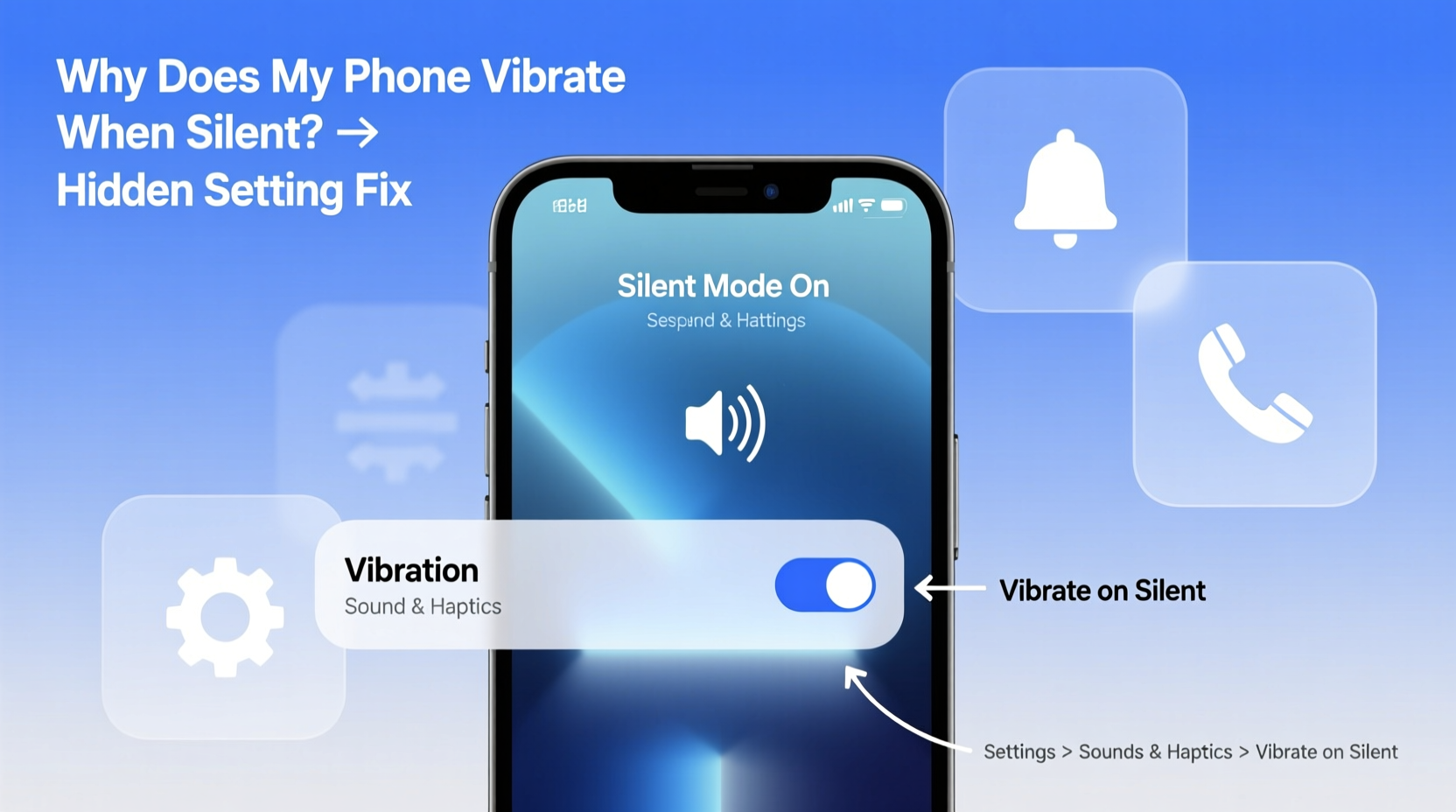
Silent mode doesn’t always mean “no alerts.” On most smartphones, it only disables audible ringtones and notification sounds. Vibration, however, operates independently and may remain active unless explicitly turned off. This separation exists because vibration serves as an alternative alert method, particularly useful for users who are hard of hearing or prefer discreet notifications.
Manufacturers and operating systems like iOS and Android include multiple layers of alert controls. These allow fine-tuning for different types of interactions: calls, texts, alarms, timers, and third-party apps. As a result, even if your phone appears to be in silent mode, certain functions may still trigger haptic feedback based on individual app settings or system-wide preferences.
“Silent mode is not a one-size-fits-all setting. It suppresses sound, but vibration often persists due to accessibility features and user-specific configurations.” — Dr. Alan Torres, Mobile Usability Researcher at UX Lab Institute
Common Causes of Vibration in Silent Mode
The continued vibration during silent mode typically stems from one or more of the following sources:
- System-Level Haptic Feedback: Both iOS and Android have global haptics enabled by default, providing tactile responses to touches, alerts, and gestures.
- Accessibility Features: Options like “Vibration on Ring” or “Call Vibration” are designed to assist users with hearing impairments and may override silent settings.
- App-Specific Notification Settings: Individual apps (e.g., WhatsApp, Messenger, Email) can bypass system silencing and maintain their own vibration profiles.
- Do Not Disturb Exceptions: If Do Not Disturb (DND) is used instead of silent mode, certain contacts or repeated calls might still trigger vibrations.
- Physical Switch Misinterpretation: On iPhones, switching the ring/silent toggle only affects sound—vibration settings must be adjusted separately in software.
iOS Fix: Stop iPhone Vibration in Silent Mode
Apple devices use a combination of hardware toggles and deep software settings to manage alerts. Here’s how to fully disable vibration when your iPhone is in silent mode:
- Disable Vibration for Ringtones:
Go to Settings > Sounds & Haptics > Ringtone. Tap “Vibration” and select “None” under “Ring Vibration.” Repeat for “Text Tone Vibration.” - Turn Off System Haptics:
Navigate to Settings > Sounds & Haptics and toggle off “System Haptics.” This stops subtle taps during keyboard presses, alerts, and UI interactions. - Adjust Do Not Disturb Settings:
Even in silent mode, DND rules may allow vibrations. Go to Settings > Focus > Do Not Disturb. Under “Allowed Notifications,” tap “Repeats Calls” or “People” and ensure vibration exceptions aren’t enabled. - Use Scheduled Focus Modes:
Create a custom Focus mode (e.g., “Sleep” or “Meeting”) that silences all alerts, including vibration. Set it to auto-activate during specific hours. - Check Accessibility Settings:
Some users unknowingly enable vibration through accessibility options. Visit Settings > Accessibility > Touch > Call Audio Routing and ensure “Vibration” isn’t forced on incoming calls.
Mini Case Study: Sarah’s Late-Night Buzz Problem
Sarah, a nurse working night shifts, relied on her iPhone’s silent mode to rest during the day. Despite flipping the mute switch, her phone vibrated every time a message arrived, disrupting her sleep. After checking standard sound settings with no success, she discovered that “System Haptics” was still active. By disabling this feature under Sounds & Haptics, the vibrations stopped completely. She also created a “Daytime Rest” Focus mode to automate total silence, solving the issue permanently.
Android Fix: Eliminate Vibration in Silent Mode
Android offers greater customization than iOS, but this flexibility can lead to confusion. Different manufacturers (Samsung, Google Pixel, OnePlus, etc.) implement their own variations of silent and vibration modes. Below is a universal approach applicable to most Android versions (Android 10+).
Step-by-Step Guide to Disable Vibration on Android
- Switch to Total Silence Mode:
Open the Quick Settings panel by swiping down. Tap the “Sound” or “Volume” icon until you see “None” or “Total Silence.” Avoid “Vibrate” or “Priority Only” modes, which may still allow haptics. - Adjust Phone App Vibration Settings:
Open the default Phone app > tap the three-dot menu > Settings > Call Alerts > Vibration. Choose “Never” or “No Vibration.” - Modify Notification Vibration:
Go to Settings > Sound > Vibration Intensity. Set “Notification Vibration” to zero or “Off.” Note: This option may be labeled differently depending on brand (e.g., “Haptic Feedback Strength” on Samsung). - Review App Notification Permissions:
For each app generating vibrations (e.g., messaging apps), go to Settings > Apps > [App Name] > Notifications. Select each notification category and disable “Vibrate” individually. - Disable Touch Haptics:
Navigate to Settings > Sound > Advanced > Touch Feedback (or “Vibration Feedback”) and turn it off. This stops vibrations when pressing buttons or typing. - Use Bedtime or Zen Mode (Optional):
Enable Digital Wellbeing features like “Bedtime Mode” or “Focus Mode” to automatically silence all alerts, including vibration, during scheduled times.
| Issue | iOS Solution | Android Solution |
|---|---|---|
| Phone vibrates on calls in silent mode | Set Ring Vibration to “None” in Sounds & Haptics | Disable vibration in Phone app settings |
| Messages vibrate despite silent mode | Change Text Tone Vibration to “None” | Turn off vibration per app in Notifications |
| Screen touches cause vibration | Disable “System Haptics” | Turn off “Touch Feedback” or “Haptic Feedback” |
| Alarms still vibrate | Check alarm app settings; iOS alarms vibrate by default | Alarms bypass silent mode; edit alarm settings manually |
Frequently Asked Questions
Does silent mode stop all vibrations?
No. Silent mode only disables sound. Vibration is controlled separately through system settings, app preferences, and accessibility features. To stop all vibrations, you must manually disable haptic feedback across multiple menus.
Why do alarms still vibrate in silent mode?
Alarms are designed to be reliable wake-up tools, so they bypass silent and DND modes by default. However, you can adjust alarm vibration by editing each alarm in your Clock app and selecting a non-vibrating alert type or turning off vibration entirely.
Can I schedule total silence automatically?
Yes. Both iOS and Android support automated focus or downtime modes. On iPhone, use Focus modes with custom schedules. On Android, activate “Focus Mode” or “Bedtime Mode” via Digital Wellbeing to silence everything—including vibration—at set times.
Expert Tips for Permanent Vibration Control
Maintaining a truly silent device requires proactive management. Consider the following checklist to prevent future disruptions:
- ✅ Turn off “System Haptics” (iOS) or “Touch Feedback” (Android)
- ✅ Set ringtone and text tone vibration to “None”
- ✅ Review and update notification settings for top apps (WhatsApp, SMS, Email)
- ✅ Disable vibration in the Phone app settings
- ✅ Configure a Focus/DND mode for automatic daily silencing
- ✅ Recheck settings after OS updates—defaults may reset
Conclusion: Take Full Control of Your Phone’s Alerts
Your phone should serve you—not disturb you. Persistent vibrations in silent mode are not a glitch, but a consequence of layered settings designed for flexibility. By understanding how iOS and Android handle haptics independently from sound, you can make informed adjustments that align with your lifestyle. Whether you're in a meeting, trying to sleep, or simply need peace, taking the time to configure these hidden options ensures your device respects your boundaries.
Start today by auditing your current vibration settings. Apply the fixes outlined for your operating system, create automated silent periods, and test each change thoroughly. With a few minutes of setup, you can enjoy true quiet—without surprise buzzes interrupting your day or night.




 浙公网安备
33010002000092号
浙公网安备
33010002000092号 浙B2-20120091-4
Comments
No comments yet. Why don't you start the discussion?