
If you've ever settled in for a late-night gaming session or an important video call only to be met with stuttering audio, frozen screens, or rubber-banding in-game characters, you're not alone. A sudden spike in ping—especially during evening hours—is one of the most frustrating issues for internet users. While daytime speeds may seem fine, nighttime performance often degrades significantly. This isn't random. The root causes are typically tied to network congestion, hardware limitations, and usage patterns that peak after work and school hours.
Ping measures the round-trip time it takes for a data packet to travel from your device to a server and back. Low ping (under 50ms) is ideal for real-time applications like online gaming, VoIP calls, and live streaming. When your ping spikes—jumping to 200ms or more—it introduces noticeable lag, making interactive tasks nearly impossible. Unlike slow download speeds, which affect file loading, high ping disrupts responsiveness. And when this happens consistently at night, it's usually not a coincidence.
Understanding Network Congestion: The Prime Culprit
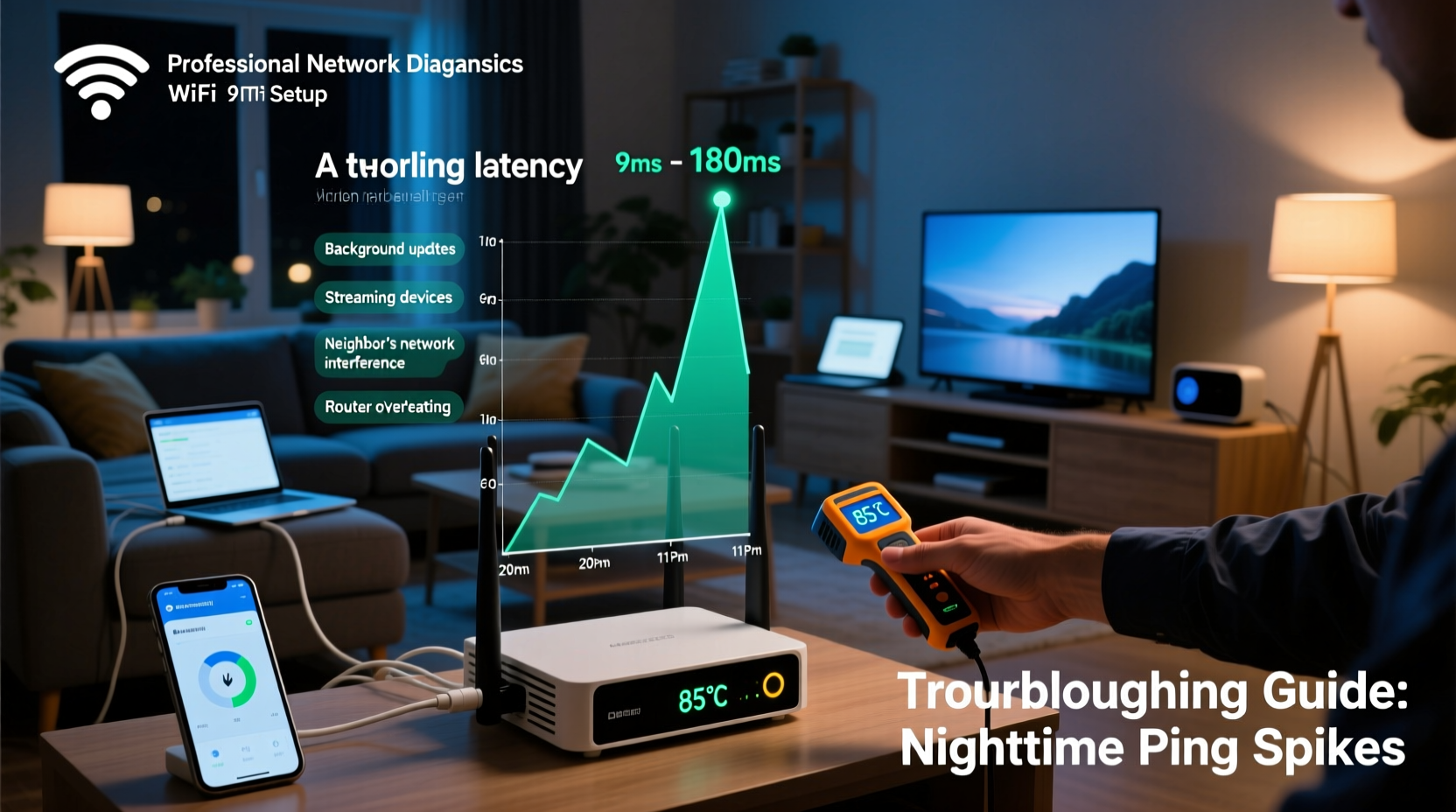
The most common reason for nighttime ping spikes is network congestion. During the day, many people are at work or school, using less bandwidth at home. But once evening hits, households come alive: kids stream videos, adults join Zoom meetings, smart devices update, and gamers log on. This surge in demand strains both your local network and your Internet Service Provider’s (ISP) infrastructure.
Think of your internet connection like a highway. During off-peak hours, traffic flows smoothly. But during rush hour, too many cars (data packets) try to use the same lanes, causing delays. In networking terms, this is called \"congestion,\" and it directly increases latency—the very thing measured by ping.
ISPs often oversubscribe their networks, meaning they sell more bandwidth than the physical infrastructure can handle simultaneously. This works fine under normal conditions but fails when everyone goes online at once. Rural or densely populated urban areas are especially prone to this issue due to limited infrastructure capacity.
Local Network Issues That Worsen at Night
While ISP-level congestion plays a major role, internal network problems can amplify the issue. Many of these become more apparent when multiple devices are active.
Wi-Fi Interference and Signal Degradation
At night, more devices connect to your Wi-Fi—phones, tablets, smart TVs, gaming consoles. Each adds load and potential interference. Additionally, neighboring networks also peak in activity, increasing channel congestion on the 2.4 GHz band, which has fewer non-overlapping channels.
Walls, appliances, and even microwave ovens can interfere with wireless signals. If your router is located near a kitchen or entertainment center, nighttime usage of these appliances might coincide with your lag spikes.
Outdated or Overloaded Router Hardware
Routers have processing limits. Older models may struggle to manage more than a few connected devices efficiently. When eight or more devices share an aging router, packet queuing delays increase, leading to higher ping. Firmware bugs or memory leaks can compound this, especially if the router hasn’t been restarted in weeks.
Background Device Activity
Many devices perform automatic updates at night. Windows PCs, game consoles, smart TVs, and cloud backups often schedule large downloads during off-peak hours. These background processes consume bandwidth and processing power, even if you’re not actively using the device.
“Even idle devices can be the silent killers of network performance. Scheduled updates and syncs create hidden bandwidth hogs.” — Marcus Lin, Network Infrastructure Engineer at NetFlow Dynamics
Step-by-Step Guide to Diagnose and Fix Nighttime Ping Spikes
Follow this structured approach to identify and resolve the source of your lag:
- Confirm the Issue with Testing
Use tools like pingplotter, Ookla Speedtest, or Cloudflare Speed Test to measure latency at various times. Perform tests wired and wirelessly to isolate variables. - Check Connected Devices
Log into your router’s admin panel (usually via 192.168.1.1 or similar). Review the list of connected devices. Look for unknown or inactive ones consuming bandwidth. - Restart Your Router and Modem
Power cycle both devices. Unplug for 30 seconds, then restart. This clears temporary glitches and resets IP connections. - Switch to 5 GHz Wi-Fi or Use Ethernet
If your router supports dual-band, connect critical devices (gaming PC, console) to the 5 GHz band, which is faster and less congested. For best results, use a wired Ethernet connection. - Update Firmware
Check your router manufacturer’s website for firmware updates. Outdated firmware can contain bugs affecting stability and QoS (Quality of Service). - Enable QoS Settings
In your router settings, prioritize traffic for low-latency applications. Assign higher priority to gaming or VoIP devices so they get bandwidth first during congestion. - Contact Your ISP
If all else fails, contact your provider. Ask about network congestion in your area and whether they offer service tiers with better contention ratios or business-grade options.
Do’s and Don’ts: Quick Reference Table
| Action | Do | Don't |
|---|---|---|
| Router Placement | Place centrally, elevated, away from metal and appliances | Hide in a cabinet or basement corner |
| Wi-Fi Band | Use 5 GHz for gaming/streaming; reserve 2.4 GHz for IoT | Connect everything to 2.4 GHz |
| Updates | Schedule device updates during the day | Let devices auto-update at night |
| Bandwidth Use | Limit heavy downloads during real-time tasks | Start 4K movie downloads while gaming |
| Hardware | Upgrade to a modern router with MU-MIMO and QoS | Keep using a 10-year-old router |
Real-World Example: The Johnson Family’s Lag Problem
The Johnsons experienced consistent ping spikes every evening around 8 PM. Their son couldn’t play online games without lag, and video calls frequently froze. Initial troubleshooting focused on the gaming PC, but replacing hardware didn’t help.
A deeper investigation revealed three key issues: First, their router—a five-year-old model—was handling 12 connected devices. Second, their neighbor’s Wi-Fi was on the same 2.4 GHz channel, causing interference. Third, their smart TV and two phones were downloading weekly updates between 7:30 and 9 PM.
They resolved the issue by upgrading to a modern mesh router with adaptive channel selection, switching the gaming console to a wired Ethernet connection, and manually scheduling updates for Saturday mornings. Within days, nighttime ping stabilized from 250ms to under 40ms.
Advanced Solutions for Persistent Lag
If basic fixes don’t resolve the issue, consider these advanced strategies:
- Upgrade Your Internet Plan: If you’re on a lower-tier plan (e.g., 50 Mbps), upgrading to 200+ Mbps can reduce congestion impact. Higher bandwidth allows smoother multitasking.
- Switch ISPs or Technology: If available, consider fiber-optic internet. Fiber offers symmetrical speeds, lower latency, and is less prone to congestion than cable.
- Use a Gaming VPN: Some specialized services like ExitLag or WTFast route your traffic through optimized servers, reducing hops and improving ping to specific game servers.
- Deploy VLANs or Parental Controls: Segment your network to limit bandwidth for non-critical devices. For example, cap smart speaker updates to 1 Mbps during evenings.
Frequently Asked Questions
Why does my ping spike only at night and not during the day?
This pattern strongly suggests network congestion. Both your home network and your ISP’s infrastructure experience higher demand in the evening. More users online = more competition for bandwidth = increased latency.
Can a bad router cause high ping even with fast internet?
Absolutely. A router is responsible for managing traffic between your devices and the internet. An outdated or overloaded router can introduce delays, drop packets, or fail to prioritize traffic correctly—leading to high ping regardless of your internet speed.
Is Ethernet really better than Wi-Fi for reducing ping?
Yes. Wired connections eliminate wireless interference, signal loss, and latency from retransmissions. Ethernet typically provides more stable and lower ping, especially during peak usage times. For competitive gaming or professional work, it’s the preferred choice.
Final Checklist: Eliminate Nighttime Ping Spikes
- ✅ Run ping and jitter tests at peak and off-peak hours
- ✅ Restart modem and router regularly
- ✅ Connect gaming and work devices via Ethernet
- ✅ Switch to 5 GHz Wi-Fi or upgrade to Wi-Fi 6
- ✅ Enable Quality of Service (QoS) on your router
- ✅ Schedule device updates outside evening hours
- ✅ Update router firmware to the latest version
- ✅ Contact ISP to inquire about network upgrades or alternatives
Take Control of Your Connection
Nighttime ping spikes aren’t inevitable. With a methodical approach, you can identify whether the problem lies within your home network, your ISP, or a combination of both. The solutions range from simple habit changes—like scheduling updates—to strategic investments in better hardware or internet plans. The key is consistency in monitoring and maintenance.
Don’t accept lag as the cost of modern connectivity. Every millisecond counts when you're in the middle of a match or an important conversation. By applying the steps outlined here, you can reclaim smooth, responsive internet performance—day or night.




 浙公网安备
33010002000092号
浙公网安备
33010002000092号 浙B2-20120091-4
Comments
No comments yet. Why don't you start the discussion?