
If you've ever been in the middle of an intense online game or a crucial video call—only for your connection to suddenly stutter the moment someone turns on the microwave—you're not imagining things. This frustrating phenomenon is real, measurable, and rooted in basic physics. The culprit? Electromagnetic interference from your kitchen appliance disrupting your Wi-Fi signal. But why does this happen, and more importantly, what can you do about it?
This article dives deep into the science behind microwave-induced network lag, explains how two seemingly unrelated devices—one heating food, the other transmitting data—end up interfering with each other, and provides actionable solutions to stabilize your internet experience.
The Hidden Link Between Microwaves and Internet Lag
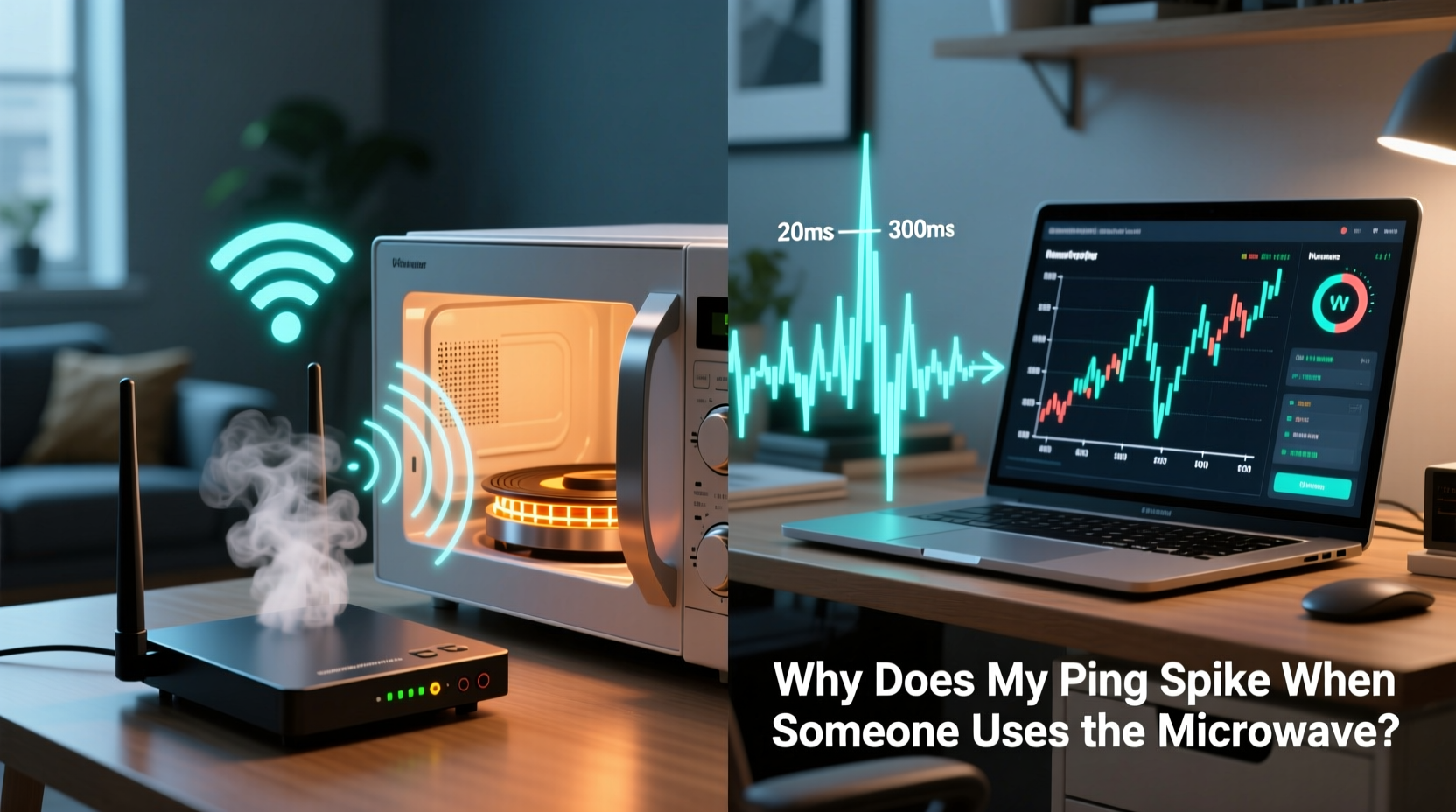
Microwave ovens and Wi-Fi routers may appear to serve entirely different purposes, but they share something critical: frequency. Most home Wi-Fi networks operate on the 2.4 GHz band, which offers broad coverage and good wall penetration. Coincidentally, microwave ovens also emit electromagnetic radiation at around 2.45 GHz to agitate water molecules in food and generate heat.
While microwave ovens are designed with shielding to contain radiation, no seal is perfect. Small leaks—especially in older or poorly maintained units—can emit enough electromagnetic noise to interfere with nearby wireless signals. This interference doesn't \"steal\" bandwidth but rather creates radio-frequency noise that drowns out Wi-Fi transmissions, causing packet loss, latency spikes, and ultimately, high ping.
“Microwave ovens are essentially unlicensed radio transmitters operating near Wi-Fi frequencies. Even minimal leakage can degrade wireless performance.” — Dr. Linda Chen, RF Engineer and Wireless Systems Researcher
The result? Your router struggles to maintain a clean signal, packets get delayed or dropped, and your online activities suffer. Gamers notice this as sudden lag; streamers see buffering; remote workers experience frozen calls.
How Microwave Interference Actually Affects Your Network
When a microwave operates, it emits a burst of energy at 2.45 GHz. While this frequency is slightly offset from standard Wi-Fi channels (which range from 2.412 to 2.472 GHz), the power output of a microwave—typically 600 to 1200 watts—is vastly greater than a Wi-Fi router’s ~0.1-watt transmission. This overwhelming signal creates a \"noise floor\" that makes it difficult for your devices to hear the router clearly.
Think of it like trying to have a quiet conversation in a loud room. Even if someone isn’t speaking directly to you, background noise makes communication harder. In networking terms, this is called co-channel interference. Wi-Fi devices respond by retransmitting lost data packets, which increases latency—the dreaded ping spike.
Modern routers use error correction and adaptive modulation to cope with interference, but there's a limit. If the microwave is close to the router or the shielding is weak, the impact can be severe. Ping times might jump from 30 ms to over 300 ms during microwave use, effectively crippling real-time applications.
Identifying the Problem: Is Your Microwave Really the Culprit?
Before taking corrective action, confirm that your microwave is indeed the source of interference. Here’s how:
- Monitor Ping During Use: Run a continuous ping test to a stable server (e.g., Google DNS at 8.8.8.8) using Command Prompt or Terminal. Note the latency before and during microwave operation.
- Check Frequency Band: Ensure your device is connected to the 2.4 GHz Wi-Fi band. 5 GHz networks are immune to microwave interference due to their higher frequency.
- Test with Other Devices: See if multiple devices (phone, laptop, console) experience lag simultaneously when the microwave runs.
- Try a Wired Connection: Connect via Ethernet. If ping remains stable during microwave use, the issue is wireless interference, not overall bandwidth congestion.
If ping only spikes on 2.4 GHz wireless and correlates precisely with microwave activation, you’ve found your offender.
Solutions to Stop Microwave-Induced Ping Spikes
You don’t need to give up microwaving leftovers to enjoy smooth online gameplay. Several effective strategies can mitigate or eliminate the problem.
1. Switch to 5 GHz Wi-Fi
The most effective fix is simple: connect your critical devices (gaming PC, console, work laptop) to the 5 GHz band. It operates at a completely different frequency range (5.1–5.8 GHz) and is unaffected by microwave emissions. However, keep in mind that 5 GHz has shorter range and poorer wall penetration than 2.4 GHz.
2. Upgrade to a Dual-Band or Tri-Band Router
Modern dual-band routers broadcast both 2.4 GHz and 5 GHz networks simultaneously. Tri-band models add a second 5 GHz channel for heavy usage. These allow you to dedicate the 5 GHz band to latency-sensitive tasks while reserving 2.4 GHz for smart home devices that don’t require speed.
3. Reposition Your Router and Microwave
Distance and physical barriers reduce interference. Move your router away from the kitchen, especially if it’s mounted on the same wall or counter as the microwave. Even a few extra feet can make a noticeable difference. Avoid metal shelves or appliances between the router and your main usage area, as they reflect and distort signals.
4. Replace an Old or Faulty Microwave
Microwaves degrade over time. Door seals wear out, latches loosen, and shielding becomes less effective. If your microwave is over 7–10 years old, consider upgrading. Look for models with low EMF leakage ratings or those certified under FCC Part 18 standards for minimal interference.
5. Use Ethernet for Critical Devices
For the most reliable connection, bypass Wi-Fi altogether. Connecting your gaming console or desktop via Ethernet cable eliminates wireless interference entirely. Modern homes can use powerline adapters or mesh systems with wired backhaul to extend reliable connections without sacrificing convenience.
Step-by-Step Guide to Eliminate Microwave Wi-Fi Interference
Follow this sequence to diagnose and resolve the issue permanently:
- Step 1: Confirm the Issue
Run a ping test (ping 8.8.8.8 -ton Windows) while turning the microwave on and off. Observe if latency spikes correlate with microwave use. - Step 2: Identify Connected Band
Check your device’s network settings. On Windows, go to Settings > Network & Internet > Wi-Fi > Properties. Look for “Network Band”—if it says 2.4 GHz, you’re vulnerable. - Step 3: Switch to 5 GHz
Disconnect from the current network and reconnect to your router’s 5 GHz SSID (often named similarly but labeled “5G” or “High Speed”). - Step 4: Test Again
Repeat the ping test with the microwave running. Ping should remain stable. - Step 5: Optimize Router Placement
Move the router away from the kitchen, elevate it, and ensure it’s not enclosed in a cabinet. - Step 6: Consider Upgrades
If problems persist, upgrade your router to a modern Wi-Fi 6 model with better interference handling, or replace an aging microwave.
Do’s and Don’ts When Dealing with Microwave Interference
| Do | Don’t |
|---|---|
| Use 5 GHz Wi-Fi for gaming and streaming | Place your router next to the microwave |
| Keep your microwave door seal clean and undamaged | Ignore persistent interference on newer equipment |
| Connect latency-sensitive devices via Ethernet | Assume all interference is caused by the microwave |
| Test with a Wi-Fi analyzer app (e.g., NetSpot, Wi-Fi Analyzer) | Use outdated or damaged microwaves near networking gear |
| Upgrade to a mesh system with automatic band steering | Overload the 2.4 GHz band with too many devices |
Mini Case Study: Fixing Lag in a Shared Apartment
Mark, a competitive gamer living in a two-bedroom apartment, experienced frequent ping spikes during evening matches. He initially blamed his ISP, but noticed the lag always coincided with his roommate heating dinner. After logging ping data for a week, he confirmed a direct correlation: every time the microwave ran, his latency jumped from 35 ms to over 250 ms.
He tested his laptop on 5 GHz and found no issues. The problem was isolated to 2.4 GHz devices. Mark switched his gaming PC to the 5 GHz network and moved his router from the kitchen counter to a central hallway shelf. He also recommended his roommate replace their 12-year-old microwave, which had visible wear on the door seal.
After these changes, his ping remained stable regardless of kitchen activity. The total cost? $0—he used existing equipment more effectively.
Frequently Asked Questions
Can a microwave permanently damage my router?
No, microwave interference does not cause physical damage to your router. It only disrupts wireless communication temporarily. However, sustained exposure to strong electromagnetic fields over many years could theoretically affect sensitive electronics, though this is extremely rare in household settings.
Why doesn’t my neighbor’s microwave affect my Wi-Fi?
Interference diminishes rapidly with distance and obstacles. Walls, especially those with metal framing or insulation, block much of the radiation. Additionally, your neighbor may use a newer microwave with better shielding, or their router may be located farther from the kitchen.
Are some Wi-Fi channels less affected by microwaves?
Microwaves typically interfere across the entire 2.4 GHz band because their emission is broad-spectrum. While channels 1–6 or 11 might seem less impacted depending on your environment, switching to 5 GHz is far more effective than channel-hopping on 2.4 GHz.
Conclusion: Take Control of Your Home Network
Ping spikes caused by microwave use are a common yet solvable issue. Understanding the underlying cause—radio frequency interference between two essential household devices—empowers you to make informed decisions about placement, equipment, and network configuration. By leveraging 5 GHz Wi-Fi, optimizing router location, and maintaining appliances, you can eliminate lag and enjoy a smoother digital experience.




 浙公网安备
33010002000092号
浙公网安备
33010002000092号 浙B2-20120091-4
Comments
No comments yet. Why don't you start the discussion?