
If you've ever tried to print an urgent document only to be greeted with the message “Printer is offline,” you're not alone. Wireless printers offer convenience, but their reliance on Wi-Fi makes them vulnerable to connectivity issues. Frequent disconnections can stem from network instability, outdated firmware, interference, or incorrect settings. The good news? Most of these problems are fixable with systematic troubleshooting. This guide dives into the root causes of recurring offline status in Wi-Fi printers and delivers actionable solutions to restore reliable performance.
Understanding Why Printers Go Offline
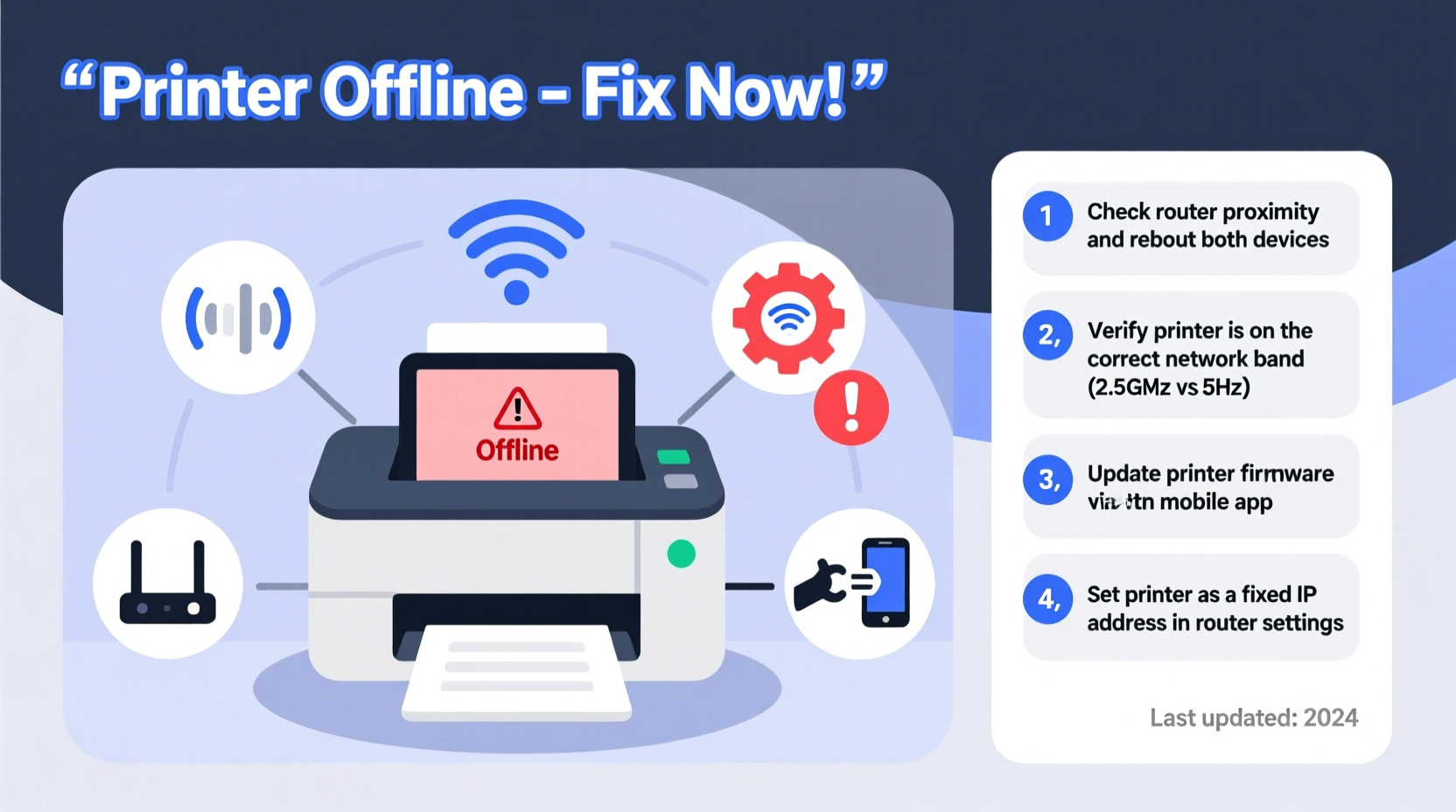
A wireless printer going offline doesn’t always mean it’s broken. More often than not, it’s a communication breakdown between the printer and your network or computer. Unlike wired connections, Wi-Fi relies on signal strength, router behavior, device compatibility, and background processes—all of which can interrupt printing operations.
Common triggers include:
- Weak or fluctuating Wi-Fi signal
- Router or modem restarts
- IP address conflicts
- Outdated printer drivers or firmware
- Firewall or security software blocking communication
- Power-saving modes disabling network access
- Interference from other wireless devices (microwaves, cordless phones)
Each of these factors can cause the operating system—especially Windows—to report the printer as “offline” even when the device appears powered on and ready.
Step-by-Step Fixes to Restore Printer Connectivity
Follow this structured troubleshooting sequence to identify and resolve the core issue causing frequent offline status.
- Verify Physical Status and Power Cycle Devices
Ensure the printer is powered on and not in sleep mode. Unplug both the printer and your router for 30 seconds, then plug them back in. This resets network handshakes and clears temporary glitches.
- Check Wi-Fi Signal Strength at Printer Location
Move closer to the router temporarily. If printing works reliably up close, poor signal strength is likely the culprit. Consider relocating the printer or installing a Wi-Fi extender.
- Set a Static IP Address for the Printer
DHCP-assigned IPs can change after reboots, breaking established connections. Access your printer’s network settings menu and assign a static IP within your router’s subnet range (e.g., 192.168.1.50). Then reserve that IP in your router settings to prevent conflicts.
- Reinstall or Update Printer Drivers
Go to your computer’s Devices & Printers settings, remove the current printer, and reinstall using the latest driver from the manufacturer’s website. Outdated drivers often fail to maintain stable network detection.
- Disable “Use Printer Offline” Mode in Windows
Right-click the printer in Control Panel > Devices and Printers. If “Use Printer Offline” is checked, click it to disable. This setting can become enabled accidentally during failed print attempts.
- Run the Built-in Printer Troubleshooter
In Windows Settings > Update & Security > Troubleshoot > Additional troubleshooters, run the Printer troubleshooter. It automatically detects common issues like spooler errors or service interruptions.
- Update Firmware
Manufacturers release firmware updates to improve stability and compatibility. Check the printer’s settings menu under “Device Updates” or visit the support page for your model to download the latest version.
Network Optimization for Stable Printing
Your home network plays a critical role in maintaining consistent printer availability. Small adjustments can dramatically reduce dropouts.
Switch from 5 GHz to 2.4 GHz Band
Many modern routers broadcast dual bands. While 5 GHz offers speed, it has shorter range and poorer wall penetration. Printers often perform better on the more stable 2.4 GHz band, even if slower. Log into your router settings and ensure your printer connects to 2.4 GHz.
Assign a Fixed Channel to Reduce Interference
Wi-Fi congestion from neighboring networks can disrupt signals. Use a tool like WiFi Analyzer (on Android) or NetSpot (Windows/Mac) to find the least crowded channel. Set your router to use channels 1, 6, or 11 (non-overlapping) in the 2.4 GHz band for optimal clarity.
Enable UPnP and Disable Overzealous Firewalls
Universal Plug and Play (UPnP) helps devices discover each other on the network. Enable it in your router settings. Also, temporarily disable third-party firewalls or antivirus suites to test if they’re blocking printer communication. If so, add the printer as an exception.
| Issue | Do | Avoid |
|---|---|---|
| Weak signal | Use Wi-Fi extender or relocate printer | Place printer behind metal objects or thick walls |
| IP conflict | Set static IP + DHCP reservation | Rely solely on automatic IP assignment |
| Firmware bugs | Check for updates monthly | Ignore update notifications |
| Driver failure | Download latest from official site | Use generic or outdated drivers |
“Wireless printing should be seamless, but too many users accept intermittent failures as normal. A properly configured printer on a stable network rarely drops connection.” — David Lin, Network Infrastructure Engineer at HP Certified Support
Real-World Example: Fixing a Home Office Printer Loop
Sarah, a freelance accountant, relied on her HP Envy 6055 for client invoices. Every few days, her printer would appear offline in Windows, requiring a full reboot of the device and router. She followed online advice to “restart everything,” but the problem returned within hours.
After testing signal strength, she discovered her printer was located in a basement corner far from the router. Using a Wi-Fi analyzer app, she found her printer was connecting to the 5 GHz band, which barely reached her location. She manually switched it to the 2.4 GHz network and assigned a static IP through the printer’s web interface. She also disabled the router’s auto-channel selection and fixed it to Channel 6, reducing interference from nearby apartments.
The result? Her printer remained online for over three months without interruption. Sarah saved nearly two hours per month previously spent troubleshooting.
Essential Maintenance Checklist
To prevent future offline episodes, follow this monthly maintenance routine:
- ✅ Reboot the printer and router
- ✅ Verify Wi-Fi signal strength near the printer
- ✅ Confirm the printer has the correct IP address
- ✅ Check for firmware updates
- ✅ Clear the print queue if jobs are stuck
- ✅ Ensure “Use Printer Offline” is disabled
- ✅ Test printing from multiple devices (phone, laptop)
- ✅ Review router logs for unexpected disconnects
Frequently Asked Questions
Why does my printer go offline after my computer wakes from sleep?
When a computer resumes from sleep, network services may take time to reconnect. The print spooler might not detect the printer immediately. To fix this, disable printer sleep mode and configure your PC to maintain network connectivity during sleep (via Power Options > Change plan settings > Change advanced power settings > Wireless Adapter Settings > Power Saving Mode → set to \"Maximum Performance\").
Can a mesh Wi-Fi system help with printer connectivity?
Yes, but with caveats. Mesh systems improve coverage, but some models aggressively steer devices between nodes, which can disrupt printer connections. Opt for a system that allows you to create a dedicated 2.4 GHz network or disable band steering. Place a node near the printer to ensure strong, consistent signal delivery.
Is it better to use USB instead of Wi-Fi for reliability?
If mobility isn’t required, a direct USB connection eliminates Wi-Fi variables entirely. However, you lose the ability to print from multiple devices wirelessly. For shared environments, a well-tuned Wi-Fi setup is still preferable. Use USB only if network stability cannot be achieved despite troubleshooting.
Final Recommendations for Long-Term Stability
Consistent printer uptime hinges on proactive network hygiene and proper configuration. Treat your printer like any other critical network device—not just a peripheral. Regularly monitor its connection status, keep firmware updated, and minimize environmental interference.
Consider investing in a smart plug to remotely reboot the printer if needed, or use a network monitoring tool like Fing to receive alerts when the printer goes offline. These small steps build resilience into your home office infrastructure.
Most importantly, don’t accept “printer offline” as a fact of life. With the right setup, wireless printing should be as reliable as turning on a light switch.




 浙公网安备
33010002000092号
浙公网安备
33010002000092号 浙B2-20120091-4
Comments
No comments yet. Why don't you start the discussion?