
There are few office frustrations as persistent and disruptive as a printer that jams every time you hit “Print.” Paper jams not only interrupt workflow but can damage internal components over time if ignored. While occasional jams might be unavoidable, constant issues point to underlying problems—many of which are easily fixable with the right knowledge. Understanding the root causes and implementing preventive habits can transform your printer from a source of irritation into a dependable tool.
Understanding How Printers Handle Paper
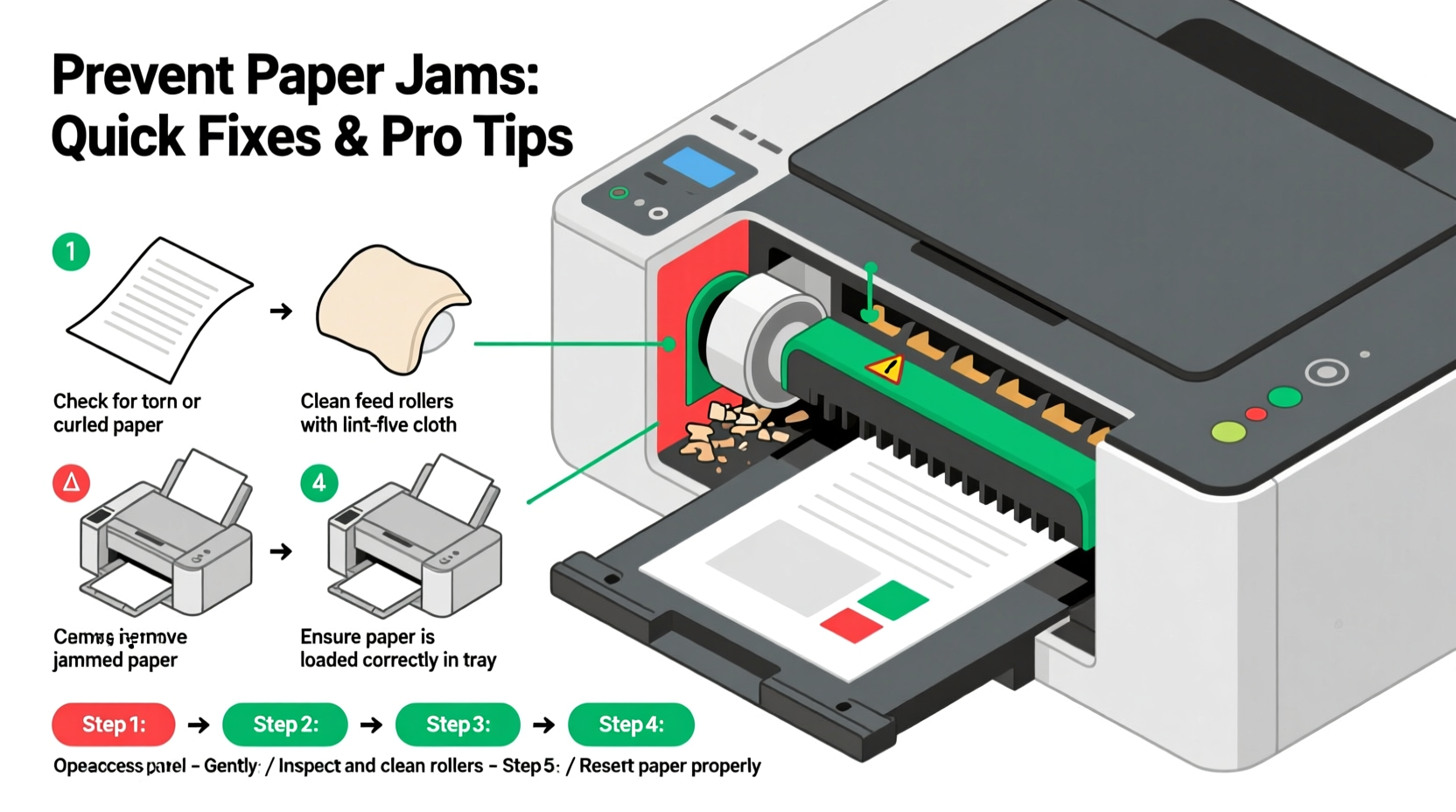
Before addressing jams, it’s essential to understand the journey paper takes through a printer. In most laser and inkjet models, paper is fed from a tray by pickup rollers, travels along a path guided by separation pads and additional rollers, passes under or past print heads or fusers, and finally exits through an output tray. Each stage relies on precise mechanical coordination and friction control. Any disruption—whether from worn parts, incorrect paper, or environmental conditions—can halt this process, triggering a jam alert.
The complexity increases in multifunction printers, which may route paper through scanners, duplex units, or automatic document feeders. More moving parts mean more potential failure points. However, the majority of jams occur in predictable locations: the input tray, around the pickup roller, near the fuser (in laser printers), or at the output area.
Common Causes of Recurring Paper Jams
Repeated jams are rarely due to a single factor. Instead, they’re usually the result of multiple small oversights compounding over time. Identifying the most frequent culprits is the first step toward long-term reliability.
1. Poor-Quality or Damaged Paper
Using wrinkled, curled, or low-grade paper significantly increases the risk of misfeeds. Moisture-damaged paper sticks together or tears easily, while overly thick cardstock may exceed the printer’s handling capacity. Even recycled paper with rough fibers can create static buildup or leave debris on rollers.
2. Overfilled or Improperly Loaded Paper Trays
Jams often originate in the input tray. Overloading forces the pickup roller to grab multiple sheets at once. Similarly, failing to adjust the paper guides correctly allows sheets to skew during feeding. If the guides are too loose, paper shifts mid-feed; if too tight, they cause resistance that strains the mechanism.
3. Worn or Dirty Rollers
Pickup and feed rollers rely on rubberized surfaces to grip and move paper. Over time, these degrade—becoming glazed, cracked, or coated in dust and paper residue. A roller with reduced traction slips instead of gripping, leading to partial feeds or double-sheet pickups.
4. Environmental Conditions
Humidity and temperature play a surprising role. High humidity warps paper and increases static cling, while dry air makes paper brittle and prone to tearing. Printers in garages, basements, or sun-exposed rooms face greater challenges than those in climate-controlled offices.
5. Incorrect Printer Settings
Selecting the wrong paper type (e.g., choosing “Plain” when using glossy photo paper) affects how the printer adjusts pressure and speed. Mismatched settings confuse the machine’s internal logic, increasing friction and misalignment risks.
“Over 60% of service calls for printer jams could be prevented with routine cleaning and proper media selection.” — David Lin, Senior Technician at OfficeTech Support Group
Step-by-Step Guide to Clearing and Preventing Jams
When a jam occurs, hasty attempts to yank paper out can worsen the issue. Follow this systematic approach to resolve jams safely and reduce recurrence.
- Turn off and unplug the printer. This prevents unexpected movements during clearing.
- Open all accessible panels. Check input trays, rear access doors, output areas, and duplex units.
- Locate the jammed paper. Use built-in diagrams or indicator lights if available.
- Gently pull the paper in the direction of travel. Never force it backward—this can tear paper or damage gears.
- Inspect for torn fragments. Even small scraps left inside can trigger future jams.
- Clean rollers with a lint-free cloth slightly dampened with water. Allow them to dry completely before reassembly.
- Reload paper properly. Fan the stack, align edges, and set guides snugly against the paper.
- Power on and run a test page. Monitor the feed path closely.
Preventive Maintenance Checklist
Consistency is key. Incorporate these actions into your monthly or quarterly routine to keep jams at bay.
- ✅ Inspect and clean pickup and feed rollers every 4–6 weeks
- ✅ Use only manufacturer-recommended paper types and weights
- ✅ Store paper in sealed containers away from moisture and heat
- ✅ Replace worn rollers or separation pads per the printer’s service schedule
- ✅ Run a cleaning cycle (if available) after heavy print jobs
- ✅ Avoid mixing paper types or sizes in the same tray
- ✅ Keep the printer firmware updated to optimize paper handling algorithms
Do’s and Don’ts: Paper Handling Best Practices
| Do’s | Don’ts |
|---|---|
| Fan paper stacks before loading to reduce static cling | Load crumpled, folded, or creased paper |
| Adjust paper guides so they touch the edges without bending the stack | Overfill trays beyond the maximum fill line |
| Use paper within the recommended weight range (typically 75–90 gsm) | Feed envelopes or labels without adjusting printer settings |
| Clean rollers with water-dampened cloths every few months | Use alcohol or solvents on rubber rollers unless specified |
| Store unused paper in a cool, dry place in resealable packaging | Leave paper in trays for weeks in humid environments |
Real-World Example: The Home Office That Fixed Its Jam Problem
Sarah, a freelance graphic designer in Portland, was losing hours each week to her inkjet printer jamming during client proposal prints. She assumed the machine was faulty and considered replacement. After consulting a technician, she discovered three issues: her paper was stored under a sink where humidity warped sheets, she routinely overloaded the tray, and the rollers were slick with dust.
She implemented changes: moved paper to a closet shelf, started fanning and leveling each load, and cleaned the rollers monthly. Within two weeks, jams dropped from nearly daily to zero over three months. Her printer, previously slated for disposal, continues to perform reliably two years later.
This case illustrates how simple, consistent habits outweigh costly replacements when addressing mechanical wear and user error.
When to Seek Professional Help
Some issues go beyond basic maintenance. Internal sensor malfunctions, broken gears, or damaged fusers require expert diagnosis. Warning signs include:
- Jams occurring in the same location despite cleaning
- Unusual grinding or clicking noises during operation
- Printer failing to recognize paper presence
- Visible cracks or deformities in internal rollers
If jams persist after thorough troubleshooting, consult the manufacturer or a certified repair technician. Continuing to operate a mechanically compromised printer risks permanent damage and higher repair costs.
Frequently Asked Questions
Why does my printer jam only when printing double-sided documents?
Duplex printing routes paper through a longer, more complex path. Misalignment in the flip mechanism or worn duplex rollers are common causes. Ensure your printer model supports the paper weight you're using for duplex jobs, and clean the duplex unit regularly.
Can using third-party paper really cause more jams?
Yes. While many generic brands are reliable, some cut corners on consistency in thickness, coating, and moisture resistance. Reputable third-party papers are fine, but always check reviews and compatibility. For critical jobs, stick with well-known brands like HP, Canon, or Xerox.
How often should I replace printer rollers?
Most rollers last 20,000–50,000 pages under normal conditions. Signs they need replacement include shiny, glazed surfaces, visible cracks, or persistent slipping even after cleaning. Refer to your printer’s manual for specific guidance and part numbers.
Conclusion: Take Control of Your Printing Experience
A constantly jamming printer doesn’t have to be a fact of life. Most recurring jams stem from correctable behaviors and maintenance gaps—not hardware failure. By understanding the mechanics of paper feeding, adopting disciplined loading practices, and performing regular upkeep, you can drastically reduce interruptions and extend your printer’s lifespan.
Start today: clean the rollers, audit your paper storage, and review your settings. Small changes yield immediate results. Don’t let preventable jams undermine your productivity any longer.




 浙公网安备
33010002000092号
浙公网安备
33010002000092号 浙B2-20120091-4
Comments
No comments yet. Why don't you start the discussion?