
Nothing disrupts workflow quite like a printer jam. Whether you're printing a last-minute report, shipping labels for an online order, or school assignments for your kids, a paper jam halts everything—often at the worst possible moment. While frustrating, paper jams are rarely random. They stem from identifiable causes, many of which are preventable with proper maintenance, correct supplies, and consistent habits. Understanding the root causes behind recurring jams is the first step toward eliminating them for good.
Modern printers are engineered for reliability, but they remain mechanical devices that depend on precise alignment, friction control, and clean internal components. When any part of this system fails—even slightly—paper can misfeed, crumple, or get stuck mid-print. The good news? Most common jam scenarios can be diagnosed and resolved without technical expertise. With a few adjustments and preventive routines, you can drastically reduce, if not eliminate, future printing interruptions.
Common Causes of Printer Jams
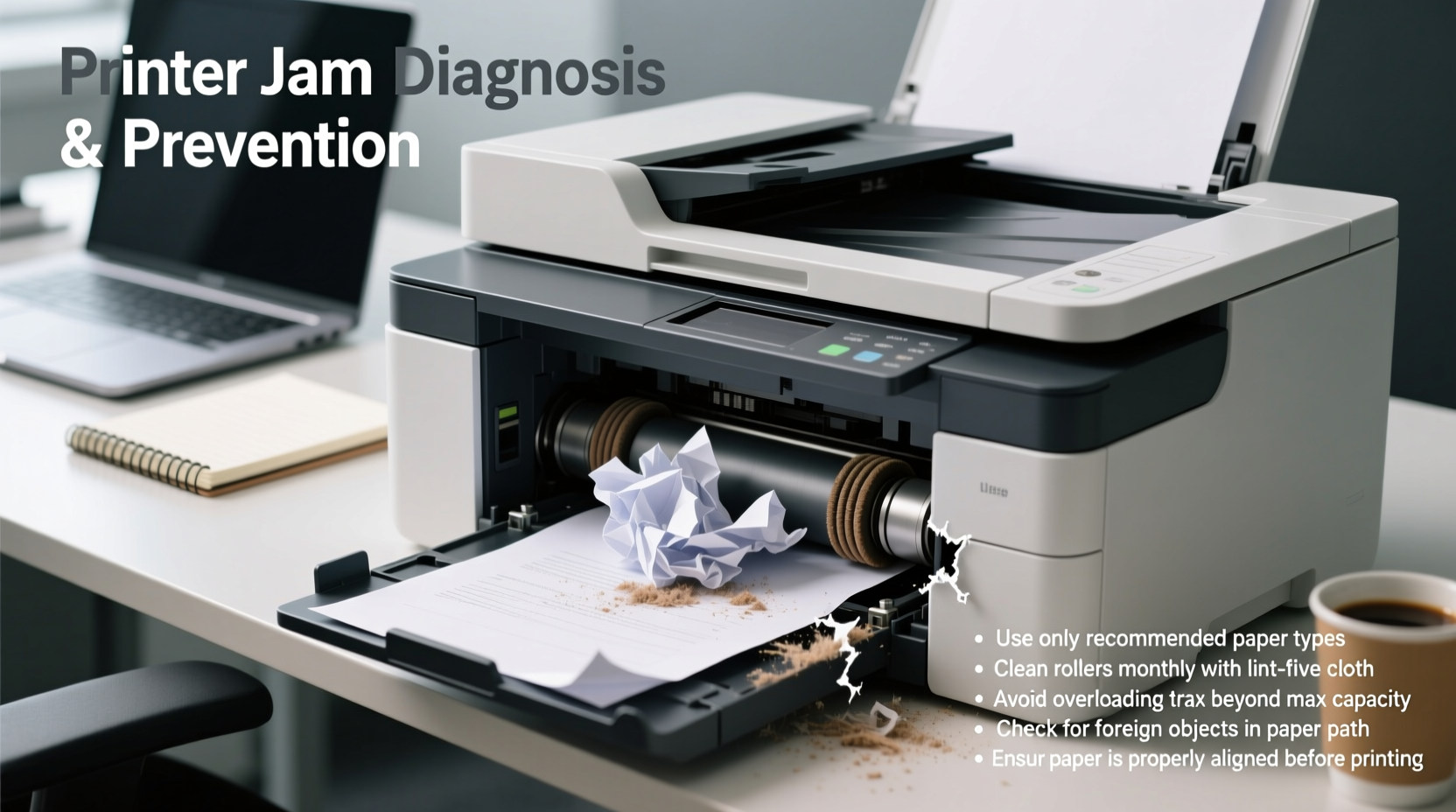
Before addressing solutions, it's essential to understand what’s triggering the jams in the first place. Printers don’t jam arbitrarily; each incident typically points to a specific issue within the machine or its usage environment.
- Paper quality and condition: Using wrinkled, damp, or low-quality paper increases friction and reduces feed consistency. Paper that’s too thin may tear, while overly thick stock might exceed the printer’s handling capacity.
- Overloaded paper trays: Filling the tray beyond its recommended limit forces sheets to feed unevenly, increasing the chance of multiple sheets being pulled at once.
- Dust and debris buildup: Over time, dust, paper fibers, and toner residue accumulate on rollers and sensors, reducing grip and impairing detection.
- Worn or dirty rollers: Feed and separation rollers lose traction over time. If they’re slick with oil or grime, they can’t advance paper properly, causing slips or double-feeds.
- Incorrect paper settings: Selecting the wrong media type (e.g., photo paper instead of plain) can cause the printer to apply improper pressure or heat settings.
- Misaligned internal components: A small obstruction—a stray staple, torn paper fragment, or even a bent guide—can derail the entire paper path.
“Most paper jams aren’t a sign of hardware failure—they’re symptoms of poor maintenance or user error.” — Daniel Reeves, Senior Technician at OfficePrint Support
Step-by-Step Guide to Clearing a Jam Safely
When a jam occurs, the instinct is to yank the paper out forcefully. This often makes things worse, potentially damaging internal mechanisms or leaving behind fragments that trigger repeat jams. Follow this methodical approach to clear jams safely and effectively.
- Turn off the printer and unplug it. This prevents accidental movement during removal and protects against electrical hazards.
- Open all accessible panels—input tray, output tray, rear access door, and duplex unit if applicable. Many jams occur in less visible areas.
- Inspect the paper path visually. Look for obvious obstructions, crumpled sheets, or torn edges. Use a flashlight if needed.
- Gently pull out stuck paper in the direction of the paper path. Never tug backward sharply. If resistance is felt, stop and check from another access point.
- Remove any small fragments using tweezers or a soft brush. Even a tiny shred can cause future issues.
- Clean rollers lightly with a lint-free cloth slightly dampened with water. Let them dry completely before reassembly.
- Reassemble and power on. Run a test print to confirm resolution.
Preventive Maintenance Checklist
Prevention is far more efficient than repeated troubleshooting. Incorporate these practices into your routine to minimize the risk of future jams.
- ✅ Clean paper feed rollers every 1–2 months using a roller cleaning sheet or damp lint-free cloth.
- ✅ Use high-quality, undamaged paper stored in a cool, dry place.
- ✅ Avoid overfilling paper trays—keep load below the maximum indicator line.
- ✅ Regularly inspect and remove dust or debris from paper paths.
- ✅ Replace worn rollers or maintenance kits as recommended by the manufacturer.
- ✅ Update printer firmware to ensure optimal performance and bug fixes.
- ✅ Align paper guides snugly (but not tightly) against the stack to prevent skewing.
Choosing the Right Paper and Supplies
The type of paper you use has a direct impact on jam frequency. Not all paper is created equal—even within the same weight class.
| Paper Type | Recommended For | Jam Risk Factors |
|---|---|---|
| Standard Copy Paper (20–24 lb) | Everyday documents, drafts | Low when fresh and flat; high if curled or damp |
| Heavy Cardstock (60–110 lb) | Cards, brochures, covers | High if printer isn’t rated for thickness; often requires manual feed |
| Recycled Paper | Eco-conscious printing | Moderate; inconsistent texture can affect feeding |
| Photo Paper | Images, presentations | Medium; glossy surface reduces grip; prone to sticking in humid environments |
| Label Sheets | Mailing, organization | High; adhesive backing can shed or gum up rollers |
Always consult your printer’s manual for supported media types and weights. Feeding unsupported materials—even occasionally—can lead to cumulative wear and increased jam likelihood.
Real-World Example: Office Workflow Recovery
A regional accounting firm experienced daily printer jams during tax season. Their high-volume laser printer would stall multiple times per day, delaying client filings and frustrating staff. An initial assumption pointed to aging hardware, but a service technician identified three key issues: overloaded trays, recycled paper with high moisture content, and neglected roller maintenance.
The team implemented changes: they reduced tray loads by 30%, switched to a climate-controlled paper storage cabinet, and scheduled monthly roller cleanings. They also introduced a checklist for staff to follow before heavy print runs. Within two weeks, jams dropped from 5–6 per day to zero. The printer, previously slated for replacement, continued reliable service for another 18 months.
This case underscores that recurring jams are often systemic, not isolated. Addressing underlying habits and conditions yields better results than treating each jam as a standalone event.
Environmental and Usage Factors
External conditions play a significant role in printer performance. Humidity, temperature, and placement all influence how smoothly paper moves through the system.
- Humidity: High moisture levels make paper curl or stick together. Store paper in sealed containers with desiccants if your environment is damp.
- Temperature: Extreme cold can make rollers brittle; excessive heat may warp internal components.
- Printer position: Keep the device on a level, stable surface. Tilted printers can cause uneven paper feeding.
- Usage patterns: Long periods of inactivity allow dust buildup and roller drying. Running a test page weekly helps keep mechanisms engaged.
“Printers are like cars—if you only drive them once a month, they’re more likely to stall. Regular use keeps internal parts limber.” — Maria Tran, Field Service Engineer at PrintLogic Inc.
Frequently Asked Questions
Why does my printer jam only when printing double-sided?
Duplex printing routes paper through a longer, more complex path. Misalignment in the flip mechanism or worn duplex rollers are common culprits. Check your printer’s maintenance guide for duplex unit care, and avoid using curled or stiff paper when enabling two-sided printing.
Can using third-party ink or toner cause jams?
While third-party cartridges don’t directly cause jams, lower-quality options may produce excess dust or inconsistent fusing, leading to paper sticking or residue buildup on rollers. Stick to reputable brands and monitor performance closely when switching suppliers.
I’ve cleared the jam, but the printer still shows an error. What should I do?
Some printers require a manual reset after a jam. Close all trays and press the “Resume” or “OK” button. If the error persists, power the printer off for 60 seconds, then restart. If the message remains, consult the user manual for sensor reset procedures or contact support.
Expert-Backed Prevention Timeline
Adopting a schedule ensures maintenance doesn’t fall through the cracks. Here’s a recommended timeline based on average office usage (500–1,000 pages per month):
- Daily: Check for error messages, ensure paper is loaded correctly and not overfilled.
- Weekly: Run a test page; verify alignment and output quality.
- Monthly: Clean feed rollers; inspect paper path for debris; verify firmware updates.
- Quarterly: Deep-clean interior with compressed air (avoid blowing directly on sensors); replace consumables nearing end-of-life.
- Annually: Perform full diagnostic via printer utility software; consider professional servicing for high-use machines.
Conclusion: Take Control of Your Printing Experience
Recurring printer jams are not inevitable. They signal mismatches between equipment, materials, and usage habits—all of which are within your control. By identifying the root causes, responding to jams with care, and implementing regular maintenance, you can transform a frustrating device into a reliable tool. The investment of a few minutes each month pays off in saved time, reduced stress, and extended printer lifespan.




 浙公网安备
33010002000092号
浙公网安备
33010002000092号 浙B2-20120091-4
Comments
No comments yet. Why don't you start the discussion?