
Printer jams are one of the most common frustrations in home offices and busy workplaces. One moment you're printing an urgent document, and the next, a red light flashes with a cryptic message: \"Paper Jam.\" While occasional jams may seem inevitable, frequent ones signal deeper issues—many of which are preventable with proper care. Understanding the root causes and applying simple maintenance habits can dramatically reduce downtime, save money on repairs, and extend your printer’s lifespan.
This guide dives into the mechanics behind paper jams, identifies key risk factors, and provides actionable strategies to keep your printer operating reliably. Whether you're using an inkjet, laser, or multifunction device, these insights apply across models and brands.
Understanding How Printers Work—and Where Things Go Wrong
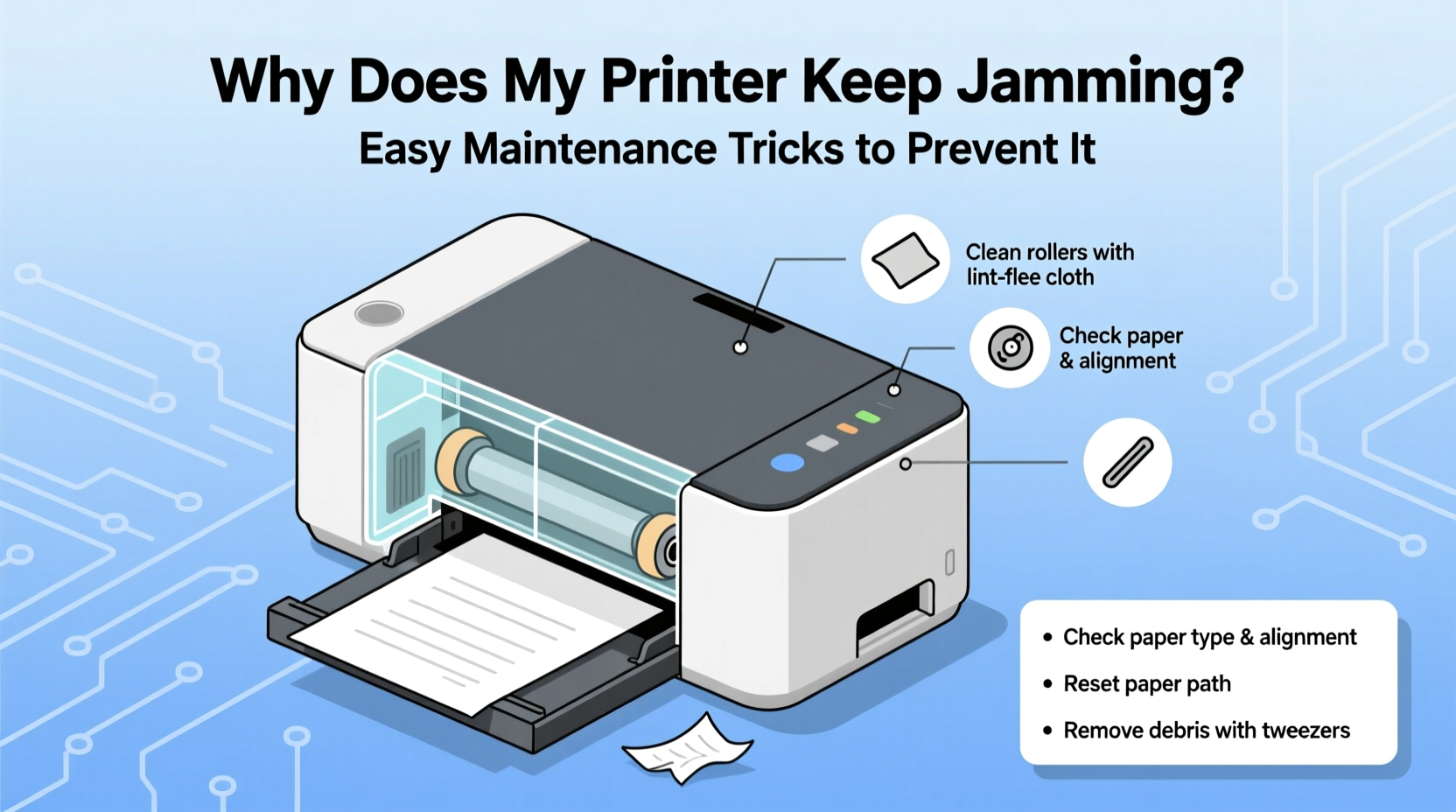
Printers rely on precise mechanical coordination. Paper is fed from a tray, pulled through rollers, aligned with print heads or toner units, and then ejected. Each stage depends on clean components, correct paper handling, and internal sensors working properly. When any part of this chain fails, a jam occurs.
Common failure points include:
- Pickup rollers: These grab paper from the tray. If they’re worn or dirty, they may feed multiple sheets at once or fail to grip at all.
- Separation pads: Designed to allow only one sheet through at a time. Worn pads cause double-feeding.
- Transfer rollers (laser printers): Move paper through the fuser. Dust or toner buildup disrupts movement.
- Fuser unit: Melts toner onto paper. Overheating or debris can cause paper to stick.
- Sensors: Detect paper position. Dust or misalignment leads to false jam alerts.
Jams often occur mid-print, but some happen during startup or even when idle. The location of the jam—input tray, output tray, or inside the machine—can help diagnose the issue.
“Over 60% of service calls for office printers are due to paper jams that could have been prevented with routine cleaning.” — David Lin, Senior Technician at OfficeTech Support
Top 5 Causes of Frequent Printer Jams
While printers vary by model, the underlying causes of jams are remarkably consistent. Addressing these five common culprits can eliminate most recurring problems.
1. Poor-Quality or Damaged Paper
Using wrinkled, damp, or low-grade paper increases friction and misfeeds. Glossy photo paper or thick cardstock used without adjusting settings can also cause jams. Always use manufacturer-recommended paper types and store them flat in a dry environment.
2. Dirty or Worn Rollers
Rollers accumulate dust, paper fibers, and static over time. This reduces traction and causes slippage or double-feeding. Rubber rollers degrade after 1–3 years, especially with heavy use.
3. Overfilled or Misaligned Paper Trays
Overloading trays forces multiple sheets to feed simultaneously. Similarly, misaligned guides cause paper to skew as it enters the mechanism. Always adjust tray width and depth to fit the paper size snugly.
4. Incorrect Paper Settings
If your printer settings don’t match the paper type loaded (e.g., selecting \"plain\" when using labels), the machine may apply incorrect pressure or heat, leading to jams. Always verify media type in print preferences before starting a job.
5. Internal Obstructions or Leftover Debris
Small paper fragments from previous jams often remain lodged in the path. These remnants go unnoticed until they block new paper. Regular inspection prevents cascading failures.
Step-by-Step Guide to Clearing and Preventing Jams
When a jam occurs, follow this systematic approach to resolve it safely and prevent future issues.
- Turn off and unplug the printer. Safety first. Power down completely to avoid accidental movements during clearing.
- Open all accessible panels. Check input trays, output trays, rear access doors, and duplex units if present.
- Locate the jammed paper. Look for crumpled sheets or fragments. Use both sight and gentle touch—avoid sharp tools.
- Gently pull out the paper. Pull in the direction of paper flow to avoid tearing. If resistance is high, reverse the motion slightly to free the edge.
- Inspect for leftover scraps. Shine a flashlight into the paper path. Remove any tiny pieces with tweezers.
- Clean rollers and guides. Dampen a lint-free cloth and wipe rollers gently. Dry thoroughly before reassembly.
- Reassemble and test. Close all compartments, plug in, and run a test print using plain paper.
Never force paper out aggressively. Forcing can damage gears, belts, or sensors. If the jam persists after clearing, consult your manual for internal access steps or contact support.
Preventive Maintenance Checklist
Prevention is far more efficient than repair. Incorporate these actions into your monthly routine to keep jams at bay.
- ✔ Clean pickup and feed rollers
- ✔ Inspect paper path for debris
- ✔ Replace worn separation pads (if accessible)
- ✔ Verify paper tray alignment and capacity
- ✔ Run a nozzle check (inkjet) or drum clean cycle (laser)
- ✔ Update printer firmware and drivers
- ✔ Store paper in sealed containers away from humidity
For high-volume environments, perform these checks every two weeks. In shared office settings, assign responsibility to ensure consistency.
Do’s and Don’ts of Paper Handling
The way you load and manage paper has a direct impact on jam frequency. Follow these best practices to minimize risk.
| Do’s | Don’ts |
|---|---|
| Use fresh, undamaged paper stored in a cool, dry place | Use crumpled, folded, or damp paper |
| Fan paper stacks before loading to separate sheets | Load paper directly from a sealed ream without fanning |
| Adjust tray guides to fit paper snugly (no gaps) | Leave guides loose, allowing paper to shift sideways |
| Select correct paper type and size in print settings | Assume default settings work for specialty media |
| Replace consumables like rollers when worn (every 12–24 months) | Ignore signs of roller slippage or inconsistent feeding |
Few users realize that static electricity from dry air can cause sheets to cling together, increasing double-feed risk. Fanning paper breaks static bonds and ensures smooth feeding.
Real-World Example: Solving Chronic Jams in a Small Law Firm
A 10-person law firm in Portland reported weekly printer jams despite replacing their mid-range laser model twice in two years. Each jam disrupted client document processing and required IT intervention. A technician audit revealed three key oversights:
- The paper tray was consistently overfilled with mixed-weight documents.
- Rollers were heavily glazed with paper dust, reducing grip.
- Staff used recycled paper with rough edges, increasing friction.
The solution was straightforward:
- Introduced standardized letter-size paper in smaller batches.
- Performed deep cleaning of rollers and internal path.
- Installed a humidity monitor and added a small dehumidifier nearby.
After implementation, jams dropped from 3–4 per month to zero over six months. The same printer, once deemed unreliable, now operates smoothly with only quarterly maintenance.
“Equipment rarely fails without reason. More often, it’s misuse or neglect compounding small issues into major disruptions.” — Maria Tran, Office Infrastructure Consultant
Frequently Asked Questions
Why does my printer jam only when printing double-sided?
Duplex printing routes paper through a longer path, increasing the chance of misalignment. Worn flip rollers or incorrect paper weight settings are common culprits. Ensure your paper is rated for duplex use and that the duplex unit is free of debris.
Can using third-party toner or ink cause jams?
While third-party cartridges don’t directly cause jams, poor-quality toner can leave residue on rollers or the fuser, indirectly increasing friction. Stick to reputable brands and avoid refilled cartridges with inconsistent powder density.
My printer shows a jam error, but I see no paper. What should I do?
This often means a sensor is blocked by dust or a tiny paper fragment. Turn off the printer, open all panels, and inspect the entire path with a flashlight. Gently blow out dust with compressed air (not too close). Reset the printer after clearing.
Conclusion: Make Jam-Free Printing a Habit
Printer jams aren’t random acts of machine rebellion—they’re symptoms of avoidable conditions. By understanding how paper moves through your device, recognizing early warning signs, and committing to simple maintenance, you can eliminate most jams before they start.
The cost of prevention is minimal: a few minutes each month, a clean workspace, and attention to detail. The payoff is significant—reliable printing, reduced stress, and extended equipment life. Don’t wait for the next jam to act. Start today by cleaning your rollers, checking your paper stock, and aligning your trays. Small habits create big results.




 浙公网安备
33010002000092号
浙公网安备
33010002000092号 浙B2-20120091-4
Comments
No comments yet. Why don't you start the discussion?