
Printer jams are among the most common—and most frustrating—issues in home and office printing. Even more baffling is when they occur despite using brand new, high-quality paper. You’ve double-checked the paper type, ensured it’s loaded correctly, and still, the error message appears: “Paper Jam.” This recurring problem doesn’t just waste time—it can damage internal components, increase maintenance costs, and disrupt workflow. The truth is, paper quality is only one piece of the puzzle. Internal wear, environmental conditions, user habits, and mechanical faults often play a bigger role than you might think.
Understanding the root causes behind persistent paper jams—even with fresh paper—is essential for long-term reliability. This guide dives deep into the hidden factors, offers practical solutions, and equips you with a step-by-step action plan to diagnose and resolve the issue permanently.
Why New Paper Doesn't Guarantee Jam-Free Printing
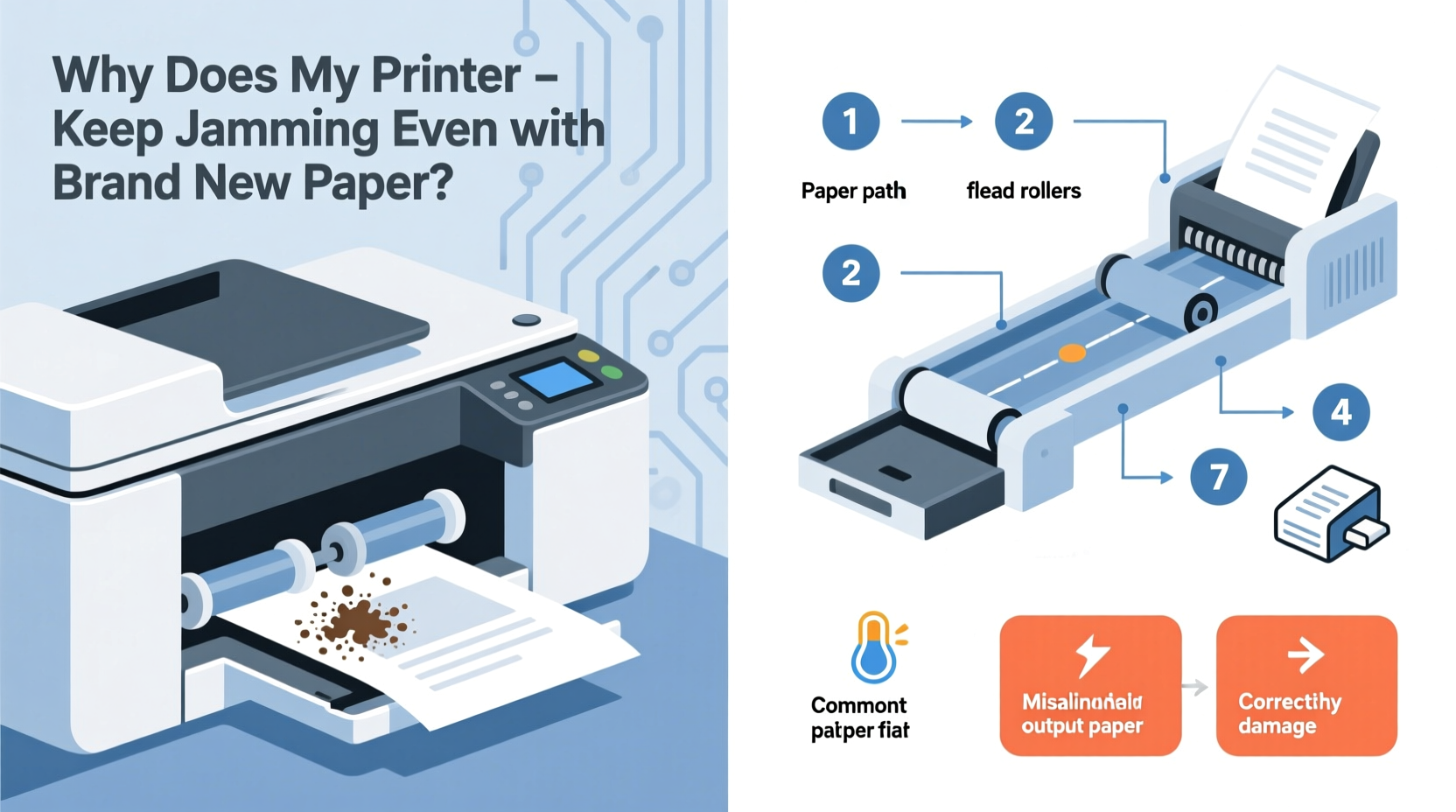
Many users assume that using brand new paper eliminates the risk of jams. While high-quality paper helps, it’s not a cure-all. Printers are precision machines, and even minor inconsistencies in feeding mechanisms or environmental conditions can trigger jams regardless of paper freshness. In fact, some premium paper types—especially thicker cardstock or glossy photo paper—can be more prone to jams if the printer isn’t properly configured for them.
The feeding process involves multiple components: pickup rollers, separation pads, feed rollers, and alignment guides. If any of these parts are worn, dirty, or misaligned, they can cause slips, double-feeds, or mid-print stops. Additionally, static electricity from dry environments can make sheets cling together, tricking the printer into pulling multiple pages at once.
Common Causes of Recurring Paper Jams (Even With New Paper)
Below are the most frequent culprits behind persistent jams, ranked by likelihood and impact:
- Worn or dirty pickup rollers: These rubberized rollers grip the paper and feed it into the printer. Over time, they lose traction due to dust, paper residue, or drying out.
- Incorrect paper settings: Selecting the wrong paper type (e.g., “Plain” instead of “Heavy”) can cause the printer to apply improper pressure or speed during feeding.
- Overloaded paper tray: Exceeding the recommended sheet capacity increases friction and reduces the pickup roller’s ability to grab individual sheets.
- Paper curl or moisture: Even new paper can absorb humidity from the air, causing slight curling that interferes with smooth feeding.
- Internal debris or misaligned guides: Small fragments of torn paper, dust, or improperly positioned tray guides can obstruct the paper path.
- Faulty sensors: Optical or mechanical sensors detect paper movement. If blocked or malfunctioning, they may falsely report a jam.
“Most paper jams aren’t about the paper—they’re about the machine’s condition and setup. A clean, calibrated printer handles even average paper better than a neglected one with premium stock.” — David Lin, Senior Technician at PrintCare Solutions
Step-by-Step Guide to Diagnose and Fix Persistent Jams
Follow this systematic approach to identify and eliminate the source of repeated jams. This process applies to both inkjet and laser printers.
- Power down and unplug the printer. Safety first. Wait 30 seconds after turning off to discharge any residual power.
- Remove all paper from trays. Inspect for curled, damp, or damaged sheets—even in new reams.
- Open access panels and check for obstructions. Look along the entire paper path, including output trays and duplex units. Remove any visible debris with tweezers—never metal tools.
- Clean the pickup and feed rollers. Dampen a lint-free cloth with distilled water, gently wipe each roller, then let dry completely before reassembly.
- Adjust paper guides snugly but without force. Guides should hold the stack firmly on all sides without bending the paper.
- Verify printer settings match paper type. Access your print dialog and confirm media weight, size, and type (e.g., “Photo Paper Matte,” “Cardstock”).
- Run a test print with a small batch. Load 5–10 sheets, ideally from the middle of the ream, and monitor feeding behavior.
- Update firmware and drivers. Outdated software can cause incorrect feeding sequences. Visit the manufacturer’s website for updates.
Do’s and Don’ts When Handling Paper and Printers
| Do’s | Don’ts |
|---|---|
| Fan paper before loading to separate sheets | Load paper that feels damp or has visible curl |
| Store paper in its original packaging until use | Leave paper exposed to open air for days |
| Use manufacturer-recommended paper types | Force paper through if resistance is felt |
| Clean rollers every 3–6 months | Use alcohol or abrasive cleaners on rollers |
| Align paper guides precisely | Overfill the input tray beyond the indicator line |
Real-World Case Study: Office Printer Jamming Despite Fresh Reams
A mid-sized marketing firm in Portland reported weekly paper jams in their shared HP LaserJet M404dn, despite switching to a new ream every time. IT staff initially blamed the paper supplier, but jams continued after changing brands. Upon inspection, the technician discovered three issues: the pickup roller was glazed and slick from years of use, the paper tray’s left guide was cracked and allowing misalignment, and the office humidity was below 30% due to winter heating.
The solution involved replacing the pickup roller kit ($45), ordering a new tray assembly, and placing a small humidifier near the printer. After these changes, jams dropped from 2–3 per week to zero over the next two months. Firmware was also updated, correcting a known bug in early 2022 models related to heavy paper handling.
This case illustrates how multiple subtle factors can combine to create persistent problems—even when the most obvious variable (paper) appears flawless.
When to Replace Parts or Upgrade Your Printer
Some components degrade with age and cannot be fully restored by cleaning. If jams persist after thorough troubleshooting, consider replacing high-wear parts:
- Pickup roller kits: Available for most models, typically $30–$70. Installation takes 10–20 minutes.
- Separation pad: Prevents multiple sheets from feeding. Wears faster in high-volume environments.
- Fuser unit (laser printers): Can cause jams if it fails to release paper properly.
If your printer is over 4–5 years old and experiences frequent jams, recurring error codes, or slow performance, replacement may be more cost-effective than ongoing repairs. Modern printers often include anti-jam technologies like ultrasonic multi-feed detection and self-cleaning rollers.
Preventative Maintenance Checklist
To minimize future jams, perform these actions regularly:
- ✅ Fan and inspect paper before loading
- ✅ Clean rollers every 3–6 months
- ✅ Keep paper stored in a cool, dry place
- ✅ Update printer firmware annually
- ✅ Run a nozzle or cleaning cycle monthly (inkjets)
- ✅ Check for firmware alerts or service messages
- ✅ Replace worn trays or rollers at first sign of trouble
Frequently Asked Questions
Can humidity really cause paper jams?
Yes. High humidity makes paper absorb moisture and expand, increasing friction in the feed path. Low humidity causes static cling, leading to multiple sheets being pulled at once. Ideal relative humidity for printing is between 40% and 60%.
Why does my printer jam only when printing double-sided?
Duplex printing routes paper through a longer internal path, increasing the chance of misfeeds. Worn rollers, misaligned guides in the flip mechanism, or incorrect paper weight settings are common causes. Try reducing the number of pages per duplex job and ensure the paper is within the printer’s specified weight range.
Is there a difference between paper jams in inkjet vs. laser printers?
Yes. Inkjets often jam due to moisture-related paper curl or dried ink on rollers. Laser printers are more prone to jams from toner buildup, fuser issues, or worn pickup rollers under high heat. However, both rely on similar feeding mechanics, so many fixes overlap.
Final Thoughts: Stop Treating Symptoms, Fix the System
Recurring paper jams are rarely about the paper alone. They’re symptoms of a system under stress—whether from aging components, poor environment, or incorrect usage. By shifting focus from reactive fixes to proactive maintenance, you can transform a frustrating device into a reliable tool.
Start with the basics: clean the rollers, verify settings, store paper properly, and inspect for physical damage. If problems continue, don’t hesitate to replace key parts or consult technical support. Modern printers are designed for longevity, but only when cared for consistently.




 浙公网安备
33010002000092号
浙公网安备
33010002000092号 浙B2-20120091-4
Comments
No comments yet. Why don't you start the discussion?