
Printer paper jams are among the most frustrating office and home printing issues. You replace the paper, double-check the loading, and still—another jam. Even worse is when it happens with brand-new, high-quality paper. If you've found yourself asking, \"Why does my printer keep jamming even with new paper?\" you're not alone. The problem often lies deeper than the paper itself. Understanding the root causes and implementing targeted fixes can save time, reduce stress, and extend your printer’s lifespan.
This guide dives into the hidden mechanics behind recurring paper jams, explores common misconceptions about paper quality, and provides actionable solutions that go beyond simply reloading sheets. Whether you’re using an inkjet or laser printer, these insights will help you diagnose and resolve the issue for good.
Understanding the Anatomy of a Paper Jam
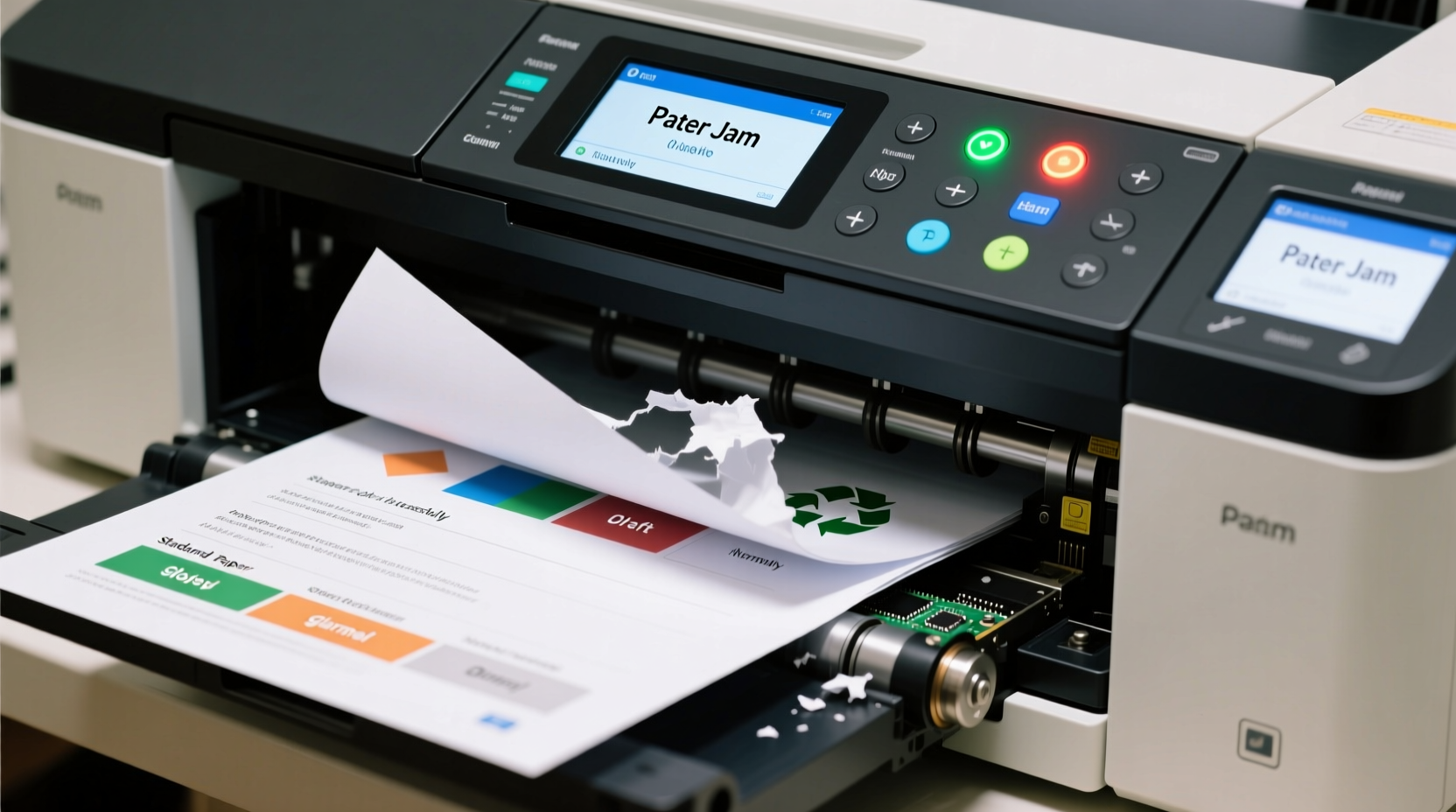
A paper jam occurs when paper fails to move smoothly through the printer’s path. While it may seem like the paper is the culprit, the reality is more complex. Printers rely on a series of rollers, sensors, pickup mechanisms, and precise alignment to feed paper from tray to output. Any disruption in this system can cause a jam—even with fresh, properly stored paper.
The misconception that “new paper solves everything” is widespread. In truth, new paper only addresses one variable. If internal components are worn, misaligned, or dirty, even premium paper will struggle to pass through unscathed. Additionally, environmental factors like humidity and static electricity can influence how paper behaves inside the machine.
Common Causes Behind Persistent Paper Jams
While paper quality matters, it’s rarely the sole reason for repeated jams. Here are the most frequent underlying causes:
- Worn or Dirty Pickup Rollers: These rubberized rollers grip the paper and pull it into the printer. Over time, they become slick due to dust, paper fibers, or dried toner, reducing their ability to grip effectively.
- Faulty Separation Pads: Located near the pickup rollers, separation pads ensure only one sheet is fed at a time. When worn or misaligned, multiple sheets can be pulled in simultaneously, causing a jam.
- Internal Debris Buildup: Dust, paper fragments, and toner residue accumulate inside the paper path. This debris interferes with smooth paper movement and can trigger false sensor readings.
- Misaligned Paper Guides: If the guides in the input tray are too loose or too tight, paper won’t feed straight. Slight skewing can lead to jams further down the line.
- Humidity and Static: High humidity makes paper curl or stick together; low humidity increases static, which causes sheets to cling or misfeed.
- Firmware or Sensor Issues: Printers use optical sensors to detect paper position. If these sensors are dirty or malfunctioning, the printer may think paper is stuck when it isn’t—or fail to detect a real jam.
Mini Case Study: The Office That Switched Paper Brands (And Saw No Change)
An administrative office upgraded from standard copy paper to a premium, acid-free brand, expecting to eliminate their persistent jamming issues. Within days, jams returned. A technician inspected the printer and discovered heavily glazed pickup rollers—so smooth they couldn’t grip any paper, regardless of quality. After cleaning and replacing the rollers, jams dropped by 95%. The paper wasn’t the problem; the hardware was.
“Paper quality is just one piece of the puzzle. I’ve seen brand-new reams cause jams in printers with worn rollers or misaligned trays.” — Carlos Mendez, Certified Printer Technician with 12 years of field experience
Step-by-Step Guide to Diagnose and Fix Recurring Jams
If your printer keeps jamming despite using new paper, follow this systematic approach to identify and correct the root cause.
- Power Down and Inspect: Turn off and unplug the printer. Open all accessible panels and check the entire paper path for obstructions, torn paper fragments, or foreign objects.
- Clean the Rollers: Use a lint-free cloth slightly dampened with water or isopropyl alcohol. Gently wipe the pickup and feed rollers. Rotate them manually to clean the full surface. Let dry completely before reassembling.
- Check Separation Pad Condition: Locate the separation pad (usually near the pickup roller). If it’s cracked, hardened, or excessively worn, replace it. Most manufacturers sell replacement kits.
- Adjust Paper Tray Guides: Ensure guides fit snugly against the paper stack without bending the edges. Loose guides allow skewing; overly tight ones restrict movement.
- Verify Paper Type Settings: Match the printer’s paper type setting (e.g., plain, thick, envelope) to what’s loaded. Mismatched settings alter roller pressure and speed.
- Run a Cleaning Cycle: Many printers have a built-in cleaning function for rollers and sensors. Consult your manual to activate it.
- Update Firmware: Check the manufacturer’s website for firmware updates. Bugs related to sensor calibration or paper handling are sometimes resolved in updates.
- Test with Different Paper Batches: Try a different ream—even from the same brand—to rule out moisture or manufacturing defects in a specific batch.
Do’s and Don’ts of Paper Handling and Printer Maintenance
| Do’s | Don’ts |
|---|---|
| Store paper in a cool, dry place away from direct sunlight. | Leave paper exposed to open air for long periods—humidity warps sheets. |
| Fan paper stacks before loading to reduce static and sticking. | Overfill the paper tray—this increases friction and misfeeds. |
| Use manufacturer-recommended paper weights and types. | Use wrinkled, folded, or recycled paper with rough edges. |
| Clean rollers every 3–6 months, depending on usage. | Use abrasive cleaners or sharp tools on rollers or sensors. |
| Align paper guides correctly for each load. | Force misfed paper through—this can damage gears or sensors. |
When Hardware Replacement Is Necessary
Sometimes, cleaning and adjustments aren’t enough. Internal components wear out over time, especially in high-volume environments. If you’ve followed all preventive steps and jams persist, consider replacing key parts:
- Pickup Roller Assembly: Available as a kit for most models. Replacing it restores proper grip.
- Separation Pad: A low-cost part that prevents multi-sheet feeding.
- Fuser Unit (Laser Printers): If paper jams occur near the output, a failing fuser with worn rollers could be the cause.
- Input Tray Sensors: Faulty sensors can falsely report jams. A technician can test and replace them if needed.
Before investing in repairs, evaluate the printer’s age and usage. For older models, the cost of parts and labor may exceed the value of the device. However, for business-critical or high-end printers, component replacement is often cost-effective.
Environmental and Usage Factors You Might Be Overlooking
Even with perfect hardware and pristine paper, external conditions can sabotage performance.
Humidity: Ideal indoor humidity for printing is between 40% and 60%. Below this range, static builds up; above it, paper absorbs moisture and becomes limp. Consider using a dehumidifier or humidifier in extreme climates.
Temperature Fluctuations: Rapid changes cause condensation inside the printer, affecting both paper and electronics. Avoid placing printers near windows, vents, or exterior doors.
Static Electricity: Common in dry winter months. To reduce static, store paper in its original sealed packaging until use, and ground yourself before handling components.
Print Volume Spikes: Printing hundreds of pages in one session overheats rollers and stresses mechanical parts. Allow cooling breaks during large jobs.
Preventive Maintenance Checklist
To minimize future jams, perform these checks regularly:
- ✅ Clean pickup and feed rollers every 3–6 months
- ✅ Inspect and replace separation pads annually or as needed
- ✅ Clear debris from paper trays and output bins monthly
- ✅ Verify paper settings match loaded media
- ✅ Keep firmware updated
- ✅ Store paper in sealed containers with silica gel packs
- ✅ Run a test page weekly to catch early signs of misfeeding
FAQ: Common Questions About Persistent Printer Jams
Can using recycled paper cause more jams?
Recycled paper can contribute to jams if it has rough edges, inconsistent thickness, or higher moisture content. However, many high-quality recycled papers perform as well as virgin fiber. The key is choosing reputable brands and storing them properly. If jams increase after switching to recycled paper, inspect the rollers—they may need cleaning from increased fiber shedding.
Why does my printer jam only when printing double-sided?
Double-sided (duplex) printing requires paper to travel a longer, more complex path. If the reversal rollers are dirty or worn, or if the paper is too thin or curled, it may not feed correctly during the flip. Try using heavier paper (e.g., 24 lb) for duplex jobs and clean the duplex assembly if available.
Is there a difference between inkjet and laser printer jam causes?
Yes. Inkjets are more sensitive to paper curl and moisture because they use lower heat and slower drying. Lasers, while faster, generate heat that can degrade rollers over time. Laser printers also have more moving parts in the fuser unit, which can seize or slip. However, both share common vulnerabilities like dirty rollers and misaligned trays.
Conclusion: Stop Treating Symptoms—Fix the System
Recurring paper jams aren’t just a nuisance—they signal deeper issues within your printing system. Blaming new paper oversimplifies a multifaceted problem. True resolution comes from understanding the interplay between paper, hardware, environment, and maintenance.
By systematically inspecting rollers, adjusting trays, controlling storage conditions, and performing regular upkeep, you can eliminate most jams permanently. Don’t wait for frustration to build. Take action today: clean those rollers, verify your settings, and treat your printer like the precision machine it is.




 浙公网安备
33010002000092号
浙公网安备
33010002000092号 浙B2-20120091-4
Comments
No comments yet. Why don't you start the discussion?