
Printer paper jams are among the most common yet frustrating office and home issues. They interrupt workflows, waste time, and often lead to misprints or damaged documents. While many users assume paper jams are random or unavoidable, the truth is that most are preventable with proper understanding of paper handling, printer mechanics, and subtle alignment techniques. The root causes often lie not in the machine itself but in overlooked details—how paper is loaded, what type is used, or how components are maintained. This guide dives into the real reasons behind recurring paper jams and reveals practical, underused alignment tricks that can drastically reduce—or even eliminate—this persistent problem.
Understanding the Mechanics Behind Paper Jams
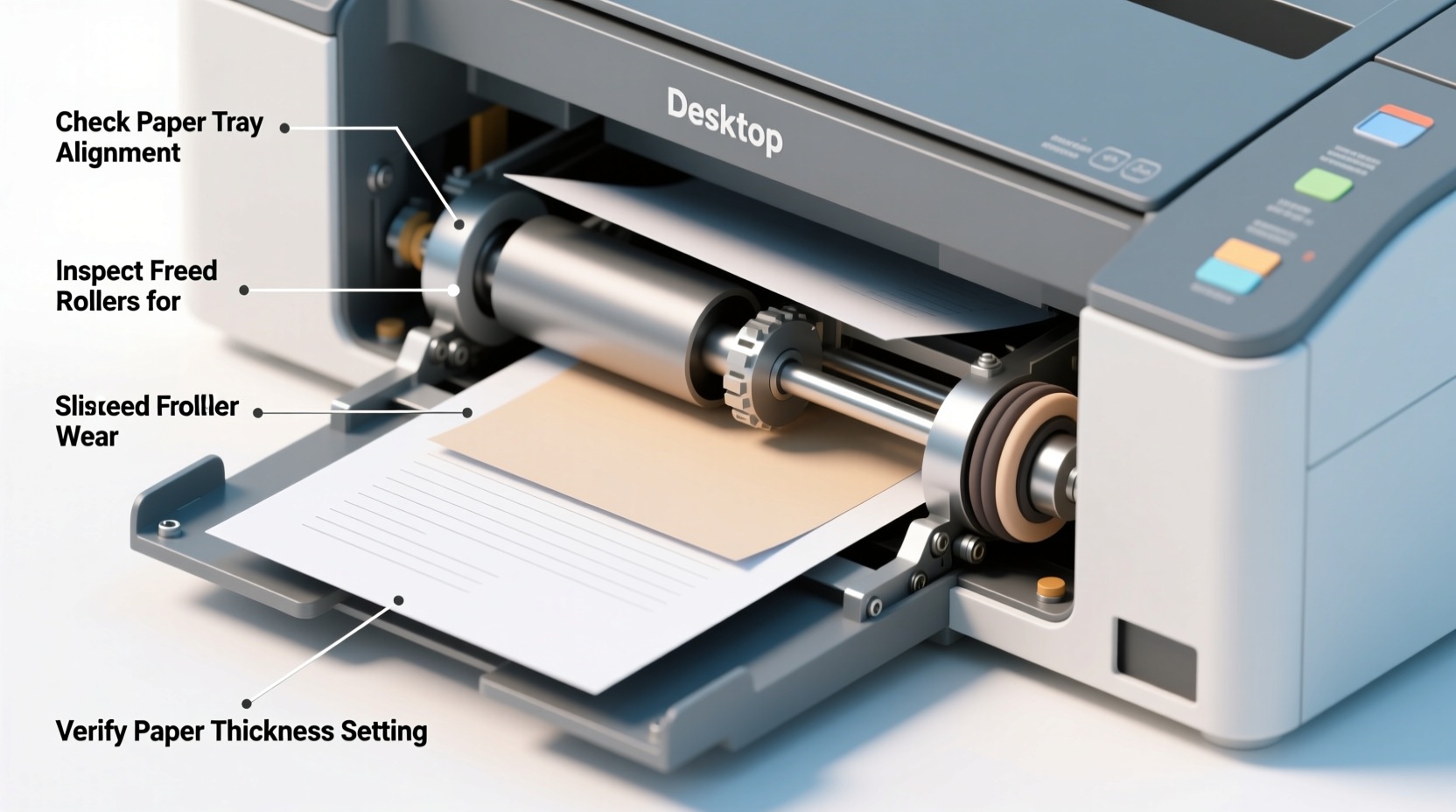
Before addressing solutions, it's essential to understand how printers feed paper. Most inkjet and laser printers use a pickup roller system: a rubberized wheel grabs the top sheet from the input tray and pulls it through a series of rollers toward the print mechanism. Any disruption in this path—uneven feeding, friction, misalignment, or debris—can cause the paper to skew, fold, or stop entirely, triggering a jam alert.
Common mechanical culprits include worn rollers, dust buildup, and internal obstructions. However, user-related factors are equally significant. Loading too much paper, using wrinkled or damp sheets, or failing to adjust guides properly all contribute to misfeeds. Even slight misalignment in the paper stack can force the pickup roller to grab multiple sheets at once—a condition known as multi-feeding—which almost always leads to a jam deeper inside the printer.
“Over 60% of reported paper jams stem from improper paper loading rather than hardware failure.” — James Lin, Senior Technician at PrintCare Labs
5 Critical Alignment Tricks Most Users Miss
Many people load paper into their trays without adjusting the side and rear guides, assuming the printer will handle any variance. But precision matters. Here are five alignment techniques frequently overlooked:
- Always Adjust the Paper Guides Snugly: Loose side guides allow paper to shift during feeding. Slide them gently against the edges of the stack so there’s no lateral movement but avoid forcing them, which could bend the paper.
- Fan the Paper Before Loading: Stacks of paper can develop static cling or stick together due to humidity. Fanning the ream before placing it in the tray separates the sheets and reduces the chance of double-feeding.
- Align the Rear Guide with the Paper Edge: In addition to side guides, the backstop must be flush with the trailing edge of the paper. If set too far back, paper may feed at an angle; if too tight, it won’t move freely.
- Use the Correct Tray for the Paper Type: Some printers have multi-purpose trays or manual feed slots designed for thicker media. Using the main tray for cardstock or labels increases friction and misalignment risk.
- Check Tray Leveling: If your printer sits on an uneven surface, the paper tray may tilt slightly, causing one edge to feed faster than the other. Ensure the printer is on a flat, stable surface.
Step-by-Step Guide to Prevent Future Jams
Follow this routine every time you refill the paper tray to maintain consistent performance:
- Remove the current paper stack—even if partially used—to inspect for wrinkles, curls, or debris.
- Clean the pickup roller monthly using a lint-free cloth slightly dampened with water. Let it dry completely before reloading paper.
- Select fresh, undamaged paper stored in a cool, dry place. Avoid exposing reams to moisture or direct sunlight.
- Open the tray fully and adjust both side and rear guides to match standard letter size (8.5 x 11 inches) or your preferred format.
- Fan the paper stack by holding opposite corners and flipping through the pages like a deck of cards.
- Tap the stack firmly on a flat surface to align all edges evenly.
- Load no more than the recommended capacity (usually marked on the tray). Overloading increases pressure and misfeed risk.
- Slide the stack into the tray until it meets the rear guide, then adjust side guides snugly against the edges.
- Perform a test print using a single page to verify smooth feeding.
Do’s and Don’ts of Paper Handling
| Do’s | Don’ts |
|---|---|
| Store paper in sealed packaging until use | Leave paper exposed to open air for weeks |
| Use manufacturer-recommended paper types | Mix different weights or finishes in the same tray |
| Replace worn rollers every 12–18 months | Ignore squeaking or slipping sounds during feed |
| Keep the printer interior clean and dust-free | Blow compressed air directly into rollers without caution |
| Check alignment after refilling the tray | Assume settings remain correct over time |
Real-World Example: How a Small Office Reduced Jams by 90%
A mid-sized accounting firm in Portland was experiencing daily paper jams across three shared printers, costing nearly two hours per week in troubleshooting and reprinting. An internal audit revealed that staff were loading paper quickly without fanning stacks or adjusting guides. Additionally, recycled paper—often slightly curled—was being used interchangeably with standard bond.
The IT manager implemented a simple protocol: designate one employee per floor to refill trays weekly using the full alignment process, including fanning, tapping, and guide adjustment. They also switched to a higher-quality, moisture-resistant paper and began cleaning rollers quarterly. Within a month, paper jams dropped from an average of four per week to less than one every two weeks. Productivity improved, and toner waste decreased significantly.
“We thought we needed new printers. Turns out, we just needed better habits.” — Daniel Reyes, IT Coordinator, Summit Accounting Group
When Hardware Issues Are the Real Culprit
Even with perfect technique, some printers develop mechanical faults. Worn pickup rollers lose traction, especially on glossy or heavy paper. Misaligned trays, broken springs, or damaged gears can also cause chronic jams. Signs that point to hardware problems include:
- Repeated jams in the same location (e.g., near the fuser unit)
- Paper curling or crumpling despite correct loading
- Visible wear or glazing on rubber rollers
- Jams occurring only with certain paper types, even when aligned properly
If basic fixes don’t resolve the issue, consider professional servicing. Many manufacturers offer roller replacement kits or certified repair programs. For older models, investing in maintenance may extend life more affordably than upgrading.
FAQ: Common Questions About Printer Jams
Why does my printer jam only when printing double-sided?
Duplex printing requires paper to travel a longer path and reverse direction. If rollers are worn or paper is slightly curled, the return feed can fail. Use flat, high-stiffness paper and reduce duplex volume if jams persist.
Can using third-party paper really cause more jams?
Yes. Off-brand paper may have inconsistent sizing, rougher texture, or higher static charge, increasing friction and misfeeds. Stick to reputable brands unless compatibility is confirmed.
Is it safe to pull jammed paper out forcefully?
No. Yanking paper can tear it or damage internal components. Always follow the printer’s jam-clearing instructions: open access doors, remove paper slowly in the direction of travel, and inspect for fragments.
Conclusion: Take Control of Your Printing Experience
Recurring paper jams aren't inevitable—they're signals that something in your printing workflow needs attention. Whether it's a misaligned tray, poor paper quality, or neglected maintenance, each factor plays a role in reliability. By applying precise alignment techniques, following a disciplined loading routine, and recognizing when hardware support is needed, you can transform a frustrating device into a dependable tool.
Start today: clean your rollers, fan your next ream, and adjust those guides with care. Small changes compound into major gains in efficiency and document quality. A jam-free printer isn’t magic—it’s method.




 浙公网安备
33010002000092号
浙公网安备
33010002000092号 浙B2-20120091-4
Comments
No comments yet. Why don't you start the discussion?