
Nothing disrupts productivity like a printer that insists on jamming at the worst possible moment. Whether you're printing an urgent work report or a child's school project, a paper jam halts everything—often leaving behind crumpled pages, wasted time, and mounting frustration. While occasional jams might seem inevitable, frequent occurrences are not normal. The truth is, most paper jams stem from preventable causes: improper loading, worn components, environmental factors, or simple neglect. Understanding the root causes and applying targeted fixes can dramatically reduce—or even eliminate—paper jams. This guide breaks down the common reasons behind recurring jams and provides actionable strategies to keep your printer running smoothly.
Understanding How Printers Feed Paper
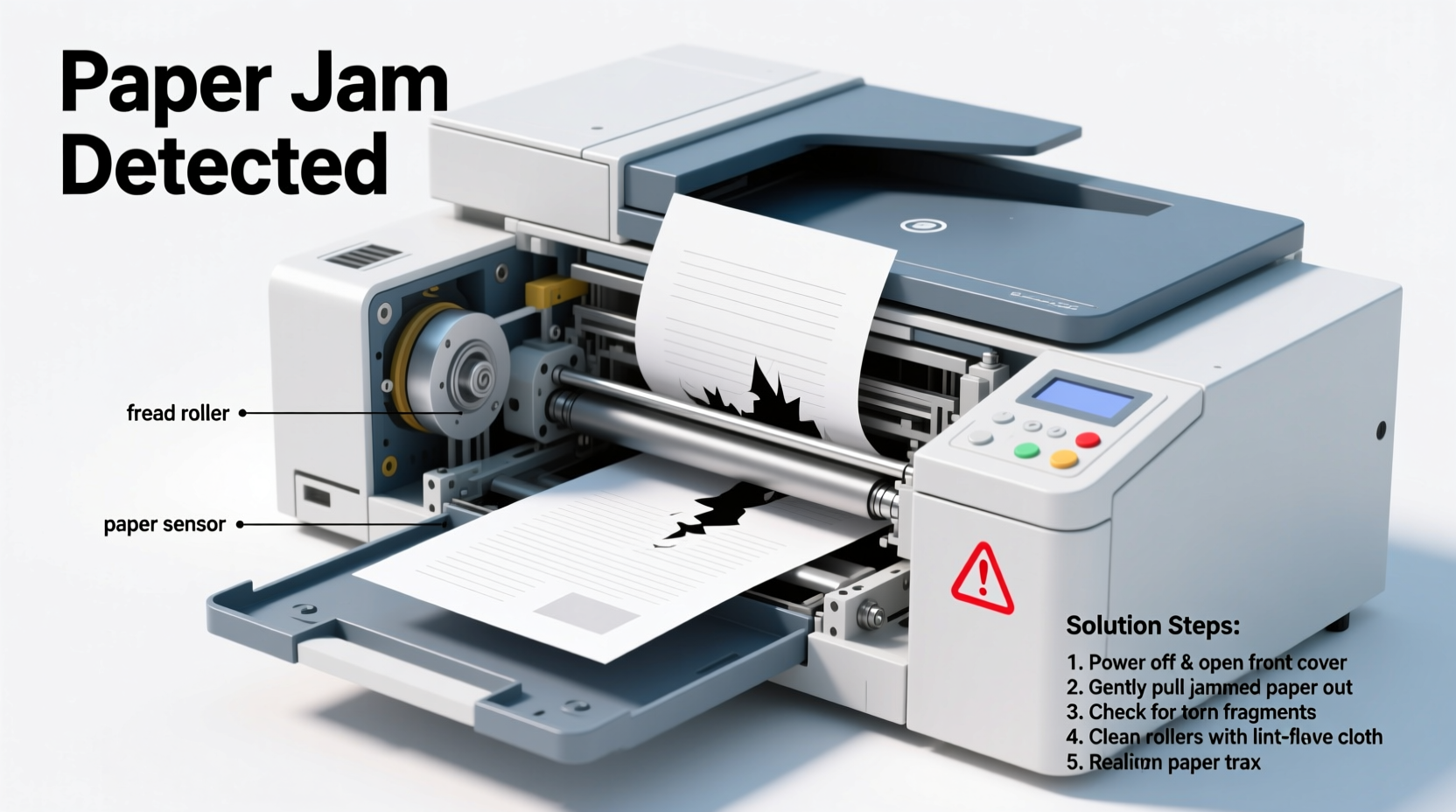
To effectively address paper jams, it helps to understand how printers move paper through the system. Most consumer printers use a pickup roller to grab the top sheet from the tray, feeding it into a series of rollers that guide it past the print head or toner cartridge and out the output tray. In laser printers, this path often includes a fuser unit that applies heat to bond toner to the page. Any obstruction, misalignment, or mechanical wear along this path can result in a jam.
The complexity increases with duplex (double-sided) printing, where paper must reverse direction mid-process, doubling the chance of misfeeds. Multi-function printers with automatic document feeders (ADF) for scanning add another layer of potential failure points. Knowing this mechanism reveals why seemingly small issues—like dust buildup or slightly curled paper—can escalate into full jams.
“Over 70% of paper jams originate in the pickup or separation stage, not deep inside the machine.” — James Rutherford, Printer Service Technician with 15+ years of field experience
Common Causes of Recurring Paper Jams
Recurrent jams rarely have a single cause. Instead, they’re usually the result of multiple overlapping issues. Identifying these factors is the first step toward prevention.
1. Poor Paper Quality or Condition
Using paper that’s too thin, too thick, damp, or wrinkled increases the risk of misfeeds. Paper stored in humid environments absorbs moisture, making sheets stick together. Similarly, glossy or specialty papers not rated for your printer model may slip or bind in the rollers.
2. Overloaded or Improperly Loaded Paper Tray
Filling the tray beyond its recommended capacity forces the pickup roller to work harder, increasing the chance of grabbing multiple sheets at once. Also, failing to adjust the paper guides correctly can allow sheets to skew as they enter the feed path.
3. Worn or Dirty Rollers
Pickup and feed rollers degrade over time. Rubber surfaces become slick or cracked, losing their grip. Dust, paper fibers, and toner residue further reduce traction. A dirty roller can’t reliably separate or advance paper, leading to slips and jams.
4. Foreign Objects or Debris
Small fragments of torn paper, staples, or even paper clips left in trays can get pulled into the mechanism. These objects lodge between rollers or in tight spaces, disrupting the paper path.
5. Environmental Factors
Printers in garages, basements, or near windows are exposed to temperature swings and humidity. Cold environments make rollers brittle; high humidity causes paper to clump. Both conditions contribute to inconsistent feeding.
Step-by-Step Guide to Clearing and Preventing Jams
When a jam occurs, immediate action is necessary—but so is a methodical approach. Rushing can damage internal components or leave debris behind, setting the stage for future jams.
- Turn off and unplug the printer. Safety first. Powering down prevents accidental movement during clearance.
- Open all accessible panels. This typically includes the rear access door, front output tray, and any removable covers near the toner or ink cartridges.
- Gently remove visible paper. Pull slowly in the direction of the paper path. Never yank—if resistance is felt, look for alternate entry points.
- Inspect for remnants. Use a flashlight to check for tiny paper fragments, especially near rollers and tight bends.
- Clean the rollers. Dampen a lint-free cloth with distilled water and gently wipe each roller. Allow them to dry completely before reassembly.
- Reassemble and power on. Once cleared, close all compartments and restart the printer.
- Run a test print. Use plain letter-sized paper to verify smooth operation.
Repeat this process monthly if you print frequently, even without jams. Preventive maintenance reduces long-term wear.
Do’s and Don’ts of Paper Handling
| Do’s | Don’ts |
|---|---|
| Use paper within the manufacturer’s recommended weight range (typically 20–28 lb) | Use wrinkled, folded, or damp paper |
| Fan paper stacks before loading | Overfill the input tray |
| Adjust paper guides snugly against the stack | Leave guides loose or pushed too far inward |
| Store paper in a sealed container in a climate-controlled area | Store paper near windows, heaters, or sinks |
| Clean rollers every 1–3 months | Use alcohol or abrasive cleaners on rubber rollers |
Maintenance Checklist to Prevent Future Jams
Prevention is always better than repair. Follow this checklist regularly to minimize the risk of jams:
- ✅ Inspect paper trays weekly for debris or misalignment
- ✅ Clean pickup and feed rollers monthly using a damp lint-free cloth
- ✅ Replace worn rollers every 12–18 months (or after ~20,000 pages)
- ✅ Store unused paper in resealable plastic bins with silica gel packs
- ✅ Avoid mixing paper types or sizes in the same tray
- ✅ Run a printer self-cleaning cycle (if available) quarterly
- ✅ Keep firmware updated to ensure optimal motor and sensor performance
Real-World Example: Office Jam Cycle Broken
A mid-sized accounting firm in Portland reported chronic jams in their shared laser printer, especially during tax season. Staff would clear jams multiple times daily, wasting hours. An IT consultant investigated and found several contributing factors: the paper tray was routinely overfilled, the office humidity spiked due to spring rains, and the pickup roller showed visible glazing from years of use.
The solution was straightforward: they replaced the roller, installed a dehumidifier in the supply closet, implemented a “fan and load” policy for new reams, and posted a quick-reference guide near the printer. Within two weeks, jams dropped from 5–6 per week to zero. Productivity improved, and toner waste decreased since fewer partial prints were discarded.
This case illustrates how multiple small fixes, when combined, create significant improvements. No single change would have sufficed.
When to Seek Professional Repair
Some issues go beyond routine maintenance. If you’ve followed all preventive steps and still experience frequent jams, internal components may be failing. Common culprits include:
- Worn clutch or solenoid – responsible for engaging the pickup roller
- Misaligned sensors – fail to detect paper presence or position
- Damaged fuser assembly – particularly in laser printers, where heat and pressure can warp rollers
- Broken gears or timing belts – disrupt synchronization between rollers
In such cases, disassembly requires specialized tools and knowledge. Attempting repairs without expertise can void warranties or cause further damage. Contact the manufacturer or a certified technician if jams persist despite thorough cleaning and correct paper handling.
“Many customers think paper jams mean the printer is dying. Often, it’s just neglected maintenance. A $10 roller kit and 20 minutes of care can extend a printer’s life by years.” — Maria Tran, Owner of Citywide Printer Services
FAQ: Common Questions About Printer Jams
Why does my printer jam only when printing double-sided?
Duplex printing requires paper to travel a longer, more complex path, including a reversal mechanism. If the reversing rollers are dirty or weak, they may fail to pull the page back in properly. Clean all accessible rollers and ensure the paper is not too thick or curled.
Can using third-party paper cause jams?
Yes. Off-brand or recycled paper may have inconsistent thickness, rough edges, or higher static charge, increasing friction and misfeeds. Stick to reputable brands that specify compatibility with your printer type.
How do I know if my rollers need replacing?
If cleaning doesn’t improve feeding, and you notice repeated slippage, smudging, or paper advancing at an angle, the rollers are likely worn. Visually inspect them for cracks, flat spots, or shiny, glazed surfaces—signs of rubber degradation.
Conclusion: Take Control of Your Printing Experience
Recurring paper jams aren’t a fact of life—they’re a signal that something needs attention. Whether it’s a simple fix like adjusting the paper tray or a deeper issue like worn internal parts, the solutions are within reach. By understanding how your printer works, adopting consistent maintenance habits, and responding promptly to early warning signs, you can restore reliability and save time, money, and stress.
Start today: clean the rollers, check your paper storage, and run a test print. Small actions compound into long-term results. Your printer doesn’t have to be a source of frustration. With proper care, it can deliver smooth, jam-free performance for years to come.




 浙公网安备
33010002000092号
浙公网安备
33010002000092号 浙B2-20120091-4
Comments
No comments yet. Why don't you start the discussion?