
There are few office frustrations more disruptive than a printer that jams every time you need it most. Whether you're printing an urgent work report or a last-minute school project, a paper jam halts everything in its tracks. While it might seem like a minor mechanical hiccup, recurring jams often point to deeper, fixable issues. The good news? Most causes of paper jams are simple to diagnose and resolve—without calling a technician or buying a new machine.
Understanding the root causes behind frequent paper jams empowers you to take control of your printer’s performance. From misaligned rollers to improper paper loading, many common culprits can be addressed with basic maintenance and smart habits. This guide walks through the most frequent reasons your printer may be jamming, offers practical solutions, and equips you with a step-by-step plan to restore smooth operation—all from the comfort of your home.
Common Causes of Printer Paper Jams
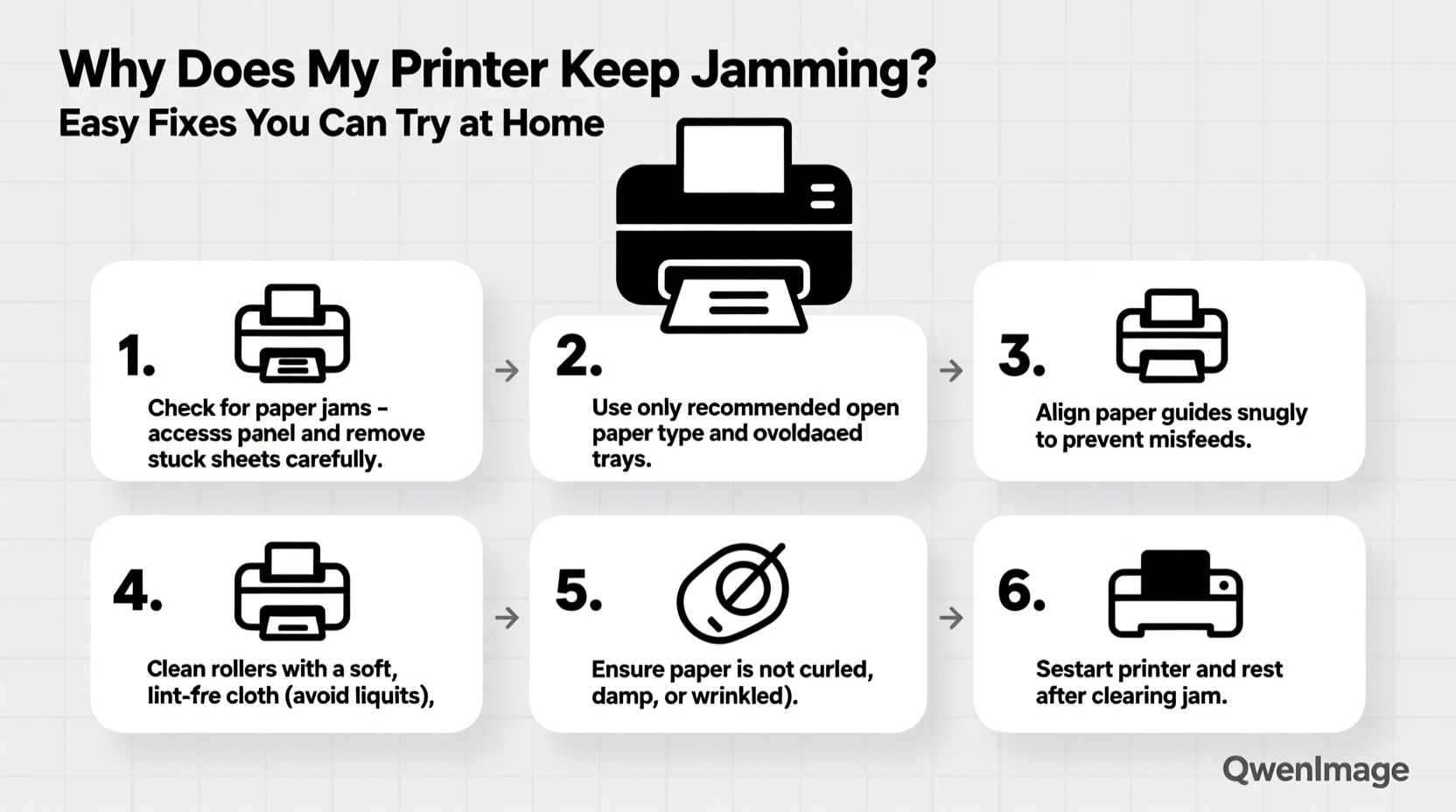
Before diving into fixes, it's essential to understand what might be causing the problem. Printers are precision machines, and even small inconsistencies can disrupt the paper path. Here are the most frequent contributors to paper jams:
- Overloaded paper tray: Too much paper increases friction and prevents smooth feeding.
- Paper quality issues: Wrinkled, damp, or low-quality paper is more likely to crumple or stick.
- Dust or debris buildup: Over time, dust, paper fibers, and toner residue accumulate on rollers and sensors.
- Worn or dirty rollers: The rubber rollers that feed paper can become slick or cracked with age.
- Incorrect paper type or size: Using paper not recommended for your printer model can cause misfeeds.
- Misaligned internal components: A piece of torn paper or foreign object stuck inside can block the path.
- Faulty sensors: Optical sensors that detect paper movement may be obstructed or malfunctioning.
Step-by-Step Guide to Clear and Prevent Paper Jams
When a paper jam occurs, rushing to yank out the paper can make things worse. Follow this careful process to clear jams safely and reduce the chance of recurrence.
- Turn off and unplug the printer. Safety first. Powering down prevents accidental movements during handling.
- Open all accessible panels. This typically includes the front output tray, rear access door, and top scanner unit (for all-in-ones).
- Gently remove visible paper. Pull slowly in the direction of the paper path. Never force it—if resistance is felt, look for another access point.
- Inspect for torn fragments. Even a small shred left inside can trigger future jams. Use a flashlight if needed.
- Clean the rollers. Dampen a lint-free cloth with distilled water, gently wipe the rollers, then let them dry completely before reassembly.
- Check sensor locations. Look near the paper tray and along the internal path for small plastic flaps or lenses—wipe gently with a dry cotton swab.
- Reload paper properly. Fan the stack before loading, align it neatly in the tray, and adjust the guides snugly against the edges without bending the paper.
- Power back on and test. Print a test page to confirm the issue is resolved.
“Most paper jams aren’t random—they’re symptoms of preventable wear or misuse. Regular cleaning and proper supplies go a long way.” — David Lin, Certified Printer Technician, HP Support Network
Do’s and Don’ts of Printer Paper Handling
How you handle paper directly affects your printer’s reliability. Refer to this table to optimize your habits and avoid common pitfalls.
| Do’s | Don’ts |
|---|---|
| Fan paper before loading to reduce static cling. | Overfill the input tray beyond the recommended limit. |
| Store paper in a cool, dry place away from humidity. | Use wrinkled, folded, or previously printed-on sheets. |
| Use manufacturer-recommended paper weight (e.g., 20–24 lb bond). | Mix different paper types or sizes in the same tray. |
| Clean rollers every 2–3 months with a lint-free cloth. | Use alcohol or abrasive cleaners on rubber rollers. |
| Align paper guides firmly but without over-tightening. | Force jammed paper backward; always pull forward along the path. |
Real Example: How Sarah Fixed Her Office Printer’s Chronic Jams
Sarah, an administrative assistant at a mid-sized law firm, struggled with her office’s laser printer jamming multiple times a day. Each jam delayed client document printing, creating tension among staff. Initially, she assumed the printer was failing and requested a replacement.
Before approving the purchase, IT suggested a diagnostic review. They discovered three key issues: the paper tray was consistently overloaded with 300+ sheets (well above the 250-sheet max), the paper had been stored under a window where humidity warped the edges, and the pickup roller was coated in fine dust.
After emptying the tray, replacing the paper with fresh, properly stored stock, and cleaning the rollers with a damp cloth, the jams dropped from five per day to zero over the next two weeks. A $15 pack of premium copy paper and 20 minutes of maintenance saved the company hundreds on unnecessary hardware.
This case illustrates how environmental factors and routine neglect—not equipment failure—are often to blame for persistent jams.
Preventive Maintenance Checklist
To keep your printer running smoothly, perform these actions regularly. Mark them on your calendar or set phone reminders to build a maintenance habit.
- ✅ Clean feed and pickup rollers monthly using a lint-free cloth and distilled water.
- ✅ Inspect the paper path for debris or leftover fragments every time a jam occurs.
- ✅ Replace worn rollers if they appear cracked or glazed (kits available online for $10–$30).
- ✅ Store paper flat in sealed reams, away from moisture and direct sunlight.
- ✅ Use only paper types specified in your printer’s manual (avoid glossy or cardstock unless supported).
- ✅ Run a printer self-cleaning cycle (if available) once a month.
- ✅ Keep firmware updated—manufacturers often release patches that improve paper handling logic.
- ✅ Rotate paper stock: use older reams first to prevent aging and warping.
When to Seek Professional Help
While most jams can be resolved at home, some issues require expert attention. Consider professional repair or replacement if you notice any of the following:
- Jams persist after thorough cleaning and correct paper loading.
- The printer makes grinding or clicking noises during operation.
- Multiple error codes related to paper sensors or feed mechanisms appear.
- Rollers are visibly damaged or unable to grip paper despite cleaning.
- The printer consistently feeds multiple sheets at once (a sign of worn separation pads).
In such cases, internal components like the fuser assembly, timing belts, or paper sensors may need replacement. These repairs can sometimes cost more than a new entry-level printer, so weigh the age and value of your device carefully.
FAQ: Common Questions About Printer Paper Jams
Why does my printer jam even with brand-new paper?
Even high-quality paper can cause jams if it’s loaded incorrectly, exposed to moisture, or incompatible with your printer model. Also, static electricity in dry environments can make sheets stick together, causing multi-feed jams. Fanning the paper before loading helps separate sheets and reduce static.
Can I use compressed air to clean my printer’s interior?
Yes, but with caution. Use short bursts and hold the can upright to avoid spraying liquid propellant. Avoid direct contact with electrical contacts or delicate gears. Compressed air works well for dislodging dust in hard-to-reach areas, but always follow up by wiping rollers manually for best results.
Is it safe to open the back panel of my printer?
Most printers have rear access doors designed for clearing jams. As long as the device is unplugged and you avoid touching internal wiring or the print head (in inkjets), it’s generally safe. Consult your manual for guidance specific to your model before proceeding.
Conclusion: Take Control of Your Printer’s Performance
A printer that constantly jams doesn’t necessarily need replacing—it likely needs care. By understanding the mechanics behind paper feeding and adopting simple maintenance routines, you can eliminate most jams before they happen. The effort invested in cleaning rollers, using quality paper, and loading trays correctly pays off in saved time, reduced frustration, and extended printer life.
Don’t let a minor mechanical glitch disrupt your productivity. Start today: power down your printer, inspect the paper path, clean the rollers, and reload with care. Small actions lead to reliable results. Share your own jam-busting tips in the comments below—your experience could help someone else finally silence that dreaded “Paper Jam” alert.




 浙公网安备
33010002000092号
浙公网安备
33010002000092号 浙B2-20120091-4
Comments
No comments yet. Why don't you start the discussion?