
Printer jams are one of the most frustrating office or home printing problems—especially when they occur with brand-new paper. You expect fresh reams to perform flawlessly, yet the moment you load them, the printer signals a paper jam. This issue isn’t just inconvenient; it wastes time, damages documents, and can even harm your printer’s internal components over time. The truth is, even pristine paper can cause jams if conditions aren't right. Understanding the root causes—from environmental factors to mechanical wear—is essential to preventing recurring issues.
This guide breaks down the real reasons behind new-paper-related jams, provides actionable fixes, and offers long-term strategies to ensure reliable printing. Whether you're managing a high-volume office printer or using a compact home model, these insights will help you eliminate jams before they start.
Why New Paper Can Still Cause Jams
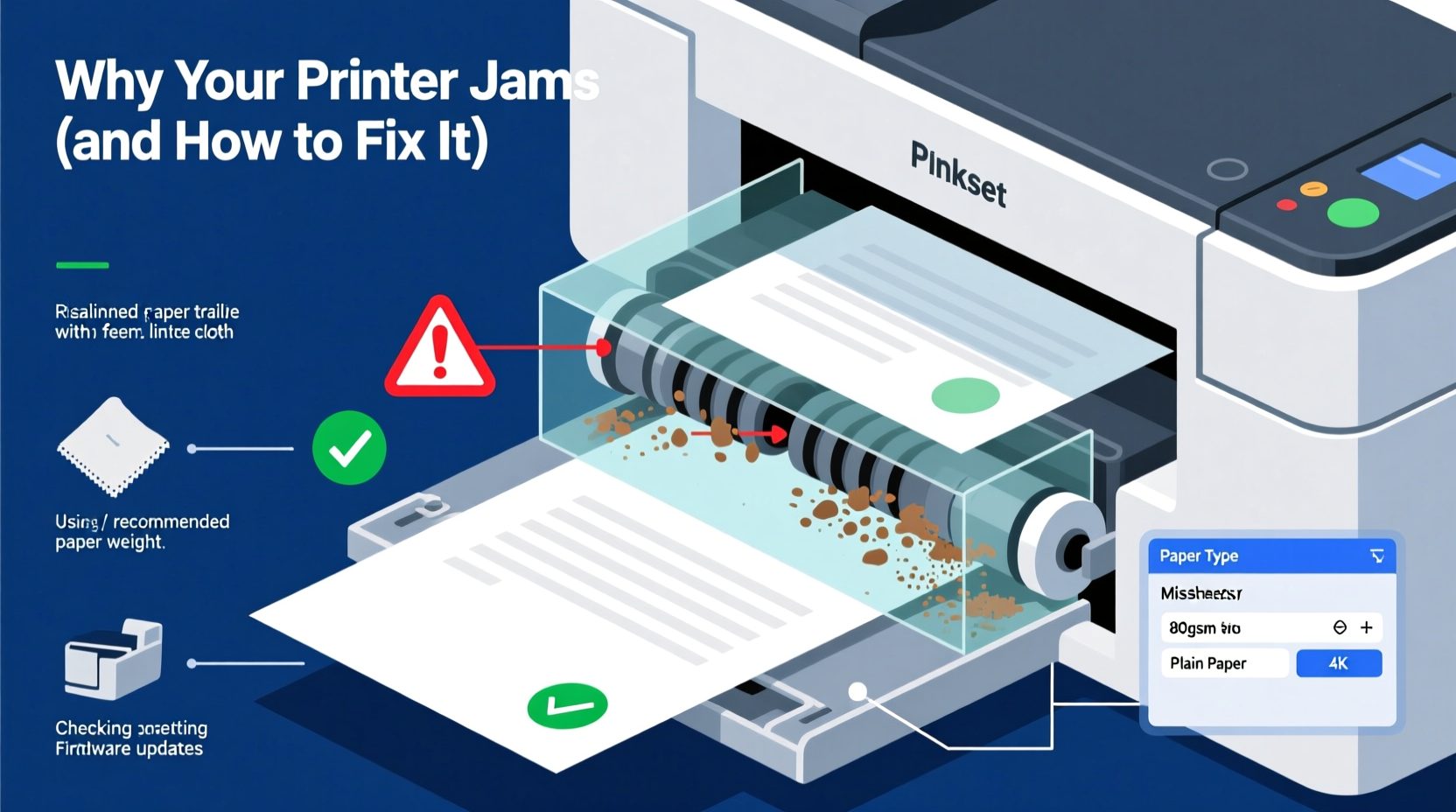
It’s a common misconception that only old, crumpled, or misfed paper causes jams. In reality, new paper introduces variables that can disrupt the feeding mechanism just as easily. Several factors contribute to this:
- Moisture content: Paper absorbs humidity from the air. Even sealed reams stored in damp environments can develop slight warping or static cling, making sheets stick together or feed unevenly.
- Static electricity: Fresh paper, especially in dry climates, generates static. This causes multiple sheets to cling and be pulled into the printer at once—a primary cause of multi-sheet feeds and jams.
- Paper weight mismatch: Not all printers handle heavy cardstock or specialty paper well. Using paper outside the recommended weight range (typically 60–90 gsm for standard printers) increases friction and misfeeds.
- Improper loading: Overfilling the tray, misaligning paper edges, or failing to adjust the guides correctly leads to skewed feeding.
- Roller contamination: Dust, paper fibers, or dried toner on pickup and separation rollers reduce grip, causing slips or double-feeds—even with clean paper.
Step-by-Step Guide to Clearing and Preventing Jams
When a jam occurs, immediate action is necessary—but so is understanding what went wrong. Follow this structured approach to resolve the current issue and prevent recurrence.
- Power down safely: Turn off the printer and unplug it to avoid electrical hazards during clearing.
- Open access panels: Locate jam release levers or doors. Most printers have designated areas near the input tray, output slot, and rear access point.
- Gently remove paper: Pull the paper slowly in the direction of the paper path. Yanking can tear paper or damage rollers.
- Inspect for fragments: Check for tiny paper scraps stuck in rollers or sensors. Use a flashlight if needed.
- Clean the rollers: Dampen a lint-free cloth with distilled water and gently wipe accessible rollers. Let them dry completely before restarting.
- Reload paper correctly: Fan the stack, align edges, and adjust tray guides snugly against the paper without forcing them.
- Test with a single sheet: Print a test page before resuming full jobs.
Proper Paper Loading Technique
Even minor misalignment during loading can trigger jams. Follow these best practices:
- Do not exceed the maximum fill line in the tray.
- Fan the paper stack backward and forward to break static bonds.
- Ensure all four corners are flush before inserting into the tray.
- Adjust side and rear guides so they hold the paper firmly but don’t compress it.
- Avoid mixing paper types or sizes in the same tray.
Environmental and Maintenance Factors
The environment where your printer operates plays a significant role in paper behavior. Temperature, humidity, and dust levels directly impact performance.
High humidity causes paper to absorb moisture and become slightly wavy, increasing friction in the feed path. Conversely, low humidity promotes static electricity, leading to multi-sheet feeds. Ideal conditions are 40–60% relative humidity and temperatures between 68°F and 77°F (20–25°C).
Dust accumulation inside the printer also contributes to jams. Over time, debris builds up on sensors and rollers, impairing their ability to detect and move paper smoothly. Regular cleaning every 1–3 months (depending on usage) is critical.
“Printers are precision instruments. Just like a car needs oil changes, printers need routine maintenance—even when they seem to be working fine.” — David Lin, Senior Technician at OfficeTech Repairs
Maintenance Checklist
- ✓ Clean paper feed and pickup rollers with a damp lint-free cloth
- ✓ Inspect and clear any paper dust from trays and paths
- ✓ Run a printer self-cleaning cycle (if available)
- ✓ Check firmware updates via manufacturer software
- ✓ Verify paper type settings match loaded stock
- ✓ Store unused paper in original packaging in a dry, flat location
Choosing the Right Paper for Your Printer
Not all paper is created equal. Using incompatible or low-quality paper—even if it's new—can lead to repeated jams. Manufacturers design printers to work optimally with specific paper characteristics.
Always check your printer’s manual for recommended paper types, weights, and finishes. For example, inkjet printers often require coated paper to prevent ink bleed, while laser printers need heat-resistant stock to survive fuser temperatures.
| Paper Type | Suitable For | Common Issues if Mismatched |
|---|---|---|
| Standard Copy Paper (75–80 gsm) | All-in-one inkjet/laser printers | Jams if too thin or rough-textured |
| Heavy Cardstock (100–120 gsm) | Laser printers with manual feed | May not feed properly in standard trays |
| Photo Paper (Coated, glossy) | Inkjet photo printers | Can stick to rollers in laser printers |
| Recycled Paper | Low-volume printing | Rougher surface may increase friction |
Stick to reputable brands known for consistent sizing and smooth finish. Off-brand or bargain paper may have irregular edges, inconsistent thickness, or higher static—each a potential jam trigger.
Real-World Example: The Home Office Jam Cycle
Sarah, a freelance graphic designer, upgraded her home office with a new multifunction printer. Within days, she experienced frequent jams despite using a fresh ream of “premium” copy paper. Frustrated, she contacted support after wasting dozens of sheets.
Upon inspection, two issues were identified: first, the paper had been stored in a basement storage box where humidity fluctuated daily. Second, Sarah was loading 250 sheets into a tray rated for 200, and the guides were left loose. After transferring the paper to a climate-controlled room, reducing the load size, and adjusting the guides, jams ceased entirely.
This case illustrates how environmental storage and user habits—not paper quality alone—can be the true culprits.
Advanced Troubleshooting: When Jams Persist
If jams continue despite proper paper handling and cleaning, deeper mechanical or configuration issues may be at play.
Check Internal Components
Over time, rubber rollers wear out and lose traction. If your printer is more than two years old or has printed several thousand pages, consider replacing the pickup and separation rollers. Kits are available from manufacturers or third-party suppliers and typically cost under $30.
Also inspect the fuser unit in laser printers. A damaged or worn fuser roller can cause paper to stick mid-print, resulting in a jam error. Unusual smells (like burning rubber) or smudged prints are warning signs.
Update Firmware and Drivers
Manufacturers regularly release firmware updates that improve paper handling logic and sensor calibration. Outdated software may misread paper size or fail to adjust feed speed appropriately.
To update:
- Visit the manufacturer’s support website.
- Enter your printer model.
- Download the latest firmware and driver updates.
- Follow installation instructions carefully.
Use Manual Feed for Problematic Jobs
For thick media, envelopes, or custom-sized paper, bypass the main tray. Most printers have a manual feed slot that allows direct, controlled feeding. This reduces the chance of skewing or misalignment.
FAQ: Common Questions About Printer Jams
Can using new paper really cause a jam?
Yes. Even new paper can cause jams due to static cling, improper storage, incorrect loading, or incompatibility with your printer model. Environmental conditions and internal printer wear amplify these risks.
How do I know if my printer rollers need replacement?
If you frequently experience multi-sheet feeds, slipping, or jams at the pickup stage—and cleaning doesn’t help—the rollers may be worn. Most rollers last 10,000–20,000 pages. Check your printer’s duty cycle and usage logs.
Is it safe to use compressed air to clean my printer?
Use caution. While compressed air can dislodge dust, excessive pressure may force debris deeper into mechanisms or damage sensitive components. Use short bursts at an angle, and never tilt the can. A soft brush is safer for visible parts.
Conclusion: Take Control of Your Printing Experience
Printer jams with new paper are not inevitable—they’re preventable. By understanding the interplay between paper quality, environmental conditions, and printer maintenance, you can significantly reduce disruptions. Simple actions like fanning paper before loading, keeping rollers clean, and storing supplies properly go a long way.
Don’t wait for jams to become chronic. Implement a monthly maintenance routine, choose compatible paper, and stay updated on firmware. These habits protect your equipment, save time, and preserve your peace of mind.




 浙公网安备
33010002000092号
浙公网安备
33010002000092号 浙B2-20120091-4
Comments
No comments yet. Why don't you start the discussion?