
Smudged printouts are more than a minor annoyance—they can compromise the professionalism of documents, blur critical details in photos, and waste both time and resources. Whether you're printing contracts, school projects, or family photos, clean, crisp output is essential. When ink appears smeared, streaked, or unevenly distributed across the page, the issue often stems from one or more underlying problems related to ink quality, cartridge condition, paper type, or internal printer mechanics. Understanding the root causes and knowing how to address them systematically can restore your printer’s performance and prevent recurring issues.
Understanding Common Causes of Printer Smudging
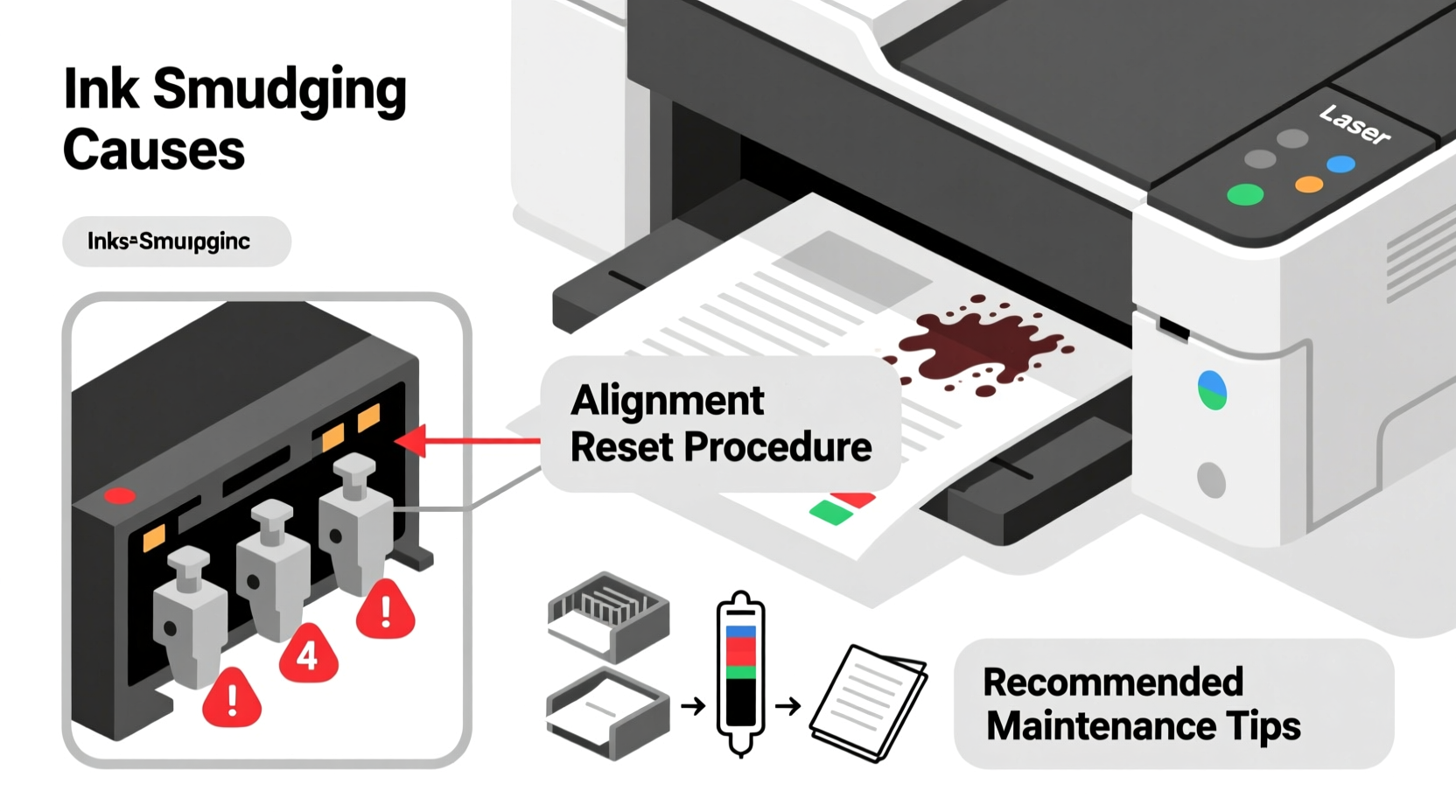
Before diving into fixes, it's important to recognize that smudging isn't always caused by a single factor. Multiple components interact during the printing process—ink, paper, rollers, nozzles, and internal sensors—and a malfunction in any of these areas can result in poor print quality.
- Clogged or dirty print heads: Over time, dried ink can block nozzles, leading to uneven ink distribution and visible streaks.
- Low-quality or expired ink cartridges: Cartridges past their shelf life may dispense ink inconsistently or leak.
- Incompatible or damp paper: Using paper that's too thick, too thin, or stored in humid conditions can cause ink to bleed or fail to dry properly.
- Improper printer alignment: Misaligned cartridges produce text and images that appear skewed or doubled, sometimes mistaken for smudging.
- Damaged rollers or dirty interior: Dust, paper fibers, and old toner residue on rollers can transfer debris onto pages or cause misfeeds that smear wet ink.
Identifying which component is at fault requires observation and testing. For example, horizontal streaks typically point to nozzle clogs, while vertical smears may indicate roller contamination. Consistent blotches suggest leaking cartridges, whereas faint or patchy output could mean low ink levels or poor adhesion due to paper quality.
Step-by-Step Guide to Diagnose and Fix Smudging Issues
Follow this systematic approach to identify and resolve the source of smudging. Each step builds on the previous one, helping you isolate the problem without unnecessary part replacements.
- Print a test page. Most printers have a built-in diagnostic function accessible through the control panel or software utility. This reveals whether the issue is consistent across all prints or isolated to certain colors or areas.
- Inspect the output carefully. Note the pattern: Are there streaks? Blotches? Faded sections? Is the smudging limited to one side? This helps pinpoint mechanical vs. consumable-related faults.
- Run a nozzle check. Available in printer settings (usually under “Maintenance” or “Tools”), this prints a grid of colored lines. Gaps or breaks indicate clogged nozzles.
- Clean the print heads. Initiate a cleaning cycle via the printer menu. Repeat up to two times if needed, but avoid excessive cycles, as they waste ink and may not improve results if the clog is severe.
- Check ink levels and cartridge condition. Remove each cartridge and examine for leaks, dried ink around contacts, or cracked housings. Replace any suspect units.
- Verify paper type and loading. Ensure the correct paper setting is selected in your print driver (e.g., plain, photo, glossy). Load paper neatly into the tray, avoiding overfilling or bent corners.
- Align the print cartridges. After replacing cartridges or noticing misregistration, run an alignment procedure. The printer will print a test pattern and prompt you to select the best-aligned option.
- Clean internal components. Power off the printer, unplug it, and gently wipe rollers and feed paths with a lint-free cloth slightly dampened with distilled water. Avoid alcohol or abrasive cleaners.
If smudging persists after completing these steps, consider deeper mechanical inspection or professional servicing—especially for older models where wear parts like rollers degrade over time.
Do’s and Don’ts: Best Practices for Preventing Smudges
| Do’s | Don’ts |
|---|---|
| Use high-quality, compatible paper suited to your print job (e.g., photo paper for images). | Don’t use wrinkled, damp, or recycled paper with rough texture unless specifically supported by your printer. |
| Store ink cartridges upright in a cool, dry place when not in use. | Don’t leave cartridges exposed to air for extended periods; caps should remain sealed until installation. |
| Run maintenance tasks monthly, even if the printer isn’t used frequently. | Don’t ignore error messages about low ink or printhead status—delaying action worsens outcomes. |
| Keep the printer powered on when possible (for inkjets), as frequent shutdowns accelerate nozzle drying. | Don’t manually touch print head nozzles or electrical contacts; oils from skin can damage sensitive components. |
| Replace cartridges before they run completely dry to prevent air bubbles and pump failure. | Don’t refill cartridges yourself unless using a reputable kit and following instructions precisely. |
Real-World Example: Resolving Chronic Smudging in a Home Office Setup
Sarah, a freelance graphic designer, began noticing smudged edges and color bleeding on client presentation drafts printed from her three-year-old inkjet model. Initially assuming the issue was due to low ink, she replaced both black and color cartridges—only to find the problem persisted. Frustrated, she tried different paper types with no improvement.
After reviewing online diagnostics, she ran a nozzle check and discovered missing magenta and cyan lines. She initiated two cleaning cycles, but results remained inconsistent. Upon removing the color cartridge, she noticed dried ink buildup around the bottom edge. Using a cotton swab lightly moistened with distilled water, she cleaned the exterior contacts and allowed the cartridge to sit for ten minutes with a damp lint-free pad underneath (a controlled rehydration method). After reinstalling, she performed another cleaning and alignment sequence.
The next test print showed dramatic improvement. To prevent recurrence, Sarah adjusted her routine: she now prints at least one page weekly to keep nozzles primed and uses the printer’s automatic deep-cleaning mode every two months. Her experience underscores the importance of combining hardware care with consistent usage patterns.
“Many smudging issues originate not from faulty hardware, but from infrequent use and poor environmental conditions.” — David Lin, Senior Technician at PrintCare Solutions
Essential Maintenance Checklist
Prevention is far more efficient than repair. Use this checklist monthly or whenever print quality declines:
- ✅ Run a nozzle check and clean print heads if necessary
- ✅ Inspect cartridges for leaks or clogs
- ✅ Align cartridges after replacement or noticeable distortion
- ✅ Wipe paper feed rollers with a dry or slightly damp lint-free cloth
- ✅ Verify paper type matches print settings in driver software
- ✅ Update printer firmware and drivers via manufacturer website
- ✅ Clear pending print jobs and restart spooler if jams occur frequently
- ✅ Store spare cartridges sealed and upright in a climate-controlled space
For shared or high-volume environments, increase frequency to biweekly. In low-use scenarios—such as backup printers—schedule automated test prints once a week to maintain fluid flow and prevent drying.
Frequently Asked Questions
Why does my printer smudge only on the left side of the page?
This often indicates a buildup of ink or debris on the left-side paper guide or feed roller. It can also stem from misaligned cartridges or a warped paper tray. Clean the interior components and ensure paper is loaded straight and within capacity limits.
Can I fix a clogged printhead without running multiple cleaning cycles?
Yes. For stubborn clogs, remove the cartridge and soak the printhead (nozzle end) in warm distilled water for 5–10 minutes. For severe cases, isopropyl alcohol (70%) can be used sparingly. Never submerge the entire cartridge. Reinstall and run one cleaning cycle afterward.
Is it worth repairing an older printer with recurring smudging?
It depends on usage. If you print occasionally and the cost of new ink or a replacement unit exceeds $100, repair may make sense. However, printers over five years old often have worn rollers and outdated mechanisms that cannot be fully restored. Consider upgrading if maintenance becomes frequent.
Final Thoughts and Action Plan
Smudged prints don’t have to be a permanent frustration. By understanding the interplay between ink, paper, and printer mechanics, most issues can be resolved with simple, proactive steps. Start with basic diagnostics like test prints and nozzle checks, then move to targeted cleaning and alignment. Adopt regular maintenance habits to extend your printer’s lifespan and ensure consistently sharp output.
Remember: small investments in time and care yield significant returns in print quality and device longevity. Whether you rely on your printer for business, education, or personal projects, taking control of its performance starts today.




 浙公网安备
33010002000092号
浙公网安备
33010002000092号 浙B2-20120091-4
Comments
No comments yet. Why don't you start the discussion?