
Stick drift on a PS5 DualSense controller is one of the most frustrating issues gamers face—especially when it happens shortly after purchase. You're in the middle of an intense match, and suddenly your character starts moving on their own, or the camera spins uncontrollably. No button was pressed. No physical input was made. Yet, the joystick behaves as if it’s being nudged constantly. This phenomenon, known as \"joystick drift,\" affects millions of players worldwide and has become increasingly common across modern gaming controllers, including Sony’s flagship DualSense.
The problem isn’t just inconvenient—it can ruin gameplay, cost you matches, and lead to premature replacement costs. While some assume it's a software glitch that updates will fix, the reality is more complex. Understanding why drift occurs—and what you can do about it—is essential for preserving your controller’s lifespan and ensuring a smooth gaming experience.
What Causes PS5 Controller Drift?
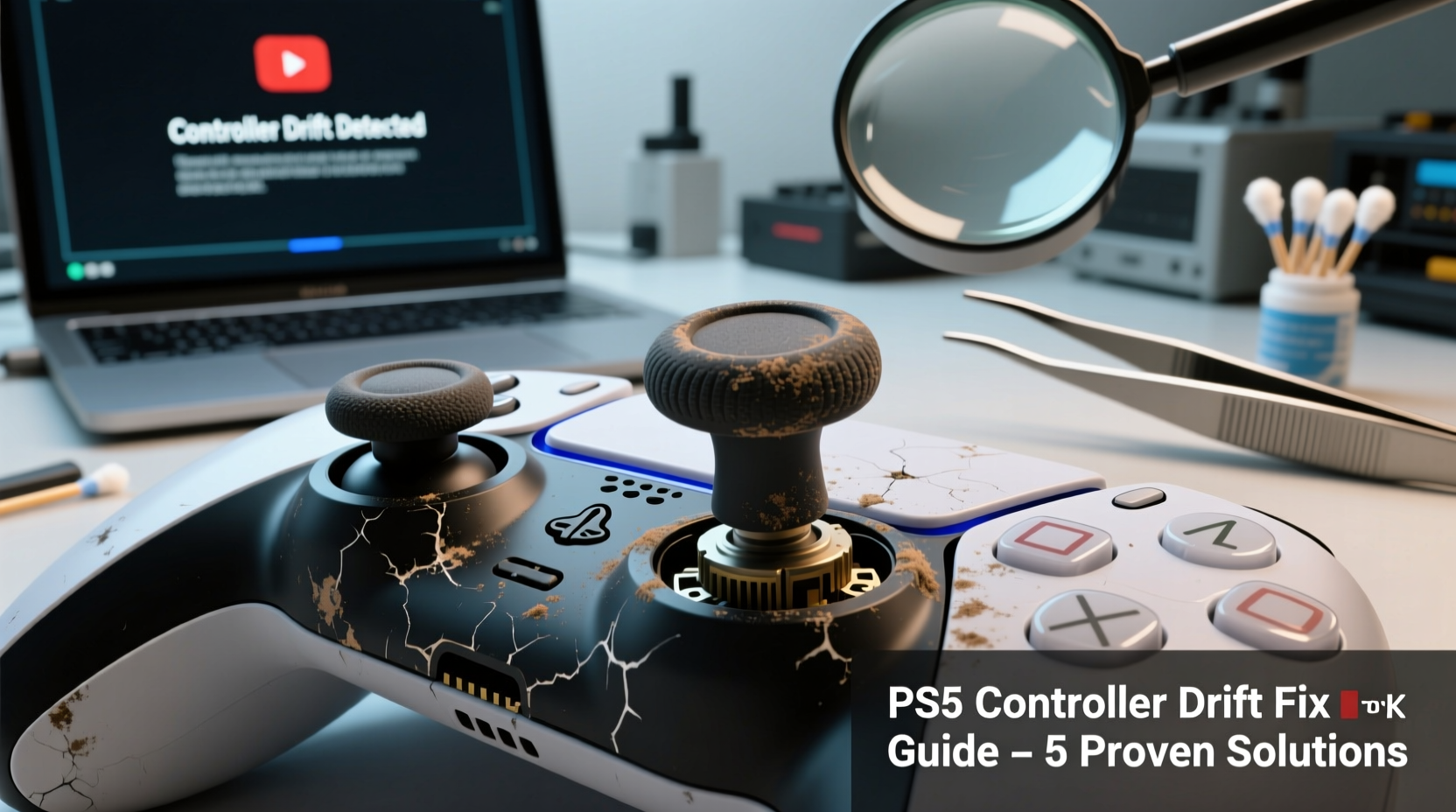
Joystick drift occurs when the analog stick sends input to the console even when untouched. The root cause lies in the internal components of the joystick module, particularly the potentiometers (variable resistors) that track stick position. Over time, these parts degrade due to normal wear, dust accumulation, moisture exposure, or manufacturing inconsistencies.
Sony uses Hall-effect sensors in newer DualSense models to combat drift, but not all units are equipped with them. Earlier versions rely on traditional potentiometer-based joysticks, which are inherently prone to material wear. As the conductive layer inside the sensor wears down, it creates false signals—interpreted by the system as movement—even when the stick is at rest.
Environmental factors also contribute:
- Dust and debris: Tiny particles can enter the joystick housing during regular use, interfering with sensor readings.
- Sweat and oils: Hand sweat contains salts and moisture that corrode internal contacts over time.
- Overuse: Aggressive thumb movements, especially in fast-paced games, accelerate mechanical fatigue.
- Poor storage: Leaving controllers exposed to humidity or extreme temperatures weakens internal components.
“Analog stick drift is less about user error and more about component longevity. Even gentle use can lead to drift within 6–12 months depending on build quality.” — Mark Rivera, Electronics Repair Technician with 12 years of console specialization
Step-by-Step Guide: Diagnosing and Testing Drift
Before attempting repairs or replacements, confirm that drift is actually occurring and identify its severity. Follow this diagnostic process:
- Launch a game or go to Settings > Accessories > Controllers. Observe the joystick indicator while the controller is idle on a flat surface.
- Check for unintended movement. If the on-screen reticle, character, or cursor moves without input, drift is present.
- Test both joysticks independently. Push each stick gently in all directions, then release. It should return precisely to center.
- Use a sensitivity test tool (optional). Some third-party apps and websites allow USB-connected controller testing on PC to visualize dead zones and drift magnitude.
- Note frequency and direction. Is the drift constant or intermittent? Does it happen only after prolonged play? Directional bias (e.g., always drifting up-left) suggests localized wear.
Proven Fixes to Stop or Delay Drift
While permanent resolution may require part replacement, several methods can reduce or temporarily eliminate drift symptoms.
1. Clean the Joystick Module
Dirt and grime buildup is a leading cause of early drift. Cleaning can restore function without disassembly in mild cases.
- Power off the PS5 and disconnect the controller.
- Use compressed air to blow around the base of both sticks. Hold the nozzle at a 45-degree angle and fire short bursts.
- Repeat 8–10 times, rotating the controller to cover all sides.
- If accessible, use a soft-bristled brush (like a clean toothbrush) to gently scrub the crevice where the stick meets the casing.
- Reconnect and test. Repeat if necessary.
Note: Do not use liquids near the joystick unless disassembling. Moisture can damage circuits.
2. Recalibrate the Controller
Sometimes, firmware misreads sensor data. Resetting helps realign inputs.
- Locate the tiny reset hole on the back of the DualSense (near the L2 trigger).
- Insert a paperclip and press the button inside for 5 seconds.
- Connect the controller to the PS5 via USB cable.
- Turn on the console and navigate to Settings > Accessories > Controllers.
- Select “Adjust Control Stick Calibration” and follow prompts.
3. Update Firmware
Sony occasionally releases firmware patches that improve input accuracy and dead zone management.
- Ensure your PS5 system software is up to date.
- Go to Settings > System > System Software and check for updates.
- Connect the controller via USB and let the system install the latest DualSense firmware automatically.
4. Replace the Analog Sticks (Advanced)
For recurring or severe drift, replacing the joystick modules is the most effective solution. Replacement parts cost $10–$20 online and require basic tools: Phillips screwdriver, plastic prying tool, and tweezers.
- Remove the seven screws on the back (including under rubber feet).
- Carefully separate the two halves using a prying tool.
- Disconnect the battery and mainboard ribbon cables.
- Unscrew the metal shield covering the joystick assemblies.
- Lift out the old sticks and solder in new ones (or plug in pre-soldered replacements).
- Reassemble in reverse order.
This repair takes 30–60 minutes and voids warranty if not done under coverage. However, many users report 1+ years of additional life after replacement.
Do’s and Don’ts: Maintaining Your DualSense
| Action | Do | Don't |
|---|---|---|
| Cleaning | Use compressed air monthly; wipe casing with microfiber cloth | Submerge in liquid or spray cleaners directly onto sticks |
| Storage | Keep in a dry, ventilated area away from direct sunlight | Leave on carpeted floors or near drinks where spills occur |
| Usage | Take breaks during long sessions to let components cool | Press sticks excessively hard or spin them rapidly out of frustration |
| Maintenance | Recalibrate every few months or after firmware updates | Ignore early signs of drift hoping it will resolve itself |
Mini Case Study: How One Gamer Extended Controller Life by 14 Months
Jamal, a competitive Apex Legends player from Austin, noticed left-stick drift on his original PS5 controller just four months after purchase. Frustrated by missed shots and erratic movement, he initially considered buying a replacement. Instead, he researched repair options and decided to try cleaning and recalibration first.
After using compressed air and recalibrating through system settings, the drift reduced significantly—but returned after two weeks of heavy use. He then purchased replacement joystick modules and replaced both sticks himself using a YouTube tutorial. Total cost: $17. Time invested: 45 minutes.
Nine months later, the controller remains fully functional. Jamal now cleans it every three weeks and avoids gripping the sticks too tightly during intense matches. By addressing the issue proactively, he saved over $60 and reduced electronic waste.
Frequently Asked Questions
Can stick drift be fixed permanently?
In most cases, yes—but only through hardware replacement. Cleaning and calibration offer temporary relief. True longevity comes from upgraded components, such as Hall-effect sensor sticks, which don’t rely on contact-based resistance and are immune to traditional wear-related drift.
Is PS5 controller drift covered under warranty?
Sony offers a limited one-year warranty that includes manufacturing defects. Joystick drift caused by internal failure (not physical damage or liquid exposure) typically qualifies for free repair or replacement. Contact PlayStation Support with your proof of purchase and a description of the issue.
Are third-party controllers better for avoiding drift?
Some premium third-party options, like the Scuf Reflex or Backbone One, use higher-grade components and modular designs that make stick replacement easier. However, they come at a higher price. Budget third-party pads often have worse build quality and may drift faster than official ones.
Checklist: What to Do When Drift Starts
- ✅ Test both joysticks for unintended input
- ✅ Use compressed air to clean around the stick bases
- ✅ Reset the controller via the pinhole button
- ✅ Recalibrate sticks in PS5 settings
- ✅ Check for and install system/firmware updates
- ✅ Contact PlayStation Support if under warranty
- ✅ Consider DIY stick replacement if out of warranty
- ✅ Implement preventive maintenance habits going forward
Conclusion: Take Control Before Drift Takes Over
PS5 controller drift doesn’t have to mean immediate replacement. With proper diagnosis and timely action, you can extend the life of your DualSense significantly. Whether through simple cleaning, recalibration, or component replacement, the tools to fight drift are within reach. Awareness and maintenance are your strongest allies.
Gaming should be about skill, strategy, and immersion—not battling faulty hardware. By understanding the mechanics behind drift and adopting smart usage habits, you protect your investment and keep the focus where it belongs: on the game.




 浙公网安备
33010002000092号
浙公网安备
33010002000092号 浙B2-20120091-4
Comments
No comments yet. Why don't you start the discussion?