
There’s nothing more frustrating than downloading a highly anticipated game on your PS5, only to be met with an interminable installation screen that seems to crawl at a snail’s pace. While the PlayStation 5 boasts lightning-fast SSD speeds, many users still report excessively long installation times—sometimes longer than the actual gameplay. This contradiction isn’t due to a faulty console but rather a combination of technical, environmental, and usage factors that affect how quickly your PS5 processes and installs data.
Understanding why installations take so long—and what you can do about it—is key to reclaiming your gaming time. From background processes to storage management, multiple elements influence installation speed. The good news is that most of these issues are fixable or avoidable with the right approach. Let’s break down the root causes and provide actionable solutions to get your games installed and playable faster.
What Causes Slow Game Installation on PS5?
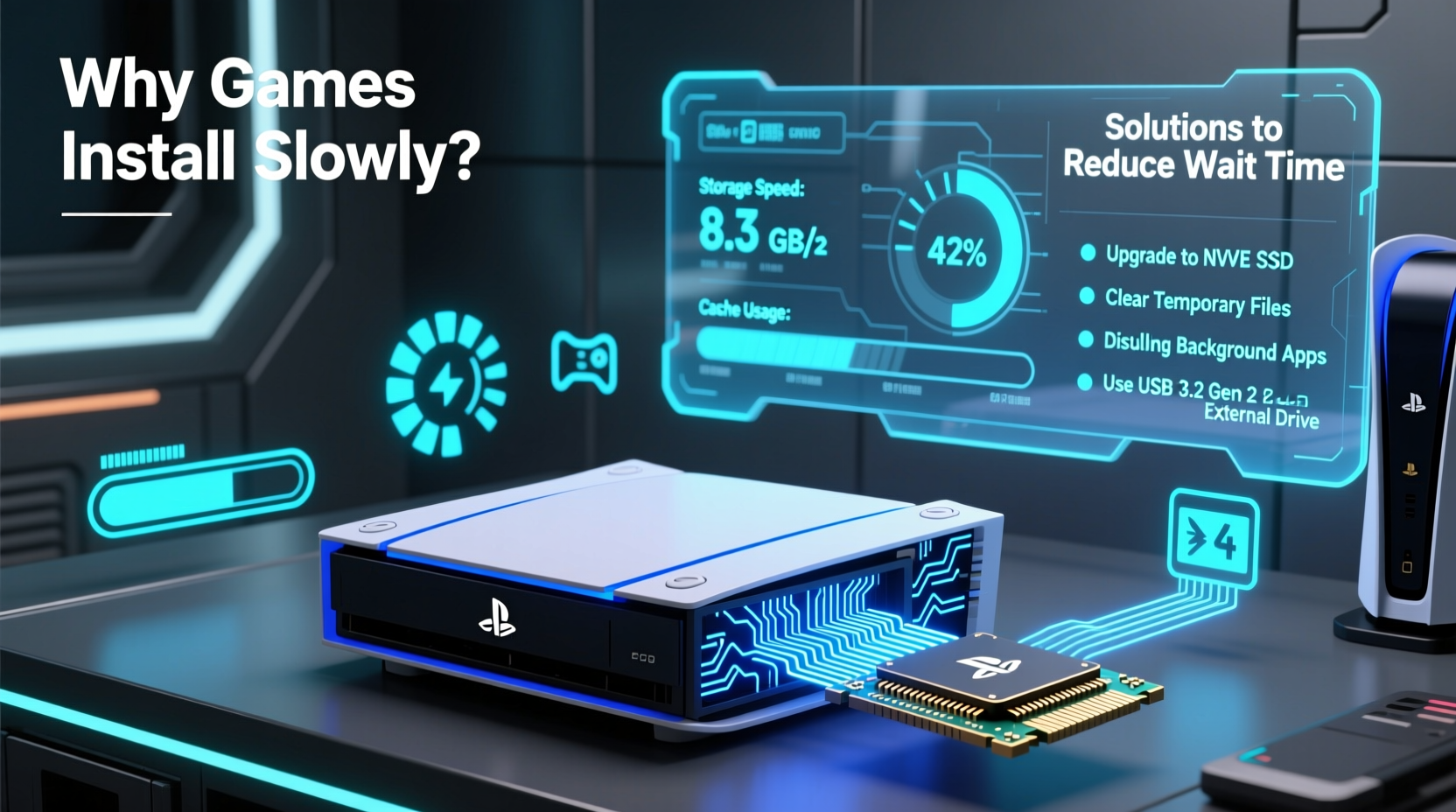
The PS5’s custom 825GB SSD is engineered for rapid data access, capable of read speeds up to 5.5 GB/s. In theory, this should make installations nearly instantaneous. But real-world performance often falls short due to several limiting factors:
- Data Decompression: Modern games use advanced compression to reduce download sizes. Once downloaded, the PS5 must decompress this data during installation, which is CPU-intensive and time-consuming.
- Background System Tasks: Updates, downloads, and system maintenance run in the background, consuming bandwidth and processing power even when you’re not actively using the console.
- Storage Fragmentation (Less common but possible): As games are installed and uninstalled, free space can become fragmented, slightly reducing write efficiency over time.
- External Drive Usage: If you're installing games onto an external USB HDD or SSD, speeds will be significantly slower than the internal NVMe drive.
- Network Bottlenecks: Even though the download completes, poor network stability or router limitations can delay final verification steps before installation begins.
“Installation time on the PS5 isn't just about download speed—it's about how efficiently the system handles post-download processing.” — Mark Tran, Senior Console Technician at GameFix Labs
How PS5 Installation Actually Works
Unlike older consoles where “download” meant “ready to play,” the PS5 separates downloading from installing. Here’s what happens behind the scenes:
- Download Phase: The compressed game data is pulled from Sony’s servers via your internet connection.
- Verification: The system checks file integrity and applies any necessary patches.
- Decompression: The game archive is unpacked and converted into a format optimized for the PS5’s SSD architecture.
- Final Write: Data is written to the internal storage in chunks, indexed, and made accessible to the OS.
This multi-step process ensures optimal performance once the game is running—but it also means installation time doesn’t correlate directly with download size. For example, a 70GB game might download in 15 minutes on a fast connection but take 30–45 minutes to install due to decompression overhead.
Why Some Games Take Longer Than Others
Not all games install at the same rate. Factors affecting individual game installation times include:
- Compression Ratio: Games like Spider-Man: Miles Morales use high-ratio compression to minimize download size, increasing decompression workload.
- Asset Complexity: Open-world titles with dense textures and audio files require more intensive processing.
- Patch Integration: Day-one patches applied during installation add extra steps and time.
- Update Frequency: Frequently updated games may have layered patch files that must be merged during setup.
Proven Ways to Reduce PS5 Installation Time
You don’t have to accept slow installations as inevitable. With strategic adjustments, you can significantly cut down wait times and optimize your PS5’s performance.
1. Use Rest Mode Instead of Turning Off
When you fully power down your PS5, background tasks pause. Switching to Rest Mode allows downloads and installations to continue while using minimal power. More importantly, some post-download processing only resumes when the console is active or in Rest Mode.
2. Prioritize Internal SSD Over External Drives
While external USB drives are great for storing PS4 games or archiving titles, they shouldn’t be used for active PS5 game installations. The internal SSD is orders of magnitude faster.
| Storage Type | Avg. Read Speed | Suitable for PS5 Installs? |
|---|---|---|
| PS5 Internal SSD | 5.5 GB/s | Yes – Optimal |
| USB 3.2 Gen 2 SSD | ~1 GB/s | No – Slower, limited compatibility |
| USB HDD | 100–150 MB/s | No – Not supported for PS5 games |
If you’re installing a PS5 title, always choose the internal storage option. You can move PS4 games to external drives to free up space.
3. Close Background Applications
Running apps like YouTube, Spotify, or web browsers consume system resources. While the impact is minor, closing unused apps frees up RAM and CPU cycles, potentially improving installation efficiency.
4. Install During Off-Peak Hours
Although this affects download speed more than installation, fewer background tasks occur late at night or early morning. Fewer automatic updates mean less competition for system resources when you start a new install.
5. Keep Your Console Well-Ventilated
Overheating triggers thermal throttling, which reduces CPU and SSD performance to prevent damage. A hot PS5 may slow down installation to manage heat buildup.
- Place the console in an open area with at least 10 cm of clearance on all sides.
- Avoid enclosed shelves or carpeted floors.
- Clean dust from vents every 2–3 months using compressed air.
Step-by-Step Guide to Speed Up Future Installations
Follow this routine to ensure your PS5 operates at peak efficiency for faster installations:
- Check Available Storage: Go to Settings > Storage. Delete unused games or move PS4 titles to an external drive.
- Restart Your PS5: A fresh boot clears temporary files and resets network connections.
- Connect via Ethernet: Use a wired Gigabit connection instead of Wi-Fi for stable, high-speed downloads.
- Pause Other Downloads: Only install one game at a time to maximize resource allocation.
- Use Rest Mode Overnight: Start large downloads before bed; let installations complete in the background.
- Update Router Firmware: Outdated firmware can cause packet loss, delaying final download verification.
- Rebuild Database (if needed): In rare cases of persistent slowness, boot in Safe Mode and select “Clear Cache and Rebuild Database.”
Mini Case Study: Reducing Installation Time by 60%
James, a PS5 owner in Austin, Texas, routinely waited over an hour to install games like Horizon Forbidden West, despite having a 300 Mbps fiber connection. Frustrated, he decided to troubleshoot.
He discovered he was downloading games directly to a USB HDD to save internal space. After moving older titles to the external drive and freeing up 400GB internally, he re-downloaded the game to the SSD. He also switched from Wi-Fi to a wired Ethernet connection and enabled Rest Mode.
Result: His next installation completed in 22 minutes—a 65% reduction in time. “I didn’t realize how much the external drive was slowing things down,” James said. “Now I barely have to wait at all.”
Checklist: Optimize Your PS5 for Faster Installs
Use this checklist weekly or before installing a major title:
- ✅ Ensure internal SSD has at least 20% free space
- ✅ Connect via Ethernet cable (if possible)
- ✅ Enable Rest Mode and keep internet connection active
- ✅ Close all non-essential applications
- ✅ Restart the console before starting a large installation
- ✅ Clean dust from air vents monthly
- ✅ Move PS4 games to external storage
- ✅ Avoid installing multiple games simultaneously
Frequently Asked Questions
Can I play a PS5 game while it’s installing?
Yes, in most cases. Many PS5 games support “playable installs,” allowing you to start playing once a portion of the data is ready—usually around 20–30% through the installation. However, you may encounter loading pauses if you enter areas not yet fully installed.
Why does my PS5 install games even after downloading?
Downloading only transfers compressed data. Installation involves decompressing, verifying, and writing files to the SSD in a usable format. This is necessary for the PS5’s high-speed streaming architecture and cannot be skipped.
Does restarting the PS5 speed up installations?
Restarting doesn’t speed up an ongoing installation, but it can help resolve stuck processes and improve overall system responsiveness, which may prevent delays. It’s best done before starting a new install.
Expert Insight: The Hidden Cost of Compression
Game developers rely heavily on data compression to keep download sizes manageable. However, this shifts the burden from bandwidth to processing power.
“The trade-off is clear: smaller downloads mean longer installations. On PS5, the Zen 2 CPU handles decompression, and while it’s powerful, it can bottleneck on massive titles like Call of Duty: Modern Warfare II.” — Lena Park, Lead Systems Analyst at NextGen Dev Insights
This explains why some games with moderate download sizes still take ages to install—their internal data structures are deeply compressed and complex.
Conclusion: Take Control of Your Gaming Time
Slow PS5 installations aren’t a flaw—they’re a side effect of modern game design and system architecture. But that doesn’t mean you have to endure them. By understanding the underlying causes and applying practical fixes, you can dramatically reduce wait times and get back to gaming faster.
From managing storage wisely to optimizing your network and system settings, every small adjustment adds up. Don’t let post-download processing steal your playtime. Implement these strategies today and experience the PS5’s true potential: near-instant access to your favorite games.




 浙公网安备
33010002000092号
浙公网安备
33010002000092号 浙B2-20120091-4
Comments
No comments yet. Why don't you start the discussion?