
Suddenly losing power in the middle of an intense gaming session is more than frustrating—it can cost you progress, ruin immersion, and even damage your console over time. If your PS5 shuts down unexpectedly during gameplay, especially after extended use, overheating is likely the culprit. While Sony designed the PS5 with advanced thermal management, real-world usage often exposes weaknesses in airflow, placement, or internal dust accumulation that compromise its cooling system. Understanding the root causes and implementing practical solutions can restore stability and extend your console’s lifespan.
How Overheating Triggers Automatic Shutdowns
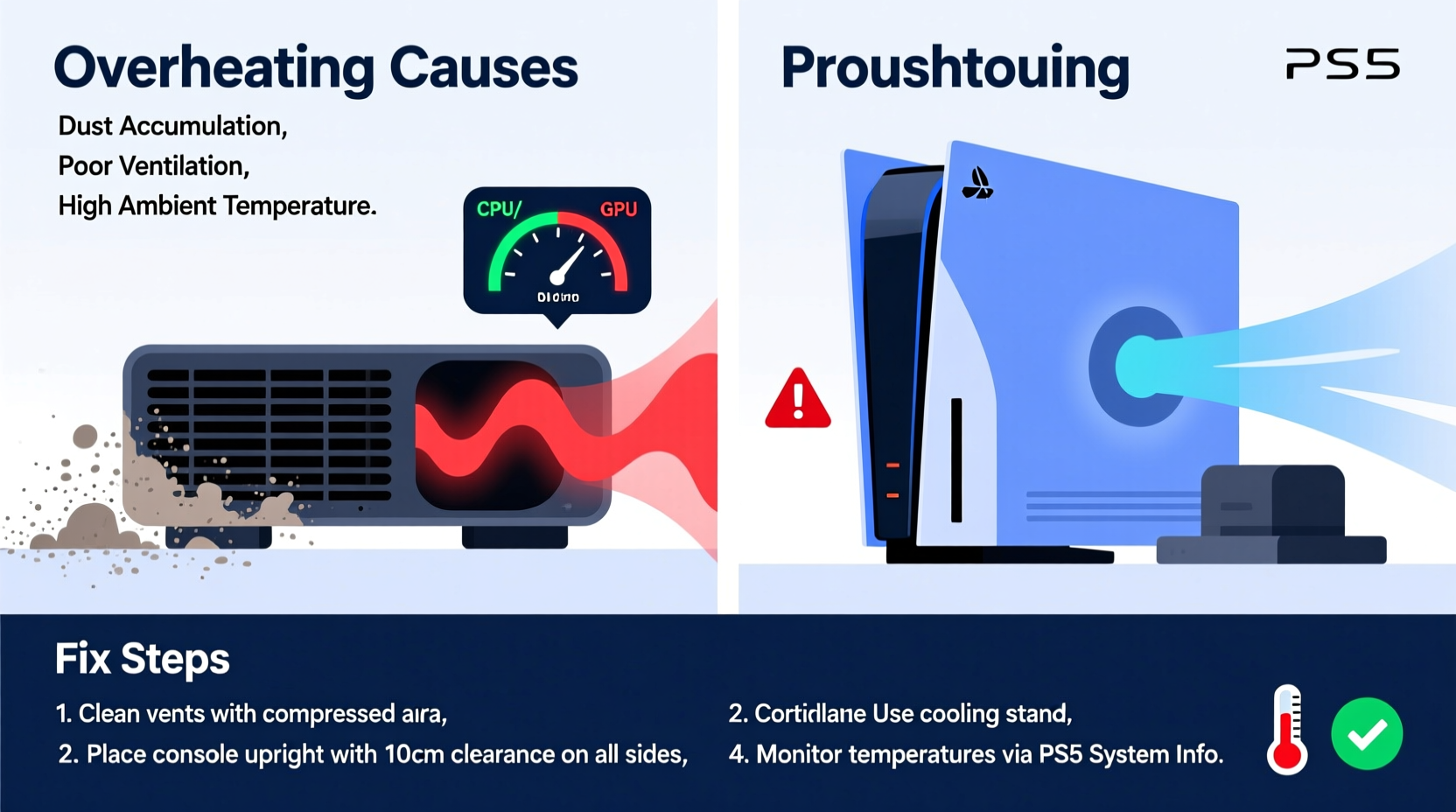
The PS5 is equipped with built-in thermal sensors that monitor the temperature of critical components, including the CPU, GPU, and power supply. When temperatures exceed safe thresholds—typically above 90°C (194°F)—the system initiates protective measures. First, it increases fan speed dramatically. If that fails to reduce heat, the console will shut down automatically to prevent permanent hardware damage.
This safety mechanism is essential but disruptive. Unlike a gradual performance drop or warning message, a sudden shutdown gives no opportunity to save your game. Frequent occurrences not only interrupt play but may indicate long-term cooling inefficiencies that could shorten the life of your device.
“Modern consoles are engineered for high performance, but thermal stress remains a leading cause of premature failure. Proper ventilation isn’t optional—it’s part of the design.” — Dr. Alan Reyes, Electronics Thermal Systems Engineer
Common Causes of PS5 Overheating
Several factors contribute to excessive heat buildup in the PS5. Identifying which apply to your setup is the first step toward resolution.
- Poor ventilation: Placing the console flush against walls, inside enclosed cabinets, or surrounded by other electronics traps hot air.
- Dust accumulation: Over months, dust clogs intake grills and internal fans, reducing airflow efficiency by up to 40%.
- Horizontal vs. vertical positioning: Using the stand incorrectly or placing the console on carpet can block side vents.
- Ambient room temperature: Gaming in poorly ventilated or sun-exposed rooms increases baseline heat load.
- Extended gameplay sessions: AAA titles like *God of War Ragnarök* or *Horizon Forbidden West* push hardware to its limits, generating sustained heat output.
- Fan malfunction: Rare, but possible—if the cooling fan fails or spins too slowly, heat dissipates inefficiently.
Step-by-Step Guide to Prevent PS5 Overheating
Follow this comprehensive sequence to diagnose, clean, and optimize your PS5’s cooling performance.
- Power down and unplug the console. Allow it to cool completely before handling—minimum 2 hours.
- Evaluate placement. Ensure at least 10 cm (4 inches) of clearance on all sides, especially near the rear exhaust and side intakes.
- Inspect the environment. Move the console away from direct sunlight, radiators, or other heat-emitting devices like AV receivers.
- Clean external vents. Use a soft brush or compressed air to remove dust from the large side grills. Do not insert sharp objects.
- Wipe down surfaces. Dampen a microfiber cloth slightly with isopropyl alcohol (70%) to clean plastic surfaces around vents.
- Check orientation. If using vertically, ensure the base ring is securely attached and the console rests on a hard, flat surface.
- Monitor internal temps (optional). Use third-party tools via USB if you’ve enabled debug mode (advanced users only).
- Reboot and test. Play a graphically intensive game for 60+ minutes while listening for abnormal fan noise or shutdowns.
When to Consider Internal Cleaning
If external cleaning doesn’t resolve the issue, internal dust buildup may be the problem. While Sony advises against user disassembly due to warranty concerns, many experienced users report success opening the side panels to access the fan and heatsink.
⚠️ Warning: Opening the PS5 voids the warranty unless performed by an authorized technician. Proceed only if out of warranty or through official service channels.
Do’s and Don’ts: Cooling Best Practices
| Do | Don't |
|---|---|
| Place the PS5 in an open area with good air circulation | Enclose it in a media cabinet without ventilation |
| Use compressed air every 3–6 months for maintenance | Use vacuum cleaners directly on vents (can generate static) |
| Keep the room temperature below 25°C (77°F) | Game for hours in a hot attic or sunlit room |
| Position the console vertically or horizontally as intended with proper stand | Lay it on carpet or fabric that blocks intake vents |
| Update system software regularly (improves thermal management) | Ignore system warnings or repeated shutdowns |
Real-World Example: Resolving Recurring Shutdowns
James, a gamer from Texas, reported his PS5 shutting down during multiplayer matches in *Call of Duty: Modern Warfare III*. He played for 3–4 hours daily in a bedroom with limited airflow and direct afternoon sunlight. The console sat inside a closed entertainment center with a soundbar and cable box nearby.
After noticing loud fan noise preceding each shutdown, he moved the PS5 to an open shelf, cleaned the vents with compressed air, and installed a small USB desk fan nearby to improve ambient airflow. He also adjusted his play schedule to cooler evening hours. These changes eliminated automatic shutdowns entirely over the next three months.
James’s case highlights how environmental factors—not hardware defects—are often responsible for overheating. Simple adjustments yielded dramatic results without costly repairs.
Enhancing Airflow with External Solutions
In environments where ambient heat is unavoidable, consider supplemental cooling methods.
- USB-powered cooling pads: Designed for consoles, these sit beneath the PS5 and draw in cooler air from below.
- Room fans or air conditioning: Lowering overall room temperature reduces thermal load on all electronics.
- Ventilation upgrades: Install passive vents in entertainment cabinets or use mesh doors to allow airflow while maintaining aesthetics.
Note: Never point a high-velocity fan directly at the PS5’s exhaust port, as this can disrupt natural convection and create backpressure.
Software and Settings That Help Manage Heat
While hardware plays the biggest role, software settings also influence thermal behavior.
- Enable Rest Mode instead of full shutdown: Reduces wear from frequent boot cycles, though ensure adequate cooldown between sessions.
- Turn off unnecessary background apps: Streaming services, voice chat apps, and downloads generate additional processing load.
- Reduce screen brightness: Lowering display brightness in Settings > Screen and Video decreases GPU workload slightly.
- Keep firmware updated: Sony periodically releases updates that refine power management and fan control algorithms.
There is no built-in temperature monitor in the standard PS5 interface, but future system updates may include enhanced diagnostics based on user demand.
Troubleshooting Checklist
Use this checklist to systematically address potential causes of overheating:
- ✅ Is the PS5 placed in a well-ventilated area?
- ✅ Are all sides clear of obstructions (minimum 10 cm clearance)?
- ✅ Has the console been cleaned recently (externally and internally)?
- ✅ Is the room temperature comfortable (<25°C / 77°F)?
- ✅ Are the intake and exhaust vents free of dust?
- ✅ Is the correct orientation stand used (vertical/horizontal)?
- ✅ Have you noticed unusual fan noises before shutdown?
- ✅ Are system software and game patches up to date?
- ✅ Have multiple shutdowns occurred across different games?
- ✅ Has the console ever been opened or repaired unofficially?
If all boxes are checked and the problem persists, professional servicing may be necessary.
FAQ: Common Questions About PS5 Overheating
Can a dirty PS5 really cause it to turn off by itself?
Yes. Dust acts as insulation, trapping heat inside the console. A heavily dusted PS5 can reach critical temperatures 15–20 minutes faster than a clean one, triggering automatic shutdowns even under moderate load.
Is it safe to leave my PS5 on overnight?
Occasional overnight use (e.g., for downloads or updates) is fine, but extended gameplay without breaks increases thermal stress. Always ensure proper ventilation and avoid leaving it unattended for more than 8 hours continuously.
Does playing disc-based games generate less heat than digital downloads?
No significant difference. The optical drive consumes minimal power compared to the GPU and CPU. Heat generation depends primarily on graphical intensity, not media type.
Conclusion: Take Control of Your Console’s Longevity
Your PS5’s unexpected shutdowns aren’t random malfunctions—they’re warning signs demanding attention. Overheating degrades performance, risks data loss, and accelerates component aging. But with proactive care, most issues are preventable. Regular cleaning, smart placement, and awareness of environmental conditions form the foundation of reliable operation.
Gaming should be immersive, not interrupted. By applying these strategies, you protect not just your console, but your experience. Start today: inspect your setup, clean those vents, and reclaim smooth, uninterrupted gameplay. Your PS5 was built to perform—help it breathe, and it will deliver for years to come.




 浙公网安备
33010002000092号
浙公网安备
33010002000092号 浙B2-20120091-4
Comments
No comments yet. Why don't you start the discussion?