
If you're a regular Roblox player, encountering sudden crashes mid-game is more than frustrating—it can ruin hours of progress and break immersion in experiences you love. Whether you're playing on PC, mobile, or console, repeated crashes aren't always due to the game itself. More often, they stem from system limitations, outdated software, or hidden conflicts. The good news: most crashes are preventable. This guide breaks down the real causes behind Roblox crashes and delivers tested solutions that go beyond generic advice.
Understanding Why Roblox Crashes Happen
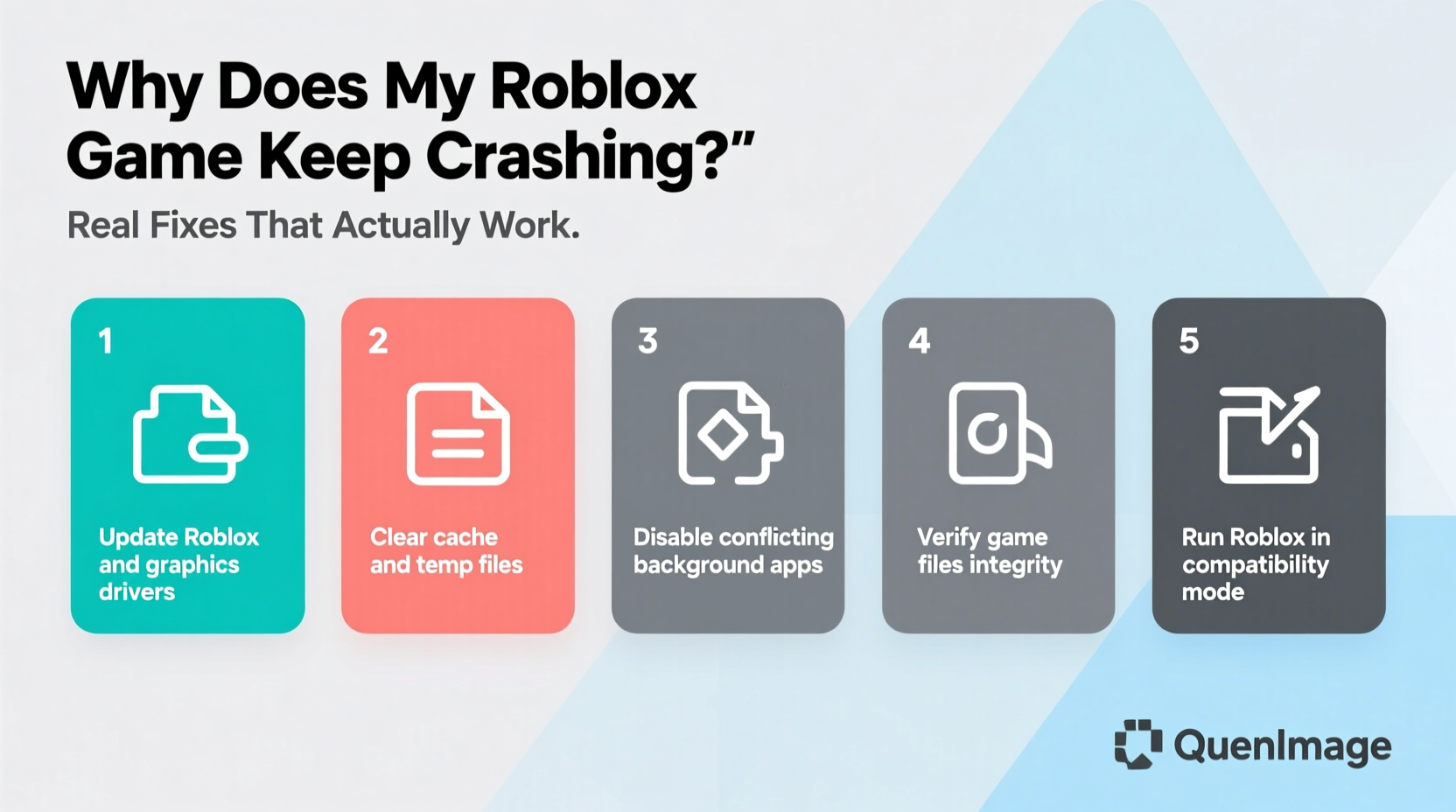
Roblox isn’t just a single game—it’s a platform hosting thousands of user-generated experiences, each with different performance demands. When a crash occurs, it could be due to client-side issues (your device), network instability, server problems, or compatibility conflicts. Identifying the root cause is the first step toward fixing it.
Common symptoms include:
- Sudden shutdowns during gameplay
- Freezing followed by an error message
- Crashes at launch or during loading screens
- High CPU or GPU usage before crashing
While some blame falls on Roblox’s optimization—especially for graphically intense games—most recurring crashes originate from local system conditions. These include outdated drivers, background processes consuming resources, corrupted installation files, or insufficient hardware capabilities.
Step-by-Step Troubleshooting Guide That Actually Works
Before assuming your device is faulty, follow this structured approach. Many users report success after completing just one or two of these steps.
- Restart Your Device and Router
It sounds basic, but a full reboot clears temporary memory leaks and resets network connections. Shut down completely, wait 30 seconds, then power back on. - Update Your Operating System
Outdated OS versions may lack critical patches needed for modern applications. Check for updates:- Windows: Settings > Update & Security > Windows Update
- macOS: Apple menu > System Settings > Software Update
- iOS/Android: App Store / Google Play automatically prompts updates
- Clear Roblox Cache Files
Corrupted cache data is a frequent culprit. On Windows, delete the following folder:
%localappdata%\\Roblox\\Versions
This forces Roblox to redownload clean files on next launch. - Reinstall Roblox Completely
Uninstall via Control Panel (Windows) or Launchpad (Mac), then download the latest version directly from roblox.com. Avoid third-party installers. - Disable Overlays and Background Apps
Gaming overlays (Discord, Xbox Game Bar, GeForce Experience) can interfere with Roblox’s rendering process. Temporarily disable them to test stability.
Advanced Fixes for Persistent Crashes
If basic steps fail, dig deeper into system-level settings.
Update Graphics Drivers
Old or buggy GPU drivers are among the top reasons for crashes. Visit your graphics card manufacturer’s website:
- NVIDIA: GeForce Drivers
- AMD: AMD Driver Support
- Intel: Intel Driver & Support Assistant
Use their detection tools to find the correct driver. After installation, restart your computer.
Adjust In-Game Graphics Settings
Even if your device meets minimum requirements, high settings can overwhelm older GPUs. Inside Roblox, press Esc > Settings > Graphics Mode and select “Manual.” Then lower the graphics quality slider to 3–5. Disable shadows and reduce render distance if available.
Platform-Specific Solutions
Different devices require tailored fixes. What works on PC won’t apply to mobile, and vice versa.
PC (Windows & macOS)
- Run Roblox as Administrator (right-click shortcut > Run as Admin)
- Add Roblox to your antivirus exclusion list to prevent false-positive interference
- Ensure .NET Framework and Visual C++ Redistributables are up to date
Mobile (iOS & Android)
- Close all background apps before launching Roblox
- Check storage space—less than 1GB free can trigger instability
- Enable “Reduce Motion” in iOS Settings or “Developer Options” on Android to improve performance
- Disable battery saver modes, which throttle app performance
Xbox & Consoles
- Clear console system cache (Xbox: Settings > System > Storage > Clear Cache)
- Reinstall the Roblox app through the Microsoft Store
- Avoid playing while downloading other large titles
| Issue | Quick Fix | Advanced Fix |
|---|---|---|
| Crash at launch | Restart device | Reinstall Roblox + update OS |
| Crash during gameplay | Lower graphics settings | Update GPU drivers |
| Only certain games crash | Report to developer | Block scripts via browser extensions (PC) |
| Stuck on loading screen | Check internet connection | Flush DNS (Command Prompt: ipconfig /flushdns) |
Real Example: How One Player Fixed Daily Crashes
Jason, a high school student and avid Roblox builder, experienced daily crashes while working on his obby game. He assumed it was due to poor coding until he noticed the crashes occurred only on his older laptop, not his newer desktop.
After trying several methods, he discovered his Intel HD 4000 integrated graphics were running an outdated driver from 2018. Updating to the latest compatible version reduced crashes by 90%. He also disabled Discord overlay, which had been silently injecting into Roblox. Within 48 hours, his session stability improved dramatically.
This case highlights a key truth: even if a game runs once, changing conditions (updates, background apps, heat buildup) can destabilize performance over time.
“Most Roblox crashes aren’t caused by the game itself, but by environmental factors like outdated drivers, thermal throttling, or conflicting software.” — Alex Tran, Senior Technical Support Analyst at a leading gaming ISP
Preventative Maintenance Checklist
To avoid future crashes, adopt these habits regularly:
- ✅ Update Roblox and your OS weekly
- ✅ Clear cache every month (or after major updates)
- ✅ Monitor device temperature (use HWMonitor on PC or built-in diagnostics on Mac)
- ✅ Close unused apps before launching Roblox
- ✅ Perform a full reinstall every 3–6 months
- ✅ Use wired internet when possible to reduce latency spikes
Additionally, consider setting up scheduled maintenance reminders. For example, every Sunday evening, spend 10 minutes checking for updates and clearing temp files.
Frequently Asked Questions
Why does Roblox crash only on certain games?
Some experiences use poorly optimized scripts or high-poly models that exceed your device’s capacity. Developers sometimes push updates without proper testing. If only one game crashes consistently, it’s likely not your fault. Report the issue using the in-game Report Abuse tool.
Can too many browser tabs cause Roblox to crash?
Yes—especially on lower-end systems. Each tab consumes RAM and CPU. If you’re running Roblox alongside Chrome with 20+ tabs, memory contention can force the game to close unexpectedly. Close unnecessary tabs or upgrade your RAM if this happens frequently.
Does overclocking cause Roblox crashes?
Overclocked CPUs or GPUs generate more heat and may become unstable under sustained load. Roblox might not be the most demanding game, but combined with background tasks, it can push an overclocked system past its limits. Return to default clock speeds to test stability.
Optimizing Long-Term Performance
Fixing a crash today doesn’t guarantee stability tomorrow. Ongoing optimization keeps Roblox running smoothly. Start by monitoring resource usage. On Windows, open Task Manager (Ctrl+Shift+Esc) while playing. Watch for:
- CPU usage above 90%
- RAM usage near or exceeding total capacity
- Disk usage stuck at 100%
If any of these persist, your hardware may be bottlenecked. Consider upgrading components or switching to less intensive games. For laptops, ensure vents are dust-free and use a cooling pad during long sessions.
On mobile, enable “Performance Mode” if available in settings. This prevents the system from throttling the processor during gameplay. Also, avoid charging while playing—heat buildup from both activities increases crash risk.
Conclusion: Take Control of Your Gaming Experience
Roblox crashing doesn’t have to be a daily annoyance. With the right approach, most issues are solvable using straightforward, logical steps. From clearing cache to updating drivers and managing background apps, the solutions outlined here address the actual causes—not just the symptoms. The key is consistency: treat your device like a high-performance machine, not just a casual toy.
Don’t accept crashes as inevitable. Test one fix at a time, document what changes, and reclaim smooth, uninterrupted gameplay. Whether you're building, competing, or socializing, stability enhances every part of the Roblox experience.




 浙公网安备
33010002000092号
浙公网安备
33010002000092号 浙B2-20120091-4
Comments
No comments yet. Why don't you start the discussion?