
If you've ever settled in for a relaxing evening of streaming, only to be interrupted by endless spinning wheels and frustrating pauses, you're not alone. Buffering on your Roku device is one of the most common complaints among users, and while it can feel like a hardware issue, the culprit is almost always related to internet connectivity or network performance. The good news? Most causes are fixable with a few targeted adjustments. Understanding why your Roku buffers—and knowing exactly what to do about it—can restore smooth playback and bring back the joy of uninterrupted entertainment.
Understanding Buffering: What It Really Means
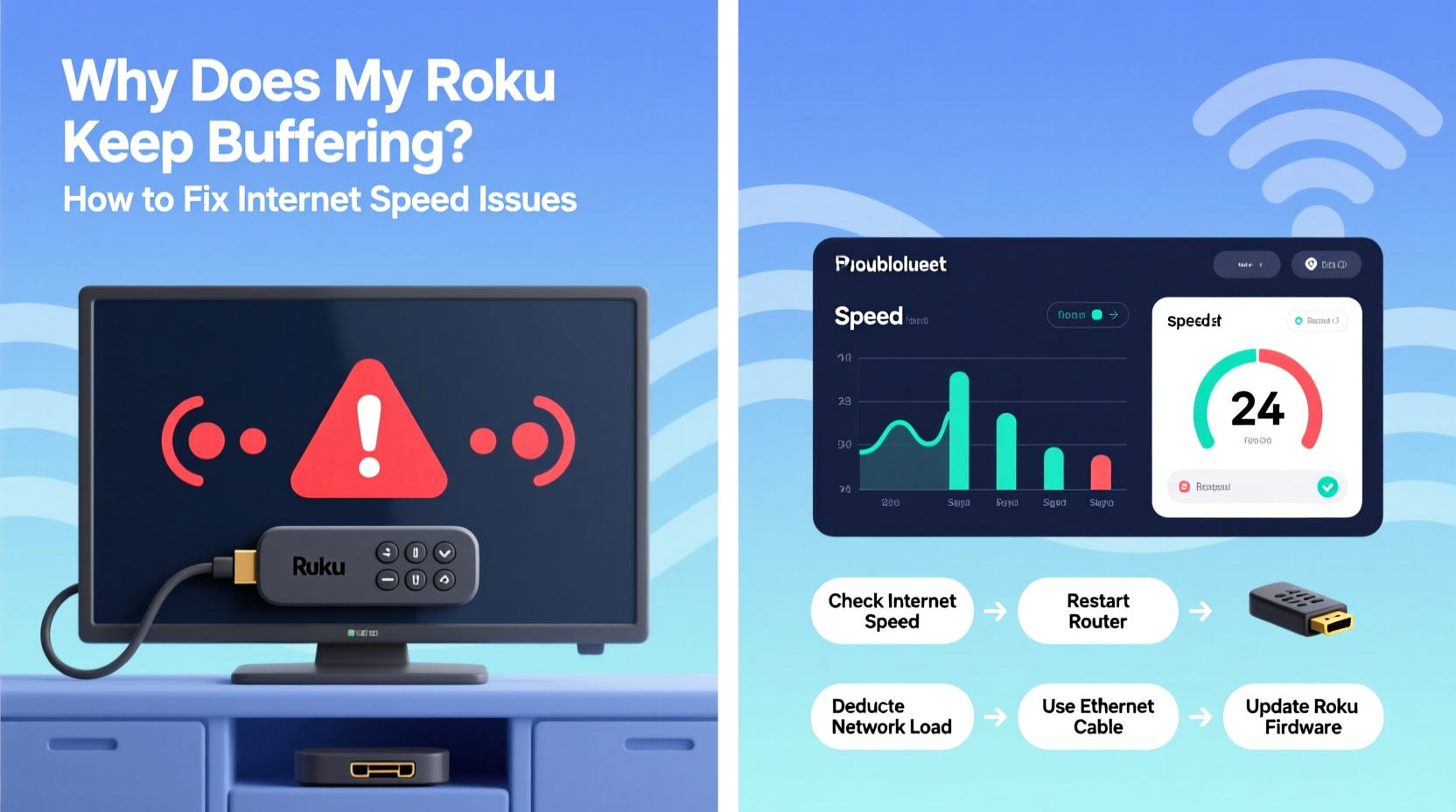
Buffering occurs when your Roku temporarily stops playing video to download more data from the internet. Streaming services like Netflix, Hulu, or Disney+ don’t deliver content instantly—they preload small chunks of video into a buffer so playback remains seamless. When your internet connection can't supply data fast enough, the buffer empties faster than it fills, causing the stream to pause and rebuffer.
Roku recommends a minimum internet speed of 3 Mbps for standard definition (SD) streaming, 9 Mbps for high definition (HD), and at least 25 Mbps for 4K Ultra HD content. If your actual speed falls below these thresholds—or fluctuates significantly—you’ll likely experience interruptions.
Common Causes of Roku Buffering and Internet Speed Issues
Before jumping into fixes, it's essential to identify what’s slowing down your connection. Several factors can contribute to poor streaming performance:
- Low bandwidth: Multiple devices using the same network can saturate your available bandwidth.
- Wi-Fi interference: Physical obstructions, neighboring networks, or electronic appliances can degrade signal strength.
- Router placement: A router tucked away in a closet or basement may struggle to reach your Roku consistently.
- Outdated firmware: Both your Roku and router need regular updates to maintain optimal performance.
- ISP throttling: Some internet service providers intentionally slow down streaming traffic during peak hours.
- Network congestion: High usage times (evenings, weekends) often result in slower speeds due to shared infrastructure load.
“Streaming quality isn’t just about raw speed—it’s about consistency. Even if your peak speed looks great, jitter and packet loss can ruin the experience.” — Marcus Tran, Network Performance Analyst at Broadband Insights Group
Step-by-Step Guide to Fix Roku Buffering Issues
Follow this structured approach to diagnose and resolve the root cause of buffering on your Roku.
- Test Your Internet Speed
Use Roku’s built-in speed test or visit fast.com on another device connected to the same network. Compare results against the recommended speeds based on your streaming resolution. - Restart Your Devices
Power cycle your Roku, router, and modem. Unplug them for 30 seconds, then plug them back in. This clears temporary glitches and refreshes connections. - Move Closer to the Router
If you're using Wi-Fi, ensure your Roku is within reasonable range. Walls, floors, and large metal objects weaken signals. Try relocating either the Roku or the router for better line-of-sight. - Switch to a 5 GHz Wi-Fi Band
If your router supports dual-band (2.4 GHz and 5 GHz), connect your Roku to the 5 GHz network. It offers faster speeds and less interference, though with shorter range. - Use an Ethernet Connection
For the most stable connection, hardwire your Roku to the router using an Ethernet adapter. This eliminates wireless instability entirely. - Reduce Network Load
Pause downloads, cloud backups, or other streaming devices during viewing. Each consumes bandwidth that could otherwise support your Roku. - Update Firmware
Check for Roku system updates under Settings > System > System Update. Also, log into your router’s admin panel to install any pending firmware upgrades. - Change DNS Settings
On your Roku, go to Settings > Network > Edit Connection and manually set DNS to Google (8.8.8.8 and 8.8.4.4) or Cloudflare (1.1.1.1). Faster DNS resolution can improve streaming efficiency.
Tips and Best Practices for Stable Streaming
Once you’ve resolved immediate buffering issues, implement these long-term strategies to prevent recurrence.
Consider setting up Quality of Service (QoS) rules on your router. QoS allows you to prioritize certain devices or applications—like your Roku—over others. This ensures that even when multiple devices are active, your streaming gets preferential treatment.
Additionally, avoid placing your router near microwaves, cordless phones, or thick concrete walls. These sources emit electromagnetic interference that disrupts Wi-Fi signals, especially on the 2.4 GHz band.
Do’s and Don’ts: Quick Reference Table
| Do | Don’t |
|---|---|
| Use a wired Ethernet connection whenever possible | Rely solely on distant Wi-Fi signals |
| Place your router centrally and elevated | Hide your router behind furniture or electronics |
| Regularly update Roku and router firmware | Ignore firmware notifications or delay updates |
| Run speed tests weekly to monitor performance | Assume your ISP delivers consistent speeds without verification |
| Limit background network usage during streaming | Allow automatic cloud backups while watching 4K content |
Real Example: How Sarah Fixed Her Weekend Streaming Woes
Sarah had been frustrated every Friday night. She’d fire up her Roku to watch her favorite series, only to face constant buffering after just five minutes. Her kids were online gaming, her husband was downloading a work presentation, and she was trying to stream in 4K—all on a 50 Mbps plan.
She started by running a speed test on her Roku and found actual throughput was only 12 Mbps during peak time. After restarting her router and switching her Roku to the 5 GHz network, she noticed slight improvement—but still saw stutters. Then she connected her Roku via Ethernet using a long cable across the living room. Instantly, the buffering stopped.
But she wanted a permanent fix. She upgraded her router to a mesh system with QoS settings and prioritized her Roku. Now, even when multiple devices are active, her streaming remains smooth. “It wasn’t my Roku or my internet plan,” she said. “It was how everything was managed on the network.”
Checklist: Eliminate Roku Buffering in 10 Minutes
Use this quick checklist the next time your Roku starts buffering:
- ✅ Restart your Roku, modem, and router
- ✅ Run a network speed test on your Roku
- ✅ Switch from 2.4 GHz to 5 GHz Wi-Fi (if available)
- ✅ Move closer to the router or reduce physical barriers
- ✅ Pause other downloads or streaming devices
- ✅ Check for Roku system updates
- ✅ Temporarily lower streaming quality in app settings
- ✅ Consider using an Ethernet adapter for permanent stability
Frequently Asked Questions
Can my Roku device itself cause buffering?
While rare, older Roku models with limited processing power or memory may struggle with high-bitrate streams, especially 4K HDR content. However, most buffering issues stem from network conditions rather than device limitations. If your Roku frequently overheats or lags outside of streaming, consider replacing it with a newer model.
Why does my Roku buffer even with fast internet?
Speed test numbers don’t tell the whole story. Factors like latency, jitter, packet loss, and inconsistent upload/download balance can degrade streaming quality—even with high advertised speeds. Additionally, Wi-Fi congestion or outdated router firmware can create bottlenecks between your device and the modem.
Is there a way to automatically prevent buffering?
Yes. Enable Auto Mode in your Roku’s network settings so it can switch between bands intelligently. You can also use a modern mesh Wi-Fi system with adaptive routing and built-in QoS to dynamically allocate bandwidth where it’s needed most. Some advanced routers even offer “gaming” or “streaming” modes optimized for low-latency delivery.
Conclusion: Take Control of Your Streaming Experience
Buffering doesn’t have to be part of your Roku routine. By understanding the relationship between your internet connection, network setup, and streaming demands, you can take meaningful steps toward seamless playback. Whether it’s upgrading your router, switching to Ethernet, or simply managing household bandwidth more wisely, the solutions are within reach. Don’t accept choppy video as inevitable—your entertainment deserves better. Implement these fixes today and reclaim the smooth, immersive streaming experience you paid for.




 浙公网安备
33010002000092号
浙公网安备
33010002000092号 浙B2-20120091-4
Comments
No comments yet. Why don't you start the discussion?