
Robotic vacuums like the Roomba promise effortless cleaning with minimal intervention. But when your device repeatedly gets stuck under furniture, tangled in cords, or fails to navigate basic room layouts, the convenience quickly fades. Beyond frustration, these issues often stem from poor environmental setup or incorrect mapping behavior. Understanding the root causes—and how to fix them—can transform your Roomba from a finicky gadget into a reliable household helper. This guide breaks down the most common reasons for navigation failures and provides actionable strategies to optimize room mapping and prevent recurring snags.
Common Reasons Your Roomba Gets Stuck
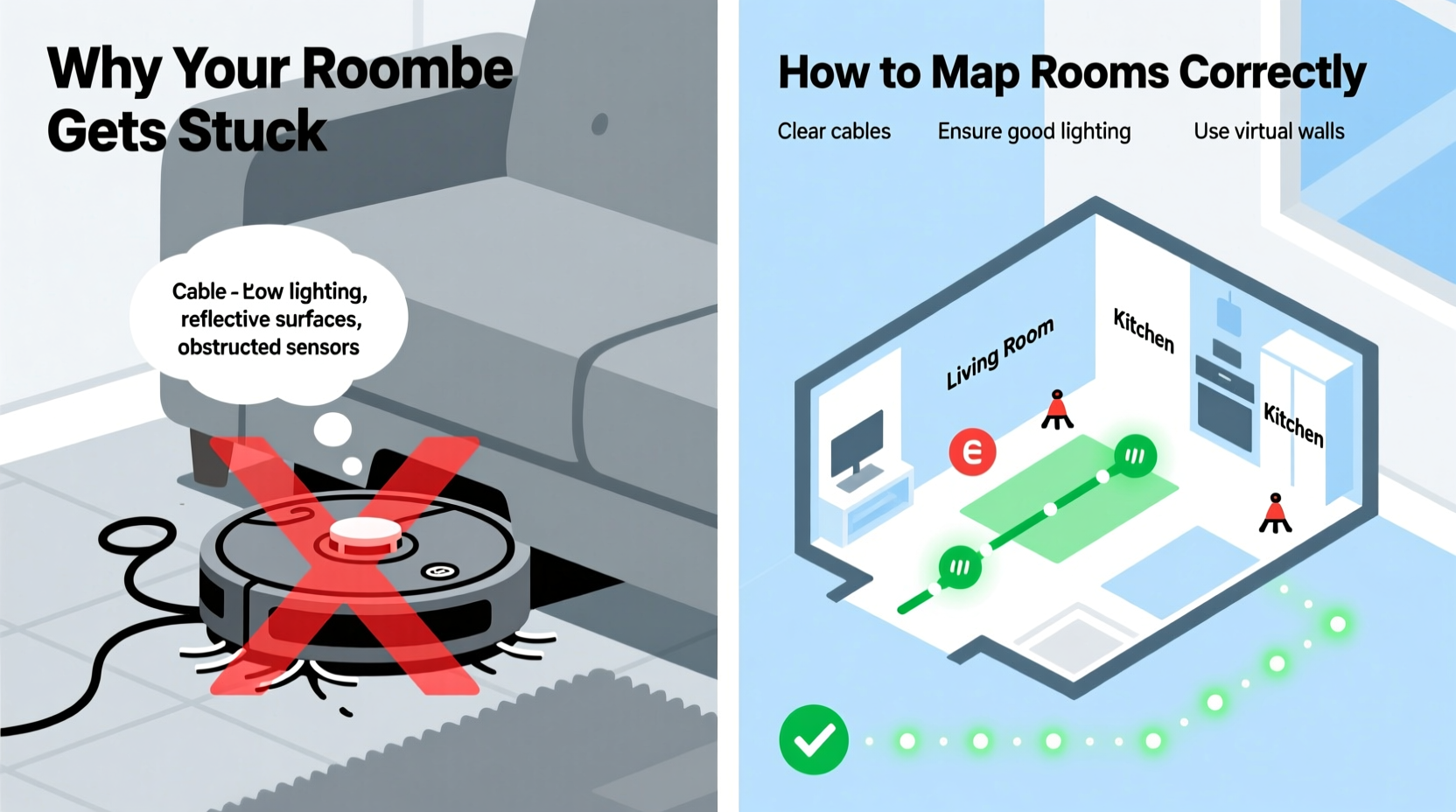
While Roombas are engineered with advanced sensors and navigation systems, they're not immune to physical and environmental obstacles. Getting stuck isn't always a sign of malfunction—it's often a mismatch between the robot’s capabilities and its surroundings.
- Furniture with low clearance: Coffee tables, dining chairs, and ottomans often sit too close to the floor for a Roomba to pass underneath safely.
- Cords and cables: Power strips, charging cables, and extension cords left on the floor can easily tangle around brushes or wheels.
- Rugs with tassels or fringes: These can get caught in side brushes or become entangled in the main roller.
- Dark flooring or high-contrast surfaces: Some older models struggle with optical cliff sensors on very dark rugs or tiles, mistaking them for drop-offs.
- Pet toys and small objects: Items like LEGO pieces, shoes, or socks create unexpected barriers that disrupt navigation.
- Cluttered thresholds: Doorways cluttered with mats, baskets, or scattered items hinder smooth transitions between rooms.
How Roomba Mapping Technology Works
Modern Roombas—especially i-Series, j-Series, and s-Series models—use vSLAM (visual Simultaneous Localization and Mapping) technology to build detailed maps of your home. The robot uses a camera mounted on top to capture visual landmarks as it moves, comparing them over time to understand its position and layout.
This system allows Roombas to:
- Create persistent maps across multiple cleaning sessions.
- Identify specific rooms and assign names (e.g., “Living Room,” “Kitchen”).
- Navigate efficiently using planned paths instead of random bouncing.
- Support features like room-specific cleaning and no-go zones via the iRobot Home app.
However, accurate mapping depends heavily on consistent lighting, unobstructed views, and sufficient space for movement. If the robot can’t see landmarks clearly or keeps getting interrupted by obstacles, the map will be incomplete or inaccurate.
“Mapping isn’t magic—it’s geometry and consistency. A clean environment and stable lighting are just as important as the robot’s software.” — Dr. Alan Zhou, Robotics Engineer at MIT CSAIL
Step-by-Step Guide to Properly Map Rooms
Creating an accurate and usable map requires preparation, patience, and repetition. Follow this sequence to ensure your Roomba builds a reliable floor plan:
- Clear the path: Remove all tripping hazards—cords, toys, loose rugs, and clutter—before starting the first mapping run.
- Ensure adequate lighting: Turn on lights during daytime or evening mapping. Avoid dim rooms or strong backlighting that obscures visual cues.
- Close off unnecessary areas: Use physical barriers or virtual walls to limit the robot to one level or section if you’re mapping gradually.
- Start the mapping run: Press Clean on the robot or through the app. Let it complete a full cycle without interruption—even if it seems slow or repetitive.
- Do not pick it up: Never relocate the robot mid-cycle. Doing so resets its positional memory and corrupts the emerging map.
- Repeat if needed: Some models require two to three successful runs to finalize a stable map. Allow consecutive cleanings over 1–2 days.
- Review and edit in the app: Once mapped, open the iRobot Home app, go to Settings > Maps, and label rooms, set boundaries, or define no-go zones.
- Save and lock the map: Confirm the final layout and lock it to prevent accidental overwrites during future cleans.
After locking, your Roomba will use this map indefinitely unless major changes occur—like rearranging furniture or remodeling—which may trigger a remap request.
Tips for Preventing Stuck Episodes
Even with a perfect map, physical obstructions remain the biggest threat to uninterrupted cleaning. Prevention is key. Implement these practical habits to reduce snagging:
- Elevate area rugs with non-slip grippers or double-sided tape to prevent curling edges.
- Use cord clips or sleeves to bundle and secure power cables along baseboards.
- Trim long tassels on rugs or avoid placing fringed rugs in high-traffic cleaning zones.
- Install doorstop holders to keep interior doors fully open during cleaning cycles.
- Keep pet food bowls elevated and away from wall edges where Roomba navigates.
Additionally, consider adjusting the robot’s cleaning schedule to times when the house is less active—early morning or during work hours—when fewer obstacles are present.
Checklist: Pre-Mapping Environment Setup
Before initiating your first mapping session, verify the following conditions are met:
- ✅ All cords and cables secured or tucked away
- ✅ Furniture lifted to at least 3.5 inches clearance
- ✅ Rugs flat and edges taped down if necessary
- ✅ Doors to target rooms fully open
- ✅ Lighting consistent and bright (no flickering bulbs)
- ✅ No shiny or mirrored surfaces directly in robot’s path (can confuse sensors)
- ✅ Pet toys, shoes, and small items picked up
- ✅ Robot battery fully charged
- ✅ Dustbin empty and brushes clean
- ✅ Wi-Fi connected and app updated
Completing this checklist dramatically increases the chances of a successful first map and reduces post-mapping corrections.
Do’s and Don’ts of Roomba Navigation
| Do’s | Don’ts |
|---|---|
| Let the Roomba finish its full cleaning cycle during mapping | Interrupt or pick up the robot mid-clean |
| Label rooms in the app for voice command support | Ignore map error messages in the app |
| Use virtual walls or no-go lines to block problem areas | Place the robot on a different floor than its home base |
| Run multiple mapping cycles for large or complex homes | Expect perfect navigation on the first try |
| Clean the cliff sensors and wheels weekly | Allow dust buildup on sensors or bump bars |
Mini Case Study: Fixing a Persistent Kitchen Jam
Sarah in Portland owned a Roomba j7+ but noticed it consistently got stuck near her kitchen island every third cleaning. She assumed it was a software glitch and contacted support, but troubleshooting revealed a simple environmental cause.
The island had a decorative metal skirt that extended only 3 inches from the floor—just below the Roomba’s 3.5-inch clearance. On approach, the robot would wedge itself slightly under the overhang, spin its wheels, and eventually stop with a “Stuck” alert.
After measuring the gap and raising the island supports with adjustable leveling feet, Sarah gained an extra half inch. She also repositioned her recycling bin, which previously blocked the return path to the dock. One week later, after a fresh mapping run, the Roomba navigated the kitchen flawlessly.
This case illustrates how minor spatial conflicts—often invisible to humans—can derail autonomous navigation. Small adjustments yield significant improvements.
When Remapping Is Necessary
Your Roomba may prompt for a remap automatically if it detects major layout changes. But even without alerts, consider manually triggering a new map if:
- You’ve rearranged furniture significantly.
- You’ve added or removed walls (e.g., installed a new closet).
- The robot starts missing rooms or taking inefficient routes.
- You’ve moved the Home Base to a new location.
- You’ve expanded to a second floor and want separate zone control.
To initiate a remap, go to the iRobot Home app, select your device, tap “Settings,” then choose “Maps,” and select “Start Mapping Run.” The robot will treat this as a fresh initialization, discarding outdated data and building anew.
FAQ: Common Questions About Roomba Stuck Issues and Mapping
Why does my Roomba keep avoiding certain areas even after mapping?
This usually happens when the robot detects a virtual wall, no-go zone, or physical barrier during mapping. Check the app’s map settings to ensure no unintended boundaries are active. Also, confirm that doors were open during the initial mapping run—if closed, the robot may have marked those rooms as inaccessible.
Can I use multiple Home Bases for better coverage?
iRobot officially supports only one Home Base per robot. While some users attempt dual docks, this often confuses navigation and docking logic. For larger homes, consider upgrading to a model with longer battery life or use manual relocation between zones with app-based cleaning commands.
My Roomba keeps turning in circles—what’s wrong?
Circular motion typically indicates a sensor issue. Clean the bumper and cliff sensors with a dry cloth. Also check for debris wrapped around the wheels or side brush. If the behavior persists, reset the robot by holding the Home, Spot, and Clean buttons simultaneously for 10 seconds.
Conclusion: Smarter Cleaning Starts with Better Setup
A Roomba that constantly gets stuck isn’t broken—it’s signaling that its environment needs adjustment. By understanding the limitations of its sensors, preparing your space thoughtfully, and guiding the mapping process with intention, you unlock the true potential of robotic cleaning. It’s not just about letting the robot do the work; it’s about creating the conditions where it can succeed autonomously.
Take action today: clear the floor, charge the battery, and dedicate one full cleaning cycle to mapping. Fine-tune the layout in the app, set boundaries, and establish a maintenance routine. Over time, your Roomba will move with confidence, cover every square foot, and return to its dock without assistance. That’s the future of smart home cleaning—within reach, one thoughtful step at a time.




 浙公网安备
33010002000092号
浙公网安备
33010002000092号 浙B2-20120091-4
Comments
No comments yet. Why don't you start the discussion?