
Samsung smartphones are known for their powerful hardware, advanced features, and reliable performance. Yet even the most premium models can occasionally freeze—locking up mid-task, refusing touch input, or getting stuck on a static screen. When this happens, it's not just frustrating—it raises concerns about long-term reliability and data safety. Understanding the root causes of random freezing and knowing how to respond with the proper reboot method can save you time, prevent damage, and extend your device’s lifespan.
Freezing isn't always a sign of hardware failure. More often than not, it stems from software conflicts, memory overload, or poorly optimized apps. The key is identifying patterns, applying corrective steps, and knowing when a simple restart won’t cut it. This guide breaks down the most common triggers behind Samsung phone freezes and walks you through both immediate fixes and long-term preventive strategies.
Common Causes of Random Freezing on Samsung Phones
A frozen screen doesn’t appear out of nowhere. It’s typically the result of one or more underlying system stressors. Recognizing these causes helps in diagnosing whether the issue is temporary or indicative of deeper problems.
- Overloaded RAM: Running too many apps simultaneously—especially resource-heavy ones like games or video editors—can exhaust available memory, leading to sluggishness and eventual lockups.
- Buggy or Outdated Apps: Third-party applications that haven’t been updated for the latest Android version may conflict with system processes, causing crashes or freezes.
- Insufficient Storage: When internal storage drops below 10%, the operating system struggles to manage background tasks and cache files, increasing instability.
- Firmware Glitches: System updates sometimes introduce bugs. An incomplete or corrupted update can destabilize core functions.
- Overheating: Prolonged usage under direct sunlight, intensive gaming, or charging while using the phone can cause thermal throttling and system halts.
- Corrupted Cache Partition: Over time, cached system data can become fragmented or damaged, interfering with smooth operation.
- Hardware Defects (Less Common): Issues with the motherboard, battery, or display driver can manifest as unresponsiveness, though these usually come with other symptoms like boot loops or physical damage.
How to Reboot a Frozen Samsung Phone: Step-by-Step Guide
When your screen is completely unresponsive, a standard power-off won’t work. You need a forced reboot—a safe way to restart the device without risking data loss. Samsung devices support multiple force-restart methods depending on the model and severity of the freeze.
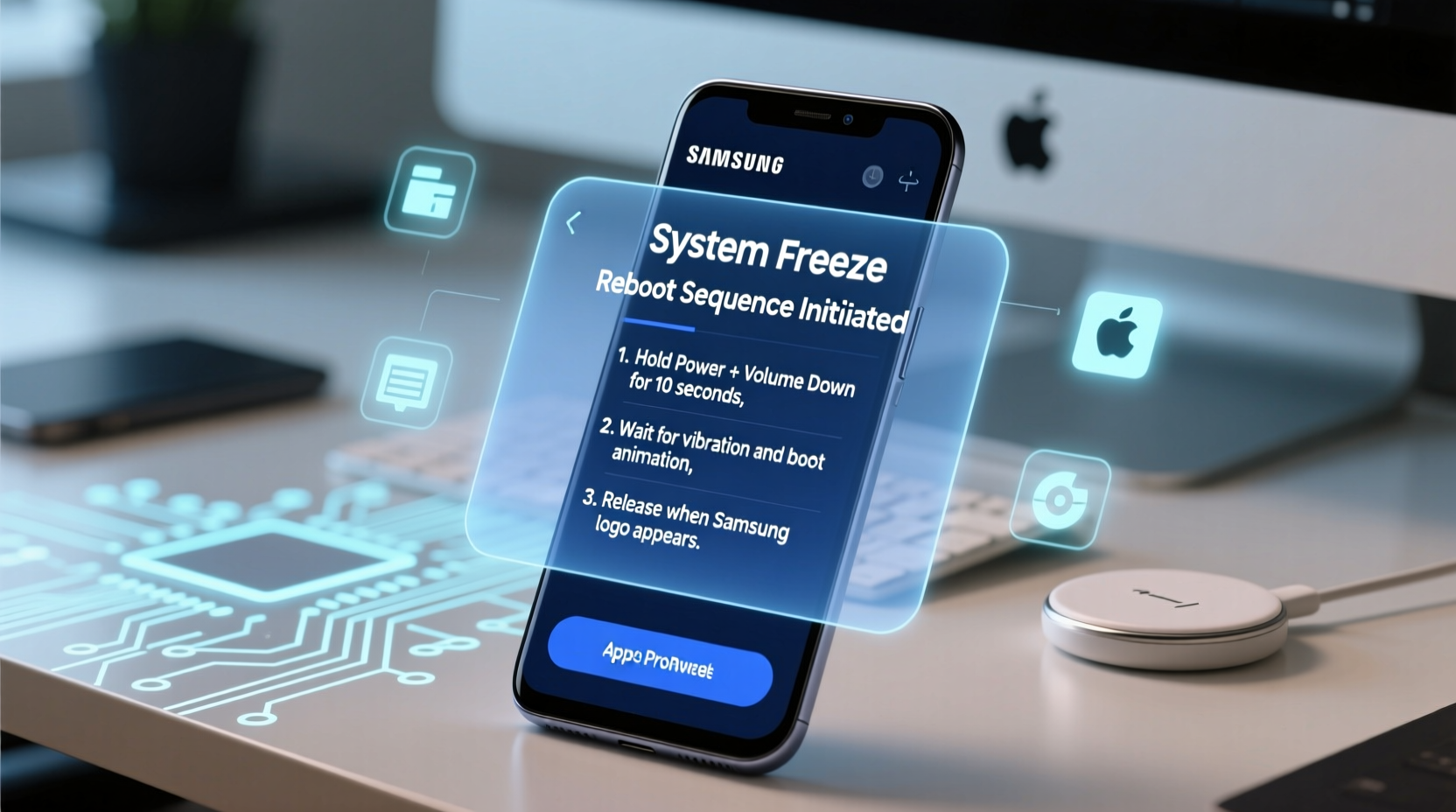
- Press and Hold Power + Volume Down: On most modern Samsung Galaxy phones (S20 and later), press and hold the Power button and the Volume Down button simultaneously for 10–15 seconds. Keep holding even if the screen appears black.
- Wait for Logo Appearance: Release the buttons when the Samsung logo appears. This indicates the system is restarting.
- Allow Full Boot-Up: Do not interact with the phone during reboot. Wait until the lock screen loads completely.
For older models like the Galaxy S8 through S10 series, some users report better results using Power + Volume Up + Bixby for 10 seconds. While Samsung has phased out the Bixby button on newer devices, it remains active on legacy models and can assist in emergency reboots.
“Force restarting is the first-line response to freezing. It clears volatile memory and resets temporary system states without affecting user data.” — David Kim, Mobile Systems Engineer at GSMA Labs
What Happens During a Forced Reboot?
Unlike a normal shutdown, a forced reboot interrupts all running processes abruptly. The system kernel detects the prolonged button input as a hardware-level signal to reset. This bypasses the UI layer, which may be frozen, and triggers a low-level restart sequence. All RAM contents are wiped, background services terminate, and the boot loader initializes fresh.
Crucially, no personal data (photos, messages, app data) is deleted during this process. However, unsaved work in open documents or draft messages may be lost—so avoid relying on force restarts during critical tasks.
Preventive Measures to Reduce Future Freezing
While occasional freezes can happen on any smartphone, frequent lockups suggest preventable oversights. Implementing routine maintenance reduces strain on your device and improves long-term responsiveness.
Regular Maintenance Checklist
- ✅ Clear app cache monthly via Settings > Storage > Clean Now
- ✅ Uninstall unused apps to free up space and reduce background load
- ✅ Update apps and OS regularly through Google Play and Galaxy Store
- ✅ Restart your phone at least once a week to clear memory leaks
- ✅ Avoid using third-party launchers or live wallpapers that consume extra resources
- ✅ Monitor battery health and replace if swelling or rapid drain occurs
Manage Background Processes
Samsung’s One UI includes built-in tools to limit background activity. Navigate to Settings > Battery and Device Care > Battery > Background Usage Limits. Here, you can set apps to suspend when not in use. For example, social media apps like TikTok or Instagram often run background syncs that eat memory even when closed.
Additionally, disable “Always-on Display” if you don’t rely on it. While convenient, this feature keeps parts of the GPU and memory active continuously, contributing to heat buildup and system fatigue over time.
When to Wipe Cache Partition (And How To)
If freezing persists after multiple reboots, clearing the system cache partition can resolve hidden corruption. This is different from factory reset—it doesn’t erase personal data but refreshes temporary system files used during boot and operation.
Step-by-Step: Clear Cache Partition on Samsung
- Turn off the phone completely.
- Press and hold Volume Up + Power + Home buttons together (Home refers to the on-screen navigation key if physical button is absent).
- When the Samsung logo appears, release all buttons. You’ll enter Recovery Mode.
- Use Volume keys to navigate to “Wipe Cache Partition.” Select with Power button.
- Confirm action when prompted. Wait for completion (usually under a minute).
- Select “Reboot System Now.”
The phone will restart normally. First boot may take longer than usual as the system rebuilds cache files. Performance should stabilize within minutes.
Note: This procedure is safe and recommended by Samsung for troubleshooting persistent lag or boot issues. It does not affect apps, accounts, or saved files.
Real Example: Recovering a Stuck Galaxy S23
Jessica, a freelance photographer in Austin, noticed her Galaxy S23 Ultra began freezing during photo editing sessions. She was using Adobe Lightroom, Snapseed, and WhatsApp simultaneously, transferring high-resolution RAW files between them. After two consecutive freezes, she couldn’t unlock the phone—even the power menu failed to appear.
She applied the force restart method: held Power + Volume Down for 15 seconds. The phone vibrated and rebooted. Upon restart, she checked storage and found only 3GB free out of 256GB. Using Samsung’s Device Care tool, she cleared cache, uninstalled three unused creative apps, and disabled auto-sync for cloud backups during Wi-Fi-only hours.
She also enabled Memory Plus (Settings > Battery and Device Care > Memory), allocating 6GB as reserved RAM for critical apps. Since then, no further freezes have occurred, even under heavy multitasking.
Do’s and Don’ts When Dealing With a Frozen Phone
| Do’s | Don’ts |
|---|---|
| ✔ Force restart using correct button combo | ✘ Hold the power button indefinitely (can drain battery unnecessarily) |
| ✔ Wait 10–15 seconds before releasing buttons | ✘ Attempt to remove the battery (not possible on sealed models) |
| ✔ Check for pending system updates afterward | ✘ Tap repeatedly on the screen hoping it responds |
| ✔ Back up data regularly to avoid loss | ✘ Ignore recurring freezes—early action prevents escalation |
| ✔ Use Safe Mode to identify problematic apps | ✘ Perform factory reset unless absolutely necessary |
Using Safe Mode to Diagnose App Conflicts
After a successful reboot, boot into Safe Mode to determine if a third-party app is causing the freeze. To do this:
- Press and hold the Power button until the power menu appears.
- Long-press the “Power Off” option until “Reboot to Safe Mode” appears.
- Tap OK. The phone will restart with only essential system apps active.
If the phone runs smoothly in Safe Mode, the culprit is likely a downloaded app. Review recently installed apps and uninstall them one by one to isolate the offender.
Frequently Asked Questions
Will force restarting damage my Samsung phone?
No. Force restarting is a designed safety feature. It does not harm hardware or delete data. Samsung engineers include this function specifically for situations where the interface becomes unresponsive.
How often should I restart my Samsung phone?
At minimum, once a week. Regular restarts clear accumulated RAM usage, refresh network connections, and allow background updates to apply. Heavy users may benefit from restarting every 3–4 days.
Can a virus make my Samsung phone freeze?
True viruses are rare on Android due to sandboxing, but malicious apps can mimic virus behavior—consuming CPU, injecting ads, or freezing the UI. Install apps only from Google Play or Galaxy Store, and run periodic scans using Samsung Knox or trusted antivirus tools like Bitdefender.
Conclusion: Take Control of Your Phone’s Performance
Random freezing on your Samsung phone is rarely a death sentence—it’s usually a cry for maintenance. Whether caused by overloaded memory, outdated software, or a rogue app, most issues are reversible with the right knowledge and habits. Knowing how to properly force restart your device gives you immediate control, while regular cache clearing, app management, and system updates ensure long-term stability.
Your smartphone is a powerful tool, but like any machine, it requires care. Don’t wait for repeated crashes before acting. Apply these steps today: clean the cache, review running apps, and schedule a weekly reboot. Small efforts now prevent major disruptions later.




 浙公网安备
33010002000092号
浙公网安备
33010002000092号 浙B2-20120091-4
Comments
No comments yet. Why don't you start the discussion?