
Have you ever settled into your favorite chair indoors, only to notice your laptop or phone screen suddenly dimming or brightening without warning? You didn’t touch a setting, yet the display adjusts on its own. This behavior is both common and intentional—but often misunderstood. While automatic brightness adjustments are designed to improve user experience, they can be frustrating when they don't align with your preferences. Understanding the mechanisms behind this feature—and how to manage it—can help you regain control over your device’s display.
How Automatic Brightness Works
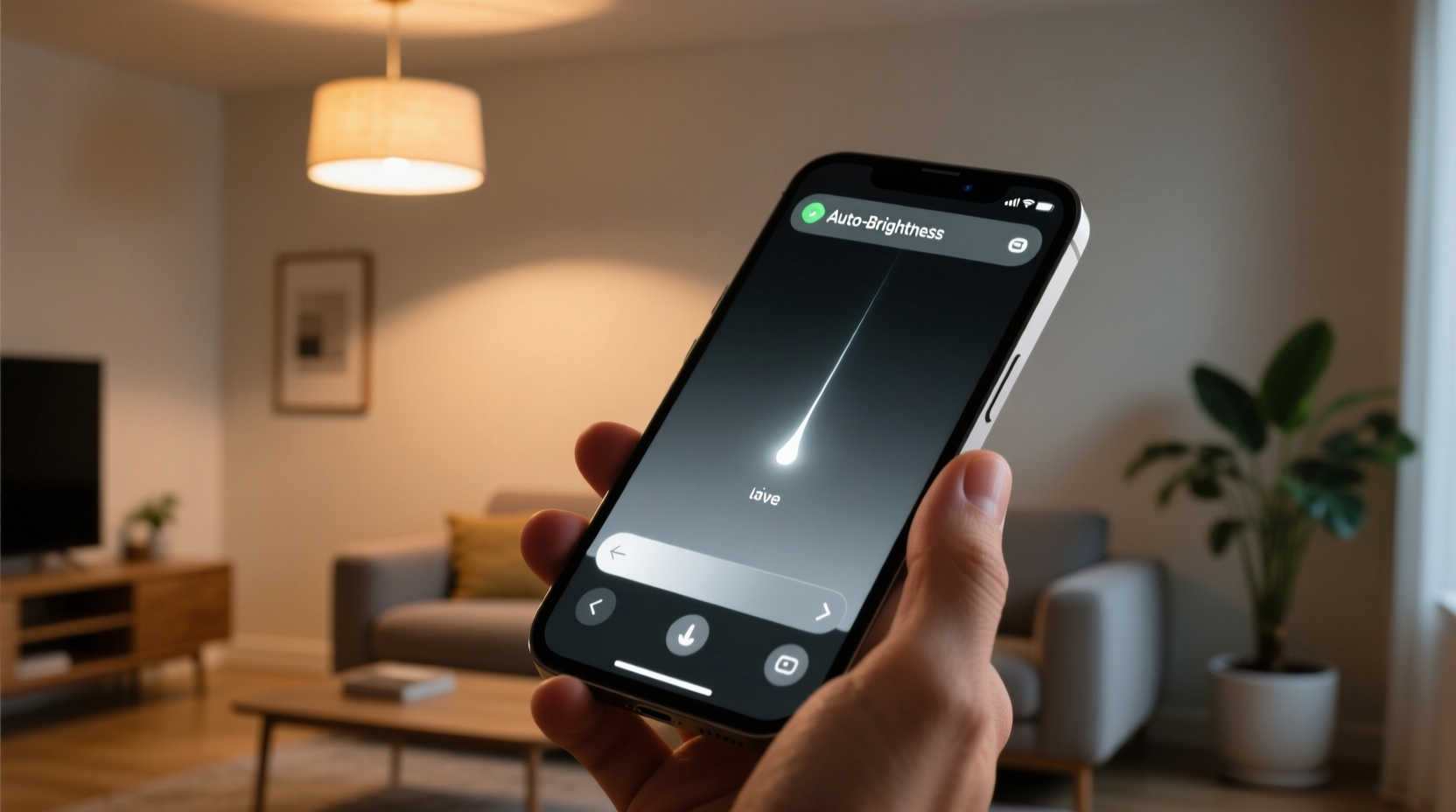
Modern smartphones, tablets, and laptops come equipped with ambient light sensors. These small components detect the amount of light in your surroundings and relay that information to the operating system. Based on this input, the device adjusts screen brightness to optimize visibility and conserve battery life.
When you're outdoors under direct sunlight, the sensor detects high ambient light and increases screen brightness so content remains visible. Indoors, where lighting is typically lower, the sensor signals the system to reduce brightness. However, indoor environments are not uniform—lighting varies based on time of day, room color, window exposure, and artificial lighting—which can cause inconsistent or unexpected brightness shifts.
The algorithm governing these adjustments isn’t always perfect. It may interpret a shadow from your hand as a drop in room lighting, or respond slowly to sudden changes like turning off a lamp. As a result, what’s meant to be a convenience can sometimes feel like a nuisance.
“Automatic brightness is one of the most useful yet under-tuned features in modern devices. It improves accessibility and efficiency, but context awareness still has room for improvement.” — Dr. Lena Patel, Human-Computer Interaction Researcher at MIT Media Lab
Common Causes of Indoor Brightness Fluctuations
While the ambient light sensor is the primary driver, several factors contribute to erratic brightness changes indoors:
- Inconsistent lighting sources: Mixed lighting (e.g., natural daylight and overhead LEDs) can confuse sensors, leading to rapid adjustments.
- Sensor obstruction: Holding your phone incorrectly, using a thick case, or placing a laptop near a wall can block or reflect light, distorting readings.
- Software updates: New OS versions sometimes reset brightness settings or alter algorithm sensitivity.
- Proximity interference: On phones, proximity sensors used during calls can temporarily override brightness controls.
- Power-saving modes: Battery optimization features may force brightness down regardless of ambient conditions.
These variables explain why two people in the same room might experience different behaviors on similar devices. Environmental subtleties matter more than most users realize.
Device-Specific Behavior Across Platforms
Different manufacturers implement automatic brightness in unique ways. Below is a comparison of how major platforms handle indoor brightness adjustments:
| Platform | Light Sensor Sensitivity | Adaptive Algorithm? | User Control Options |
|---|---|---|---|
| iOS (iPhone) | High – reacts quickly to subtle changes | Yes – uses AI to learn user habits over time | Toggle auto-brightness in Settings > Accessibility > Display & Text Size |
| Android (Samsung, Pixel, etc.) | Variable – depends on model and manufacturer | Limited – some brands include learning features | Found in Display settings; some models offer “Adaptive Brightness” separately |
| Windows Laptops | Moderate – slower response indoors | Basic – relies on hardware drivers | Controlled via System Settings > Display; can disable \"Change brightness automatically\" |
| macOS | Smooth but conservative adjustments | Yes – integrated with True Tone on newer models | Disable in System Settings > Displays > Automatically adjust brightness |
Apple’s iOS, for example, combines ambient sensing with usage pattern analysis. If you consistently override auto-brightness by manually increasing it every evening, the system may begin to anticipate this and adjust proactively. Android offers more variability—some OEMs like Samsung enhance the feature with additional ambient-aware color temperature adjustments, while budget models may have less accurate sensors.
Step-by-Step: Diagnosing and Controlling Auto-Brightness
If unexplained brightness shifts disrupt your workflow or viewing comfort, follow this diagnostic process to identify and resolve the issue:
- Observe the pattern: Note when and where the changes occur. Does it happen only in certain rooms? At specific times? With particular apps open?
- Check for obstructions: Ensure the light sensor (usually near the front camera) is clean and unblocked by cases or fingers.
- Test in controlled lighting: Move to a room with consistent artificial light and observe if adjustments continue.
- Disable auto-brightness temporarily: Turn off the feature and set a fixed brightness level to confirm whether the issue resolves.
- Update software: Install the latest OS updates—bugs affecting sensor calibration are frequently patched.
- Reset display settings: On some devices, resetting all settings (without erasing data) can clear corrupted display profiles.
- Calibrate manually: Spend a few days adjusting brightness manually in different indoor environments to train your muscle memory and understand ideal levels.
This methodical approach helps distinguish between a faulty sensor, poor calibration, and normal adaptive behavior.
Real-World Example: The Home Office Dilemma
Consider Mark, a freelance graphic designer who works from a sunlit home office. In the morning, sunlight floods through his east-facing window, prompting his MacBook Pro to increase brightness. By afternoon, clouds roll in, and the screen dims. So far, so good. But when he pulls down a shade to reduce glare, the screen dims further—even though he needs higher brightness to see design details clearly.
Frustrated, Mark disables automatic brightness and sets a fixed level. Initially, this solves the problem. However, by evening, the room darkens, and the screen becomes too bright for comfortable viewing. He realizes a total shutdown of the feature isn’t ideal either.
Instead, he explores macOS’s True Tone settings and discovers he can keep auto-brightness enabled while fine-tuning the minimum and maximum levels through third-party tools like Brightness Slider. He also adjusts his desk lamp to provide consistent supplementary lighting. Over time, the system adapts better, and unwanted fluctuations decrease significantly.
Mark’s experience illustrates that while automatic brightness isn’t flawless, combining smart settings with environmental tweaks leads to a balanced solution.
Expert Tips for Better Brightness Management
To get the most out of auto-brightness without sacrificing comfort, consider these expert-backed strategies:
- Use hybrid lighting: Combine natural light with warm-toned indoor lamps to create a stable environment for sensors.
- Avoid reflective surfaces: Position screens away from mirrors or glossy walls that bounce light unpredictably onto the sensor.
- Enable scheduling features: Some Android phones allow brightness schedules based on time of day—useful for predictable indoor routines.
- Monitor battery impact: Disabling auto-brightness and running at full brightness constantly can reduce battery life by up to 30%.
- Leverage accessibility features: iOS offers “Larger Text” mode which can trigger brightness boosts for readability—review such linked behaviors in settings.
powercfg /requests in Command Prompt to check if any app is forcing display brightness changes.
FAQ: Common Questions About Indoor Brightness Changes
Why does my phone brighten when I pick it up, even indoors?
This is likely due to the proximity and ambient light sensors working together. When you lift your phone from a dark surface (like a table), the sudden exposure to room light triggers a brightness increase. Some phones also integrate motion detection—lifting the device activates “raise to wake,” which includes screen illumination.
Can I calibrate the light sensor myself?
Most consumer devices don’t offer built-in sensor calibration tools. However, you can recalibrate indirectly by disabling auto-brightness for 24 hours, then re-enabling it in a well-lit environment. On certain Android devices, engineering modes (accessed via dialer codes) include sensor tests, but these are not recommended for average users.
Does automatic brightness affect eye strain?
When functioning correctly, auto-brightness reduces eye strain by matching screen output to ambient light. However, frequent fluctuations or overly aggressive dimming in low light can cause visual fatigue. Setting a minimum brightness threshold (if supported) helps maintain visual comfort.
Checklist: Take Control of Your Screen Brightness
Use this checklist to optimize your device’s brightness behavior indoors:
- ✅ Locate and clean the ambient light sensor
- ✅ Test auto-brightness in multiple indoor lighting conditions
- ✅ Disable the feature temporarily to assess necessity
- ✅ Adjust manual brightness levels for morning, afternoon, and evening
- ✅ Check for OS updates that improve sensor performance
- ✅ Consider using third-party apps for granular control (e.g., Lux for Android)
- ✅ Evaluate whether True Tone or Night Shift modes are influencing perceived brightness
Conclusion: Mastering Comfort and Control
Automatic screen brightness is a thoughtful feature designed to enhance usability and efficiency. Indoors, where lighting is dynamic and complex, it can misfire—but understanding its mechanics empowers you to work with, not against, the system. Whether you choose to fine-tune the settings, modify your environment, or disable the feature altogether, the goal is consistent visual comfort and productivity.
Don’t settle for a screen that behaves unpredictably. Take a few minutes today to review your brightness settings, clean your device’s sensor, and experiment with manual adjustments. Small changes can lead to a dramatically better viewing experience.




 浙公网安备
33010002000092号
浙公网安备
33010002000092号 浙B2-20120091-4
Comments
No comments yet. Why don't you start the discussion?