
Screen brightness that resets unexpectedly can be more than just an annoyance—it disrupts focus, strains the eyes, and undermines productivity. Whether you're working late at night or reading in daylight, consistent screen brightness matters. Yet many users find their carefully adjusted settings reverting after a reboot, wake-up from sleep mode, or even mid-session. This behavior isn't random; it's typically driven by system-level features, power management policies, or hardware interactions. Understanding the root causes—and knowing how to override them—can restore control over your viewing experience.
Why Screen Brightness Resets: Common Causes
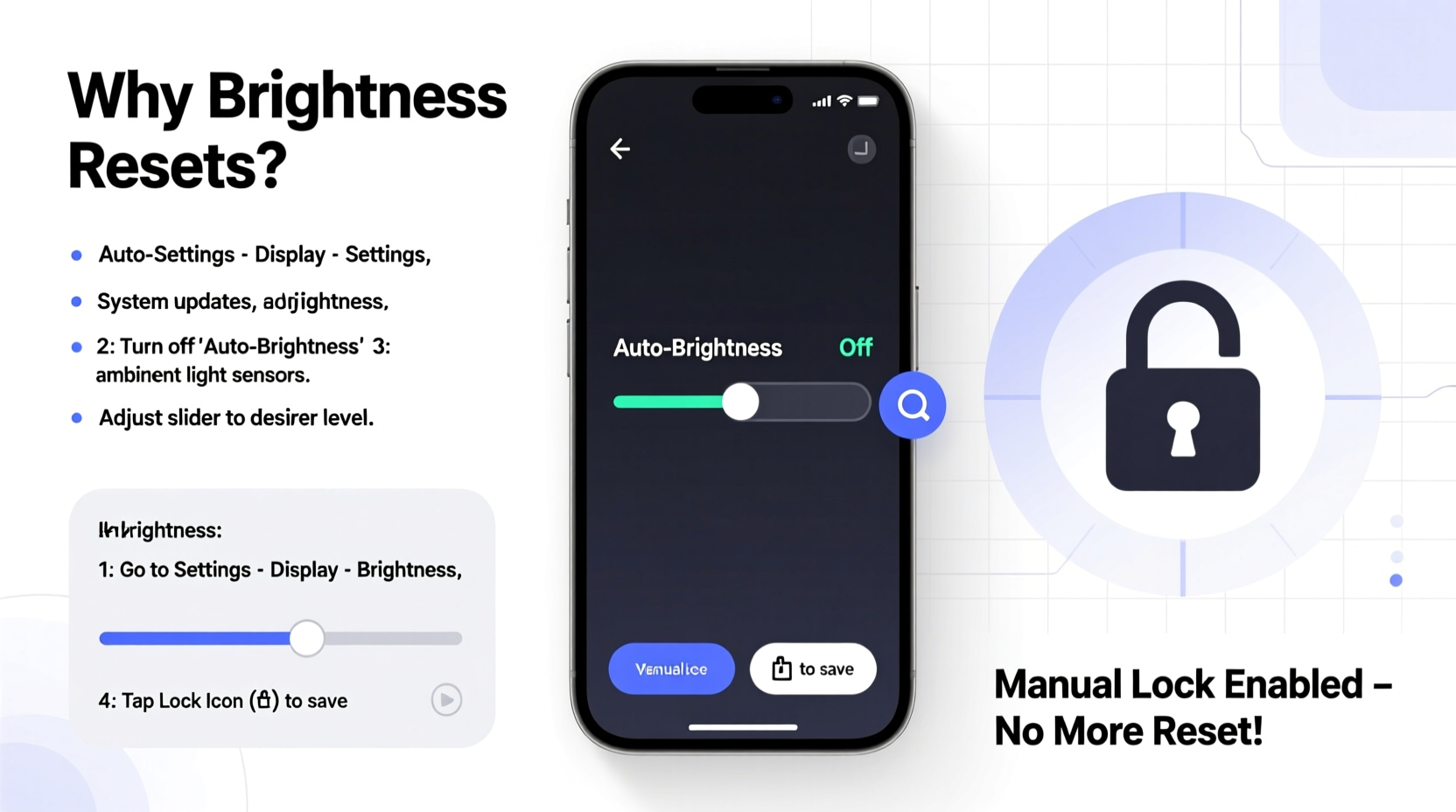
Brightness resets are rarely due to hardware failure. Instead, they stem from software logic designed to optimize performance, battery life, or user comfort. Below are the most frequent culprits:
- Adaptive Brightness Features: Operating systems like Windows, macOS, and Android use ambient light sensors (if available) to automatically adjust brightness based on surroundings.
- Power Plan Transitions: Switching between power modes (e.g., balanced vs. high performance) can trigger brightness level changes.
- Driver or Firmware Updates: GPU drivers or BIOS updates may reset display settings to defaults during installation.
- Fast Startup (Windows): This hybrid boot feature saves system state, sometimes causing display driver reload issues upon restart.
- Multiple Monitors or External Displays: Connecting or disconnecting external screens can prompt brightness recalibration.
- User Profile Corruption: In rare cases, corrupted user profiles fail to retain personal display preferences.
“Automatic brightness adjustments aim to improve usability, but they often misread context—like dimming too aggressively indoors.” — Dr. Lena Torres, Human-Computer Interaction Researcher, MIT Media Lab
How to Lock Brightness Manually by Platform
Taking manual control requires disabling automatic adjustments and setting a fixed level. The process varies significantly depending on your operating system and device type. Below is a comprehensive guide for major platforms.
Windows 10 and 11
Windows combines adaptive brightness with power plans, making it essential to disable both layers.
- Open Settings > System > Display.
- Toggle off “Change brightness automatically when lighting changes” (requires ambient light sensor).
- Navigate to Control Panel > Hardware and Sound > Power Options.
- Select your active plan (e.g., Balanced), click Change plan settings, then Change advanced power settings.
- Expand Display > Enable adaptive brightness, and set both \"On battery\" and \"Plugged in\" to Disabled.
- Click Apply, then OK.
To prevent Fast Startup from interfering:
- Go to Control Panel > Power Options > Choose what the power buttons do.
- Click Change settings that are currently unavailable.
- Uncheck Turn on fast startup and save changes.
macOS (All Versions)
Apple devices use True Tone and Auto-Brightness on supported models. To disable:
- Click the Apple menu and select System Settings (or System Preferences on older versions).
- Go to Displays.
- Uncheck Automatically adjust brightness.
- If applicable, disable True Tone as well.
Note: On MacBooks without ambient light sensors, this option may not appear. Brightness resets here are usually tied to external display detection or macOS updates.
Android Devices
Most Android phones enable adaptive brightness by default. To lock brightness:
- Open Settings > Display.
- Toggle off Adaptive brightness or Auto brightness.
- Manually slide the brightness bar to your preferred level.
- (Optional) Enable Dark theme to reduce perceived glare without lowering brightness.
Some manufacturers (e.g., Samsung, OnePlus) add additional optimization layers. Check under Battery or Device Care for settings like “Optimize screen brightness” and disable them.
iOS (iPhone and iPad)
iOS uses a similar auto-brightness system:
- Go to Settings > Accessibility > Display & Text Size.
- Toggle off Auto-Brightness.
- Adjust the slider manually to lock in your desired level.
Note: Disabling Auto-Brightness may slightly impact battery efficiency in variable lighting, but gives full user control.
Step-by-Step: Locking Brightness via Command Line (Advanced Users)
For users comfortable with terminal commands, brightness can be locked programmatically—useful for automation or troubleshooting.
Windows (via PowerShell)
You can disable adaptive brightness registry-wide:
# Run PowerShell as Administrator
Set-ItemProperty -Path \"HKLM:\\SYSTEM\\CurrentControlSet\\Control\\Power\\PowerSettings\\7516b95f-f776-4464-8c53-06167f40cc99\\aded5e82-b909-4619-9949-f5d71dac0bcb\" -Name Attributes -Value 2
This enables the hidden \"Adaptive brightness\" option in Power Options. Then use Powercfg to disable it:
powercfg -setdcvalueindex SCHEME_CURRENT 7516b95f-f776-4464-8c53-06167f40cc99 aded5e82-b909-4619-9949-f5d71dac0bcb 0
powercfg -setacvalueindex SCHEME_CURRENT 7516b95f-f776-4464-8c53-06167f40cc99 aded5e82-b909-4619-9949-f5d71dac0bcb 0
The value 0 disables the feature on both battery and AC power.
Linux (Using xrandr)
On Linux desktops, use xrandr to set fixed brightness:
# List connected displays
xrandr --query | grep \" connected\"

# Set brightness (example: 0.8 level on HDMI-1)
xrandr --output HDMI-1 --brightness 0.8
Add this command to startup scripts (e.g., ~/.xprofile) to apply at login.
Troubleshooting Persistent Reset Issues
Sometimes, even after disabling auto-adjustments, brightness still resets. Consider these deeper fixes.
Update or Roll Back Display Drivers
Outdated or buggy GPU drivers are a common cause:
- Windows: Open Device Manager > Display adapters. Right-click your GPU and select “Update driver.” Alternatively, download the latest version from NVIDIA, AMD, or Intel.
- If the issue started recently, try rolling back the driver via the same menu.
Reset Monitor Calibration (External Displays)
External monitors with built-in menus (e.g., Dell, LG, ASUS) may override OS settings:
- Use the monitor’s physical buttons to access its OSD (On-Screen Display).
- Check for presets like “Standard,” “Eco,” or “Dynamic Contrast” that alter brightness.
- Reset to factory defaults or manually set brightness/contrast.
Disable Graphics Card Control Panels
Software like NVIDIA Control Panel or AMD Radeon Software may enforce brightness rules:
- Open the control panel.
- Navigate to Display > Adjust desktop color settings.
- Ensure no dynamic range or gamma adjustments are enabled.
- Look for “PowerTune” or similar features and disable automatic adjustments.
Do’s and Don’ts of Managing Screen Brightness
| Do’s | Don’ts |
|---|---|
| Do disable adaptive brightness if you work in stable lighting. | Don’t rely solely on keyboard shortcuts—they may not override system policies. |
| Do update GPU drivers regularly to avoid compatibility glitches. | Don’t ignore firmware updates for external monitors. |
| Do use dark mode in tandem with lower brightness to reduce eye strain. | Don’t set brightness too low in bright environments—this increases eye fatigue. |
| Do test brightness settings after each OS update. | Don’t assume all apps respect system brightness—some (e.g., video players) override it. |
Real-World Example: A Remote Worker’s Fix
Sophie, a technical writer using a Lenovo ThinkPad and dual Dell monitors, reported that her brightness dropped every morning after resuming from sleep. Despite setting levels manually, the left monitor always reverted to 50%.
After testing various solutions, she discovered that the Dell monitor’s “Eco Mode” was reactivating after inactivity. She accessed the monitor’s OSD, disabled Eco Mode, and reset calibration. She also disabled adaptive brightness in Windows and updated her Intel graphics driver. Since then, brightness has remained stable for over three months.
Her case highlights the importance of checking both software and hardware layers when diagnosing display issues.
Frequently Asked Questions
Why does my brightness reset after restarting my laptop?
This usually happens because of Fast Startup (Windows) or cached display profiles that don’t persist across boots. Disable Fast Startup and ensure adaptive brightness is off in both power plans and display settings.
Can BIOS settings affect screen brightness?
Yes. Some laptops have BIOS options like “Panel Self Refresh” or “Intel Dynamic Tuning” that influence brightness behavior. Access BIOS during boot (usually F2 or Del), navigate to Power or Display settings, and look for related options to disable.
Does locking brightness harm my screen or battery?
No. Setting and maintaining a fixed brightness level does not damage the display. However, keeping brightness very high for long periods may accelerate OLED pixel aging and reduce battery life on mobile devices.
Final Recommendations and Checklist
Maintaining consistent screen brightness is about controlling automation, not fighting your device. Follow this checklist to lock brightness effectively:
- ✅ Disable adaptive/auto brightness in OS display settings
- ✅ Turn off adaptive brightness in power plan advanced settings (Windows)
- ✅ Update GPU and monitor drivers/firmware
- ✅ Disable Fast Startup (Windows)
- ✅ Check external monitor menus for eco or dynamic modes
- ✅ Avoid conflicting third-party display utilities
- ✅ Test settings after reboot or wake-up
Consistency in brightness improves visual comfort and reduces cognitive load. Once automated adjustments are disabled, your preferred level should remain intact across sessions.
Take Control of Your Viewing Experience
Your screen is your primary interface with digital information—don’t let it dictate your comfort. By understanding the mechanisms behind brightness resets and applying targeted fixes, you regain full authority over one of the most personal aspects of device use. Whether you’re coding, writing, or browsing, a stable, well-calibrated display enhances both performance and well-being. Implement the steps above today, and enjoy a distraction-free, consistently lit workspace.




 浙公网安备
33010002000092号
浙公网安备
33010002000092号 浙B2-20120091-4
Comments
No comments yet. Why don't you start the discussion?