
It’s a familiar frustration: you adjust your screen brightness to the perfect level, lock it in place, and yet minutes later, the display darkens on its own. Whether you're working on a laptop, reading on a tablet, or scrolling through your phone outdoors, automatic dimming can disrupt focus, strain your eyes, and undermine productivity. Even more confusing? This happens despite having disabled auto-brightness or manually setting brightness to maximum.
The issue isn't imaginary—nor is it always user error. Multiple system-level features, hardware sensors, and software behaviors can override manual brightness settings. Understanding the root causes is the first step toward regaining control over your screen’s luminance.
How Screen Brightness Controls Actually Work
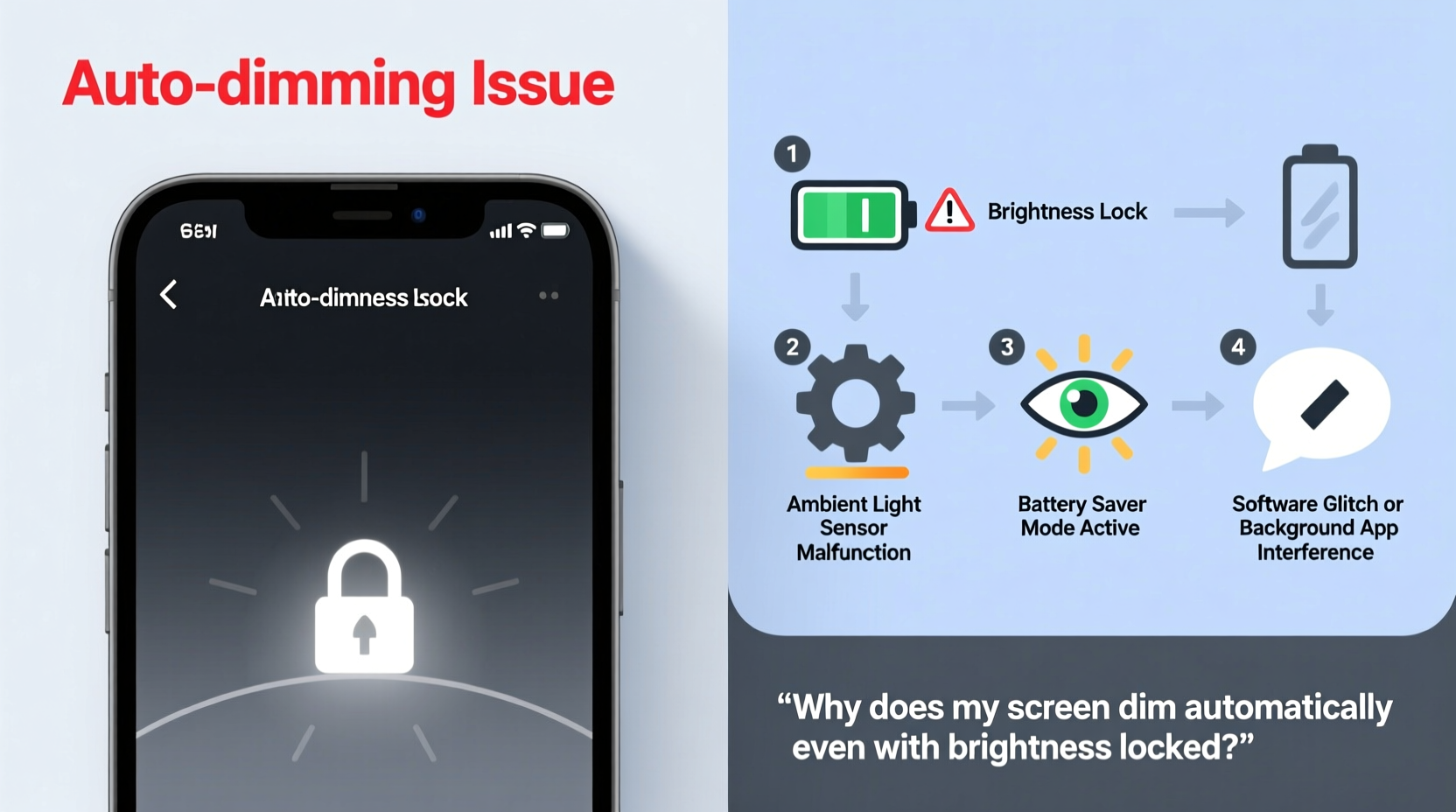
Brightness management in modern devices is far more complex than a simple slider. Behind the scenes, several systems interact to determine optimal screen output based on environment, power consumption, and device health.
At the most basic level, screen brightness is controlled by pulse-width modulation (PWM) or direct current (DC) methods that regulate the backlight intensity of LCD or OLED panels. However, this control is not solely in the user’s hands. Operating systems like Android, iOS, Windows, and macOS layer intelligent automation on top of manual settings to enhance usability and battery life.
Even when you \"lock\" brightness using manual controls, certain background processes may still activate under specific conditions. These include:
- Adaptive brightness algorithms that use ambient light sensors
- Power-saving modes that deprioritize screen output
- Display protection mechanisms for OLED burn-in prevention
- Thermal throttling due to overheating
- Firmware-level overrides from manufacturers
This layered approach means that what appears to be a fixed brightness setting might only be a baseline—one that other subsystems are authorized to modify.
Common Causes of Automatic Screen Dimming
Understanding why your screen dims despite locked settings requires identifying which feature or condition is triggering the change. Below are the most frequent culprits.
Ambient Light Sensors and Adaptive Brightness
Most smartphones, tablets, and laptops come equipped with ambient light sensors. These detect surrounding illumination and adjust screen brightness accordingly. Even if you’ve manually set brightness, some systems re-engage adaptive logic after periods of inactivity or changes in lighting.
“Many users disable auto-brightness in settings but don’t realize firmware or manufacturer skins can reactivate it during system updates.” — Dr. Lena Torres, Mobile Systems Engineer at TechInsight Labs
For example, Samsung’s Adaptive Display or Apple’s True Tone technology go beyond standard auto-brightness by adjusting both intensity and color temperature. These features may remain active even when the main auto-brightness toggle is off.
Battery Saver and Power Management Modes
When battery levels drop below a threshold—often 20%—devices enter power-saving mode. One of the first actions taken is reducing screen brightness, regardless of prior settings. Some systems also enable “adaptive battery” features that learn usage patterns and preemptively dim screens during expected idle times.
On Windows laptops, connected standby or Modern Standby states may trigger display dimming after brief inactivity, even if power plans are set to “high performance.” Similarly, macOS uses dynamic refresh rate adjustments on newer MacBooks with Retina displays, indirectly affecting perceived brightness.
OLED Panel Protection and Burn-In Mitigation
Devices with OLED screens—such as flagship smartphones and high-end tablets—employ additional safeguards. To prevent pixel degradation and image retention (burn-in), the system may temporarily dim static elements or lower overall brightness during prolonged use.
This behavior often occurs without notification and can mimic unwanted dimming. For instance, keeping a navigation app open with a fixed route overlay might prompt the OS to reduce brightness in that region, creating an uneven or darker appearance.
Overheating and Thermal Throttling
Excessive heat triggers protective responses across all electronics. When a device overheats—due to gaming, video rendering, or extended sunlight exposure—the system may dim the screen to reduce power draw and help cool internal components.
This dimming is typically temporary but can recur until temperatures normalize. It bypasses user settings entirely because it operates at the thermal management firmware level.
Software Bugs and OS Updates
Sometimes, the cause is simply a glitch. A recent operating system update may introduce bugs that interfere with brightness controls. Users have reported issues after Android 13 and iOS 17 updates where manual brightness settings were ignored or reset after reboot.
Manufacturer-specific UI layers—like Samsung One UI, Xiaomi MIUI, or OnePlus OxygenOS—can also introduce inconsistencies in how brightness locks are enforced.
Troubleshooting Checklist: Regain Control Over Your Screen
If your screen continues to dim despite locked brightness, follow this comprehensive checklist to identify and resolve the issue.
- Disable all adaptive brightness features: Go to Settings > Display > Brightness and turn off “Adaptive,” “Auto,” or “Adjust according to light” options.
- Check for active power-saving modes: Disable Battery Saver, Low Power Mode, or Extreme Power Saving modes, even if battery is above 20%.
- Review manufacturer-specific display settings: Look for features like Eye Comfort Shield (Samsung), Display Auto-Refresh (Google Pixel), or True Tone (Apple) and disable them temporarily.
- Ensure full brightness in all apps: Some apps (e.g., e-readers, video players) have independent brightness sliders. Check within-app settings.
- Update or rollback OS/software: Install pending updates, or if the problem started recently, consider reverting to a previous stable version.
- Calibrate the ambient light sensor: Cover the sensor (usually near the front camera), restart the device, then uncover it in consistent lighting.
- Test in Safe Mode: Boot into Safe Mode (Android) or restart without login items (Mac/Windows) to rule out third-party app interference.
- Reset display settings: Use the option to “Reset preferences” or “Restore default display settings” if available.
Device-Specific Fixes and Workarounds
Different platforms handle brightness differently. Here’s how to address the issue on major operating systems.
Android Devices
Many Android phones allow brightness locking via developer options or third-party automation tools. However, OEM skins often override these.
| Issue | Solution |
|---|---|
| Screen dims in power-saving mode | Go to Battery > Power Saving > Customize and disable “Reduce screen brightness” |
| Adaptive brightness re-enables after reboot | Use ADB command: adb shell settings put system screen_brightness_mode 0 |
| OLED dimming during static content | Enable Dark Mode and avoid white backgrounds for long sessions |
iOS Devices
iPhone users often encounter dimming due to True Tone, Night Shift, or Accessibility settings.
- Disable True Tone: Settings > Display & Brightness > True Tone (toggle off)
- Turn off Auto-Brightness: Settings > Accessibility > Display & Text Size > Auto-Brightness
- Check Reduce White Point: Under Accessibility, ensure this is not overly aggressive
Windows Laptops
Windows 10 and 11 include multiple brightness layers, including graphics driver controls and power plan settings.
“Intel Graphics Command Center and NVIDIA Control Panel can override Windows brightness settings independently.” — Mark Chen, PC Hardware Analyst
To prevent conflicts:
- Navigate to Settings > System > Power & sleep > Additional power settings.
- Select your active plan, click “Change plan settings,” then “Change advanced power settings.”
- Expand “Display” and set “Enable adaptive brightness” to Off for both battery and plugged in.
- Also check GPU control panels and disable any dynamic brightness features.
macOS Devices
Recent MacBooks with ProMotion displays (e.g., M1/M2 MacBook Pro) adjust refresh rates between 24Hz and 120Hz, which can create a perception of dimming when the screen dims slightly during low-activity periods.
To minimize this:
- Disable “Automatically adjust brightness” in System Settings > Displays.
- Turn off True Tone if enabled.
- Use the keyboard brightness keys frequently to signal preferred levels to the system.
Real-World Example: The Case of the Dimming Tablet
Sophie, a freelance writer, relied on her iPad for outdoor note-taking. Despite setting brightness to maximum and disabling auto-brightness, she noticed the screen dimmed every 10–15 minutes, especially under direct sunlight. Frustrated, she assumed a hardware defect.
After testing in different environments, she discovered the issue only occurred when the battery dropped below 35%. Further investigation revealed that her “Low Power Mode” was set to activate automatically at 50%, and one of its hidden features was gradual screen dimming—even though the main brightness slider remained unchanged.
By adjusting her Low Power Mode threshold to 20% and disabling “Auto-Brightness” under Accessibility, Sophie regained full control. Her experience highlights how deeply integrated power and display systems can silently override user intent.
Frequently Asked Questions
Can I permanently disable automatic dimming?
While you can’t always eliminate firmware-level overrides (especially for thermal or OLED protection), you can disable most software-based dimming. Turn off adaptive brightness, power-saving features, and manufacturer-specific display enhancements. On rooted or jailbroken devices, deeper system modifications are possible—but not recommended for average users due to stability risks.
Why does my screen dim only in certain apps?
Some apps, particularly video streaming platforms or e-readers, include their own ambient light detection or eye comfort modes. Check the app’s settings menu for brightness or night mode options. Additionally, fullscreen video playback may trigger HDR tone mapping, which adjusts brightness dynamically.
Does screen dimming damage my device?
No, automatic dimming does not harm your device. In fact, it often protects it—by reducing heat, conserving battery, and preventing OLED burn-in. The concern is usability, not hardware longevity. However, frequent brightness fluctuations may indicate underlying issues like failing sensors or overheating that should be monitored.
Conclusion: Take Back Control of Your Viewing Experience
Your screen’s brightness should reflect your preferences, not hidden algorithms or unannounced system events. While automatic dimming serves useful purposes—extending battery life, protecting displays, and enhancing comfort—it shouldn’t override your explicit choices without warning.
By understanding the interplay between sensors, power modes, and operating system logic, you can diagnose and stop unwanted dimming. Start by disabling adaptive features, checking for silent power-saving rules, and verifying settings across both system and app levels. When necessary, use advanced tools or consult device-specific guides to lock brightness effectively.




 浙公网安备
33010002000092号
浙公网安备
33010002000092号 浙B2-20120091-4
Comments
No comments yet. Why don't you start the discussion?