
Laptop screens that dim unexpectedly can be more than just a minor annoyance—they disrupt productivity, strain your eyes, and suggest underlying system or hardware behavior you may not fully understand. While automatic brightness adjustments are designed to improve comfort and save battery life, uncontrolled dimming often stems from misconfigured settings, outdated drivers, or malfunctioning sensors. Understanding the root causes and knowing how to regain control is essential for both casual users and professionals relying on consistent display performance.
This guide dives deep into the technical and environmental factors behind random screen dimming, offering clear, actionable solutions. Whether you're working in a dimly lit room or presenting under bright lights, you'll learn how to stabilize your screen’s brightness and eliminate unwanted fluctuations.
Understanding Automatic Brightness: How It Works
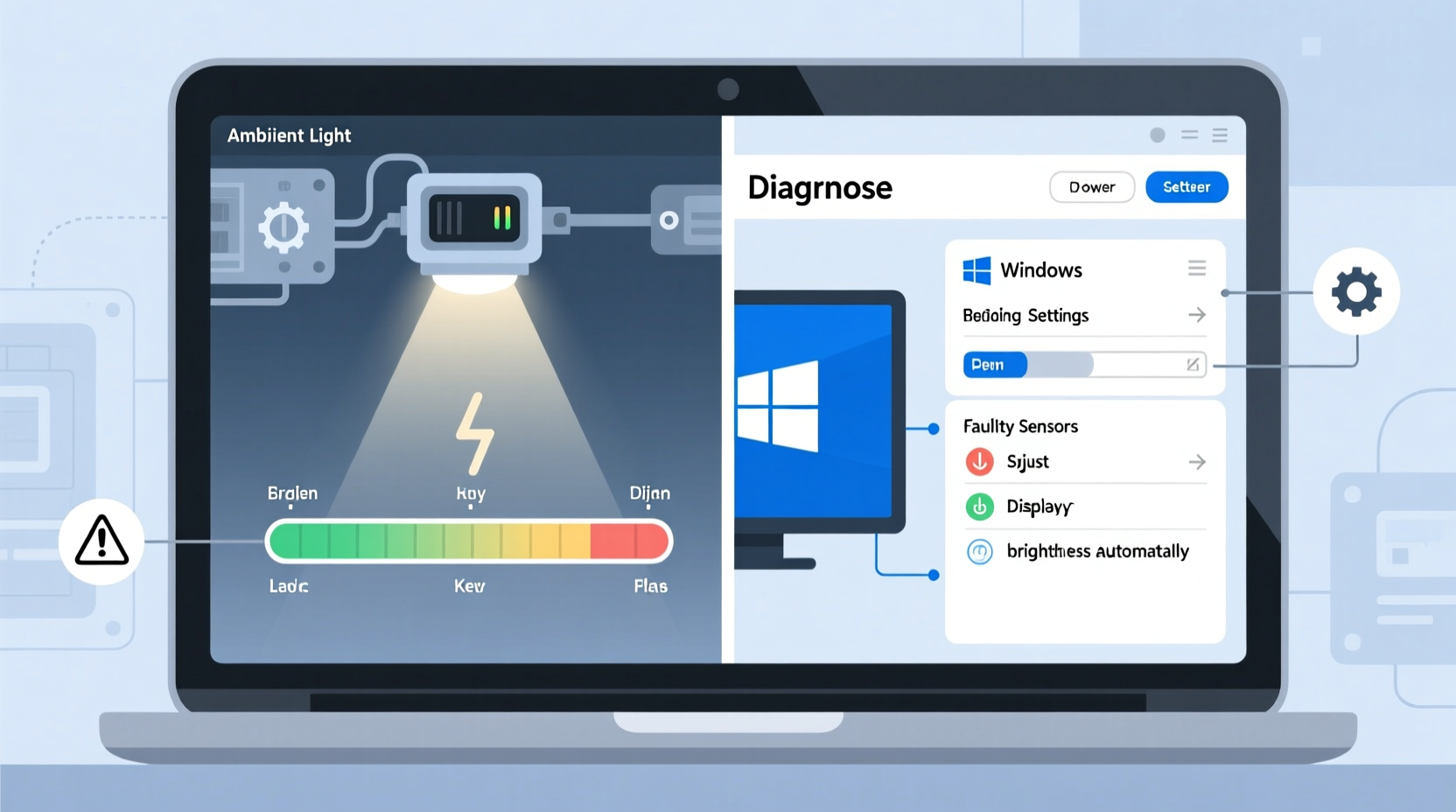
Modern laptops come equipped with ambient light sensors—small components usually located near the webcam or along the bezel of the screen. These sensors detect the amount of light in your environment and signal the operating system to adjust screen brightness accordingly. The goal is energy efficiency and visual comfort: lowering brightness in dark rooms saves power and reduces eye strain, while increasing it in sunlight improves visibility.
However, this feature doesn’t always behave as intended. Sometimes, the sensor misreads lighting conditions due to shadows, reflections, or obstructions (like a case or finger). Other times, software bugs or conflicting power management rules override user preferences, leading to erratic dimming.
Windows, macOS, and Linux all implement auto-brightness differently. On Windows, the feature is tied to the \"Adaptive Brightness\" setting within Power Options. Apple’s macOS uses \"Auto-Brightness\" through System Settings, often linked to True Tone on newer models. Linux distributions vary by desktop environment but typically rely on kernel-level tools or third-party utilities.
“Automatic brightness should enhance usability, not hinder it. When it malfunctions, it's often a sign of deeper configuration conflicts.” — Dr. Lin Zhao, Display Systems Engineer at TechInsight Labs
Common Causes of Random Screen Dimming
Random dimming rarely occurs without cause. Below are the most frequent culprits:
- Ambient Light Sensor Interference: Dust, smudges, or physical obstruction can impair the sensor’s ability to read light accurately.
- Outdated or Corrupted Display Drivers: Graphics drivers manage screen output. If they’re outdated or damaged, brightness controls may fail or behave unpredictably.
- Power Plan Settings: Windows power plans like “Balanced” or “Power Saver” include rules that reduce screen brightness after periods of inactivity.
- Battery Saver Mode: When enabled, especially on laptops running low on charge, Battery Saver automatically dims the screen to extend runtime.
- Software Conflicts: Third-party applications such as f.lux, Night Light, or manufacturer-specific utilities (e.g., Dell QuickSet, Lenovo Vantage) can override default brightness settings.
- Firmware or BIOS Issues: In rare cases, incorrect firmware configurations can interfere with hardware-level display management.
- Hardware Malfunction: A failing backlight, faulty sensor, or damaged LCD panel may cause flickering or inconsistent brightness levels.
Step-by-Step Guide to Fix Auto Brightness Issues
Follow this systematic approach to diagnose and resolve random dimming problems. Start with software fixes before moving to hardware checks.
- Disable Adaptive Brightness (Windows):
Navigate to Settings > System > Display. Toggle off “Change brightness automatically when lighting changes.” Alternatively, go to Control Panel > Hardware and Sound > Power Options, click “Change plan settings,” then “Change advanced power settings.” Expand “Display” and set “Enable adaptive brightness” to “Off” for both battery and plugged-in modes.
- Turn Off Auto-Brightness (macOS):
Go to System Settings > Displays. Uncheck “Automatically adjust brightness.” You may also disable True Tone if it’s contributing to perceived dimming.
- Update Display Drivers:
Press Win + X and select Device Manager. Expand “Display adapters,” right-click your GPU (e.g., Intel UHD Graphics), and choose “Update driver.” Select “Search automatically for updated driver software.” For best results, download the latest driver directly from your laptop manufacturer’s support site or Intel/NVIDIA/AMD’s official pages.
- Check Battery Saver Settings:
In Windows, go to Settings > System > Battery. Click “Battery usage by app” and review whether Battery Saver is active. Disable it temporarily to test if dimming stops. On macOS, ensure Low Power Mode is turned off in System Settings > Battery.
- Uninstall Conflicting Software:
If you’ve installed apps like f.lux, Iris, or manufacturer utilities, try disabling or uninstalling them. These tools often run background processes that manipulate screen color and brightness independently of OS settings.
- Reset Power Management Settings:
In Command Prompt (as Administrator), type:
powercfg -restoredefaultschemes. This resets all power plans to factory defaults, which can eliminate corrupted custom profiles causing unexpected dimming. - Clean the Ambient Light Sensor:
Use a soft, dry microfiber cloth to gently clean the top edge of your screen, especially around the webcam area. Avoid liquids or abrasive materials. Test brightness stability afterward in different lighting conditions.
Troubleshooting Table: Do’s and Don’ts
| Action | Do | Don't |
|---|---|---|
| Adjusting brightness manually | Use function keys or OS sliders after disabling auto-brightness | Rely solely on hotkeys without checking background services |
| Updating drivers | Download from official manufacturer websites | Use third-party driver updater tools (often unreliable) |
| Testing hardware | Boot into BIOS/UEFI and observe if dimming persists | Assume software fault without ruling out hardware first |
| Using external monitors | Connect to rule out internal display issues | Ignore cable quality or port damage |
| Seeking repair | Contact authorized service centers for backlight issues | Attempt DIY LCD repairs unless experienced |
Real-World Example: A Remote Worker’s Breakthrough
Sophia, a freelance graphic designer using a 3-year-old HP Spectre, began experiencing severe screen dimming during client video calls. The brightness would drop suddenly, making her work appear dull and forcing her to constantly readjust settings. Initially, she assumed it was a hardware defect and considered costly repairs.
After researching, she discovered that HP Support Assistant had silently re-enabled “Adaptive Brightness” following a recent update. Even though she’d disabled it months earlier, the update reset the preference. She followed the advanced power settings path, turned off adaptive brightness for both power modes, and updated her Intel graphics driver. The issue resolved immediately. Her screen now maintains consistent brightness regardless of room lighting, restoring her workflow confidence.
This case illustrates how seemingly persistent hardware issues can stem from overlooked software resets—especially after updates.
Expert Checklist: Eliminate Unwanted Dimming
- ✅ Disable auto-brightness in OS settings
- ✅ Turn off Battery Saver or Low Power Mode
- ✅ Update graphics drivers from official sources
- ✅ Clean the ambient light sensor area
- ✅ Check for conflicting third-party apps
- ✅ Reset power plans to default
- ✅ Test brightness in BIOS (to isolate OS vs. hardware)
- ✅ Consider disabling keyboard hotkey overrides if problematic
FAQ: Common Questions About Screen Dimming
Why does my screen dim even when I’ve turned off auto-brightness?
This can happen if multiple layers of brightness control are active. For example, a manufacturer utility might override Windows settings, or a driver bug could cause incorrect power state reporting. Ensure no third-party apps are managing brightness and verify settings in both the OS and any preinstalled control panels.
Can malware cause screen dimming?
While rare, some malicious software has been known to manipulate display settings to create confusion or hide activity. If standard fixes don’t work and your system behaves erratically, run a full antivirus scan using trusted tools like Windows Defender or Malwarebytes.
Does screen dimming affect battery life significantly?
Yes. Reducing screen brightness is one of the most effective ways to conserve battery. However, uncontrolled dimming defeats the purpose of user control. Manually setting brightness to 50–70% offers a good balance between visibility and power savings without sacrificing usability.
When to Suspect Hardware Failure
If software fixes fail and the screen continues to dim—or flickers, pulses, or shows uneven backlighting—the issue may be hardware-related. Signs of hardware problems include:
- Brightness instability even in BIOS or UEFI setup menu
- Visible dark spots or clouding on the screen
- No response to manual brightness adjustments
- Screen works normally when connected to an external monitor
In such cases, the backlight, inverter (on older LCDs), or LCD panel itself may be failing. Contact your laptop manufacturer or an authorized repair technician. Replacing a backlight or entire display assembly is possible but varies in cost depending on the model.
Conclusion: Take Control of Your Display Experience
Your laptop’s screen should respond to your input—not act on unpredictable impulses. Random dimming undermines both comfort and efficiency, but in most cases, it’s a solvable issue rooted in settings, drivers, or software conflicts. By methodically disabling auto-brightness, updating critical components, and eliminating interference, you can restore reliable display performance.
Don’t accept flickering or sudden drops in brightness as inevitable. With the right knowledge, you can diagnose the problem quickly and apply lasting fixes. Take action today: review your power settings, clean the sensor area, and ensure your system is up to date. A stable, consistently bright screen isn’t a luxury—it’s a necessity for focused, uninterrupted work.




 浙公网安备
33010002000092号
浙公网安备
33010002000092号 浙B2-20120091-4
Comments
No comments yet. Why don't you start the discussion?