
If you’ve ever been working on your laptop, reading an article, or watching a video and suddenly noticed your screen getting darker for no apparent reason, you’re not alone. Random screen dimming is one of the most common yet frustrating issues users face across Windows, macOS, Android, and even some iOS devices. While it might seem like a hardware defect at first, in most cases, the culprit lies within software settings designed to manage power efficiency and visual comfort. Understanding why this happens — and knowing exactly which settings to check — can save you time, eye strain, and unnecessary service calls.
The phenomenon typically occurs due to automated features that adjust screen brightness based on ambient light, battery status, or system performance. While these features are helpful under normal circumstances, they can malfunction or become overly sensitive, leading to erratic behavior. The good news? Most causes are easily fixable with a few targeted adjustments.
Understanding Automatic Brightness Controls
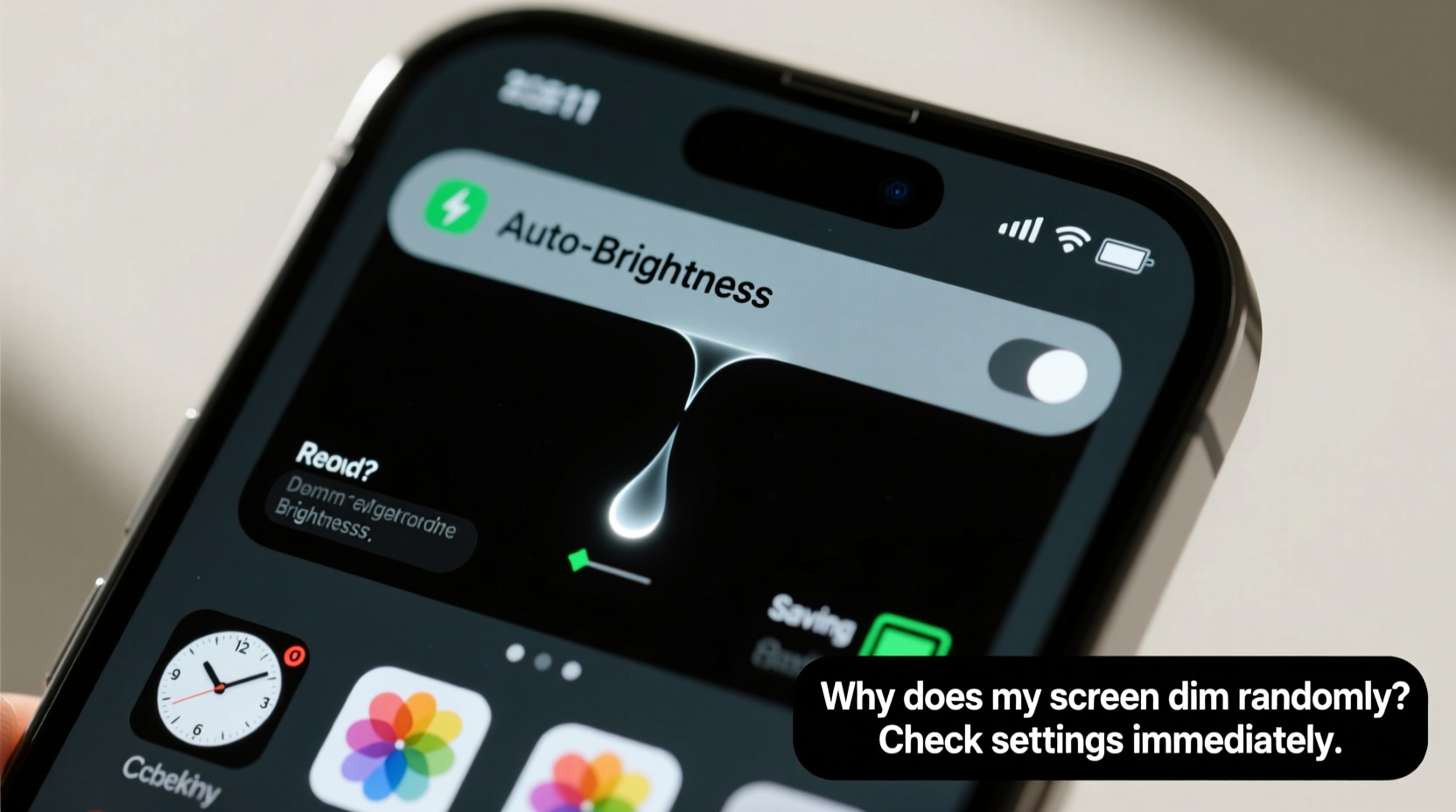
Modern devices come equipped with sensors and algorithms designed to optimize display visibility and conserve energy. These systems often rely on two primary mechanisms: ambient light sensors and adaptive brightness software.
An ambient light sensor detects how bright the environment around your device is. When you move from a well-lit room to a dim one, the sensor signals the operating system to reduce screen brightness to match. Conversely, stepping into sunlight triggers a brightness increase. This feature is meant to enhance readability and extend battery life.
However, when the sensor becomes dirty, blocked, or misinterpreted by software, it may cause the screen to dim unexpectedly — even in stable lighting conditions. Similarly, adaptive brightness algorithms sometimes overreact to minor changes in light or fail to stabilize after a transition, creating a jarring user experience.
Critical Settings to Check Immediately
Before assuming hardware failure, systematically review the following settings across your device. These apply primarily to laptops and smartphones but are relevant to tablets and some desktop monitors as well.
1. Disable Adaptive or Auto-Brightness
This is the most common source of random dimming. Both Windows and macOS offer auto-brightness options, as do all major smartphone platforms.
- Windows: Go to Settings > System > Display. Toggle off “Change brightness automatically when lighting changes.” If using a third-party graphics driver (like Intel or NVIDIA), also check their control panels for similar settings.
- macOS: Open System Settings > Displays, then uncheck “Automatically adjust brightness.”
- Android: Navigate to Settings > Display > Adaptive brightness and disable it.
- iOS: Go to Settings > Accessibility > Display & Text Size and turn off “Auto-Brightness.”
After disabling this feature, manually set your preferred brightness level and observe whether the issue persists.
2. Review Power Plan and Battery Saver Modes
Battery-saving modes are designed to throttle performance and reduce screen brightness to prolong usage time. However, some systems activate these modes prematurely or fail to deactivate them properly.
- On Windows, check if “Battery Saver” is active (Settings > System > Battery). Even when plugged in, certain configurations may trigger saver mode based on usage patterns.
- Review your selected power plan. In Control Panel > Hardware and Sound > Power Options, click “Change plan settings,” then “Change advanced power settings.” Expand the “Display” section and ensure that “Display brightness” values for both “On battery” and “Plugged in” are set consistently.
- On mobile devices, avoid aggressive battery optimization apps that may override system settings and force brightness reduction.
3. Check Graphics Driver Settings
Graphics drivers from Intel, AMD, or NVIDIA often include their own brightness management tools. These can conflict with OS-level settings.
For example, Intel’s Graphics Command Center includes a “Power” tab where dynamic brightness adjustment can be enabled independently of Windows settings. To resolve conflicts:
- Open the Intel Graphics Control Panel (right-click desktop > Intel Graphics Settings).
- Navigate to Power > Display.
- Look for options like “Enable Power Sharing” or “Adaptive Brightness” and disable them.
Ensure your graphics drivers are up to date. Outdated drivers are a frequent cause of inconsistent display behavior.
4. Inspect Keyboard Function Keys and Shortcuts
Accidental presses of brightness function keys (e.g., F1/F2 on many laptops) can cause sudden dimming. Some devices also support gesture-based controls or proximity sensors that inadvertently trigger brightness changes.
To rule this out:
- Test if pressing the brightness keys reproduces the issue.
- Check if external keyboards or docking stations are sending unintended signals.
- Consider remapping or disabling problematic keys through system preferences or third-party tools like SharpKeys (Windows).
Do’s and Don’ts: Managing Screen Brightness
| Action | Do | Don't |
|---|---|---|
| Brightness Adjustment | Manually set brightness in stable environments | Rely solely on auto-brightness in variable lighting |
| Sensor Maintenance | Keep the top bezel clean and unobstructed | Cover the front camera area with stickers or cases |
| Power Management | Customize power plans for consistent display output | Use default battery saver without reviewing settings |
| Driver Updates | Regularly update GPU and chipset drivers | Ignore driver notifications or use generic drivers |
| Troubleshooting | Disable features one at a time to isolate the cause | Change multiple settings simultaneously |
Real-World Example: A Remote Worker’s Frustration
Jamie, a freelance writer using a Dell XPS 13, began experiencing frequent screen dimming during video calls. The screen would darken mid-sentence, forcing her to fumble with function keys while clients waited. Initially suspecting a failing display, she nearly scheduled a repair appointment.
Instead, she decided to investigate software settings. She discovered that while “Adaptive Brightness” was off in Windows, the Intel Graphics Command Center had its own version enabled. Disabling it there resolved the issue instantly. Further inspection revealed that a recent driver update had re-enabled the setting by default.
This case illustrates how layered software ecosystems can create hidden conflicts — and why checking beyond surface-level settings is essential.
“Many users assume random dimming is a hardware flaw, but in over 80% of cases we see, it's a configuration conflict between OS and driver-level power management.” — Carlos Mendez, Senior Support Engineer at TechCare Solutions
Step-by-Step Diagnostic Timeline
Follow this sequence to identify and resolve the root cause efficiently:
- Day 1 – Immediate Checks
- Disable auto-brightness in OS settings.
- Ensure battery saver mode is off.
- Manually set brightness to 75% and monitor for changes.
- Day 2 – Driver and Firmware Level
- Update graphics drivers from manufacturer website.
- Check BIOS/UEFI settings for display-related power options.
- Inspect third-party apps that control brightness (e.g., f.lux, DimScreen).
- Day 3 – Environmental & Hardware Test
- Move device to a room with consistent lighting.
- Clean the area around the front-facing camera.
- Boot into Safe Mode (Windows/macOS) to test if third-party software is interfering.
- Day 4 – Advanced Verification
- Create a new user profile to rule out corrupted preferences.
- Perform a clean boot (Windows) or reset NVRAM (macOS).
- If issue persists, consider hardware diagnostics via built-in tools or professional assessment.
Frequently Asked Questions
Can malware cause my screen to dim randomly?
While rare, some malicious software has been known to manipulate display settings to obscure activity or mimic system errors. If you've ruled out all settings and updates, run a full antivirus scan. Use trusted tools like Windows Defender, Malwarebytes, or Apple’s built-in protections.
Why does my screen dim only when I plug in the charger?
This counterintuitive behavior can occur due to mismatched power plan settings. For instance, your “plugged in” profile might have a lower brightness threshold than “on battery.” Double-check both states in your power options menu and align them as needed.
Is there a way to completely lock screen brightness?
Yes. On Windows, you can use Group Policy Editor (Pro editions) to disable brightness adjustments entirely. Navigate to Computer Configuration > Administrative Templates > System > Power Management > Video and enable “Prevent the display from being turned off.” Alternatively, use third-party tools like *DimScreen* or *ClickMonitorDDC* to lock brightness at the hardware level via DDC/CI commands.
When to Suspect Hardware Issues
If you’ve methodically disabled all adaptive features, updated drivers, and still experience random dimming, hardware problems may be involved. Potential culprits include:
- A failing ambient light sensor sending incorrect data.
- Loose internal cabling affecting display voltage.
- Degraded backlight components, especially in older LCD panels.
- Overheating GPU or display controller triggering thermal throttling.
Signs pointing to hardware: dimming occurs more frequently under load, screen flickers before dimming, or the issue appears in BIOS/UEFI screens (which bypass OS settings).
In such cases, consult a certified technician. Avoid DIY repairs unless experienced — modern displays involve delicate ribbon cables and high-voltage components.
Final Thoughts and Action Plan
Random screen dimming is rarely a mystery once you know where to look. The vast majority of cases stem from well-intentioned automation features gone awry. By taking a structured approach — starting with auto-brightness, moving through power plans, drivers, and environmental factors — you can restore stability and regain control over your viewing experience.
Remember: technology should adapt to you, not the other way around. Don’t accept persistent glitches as normal. A few minutes spent adjusting settings today can prevent hours of frustration tomorrow.




 浙公网安备
33010002000092号
浙公网安备
33010002000092号 浙B2-20120091-4
Comments
No comments yet. Why don't you start the discussion?