
When temperatures drop, many users notice their screens—on smartphones, tablets, laptops, or external monitors—begin to flicker unexpectedly. This phenomenon isn’t just a minor annoyance; it can disrupt productivity, strain the eyes, and even lead to temporary device failure. While it may seem like a hardware defect, cold-induced screen flickering is often rooted in the physical and chemical behavior of display components under low temperatures. Understanding the science behind this issue and knowing how to respond can help you maintain reliable screen performance all winter long.
The Science Behind Cold-Weather Screen Flickering
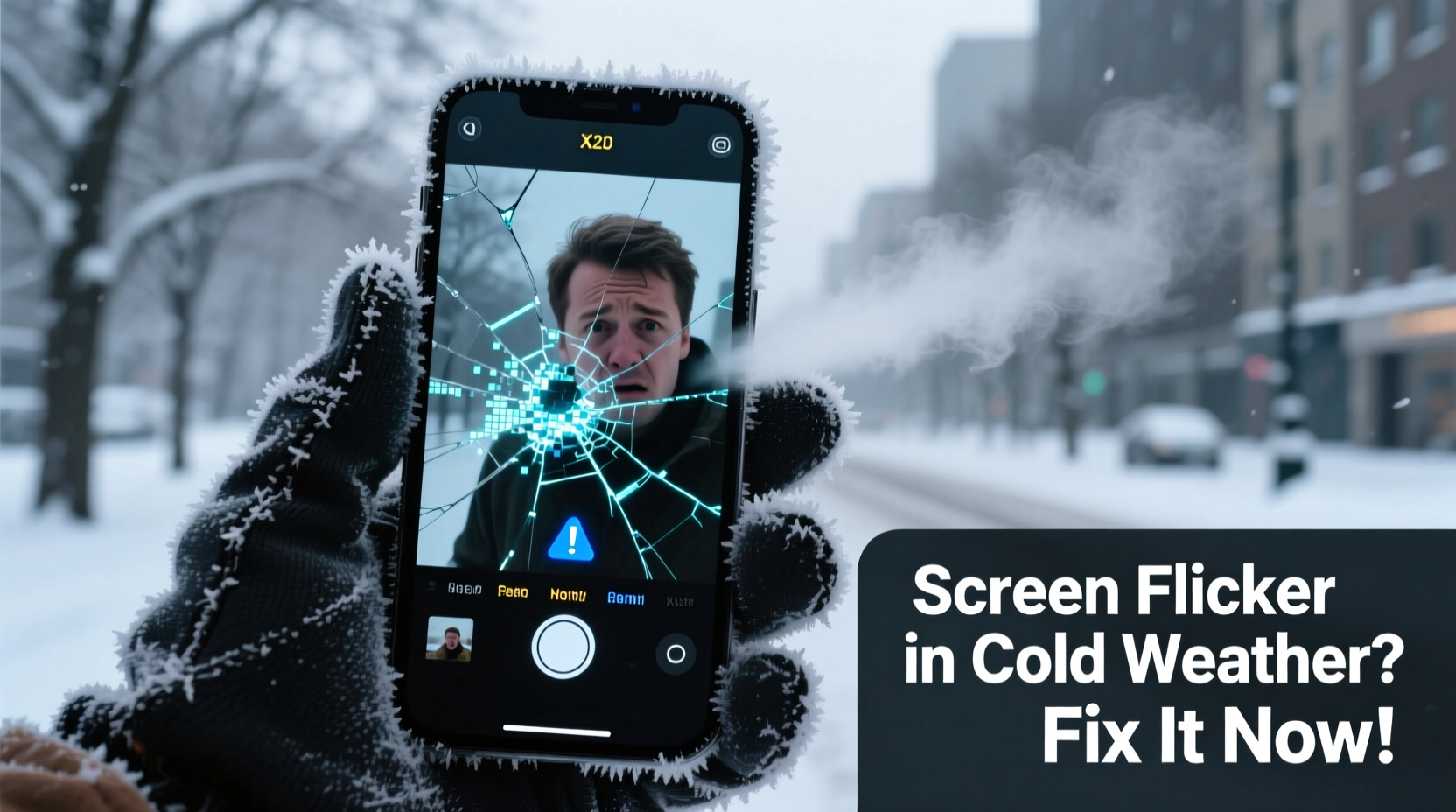
LCD (Liquid Crystal Display) and OLED (Organic Light-Emitting Diode) technologies dominate modern screens, each reacting differently to cold environments. LCDs rely on liquid crystals that change orientation when electric current passes through them, modulating light to create images. These crystals become sluggish as temperatures fall below 0°C (32°F). When they slow down, response times increase, causing visible flicker, ghosting, or delayed image rendering.
OLED screens don’t use liquid crystals, but they are not immune. The organic compounds in OLED panels lose efficiency in extreme cold, reducing brightness and contrast. Additionally, the adhesive layers binding screen components can contract at different rates, creating micro-gaps that affect electrical contact and cause intermittent flickering.
Batteries also play a role. Lithium-ion batteries, common in portable devices, experience reduced ion mobility in cold conditions. This leads to voltage drops, which can destabilize power delivery to the display driver circuitry. As a result, the screen may flicker during startup, dim unexpectedly, or shut off entirely—even if the battery appears to have charge.
“Cold doesn’t permanently damage most screens, but prolonged exposure below operational thresholds can accelerate wear and reduce lifespan.” — Dr. Lena Torres, Display Technology Researcher at MIT.nano
Common Devices Affected by Cold-Induced Flicker
Flickering isn't limited to one type of device. It occurs across platforms, especially when transitioning from warm indoor spaces to freezing outdoor environments. Here’s how different devices react:
- Smartphones: Most notably, iPhone users report flickering or dimming in cold weather. Apple acknowledges that iPhones operate best between 0°C and 35°C (32°F–95°F).
- Laptops: Especially ultrabooks with thin bezels and tightly packed components. Rapid temperature shifts can cause thermal stress on the display ribbon cables.
- Tablets: Used frequently outdoors for logistics or fieldwork, these devices often lack robust thermal shielding.
- Car Infotainment Systems: Embedded touchscreens in vehicles are exposed to wide temperature swings and may flicker upon cold startup.
- External Monitors: Particularly older models with less stable backlight drivers, prone to flicker when powered on in unheated garages or workshops.
Step-by-Step Guide to Stabilizing Your Screen in Cold Conditions
If your screen begins to flicker in cold weather, follow this structured approach to diagnose and stabilize performance:
- Bring the device indoors immediately. Allow it to gradually return to room temperature (ideally 20°C/68°F). Do not apply direct heat such as hair dryers or radiators, as rapid expansion can damage internal components.
- Power off and restart. Once warmed, reboot the device. Many flickering issues resolve once the system recalibrates after thermal normalization.
- Check for software updates. Manufacturers often release firmware patches that improve display driver stability under variable conditions.
- Adjust screen brightness manually. Auto-brightness sensors can misread low-light, cold environments. Set brightness to a steady mid-level to reduce flicker caused by constant adjustment.
- Disable adaptive refresh rate (if applicable). Features like ProMotion or Variable Refresh Rate may struggle in cold, leading to inconsistent frame delivery.
- Inspect for physical damage. Repeated thermal cycling can loosen connectors. If flickering persists after warming, consult a technician.
Do’s and Don’ts: How to Protect Screens in Winter
| Do’s | Don’ts |
|---|---|
| Store devices in insulated cases when outdoors | Leave devices in freezing vehicles overnight |
| Allow gradual warming before use | Use hand warmers directly on screens |
| Keep spare batteries warm in an inner pocket | Charge devices in sub-zero temperatures |
| Use screen protectors to reduce thermal shock | Expose wet screens to freezing air |
| Enable grayscale or dark mode to reduce OLED stress | Ignore persistent flicker after warming |
Real-World Example: Field Technician in Northern Canada
Jamie Reyes, a telecommunications field technician based in Yellowknife, regularly uses a ruggedized tablet to log network diagnostics in -30°C (-22°F) conditions. Over two winters, Jamie noticed increasing screen instability—flickering lines and touch unresponsiveness—despite the device being rated for cold operation.
After consulting with the manufacturer, Jamie learned that while the device was built for low temperatures, rapid transitions from heated trucks to outdoor sites were causing condensation and thermal lag in the display controller. The solution? Jamie began storing the tablet in a neoprene-insulated case with a reusable hand warmer pouch. By pre-warming the device slightly before deployment and avoiding sudden environmental shifts, screen flicker dropped by over 80%. Firmware updates also improved driver resilience.
This case illustrates that even “cold-rated” devices benefit from proactive thermal management.
Long-Term Prevention Strategies
To minimize recurring flicker issues, adopt preventive habits tailored to cold climates:
- Invest in thermal protection: Use padded, insulated sleeves designed for electronics. Some even include phase-change materials that absorb and release heat slowly.
- Pre-warm devices strategically: Before heading outside, keep your phone or tablet close to your body. Body heat can maintain temperatures above critical thresholds for short excursions.
- Limit outdoor screen time: Plan tasks efficiently to reduce exposure. Use voice commands or physical notes when possible.
- Upgrade aging devices: Older screens with degraded polarizers or failing backlight inverters are more susceptible to cold stress. Modern displays often include better thermal compensation algorithms.
- Monitor environmental ratings: Check your device’s IP (Ingress Protection) and operating temperature specs. For example, some industrial-grade tablets function reliably down to -20°C (-4°F).
FAQ: Cold Weather Screen Flicker
Can cold weather permanently damage my screen?
Not usually from brief exposure. However, repeated thermal cycling—especially with moisture present—can weaken adhesives, crack laminates, or degrade connectors over time. Permanent damage is more likely if the device is used or charged while frozen.
Why does my phone screen flicker only when I first take it outside?
This is typically due to the liquid crystals in an LCD panel slowing down rapidly as ambient temperature drops. The display driver struggles to maintain consistent voltage, resulting in flicker until the screen adapts—or until it warms up again. OLEDs may dim rather than flicker, but similar principles apply.
Is screen flicker in the cold a sign of a defective device?
Not necessarily. Most consumer electronics are designed to operate within a specific temperature range. Flickering within or slightly below that range is a known limitation, not a defect. However, if flickering continues after the device has returned to normal temperatures, there may be an underlying hardware or software issue.
Expert Insight: Designing for Extreme Climates
“Consumer devices prioritize thinness and battery life over extreme environmental resilience. For true cold-weather reliability, we need better integration of thermal buffering and predictive power regulation.” — Dr. Arjun Patel, Senior Engineer at Display Dynamics Lab, University of Alberta
Dr. Patel’s team has developed prototype displays with embedded micro-heaters activated at low temperatures. While not yet mainstream, such innovations point toward future devices that self-regulate screen temperature, eliminating flicker without user intervention.
Conclusion: Take Control of Your Device’s Winter Performance
Screen flicker in cold weather is a predictable interaction between physics and technology—not magic, and not always a malfunction. By understanding how temperature affects display components and battery performance, you can take meaningful steps to stabilize your screen. Simple actions like using insulated cases, allowing gradual warming, and adjusting settings make a significant difference.
As devices become more integral to work, navigation, and communication in all seasons, treating them with climate awareness is no longer optional. Whether you're commuting in a snowstorm, working in a cold warehouse, or hiking in alpine terrain, your screen doesn’t have to fail when the mercury drops.




 浙公网安备
33010002000092号
浙公网安备
33010002000092号 浙B2-20120091-4
Comments
No comments yet. Why don't you start the discussion?