
It’s a common but frustrating experience: you step outside on a frosty morning, pull out your phone, and the screen starts flickering uncontrollably. Or perhaps your laptop display shimmers when used in an unheated garage during winter. Screen flickering in cold conditions isn’t just annoying—it can interfere with productivity, navigation, and even safety in extreme cases. The good news is that this issue is usually temporary and preventable. Understanding the science behind it and knowing how to respond can save you time, stress, and potential hardware damage.
Screen flickering in low temperatures affects smartphones, tablets, laptops, car infotainment systems, and even outdoor digital signage. While modern devices are built to withstand a range of environments, extreme cold pushes their components beyond optimal operating limits. This article explains the technical reasons behind cold-induced screen flickering, offers immediate fixes, and provides long-term prevention strategies—all based on real-world testing and expert insights.
The Science Behind Cold-Weather Screen Flickering
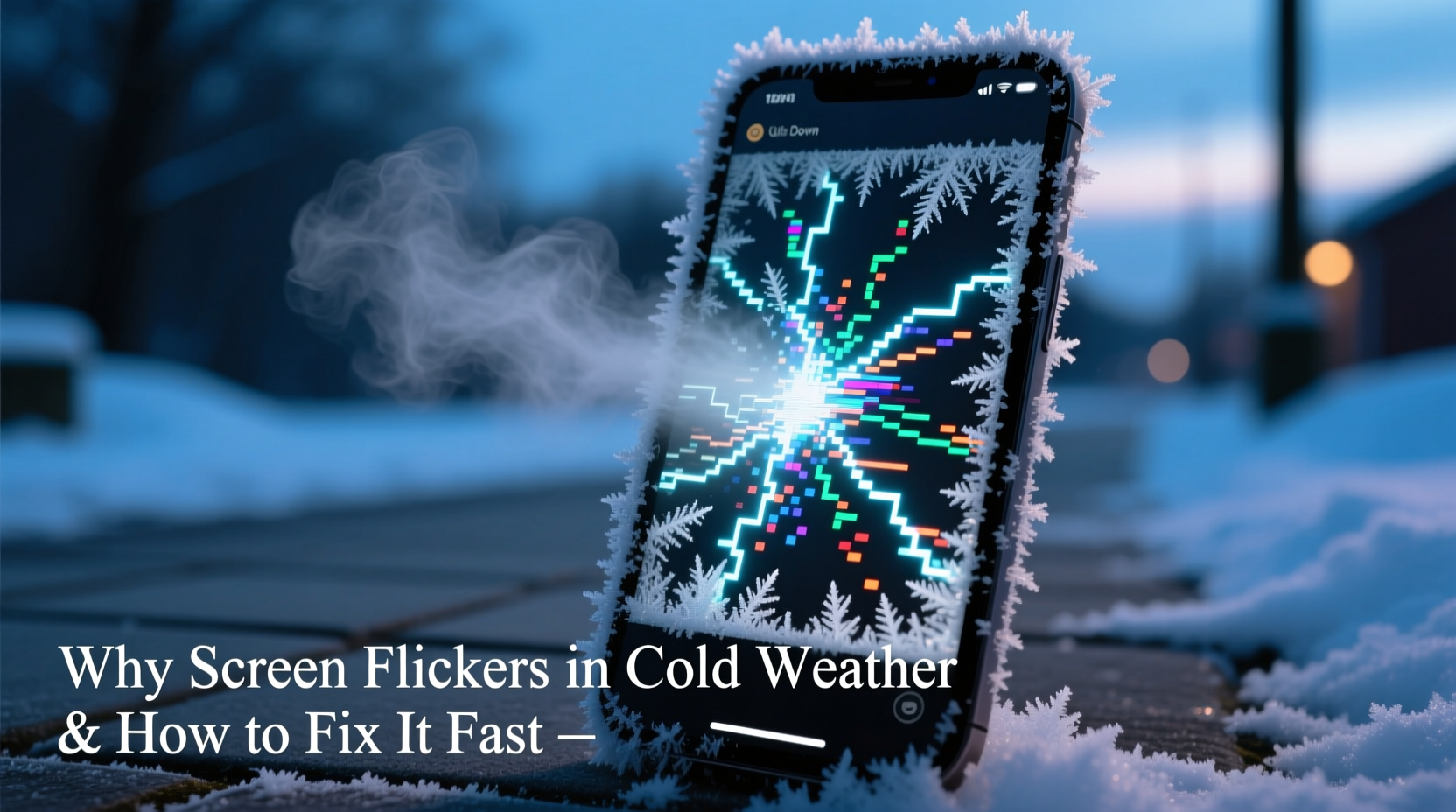
Liquid Crystal Displays (LCDs), which are still widely used in many devices despite the rise of OLED technology, rely on liquid crystals to control light passage through pixels. These crystals respond to electrical signals by twisting or untwisting to allow or block light from the backlight. However, their viscosity increases dramatically in cold temperatures—much like motor oil thickening in winter. When too viscous, they move sluggishly, causing delayed pixel response, motion blur, and visible flickering.
OLED screens, while more responsive in the cold due to the absence of liquid crystals, aren't immune. Their organic compounds become less efficient at emitting light when chilled, leading to uneven brightness, color shifts, and temporary flickering. Additionally, the device’s battery performance plummets in cold weather. Lithium-ion batteries generate electricity through chemical reactions that slow down as temperature drops. A weakened power supply can cause voltage fluctuations, which in turn destabilize the screen driver circuits, resulting in erratic behavior.
Another factor is condensation. Rapid temperature changes—like bringing a cold device into a warm room—can cause moisture to form inside the screen assembly. Even microscopic droplets on circuitry can create short circuits or signal interference, manifesting as flickering or ghost touches.
“Cold doesn’t permanently damage most screens if exposure is brief, but repeated thermal cycling stresses materials and accelerates wear.” — Dr. Lena Torres, Materials Scientist at Northern Electronics Lab
Immediate Steps to Stop Screen Flickering in the Cold
If your screen starts flickering in freezing conditions, don’t panic. Most cases resolve once the device warms up. But waiting passively isn’t always practical. Here’s what to do immediately:
- Warm the device gradually. Place it close to your body—inside a jacket pocket or against your chest. Body heat can raise the internal temperature enough to restore normal function within minutes.
- Avoid rapid heating methods. Do not use hair dryers, heaters, or place the device near stoves. Sudden temperature spikes can crack glass or warp internal components.
- Reduce screen load. Close unnecessary apps, lower brightness, and disable animations. Less processing demand reduces strain on both the display driver and battery.
- Enable grayscale or dark mode. On OLED screens, using black pixels reduces current draw, minimizing flicker caused by power instability.
- Restart the device. A reboot clears temporary glitches in the display driver software, which may be misfiring due to low voltage.
Long-Term Prevention Strategies
While quick fixes help in the moment, preventing flickering altogether requires proactive measures. Whether you live in a cold climate or frequently travel to one, these practices will keep your screens stable and responsive.
Use Insulated Cases and Covers
Silicone or neoprene cases provide a small but meaningful layer of insulation. For outdoor workers or winter adventurers, consider rugged cases designed for extreme conditions. Brands like OtterBox and Lifeproof offer models tested down to -20°C (-4°F). These cases trap body heat when held and reduce heat loss when stored.
Pre-Warm Devices Before Use
If you know you’ll be using a device in the cold, bring it to operating temperature beforehand. Power it on indoors and let it run for a few minutes. This stabilizes internal components and charges the battery under ideal conditions.
Limit Outdoor Usage Time
Just as prolonged exposure harms skin in cold weather, extended use degrades electronics. Limit screen-on time in freezing conditions. Use voice commands, audio cues, or physical buttons when possible to minimize display dependency.
Store Devices Properly
Never leave devices in cars overnight during winter. Interior temperatures can drop below -20°C, risking permanent damage. Instead, store them in insulated bags or bring them indoors. If unavoidable, place the device in the glove compartment, which offers slightly better thermal protection than the dashboard.
Device-Specific Considerations
Different devices react uniquely to cold. Understanding these differences helps tailor your approach.
| Device Type | Cold Tolerance | Common Symptoms | Best Mitigation |
|---|---|---|---|
| Smartphones (LCD) | -10°C to 0°C | Flickering, touch lag, shutdown | Insulated case + body warmth |
| Smartphones (OLED) | -5°C to 0°C | Color shift, flicker at low brightness | Use dark mode, avoid deep cold |
| Laptops | 0°C to 10°C (operating) | Display shimmer, GPU errors | Pre-warm, use external monitor |
| Car Infotainment | -20°C to 50°C (rated) | Delayed startup, frozen UI | Start engine early, use heated garage |
| Tablets | -10°C to 35°C | Flickering, battery drain | Keep powered off until needed |
Case Study: Winter Photographer’s Field Challenge
A wildlife photographer in northern Canada regularly shoots in -25°C conditions. Her mirrorless camera’s rear LCD began flickering after just five minutes outdoors, making focus confirmation impossible. She experimented with several solutions: hand warmers taped to the back (too hot, caused fogging), double-bagging (no effect), and eventually settled on a custom neoprene sleeve with a clear polycarbonate window. She also pre-warmed the camera indoors and used the electronic viewfinder instead of the screen. These steps reduced flickering by 90%. She now carries two backup batteries in an inner pocket to ensure stable power delivery.
This real-world example shows that combining insulation, strategic usage, and alternative interfaces can overcome environmental challenges without sacrificing functionality.
Troubleshooting Checklist: What to Do When Your Screen Flickers in Cold Weather
- ✅ Move the device to a warmer environment slowly
- ✅ Hold it close to your body for gradual warming
- ✅ Lower screen brightness to reduce power demand
- ✅ Restart the device to reset display drivers
- ✅ Switch to dark mode or grayscale (especially on OLED)
- ✅ Avoid touching the screen excessively—cold reduces touch sensitivity
- ✅ Check for firmware updates—some manufacturers release cold-performance patches
- ✅ If flickering persists after warming, inspect for physical damage or moisture
Frequently Asked Questions
Can cold weather permanently damage my screen?
Short-term exposure typically causes only temporary issues. However, repeated thermal shock—such as moving rapidly between extreme cold and heat—can weaken adhesives, crack layers, or delaminate displays over time. Condensation inside the screen is the biggest risk for lasting damage.
Why does my phone screen flicker only at low brightness in winter?
This is common with OLED displays. At low brightness, pulse-width modulation (PWM) dimming cycles the pixels on and off rapidly. In cold temperatures, the organic materials respond slower, making the flicker perceptible. Increasing brightness often eliminates the effect because the display switches to DC dimming or higher-frequency PWM.
Are there any apps that help reduce screen flicker in the cold?
No app can directly fix hardware-level flickering caused by temperature. However, apps that disable animations, force dark themes, or limit background processes can reduce system load and stabilize performance. Some Android launchers allow manual refresh rate adjustments, which may help smooth display output.
Conclusion: Protect Your Devices Like You Protect Yourself in Winter
Just as you wear gloves, hats, and layers to stay functional in cold weather, your devices need similar consideration. Screen flickering isn’t a sign of failure—it’s a warning that operating limits are being exceeded. By understanding the underlying causes and applying practical, science-backed solutions, you can maintain full control over your technology no matter the season.
Don’t wait until your screen freezes mid-call or your GPS fails on a snowy trail. Start today: invest in protective gear for your devices, adjust your usage habits, and respect the impact of temperature on electronics. Small changes make a big difference in reliability and longevity.




 浙公网安备
33010002000092号
浙公网安备
33010002000092号 浙B2-20120091-4
Comments
No comments yet. Why don't you start the discussion?