
Screen flickering during Zoom calls is more than just a visual annoyance—it can disrupt focus, cause eye strain, and even make participants appear unprofessional. While the issue might seem random, it often stems from specific technical causes tied to display hardware, power management, or software conflicts. Understanding the root causes and applying targeted fixes can restore stability and clarity to your virtual meetings.
Flickering typically occurs when there's an inconsistency in how your monitor refreshes the image, especially under varying lighting conditions or increased processing load. Zoom calls amplify this because they demand real-time video rendering, camera input, and screen sharing—all of which stress both GPU and display systems. This article breaks down the most common triggers and provides actionable solutions to eliminate flickering for good.
Understanding Screen Flicker: The Science Behind the Glitch
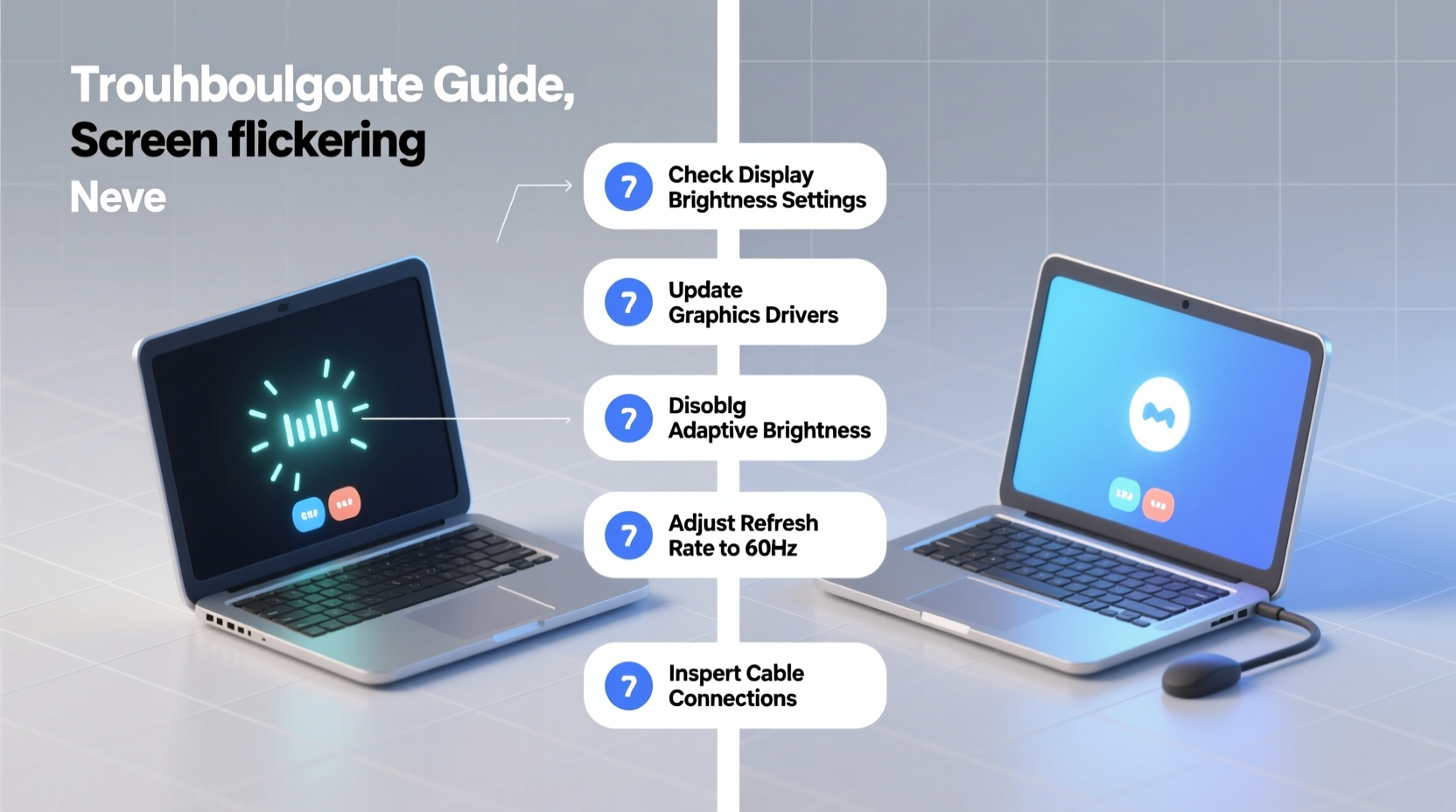
Screen flicker happens when the display rapidly turns on and off, usually at a frequency imperceptible under normal use. However, certain conditions—especially those present during video conferencing—can make this flickering visible. Most modern LCD screens use pulse-width modulation (PWM) to control brightness. Lower brightness levels often rely on rapid dimming cycles, which some users can perceive as flicker, particularly in peripheral vision.
During Zoom calls, additional factors come into play:
- Camera exposure adjustments: As lighting changes in your environment, your webcam adjusts dynamically. These shifts can create contrast fluctuations that interact poorly with PWM-based backlighting.
- Graphics processing load: Running Zoom while multitasking increases GPU usage, potentially destabilizing display output.
- Power-saving modes: Laptops may reduce screen refresh rates or modulate backlight intensity to conserve battery, leading to flickering under low-light settings.
“Flicker isn’t always a hardware defect—it’s often a mismatch between display technology, ambient conditions, and software behavior.” — Dr. Lena Torres, Display Systems Engineer at MIT Media Lab
Step-by-Step Guide to Diagnose and Fix Flickering
Before jumping to conclusions about faulty hardware, follow this systematic approach to isolate and resolve the issue.
- Test in another application: Open a full-screen video (e.g., YouTube) or slideshow. If flickering persists, the problem is likely system-wide, not Zoom-specific.
- Switch devices: Join the same Zoom call from a phone or tablet. If flickering disappears, the issue lies with your primary device’s display or drivers.
- Check external lighting: Turn off fluorescent lights or dim LEDs. Artificial light with high-frequency flicker can interfere with camera exposure and perceived screen stability.
- Disable HDR or auto-brightness: On Windows and macOS, these features can cause inconsistent luminance during active video sessions.
- Update Zoom: Ensure you’re using the latest version. Older builds have known rendering bugs affecting display compatibility.
Adjusting Backlight Settings for Stable Performance
The backlight is one of the most overlooked culprits behind screen instability. Misconfigured or aging backlights react poorly under fluctuating workloads like video conferencing.
Manual Brightness Calibration
Auto-brightness features adjust screen output based on ambient light sensors. During Zoom calls, sudden movements or lighting changes can cause rapid, jarring adjustments. Disable auto-brightness:
- Windows: Settings > System > Display > toggle off \"Change brightness automatically when lighting changes.\"
- macOS: System Settings > Displays > uncheck \"Automatically adjust brightness.\"
- Linux (Ubuntu): Settings > Power > disable \"Automatic brightness.\"
Set brightness manually to around 60–70%. This range avoids deep PWM cycling (common at low brightness) while minimizing glare.
Enable DC Dimming (If Available)
Some high-end monitors and laptops support DC (direct current) dimming, which reduces brightness by lowering voltage instead of pulsing the backlight. This eliminates flicker entirely at lower brightness levels.
To check if your device supports DC dimming:
- Review manufacturer specifications (look for “flicker-free” or “DC dimming” labels).
- Use tools like Screen Test apps or Blur Busters UFO Test to detect PWM activity.
- Install manufacturer utilities (e.g., Dell Display Manager, ASUS Splendid) to enable flicker-free modes.
Optimizing Zoom and System Settings
Even with perfect hardware, misconfigured software can induce flickering. These adjustments target Zoom-specific triggers.
| Setting | Action | Impact |
|---|---|---|
| Hardware Acceleration | Disable in Zoom settings (Settings > Video > uncheck \"Enable hardware acceleration\") | Reduces GPU load; prevents driver conflicts causing flicker |
| Original Aspect Ratio | Enable in Zoom (Settings > Video > \"Fit to screen\" vs. \"Original aspect ratio\") | Prevents scaling artifacts that strain display rendering |
| Frame Rate | Lower from 30fps to 15fps in poor lighting | Stabilizes exposure cycles and reduces screen refresh inconsistencies |
| GPU Drivers | Update to latest version (NVIDIA/AMD/Intel) | Fixes known rendering bugs affecting display output |
Advanced: Adjust Refresh Rate
A mismatch between your monitor’s refresh rate and Zoom’s video output can cause flickering. Set your display to its native refresh rate:
- Right-click desktop > Display Settings (Windows) or System Settings > Displays (macOS).
- Navigate to Advanced Display Settings > Refresh Rate.
- Select the highest stable option (e.g., 60Hz, 120Hz). Avoid 59Hz or variable rates unless using adaptive sync.
Note: macOS restricts refresh rate options on many external displays. Use third-party tools like SwitchResX cautiously if needed.
Real-World Case: Remote Worker Solves Persistent Flicker
Sarah, a project manager based in Chicago, experienced daily screen flickering during morning stand-ups. Her laptop was only two years old, and Zoom worked fine for colleagues. She initially blamed poor internet, but packet tests showed stable speeds.
After testing different rooms, she noticed flickering worsened near her desk lamp—a cheap LED with visible strobe under slow-motion recording. Replacing it with a warm-white, flicker-free bulb reduced camera exposure swings. She then disabled auto-brightness and updated her Intel graphics driver. Combined, these steps eliminated flickering completely.
“I didn’t realize my lighting was sabotaging my screen,” Sarah said. “Once I treated the room like a studio setup, everything stabilized.”
Troubleshooting Checklist
Use this checklist to methodically address flickering:
- ☐ Disable auto-brightness on your device
- ☐ Update Zoom to the latest version
- ☐ Update graphics drivers (Intel/NVIDIA/AMD)
- ☐ Turn off hardware acceleration in Zoom settings
- ☐ Replace fluorescent or low-quality LED lighting
- ☐ Set display refresh rate to native maximum
- ☐ Test with another monitor or device
- ☐ Lower screen brightness to 60–70% to avoid PWM effects
- ☐ Close unnecessary background apps to reduce GPU load
- ☐ Enable \"flicker-free\" mode in monitor OSD (if available)
Frequently Asked Questions
Can screen flicker damage my eyes?
Prolonged exposure to visible screen flicker can contribute to eye strain, headaches, and fatigue, especially in sensitive individuals. While it doesn’t cause permanent damage, chronic discomfort is a valid concern. Using flicker-free displays and proper lighting minimizes risk.
Why does flickering only happen during Zoom calls and not other apps?
Zoom combines camera input, real-time encoding, and screen rendering—tasks that increase GPU workload and trigger power-saving or brightness-modulation features. Other apps may not push the system hard enough to expose underlying display instabilities.
Does dark mode reduce screen flicker?
Not directly. Dark mode reduces overall brightness and pixel load on OLED screens, but LCDs still rely on the backlight. If flicker is caused by PWM at low brightness, dark mode might even worsen it. Pair dark mode with higher brightness settings for best results.
Conclusion: Take Control of Your Display Experience
Screen flicker during Zoom calls is a solvable problem, not an inevitable tech flaw. By understanding the interplay between backlight technology, environmental lighting, and software settings, you can diagnose and eliminate the root cause. Start with simple fixes—disable auto-brightness, update drivers, and improve room lighting—before moving to advanced adjustments like refresh rate tuning or hardware upgrades.
Investing time in optimizing your setup pays dividends in comfort, professionalism, and meeting effectiveness. A stable, flicker-free screen ensures you stay focused on collaboration, not distractions.




 浙公网安备
33010002000092号
浙公网安备
33010002000092号 浙B2-20120091-4
Comments
No comments yet. Why don't you start the discussion?