
Laptop screen flickering while charging is a surprisingly common issue that affects users across brands and models. It can range from a mild annoyance—brief flashes or dimming—to persistent jittering that makes work nearly impossible. While it might seem like a minor glitch, consistent flickering can strain your eyes, reduce productivity, and sometimes indicate deeper hardware or power-related problems.
The root cause often lies in the interaction between your laptop’s power delivery system and its display components. Understanding why this happens—and knowing which fixes are most effective—can save you time, frustration, and potentially costly repairs.
What Causes Screen Flickering When Charging?
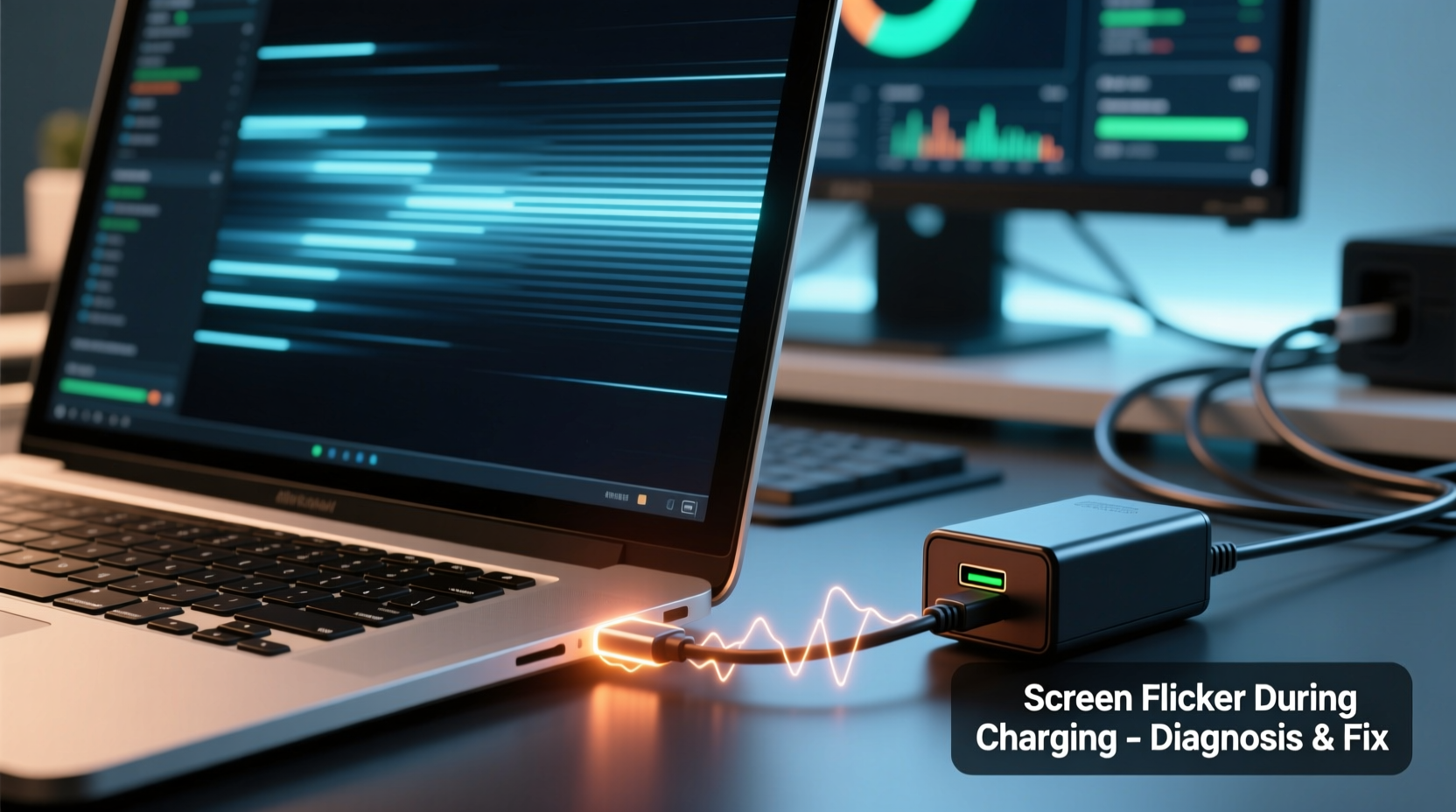
Screen flickering during charging isn’t random. It typically results from interference, voltage fluctuations, or software conflicts triggered by the charging process. Below are the most common technical reasons:
- Electrical Interference (EMI): The charger introduces electromagnetic noise into the system, especially if it's low-quality or damaged. This noise can interfere with the display signal path.
- Power Supply Fluctuations: Inconsistent voltage from the charger or outlet can destabilize internal components, including the GPU or display driver.
- Faulty or Incompatible Charger: Using a third-party or underpowered adapter may not deliver stable current, leading to erratic behavior in sensitive circuits.
- Graphics Driver Issues: Drivers may misinterpret power state changes during charging, causing temporary rendering glitches.
- Loose Display Cable or Connector: Physical disconnections inside the laptop can become more apparent when vibrations or thermal expansion occur during charging.
- GPU Stress or Overheating: Some laptops increase performance or fail to regulate temperature properly when plugged in, triggering display anomalies.
“Voltage instability from poor-quality chargers is one of the top culprits behind screen flickering during charging.” — Dr. Alan Zhou, Electrical Systems Engineer at TechReliability Labs
Step-by-Step Troubleshooting Guide
Resolving screen flickering requires a methodical approach. Follow these steps in order to isolate and fix the issue efficiently.
- Unplug the Charger and Observe
Check if the flickering stops immediately when unplugged. If so, the problem is tied to the charging circuit. - Test with a Different Outlet
Try plugging into another wall socket. Avoid extension cords or power strips with surge protectors initially—they can introduce noise. - Swap the Charger Temporarily
Borrow a compatible charger from a similar model (same brand and specs) to see if the flickering persists. - Inspect the Charging Port and Cable
Look for physical damage, bent pins, or frayed wires. Wiggle the cable gently near the plug; if flickering increases, the cable is likely failing. - Boot into Safe Mode
Restart your laptop in Safe Mode (hold Shift while clicking Restart on Windows). If the screen doesn’t flicker here, the issue is likely software or driver-related. - Update or Roll Back Graphics Drivers
Go to Device Manager > Display Adapters. Right-click your GPU and choose \"Update driver.\" Alternatively, roll back to a previous version if the issue started after an update. - Adjust Power Settings
Navigate to Control Panel > Hardware and Sound > Power Options. Switch to “High performance” or create a custom plan disabling adaptive brightness and GPU throttling. - Disable Adaptive Brightness
In Windows Settings > System > Display, turn off \"Change brightness automatically when lighting changes.\" - Check for BIOS Updates
Visit your laptop manufacturer’s support site, enter your model number, and install any available BIOS updates. These often include power management fixes. - Monitor Internal Temperatures
Use tools like HWMonitor or Core Temp to check CPU/GPU temps. Excessive heat during charging can destabilize components.
Do’s and Don’ts: Quick Reference Table
| Do’s | Don’ts |
|---|---|
| Use the original OEM charger | Use cheap third-party chargers without certification |
| Keep vents clean and unobstructed | Place laptop on soft surfaces like beds or couches while charging |
| Update graphics drivers regularly | Ignore repeated flickering—it can worsen over time |
| Test with battery-only mode to isolate issues | Force shutdown frequently during flickering episodes |
| Reset display scaling and resolution settings | Assume it’s just a software bug without checking hardware |
Real-World Example: Fixing a Dell XPS 13 Flicker Issue
A freelance graphic designer using a Dell XPS 13 reported intermittent screen flickering every time she plugged in her laptop. Initially, she assumed it was due to her aging device (purchased in 2020), but the issue escalated—flickering turned into brief blackouts lasting 2–3 seconds.
She first tried updating Windows and rolling back her Intel integrated graphics driver, with no improvement. After testing with a different charger—a certified Dell 65W USB-C adapter—the flickering vanished completely. Further inspection revealed her original charger had a slightly bent connector and inconsistent contact.
Replacing the charger solved the issue permanently. A technician later explained that partial connection caused micro-interruptions in power delivery, inducing voltage spikes that disrupted the display controller.
This case highlights how a seemingly complex display problem can stem from a simple hardware fault—and why systematic testing matters.
Advanced Fixes: When Basic Steps Aren’t Enough
If the flickering continues despite trying all basic troubleshooting, consider these advanced remedies:
Reinstall or Clean-Install Graphics Drivers
Sometimes, corrupted driver files linger even after updates. Use Display Driver Uninstaller (DDU) in Safe Mode to completely remove existing drivers before reinstalling fresh ones from the manufacturer’s website.
Disable Fast Startup
Windows Fast Startup can cause power state conflicts. To disable:
- Open Control Panel > Power Options.
- Click “Choose what the power buttons do.”
- Click “Change settings that are currently unavailable.”
- Uncheck “Turn on fast startup.”
- Save changes.
Reset or Recalibrate the Display
On some systems, particularly those with OLED or high-refresh panels, recalibrating the display through built-in diagnostics (e.g., Samsung’s Display Test or Lenovo Vantage) can resolve signal timing issues exacerbated by charging.
Check for Firmware Bugs
Manufacturers occasionally release firmware patches for embedded controllers (EC) that manage charging and power distribution. For example, HP and Lenovo have issued EC updates specifically addressing screen flicker during AC power transitions.
Internal Hardware Inspection
If you're comfortable opening your laptop (or can access professional repair), inspect the LVDS or eDP cable connecting the motherboard to the display. A loose or damaged ribbon cable can react to minor thermal expansion when the system heats up during charging.
Prevention Checklist: Stop Flickering Before It Starts
Maintaining long-term stability involves proactive habits. Use this checklist to minimize future risks:
- ✅ Always plug your laptop into a grounded outlet when possible.
- ✅ Keep the charging port free of dust and debris using compressed air.
- ✅ Avoid charging on uneven or hot surfaces that promote overheating.
- ✅ Schedule monthly driver and OS updates to prevent compatibility drift.
- ✅ Replace worn cables or chargers at the first sign of fraying or poor connection.
- ✅ Use a UPS or surge protector in areas with unstable electricity.
- ✅ Monitor system logs (Event Viewer on Windows) for display-related errors after charging begins.
Frequently Asked Questions
Can a bad battery cause screen flickering when charging?
Yes. A degraded or malfunctioning battery may draw irregular current, creating ripple effects in the power delivery chain. This instability can affect voltage-sensitive components like the display driver. If your battery swells or fails calibration tests, replace it promptly.
Is screen flickering dangerous?
While not immediately hazardous, persistent flickering can indicate underlying electrical faults that may lead to component failure. Prolonged exposure also contributes to eye strain, headaches, and reduced concentration. Address it early to avoid escalation.
Does flickering mean my laptop needs a new screen?
Not necessarily. Most cases are related to power delivery or drivers, not the panel itself. Only consider screen replacement if flickering persists across multiple chargers, power states, and after full driver reinstallation—especially if lines, discoloration, or permanent artifacts appear.
Final Thoughts: Take Action Now
Screen flickering when charging isn't something you should ignore. While occasional glitches happen, consistent or worsening flicker points to a solvable—but potentially damaging—underlying issue. Whether it’s a faulty charger, outdated driver, or subtle hardware flaw, identifying the source early prevents further complications.
Start with the simplest fixes: swap the charger, update drivers, and adjust power settings. Work your way through the diagnostic steps, documenting what changes help. In most cases, the solution is straightforward and cost-effective. But if the problem persists despite thorough troubleshooting, consult a certified technician—especially if internal inspection or firmware flashing is required.




 浙公网安备
33010002000092号
浙公网安备
33010002000092号 浙B2-20120091-4
Comments
No comments yet. Why don't you start the discussion?