
Screen flickering during video recording is a frustrating issue that affects both iPhone and Android users. It often appears as horizontal bands, pulsing light, or rapid brightness changes in the recorded footage—especially under artificial lighting. While the problem may seem technical or hardware-related, it’s usually tied to how your phone’s camera interacts with ambient light frequency. Understanding the root cause is the first step toward eliminating the flicker and capturing smooth, professional-quality videos.
Understanding Screen Flicker During Video Recording
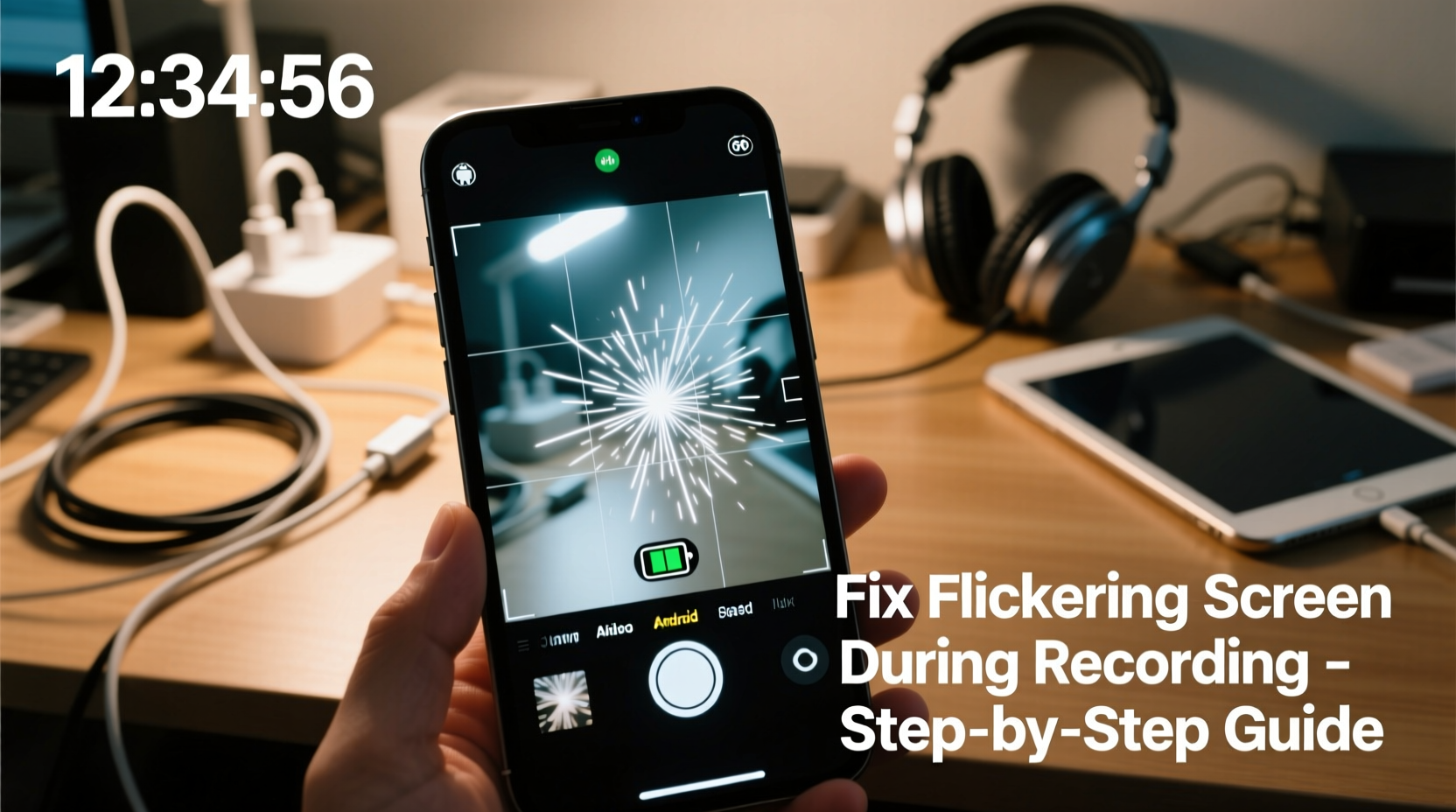
Flickering doesn’t originate from your screen itself but rather from how the camera sensor captures light over time. Most indoor lighting—fluorescent, LED, or halogen—doesn’t emit constant light. Instead, it pulses rapidly at a frequency determined by the local electrical grid: 50Hz in most countries and 60Hz in others like the U.S. This flicker is invisible to the human eye but can be picked up by high-speed camera sensors, especially when frame rates don’t align with the light’s cycle.
When your phone records video at a frame rate incompatible with the lighting frequency (e.g., 30fps under 50Hz lights), the camera captures frames at moments when the light is dimming or brightening. This mismatch results in visible banding or flickering across the video.
“Light flicker interference is one of the most common yet misunderstood issues in mobile videography.” — Dr. Lena Park, Imaging Systems Engineer at MIT Media Lab
How Lighting Frequency Affects Your Recordings
The key to preventing flicker lies in matching your camera’s frame rate to the frequency of the ambient light. In regions powered by 50Hz electricity (Europe, Asia, Africa, Australia), lights cycle 100 times per second (due to AC waveform). In 60Hz regions (North America, parts of South America and Japan), they cycle 120 times per second.
To avoid flicker, your video frame rate should be a divisor of double the mains frequency:
- 50Hz regions: Use 25fps or 50fps
- 60Hz regions: Use 30fps or 60fps
If you're shooting at 24fps in a 50Hz region, for example, the timing misalignment causes inconsistent exposure between frames, leading to rolling bands of light and dark across the image.
Step-by-Step Guide to Fix Screen Flicker on iPhone and Android
Follow this systematic approach to eliminate flicker regardless of device or environment.
- Determine your region’s power frequency
Check whether your country uses 50Hz or 60Hz electricity. Most of Europe, Asia, and Africa use 50Hz; North America and parts of Japan use 60Hz. - Adjust your camera’s frame rate
On iPhone: Go to Settings > Camera > Record Video and select either 25fps (for 50Hz) or 30fps/60fps (for 60Hz).
On Android: Open your camera app settings, navigate to video resolution/frame rate, and choose 25fps or 30fps accordingly. - Enable anti-flicker settings if available
iPhones automatically apply flicker reduction in some modes. On Android devices (especially Samsung, Pixel, or OnePlus), look for “Anti-flicker” or “Light Frequency” settings and set them to match your environment (50Hz or 60Hz). - Avoid mixed lighting environments
Combining natural daylight with artificial lights increases flicker risk. Close blinds or turn off overhead lights to rely solely on consistent sunlight. - Use manual camera apps for precision control
Apps like Filmic Pro (iOS/Android) allow full control over shutter speed and frame rate. Set shutter speed to 1/50 sec (for 50Hz) or 1/60 sec (for 60Hz) to synchronize perfectly with light cycles. - Test before final recording
Record a short clip and review it on a larger screen. Look for subtle banding or pulsing, especially under fluorescent or LED bulbs.
Device-Specific Fixes for iPhone and Android
While the underlying cause is universal, each platform offers different tools to resolve the issue.
iPhone: Leveraging Built-in Optimization
Apple devices automatically detect lighting conditions in standard photo mode, but video mode requires manual adjustment. The iPhone’s HDR and Smart Tone features can sometimes mask flicker, but they don’t eliminate it at the source.
To fix flickering:
- Set video recording to 25fps in 50Hz regions via Settings.
- Use the native Camera app in well-lit environments to let auto-exposure stabilize.
- For pro-level control, use third-party apps like Filmic Pro to lock frame rate and shutter speed.
Android: Navigating Manufacturer Variability
Android devices vary widely in camera software capabilities. High-end models from Google, Samsung, and Sony include dedicated anti-flicker options.
Example: On a Samsung Galaxy phone:
- Open the Camera app.
- Tap the gear icon to access Settings.
- Scroll to “Advanced Features” or “Metering”.
- Select “Anti-flicker” and set it to 50Hz or 60Hz based on location.
Google Pixel phones handle flicker well automatically, but enabling “Cinematic Pan” or using the Pro mode in Open Camera app gives more control.
| Device | Flicker Fix Option | Recommended Frame Rate | Notes |
|---|---|---|---|
| iPhone 12–15 series | Manual FPS selection in Settings | 25fps (50Hz), 30fps (60Hz) | No real-time anti-flicker toggle; relies on correct FPS |
| Samsung Galaxy S20+ | Anti-flicker setting in Camera Settings | 25/30/50/60fps | Auto mode works well; manual better for consistency |
| Google Pixel 7/8 | Automatic detection + Pro mode | 30fps (60Hz default) | Uses AI to reduce flicker in most scenes |
| OnePlus 11 | Pro Mode with shutter control | 25fps or 30fps | Set shutter speed to 1/50 or 1/60 sec manually |
Tips and Best Practices to Prevent Future Flicker
Beyond adjusting settings, several habits can help ensure consistently clean recordings.
- Shoot outdoors when feasible
Natural sunlight has no flicker, making it ideal for stable exposure. - Use external lighting with DC power
LED panels designed for video production use direct current, eliminating flicker entirely. - Avoid fast panning under artificial lights
Motion exaggerates flicker effects. Keep movements slow and steady. - Update your camera app regularly
Manufacturers release firmware updates that improve auto-detection of lighting conditions.
Real Example: A Vlogger’s Indoor Filming Challenge
Maya, a travel vlogger based in Berlin, began noticing strange horizontal bands in her apartment videos despite using an iPhone 14 Pro. She filmed product reviews under ceiling-mounted LED panels, and although the footage looked fine on her phone, the bands were clearly visible when uploaded to YouTube.
After researching, she discovered Germany uses 50Hz power. Her iPhone was set to record at 24fps—a cinematic standard—but incompatible with her lighting. She changed the setting to 25fps in the Camera settings menu and re-shot the segment. The flicker disappeared completely.
She now checks her frame rate before every indoor shoot and carries a small battery-powered LED panel for backup lighting. “It’s not about having the best gear,” she says, “but understanding how light and camera work together.”
Comprehensive Checklist: Eliminate Screen Flicker in 6 Steps
Use this checklist before starting any indoor video session:
- ✅ Determine your country's power frequency (50Hz or 60Hz)
- ✅ Set your camera’s frame rate to match (25/50fps or 30/60fps)
- ✅ Enable anti-flicker mode if available in camera settings
- ✅ Avoid mixing daylight and artificial light sources
- ✅ Test-record a 10-second clip and inspect for banding
- ✅ Use manual camera apps for full shutter and FPS control if needed
Frequently Asked Questions
Why does flicker only appear in my video and not on the live preview?
The live preview uses faster processing and lower resolution, which can mask flicker. The final recorded video captures full-resolution frames over time, revealing timing mismatches with light cycles.
Can I fix flickering in post-production?
Yes, but it’s not ideal. Tools like DaVinci Resolve or Adobe Premiere Pro offer flicker reduction filters, but they can soften image quality and don’t fully restore lost detail. Prevention is always better than correction.
Does flicker affect photos too?
Rarely. Still photos are captured in a single instant, so unless the shutter speed is extremely slow, flicker usually isn’t visible. However, burst mode or HDR photography under flickering lights can show exposure inconsistencies between frames.
Conclusion: Take Control of Your Video Quality
Screen flicker during video recording isn’t a defect—it’s a solvable mismatch between technology and environment. By aligning your camera settings with the physics of light, you regain full control over your visual output. Whether you're filming tutorials, vlogs, or family memories, clean, flicker-free footage makes a tangible difference in professionalism and viewer experience.
The fix starts with awareness: know your frame rate, respect your lighting, and configure your device accordingly. These small adjustments deliver immediate, lasting improvements. Don’t let invisible electrical cycles ruin your hard work behind the lens.




 浙公网安备
33010002000092号
浙公网安备
33010002000092号 浙B2-20120091-4
Comments
No comments yet. Why don't you start the discussion?