
Ghost touches—unprompted inputs appearing on your smartphone or tablet screen—are more than just an annoyance. They can disrupt daily use, lead to unintended actions, and even render a device unusable over time. While software glitches are often blamed, the root cause may lie in hardware failure. Understanding the underlying physical issues is crucial for effective troubleshooting and long-term resolution.
This article dives into the mechanics of touchscreens, identifies common hardware-related causes of ghost touches, and provides actionable steps to diagnose and potentially fix the issue before it escalates.
How Touchscreens Work: Capacitive Technology Explained
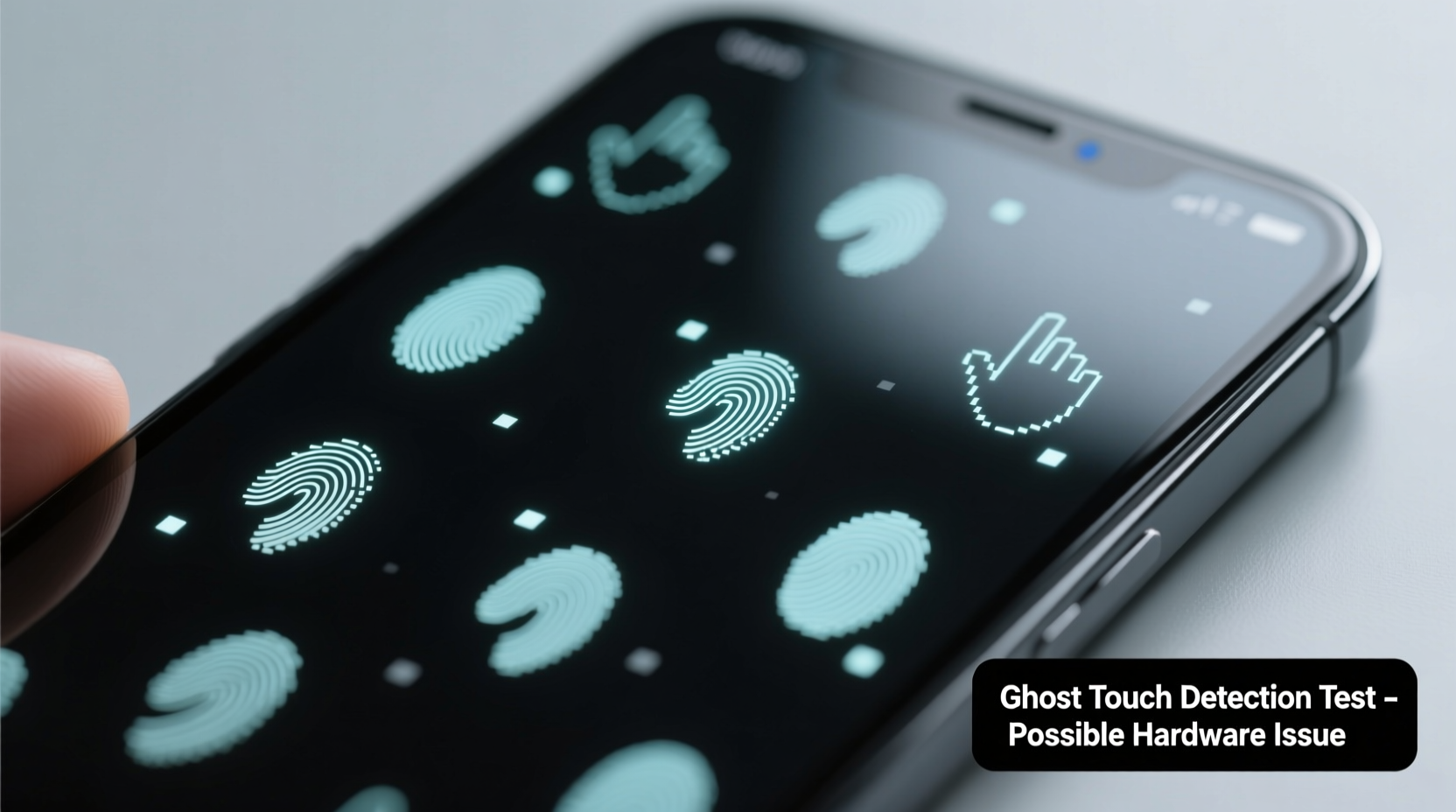
Most modern smartphones and tablets use capacitive touchscreen technology. Unlike older resistive screens that rely on pressure, capacitive screens detect changes in electrical charge caused by the conductivity of human skin. When you touch the screen, your finger alters the local electrostatic field at that point, which the device interprets as input.
These screens contain a grid of transparent conductive layers (typically indium tin oxide) embedded beneath the glass surface. A controller chip processes signals from this grid to determine touch location. Any disruption to this delicate system—whether from physical damage, moisture, or component failure—can result in false readings, including ghost touches.
“Ghost touches are rarely random. They’re symptoms of a compromised signal path between the touch sensor and the controller.” — Dr. Lin Zhao, Electronics Engineer specializing in display systems
Common Hardware Causes of Ghost Touches
While software bugs or app conflicts can mimic touch errors, persistent ghost touches usually indicate hardware degradation or damage. Below are the most frequent physical culprits:
1. Damaged or Loose Digitizer Cable
The digitizer cable connects the touchscreen layer to the motherboard. If this ribbon cable becomes loose, bent, or partially disconnected—especially after a drop or DIY repair—it can send erratic signals. Intermittent contact leads the system to misinterpret noise as touch input.
2. Cracked or Compromised Screen Assembly
Even hairline cracks not visible to the naked eye can distort the capacitive field. Damage to the glass or inner sensor layer creates dead zones and phantom touch areas. The screen may register inputs where no finger is present, particularly near fracture lines.
3. Water or Moisture Intrusion
Liquid exposure—even humidity buildup inside the device—can short-circuit the touch controller or create alternative conduction paths across the screen. This interference mimics continuous touch events. Devices without proper IP ratings are especially vulnerable.
4. Faulty or Failing Touch IC (Integrated Circuit)
The touch IC is responsible for interpreting signals from the digitizer. Over time, due to overheating, voltage spikes, or manufacturing defects, this chip can degrade. A malfunctioning IC sends corrupted data to the processor, resulting in uncontrolled cursor movement or repeated taps.
5. Poor-Quality Replacement Parts
Aftermarket screens, especially those labeled “compatible” rather than OEM (original equipment manufacturer), often lack precise calibration or use inferior materials. These parts may work initially but develop ghost touches within weeks due to inconsistent signal transmission.
Diagnostic Checklist: Is It Hardware or Software?
Before assuming hardware failure, rule out software triggers. Use the following checklist to isolate the source:
- Restart the device – Temporary glitches may resolve after reboot.
- Boot into Safe Mode – On Android, this disables third-party apps. If ghost touches stop, an app may be interfering.
- Check for OS updates – Manufacturers occasionally release patches for known touch responsiveness bugs.
- Disable auxiliary features – Turn off gestures, palm rejection, or accessibility tools that might simulate touch input.
- Test with gloves or stylus – If the screen responds only to direct finger contact, it’s likely still functioning capacitively—but erratic behavior under normal use suggests deeper issues.
- Inspect for physical damage – Look closely at edges and corners for cracks, discoloration, or separation of layers.
- Observe patterns – Do ghost touches occur in one area? After charging? Only when warm? Location and timing help pinpoint hardware faults.
If problems persist across reboots, safe mode, and clean configurations, hardware is the probable culprit.
Step-by-Step Guide to Addressing Hardware-Related Ghost Touches
Follow this sequence to methodically address suspected hardware issues:
- Power down and inspect externally
Turn off the device and examine the screen under bright light. Rotate it at different angles to spot micro-cracks or delamination (where layers separate). - Wipe the screen thoroughly
Use a dry, lint-free cloth. Avoid cleaners unless specified by the manufacturer. Residue or oils can sometimes trigger false inputs. - Disconnect peripherals
Remove cases, screen protectors, and chargers. Some low-quality accessories generate electromagnetic interference affecting touch sensitivity. - Test without charging
Unplug the device. Charging circuits, especially with damaged cables, can introduce electrical noise that interferes with the touch controller. - Enter recovery mode and observe
Boot into recovery (usually Volume Up + Power). Navigate using buttons only. If ghost touches continue here—where no apps run—it strongly indicates hardware failure. - Seek professional diagnostics
If all else fails, consult a certified technician. They can test the digitizer signal integrity, check voltage levels, and assess the touch IC using specialized tools.
Comparison Table: Software vs. Hardware Ghost Touch Indicators
| Indicator | Software-Related | Hardware-Related |
|---|---|---|
| Occurs only in certain apps | ✔️ Likely | ❌ Unlikely |
| Stops in Safe Mode | ✔️ Yes | ❌ No |
| Appears during charging | ❌ Rare | ✔️ Common (power interference) |
| Localized to one area | ❌ No | ✔️ Yes (damaged sensor zone) |
| Persists in recovery mode | ❌ No | ✔️ Yes |
| Started after drop or liquid exposure | ❌ No | ✔️ Strong indicator |
Real-World Example: The Case of the Persistent Phantom Swipes
A user reported that their three-year-old Android tablet began registering swipes upward from the bottom edge every few seconds, opening the notification panel uncontrollably. The issue worsened after the device was left in a humid bathroom for several days.
Initial troubleshooting included a factory reset and disabling gesture navigation—both ineffective. In recovery mode, the ghost swipes continued. A technician disassembled the unit and found corrosion along the digitizer flex cable connector, likely due to moisture ingress. Cleaning the contacts temporarily reduced the issue, but full stability returned only after replacing the entire front panel assembly.
This case illustrates how environmental exposure can silently damage internal components, leading to progressive hardware failure that mimics software bugs.
When Repair Makes Sense—and When It Doesn’t
Deciding whether to repair depends on device age, cost, and availability of parts:
- Newer devices (under 2 years): Worth repairing, especially if under warranty or covered by insurance.
- Mid-range models: Compare repair cost (often $80–$150 for screen/digitizer replacement) against used market value.
- Older or budget devices: May not justify repair expense. Consider upgrading instead.
For high-end phones like recent iPhones or Samsung Galaxy models, professional repair using OEM-equivalent parts typically restores full functionality. However, poorly executed repairs can exacerbate issues—always choose reputable service centers.
Frequently Asked Questions
Can a screen protector cause ghost touches?
No, a standard screen protector does not cause ghost touches. However, air bubbles, dirt underneath, or conductive (metallic) protectors may interfere with touch sensitivity. Remove the protector to test if the issue resolves.
Does overheating lead to ghost touches?
Yes. Excessive heat can temporarily destabilize the touch controller or expand materials within the screen stack, altering capacitance. Letting the device cool often reduces symptoms, but recurring heat-induced issues suggest poor thermal management or failing components.
Is it safe to keep using a phone with ghost touches?
It depends. If the device remains responsive and doesn’t act autonomously (e.g., downloading apps, sending messages), limited use is acceptable. However, worsening behavior risks data loss or security breaches. Address the issue promptly.
Conclusion: Take Action Before Minor Glitches Become Major Failures
Ghost touches are not merely quirks—they are warning signs. When rooted in hardware, they reflect physical deterioration that will likely worsen over time. Ignoring them can lead to complete touchscreen failure, rendering your device inaccessible.
By systematically ruling out software causes and recognizing the hallmarks of hardware breakdown, you gain clarity on the next steps. Whether it's seeking professional repair, replacing a faulty component, or deciding to upgrade, informed action preserves both usability and data security.




 浙公网安备
33010002000092号
浙公网安备
33010002000092号 浙B2-20120091-4
Comments
No comments yet. Why don't you start the discussion?