
A sudden blue screen can be one of the most jarring experiences for any computer user. Whether you're working on an important document, streaming a movie, or gaming, the abrupt halt followed by a cryptic error message disrupts productivity and raises serious concerns about hardware or software integrity. Known commonly as the Blue Screen of Death (BSOD), this issue is not just a nuisance—it's a warning sign from your operating system that something has gone critically wrong.
While modern Windows systems are more stable than ever, no machine is immune to crashes. The key to minimizing disruption lies in understanding what causes these failures and taking proactive steps to prevent them. This guide dives deep into the root causes of random blue screens, outlines effective troubleshooting methods, and provides long-term strategies to keep your system running smoothly.
Understanding the Blue Screen of Death (BSOD)
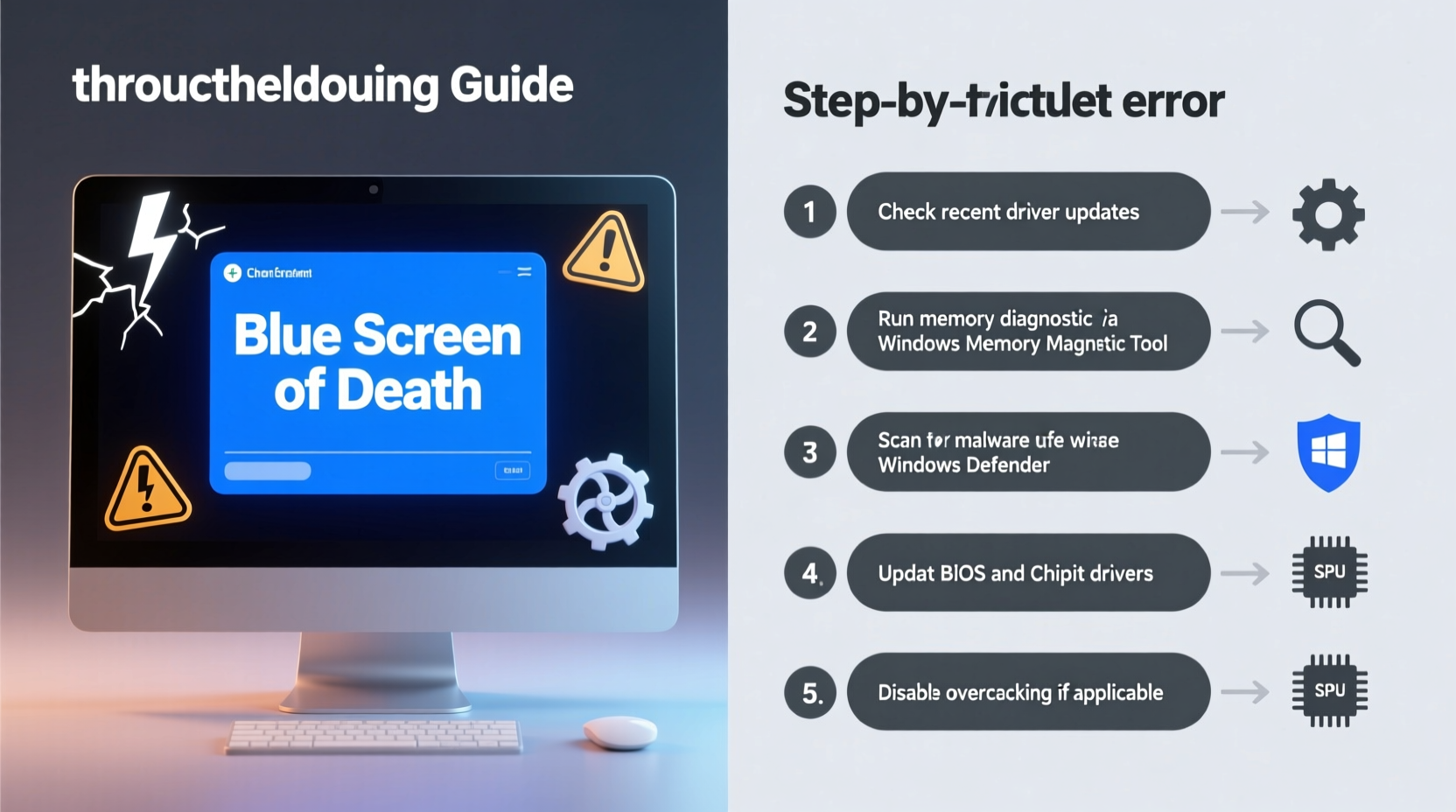
The Blue Screen of Death is a stop error displayed by Microsoft Windows when it encounters a critical system failure from which it cannot safely recover. When this happens, the system halts all operations to prevent data corruption or hardware damage. The screen typically displays a brief error message, a stop code (e.g., KERNEL_DATA_INPAGE_ERROR), and sometimes a memory address.
Contrary to popular belief, a BSOD doesn’t always mean your computer is ruined. In many cases, the cause is software-related—such as a faulty driver or update—and can be resolved without replacing hardware. However, frequent or recurring blue screens should never be ignored, as they may point to deeper issues like failing RAM, overheating components, or disk errors.
“More than 70% of BSOD incidents are linked to third-party drivers or recent software changes.” — Microsoft Support Engineering Report, 2023
Common Causes of Random Blue Screens
To effectively address blue screen issues, it’s essential to identify the underlying triggers. Below are the most frequent culprits:
- Driver Conflicts or Corruption: Outdated, incompatible, or corrupted device drivers are the leading cause of BSODs. Graphics, network, and storage drivers are especially prone to causing instability after updates.
- Hardware Failures: Faulty RAM, a failing hard drive, or an overheating CPU/GPU can force the system to crash. Memory errors are particularly common with aging or low-quality modules.
- Windows Updates: While updates usually improve security and performance, some can introduce bugs or conflicts, especially if interrupted during installation.
- Overclocking: Pushing your CPU, GPU, or RAM beyond factory settings increases performance but also raises the risk of instability and thermal throttling.
- Malware Infections: Certain types of malware interfere with kernel-level processes, leading to system crashes.
- Insufficient Power Supply: An underpowered or failing PSU may not deliver consistent voltage, causing sudden shutdowns or reboots that appear as blue screens.
- Disk Errors: Bad sectors on an SSD or HDD can prevent the OS from reading critical files, triggering a stop error.
Step-by-Step Guide to Diagnose and Fix BSODs
When your screen turns blue, follow this structured approach to identify and resolve the problem efficiently.
- Record the Stop Code: Write down the exact error name (e.g.,
IRQL_NOT_LESS_OR_EQUAL) before restarting. This code is crucial for targeted troubleshooting. - Boot into Safe Mode: Restart your PC and press F8 or Shift+F8 during boot (or use Advanced Startup Options) to enter Safe Mode. This loads only essential drivers and services, helping isolate the issue.
- Check Recent Changes: Reflect on any recent installations—software, drivers, or hardware. Uninstall or disconnect anything added just before the first crash.
- Run Windows Memory Diagnostic: Press Win + R, type
mdsched.exe, and run the built-in tool to test for RAM issues. Let it complete a full pass upon reboot. - Update or Roll Back Drivers: Open Device Manager (Win + X > Device Manager), look for devices with warnings, and update their drivers. If crashes started after a driver update, roll it back via Properties > Driver tab.
- Scan for Disk Errors: Open Command Prompt as Administrator and run
chkdsk /f /r C:. Approve the scan on next restart to check for bad sectors. - Analyze Crash Dumps: Use tools like BlueScreenView or WinDbg to examine minidump files (
C:\\Windows\\Minidump). These reveal which driver or module caused the crash. - Perform a System File Check: In Command Prompt, run
sfc /scannowto repair corrupted system files. - Check for Overheating: Use monitoring tools like HWMonitor to verify CPU and GPU temperatures. Sustained temps above 90°C under load indicate cooling problems.
- Reset or Reinstall Windows: As a last resort, consider resetting Windows (Settings > Recovery > Reset this PC) to eliminate deep-seated software issues.
Prevention Checklist: How to Avoid Future Crashes
Preventing blue screens is far more efficient than reacting to them. Follow this actionable checklist to maintain system stability:
- ✅ Keep Windows and drivers up to date through official sources only.
- ✅ Install reliable antivirus software and perform regular scans.
- ✅ Avoid overclocking unless you have adequate cooling and experience.
- ✅ Clean dust from fans, vents, and heatsinks every 3–6 months.
- ✅ Use a surge protector or UPS to guard against power fluctuations.
- ✅ Regularly defragment HDDs (not SSDs) and monitor disk health with CrystalDiskInfo.
- ✅ Disable unnecessary startup programs to reduce system strain at boot.
- ✅ Backup critical data weekly using File History or cloud solutions.
- ✅ Monitor system temperatures and fan speeds under load.
- ✅ Stick to trusted software sources—avoid pirated or cracked applications.
Do’s and Don’ts When Dealing with BSODs
| Do’s | Don’ts |
|---|---|
| Take note of the stop code and error details. | Ignore repeated crashes thinking they’ll go away. |
| Update drivers from manufacturer websites. | Install drivers from unverified third-party sites. |
| Use built-in diagnostic tools like SFC and CHKDSK. | Manually edit system files without backups. |
| Keep your system cool and well-ventilated. | Block airflow with books or fabric near the PC. |
| Regularly backup your system and personal files. | Wait until after a crash to start backing up. |
Real Example: Recovering from a Persistent BSOD After a GPU Update
Mark, a freelance video editor, experienced random blue screens every 20–30 minutes after updating his NVIDIA graphics driver. The stop code was DPC_WATCHDOG_VIOLATION. Initially, he assumed his SSD was failing and considered a costly replacement.
Instead, he booted into Safe Mode and uninstalled the recent GPU driver. He then downloaded the previous stable version directly from NVIDIA’s website. After reinstalling the older driver, the crashes stopped immediately. A month later, he tried the newer driver again—this time after a full Windows update—and found it worked without issues. The root cause? A timing conflict between the new driver and an outdated chipset component.
This case illustrates how a simple rollback can resolve what appears to be a major hardware failure. It also highlights the importance of staged updates and verifying compatibility.
Expert Insight: What Engineers Say About System Stability
“Most users don’t realize that the OS throws a BSOD as a protective measure. It’s better than silent data corruption. The real mistake is not acting on early warning signs.” — Dr. Alan Reyes, Senior Systems Engineer at Dell Technologies
“Always validate third-party drivers digitally. A missing signature or mismatched version number is often the smoking gun.” — Lisa Tran, Microsoft Certified Solutions Expert
Frequently Asked Questions
Can a blue screen damage my hardware?
No, a BSOD itself does not damage hardware. It is a protective response designed to shut down operations safely. However, if the crash is caused by overheating or electrical issues, continued use without fixing the root problem can lead to hardware degradation over time.
Why do blue screens happen more often during gaming or heavy tasks?
High-performance activities stress the CPU, GPU, and memory. If any component is unstable—due to poor cooling, marginal overclocking, or weak power delivery—the likelihood of a system-level failure increases significantly under load.
Is it safe to ignore a one-time blue screen?
If it occurs once and doesn’t repeat, especially after a major update or new software install, it may be a temporary glitch. However, if it recurs—even weeks later—it’s a sign of an unresolved issue that needs attention.
Conclusion: Take Control of Your System’s Stability
A randomly turning blue screen is more than a momentary inconvenience—it’s a signal that your computer needs care. By understanding the causes, responding methodically, and adopting preventive habits, you can drastically reduce crashes and extend the life of your machine. Most blue screens are fixable with the right knowledge, and many are entirely avoidable with proper maintenance.




 浙公网安备
33010002000092号
浙公网安备
33010002000092号 浙B2-20120091-4
Comments
No comments yet. Why don't you start the discussion?