
If you've noticed your phone, tablet, or computer screen gradually shifting toward a warm, yellowish hue as the evening progresses, you're not imagining things—and you're far from alone. This subtle color change is intentional, designed to reduce blue light exposure during nighttime hours. While the feature aims to support healthier sleep patterns, some users find the shift distracting, inconsistent with their workflow, or simply too strong. Understanding the science behind this behavior and learning how to manually control it gives you full command over your screen’s appearance and its impact on your well-being.
Why Screens Shift to Yellow at Night
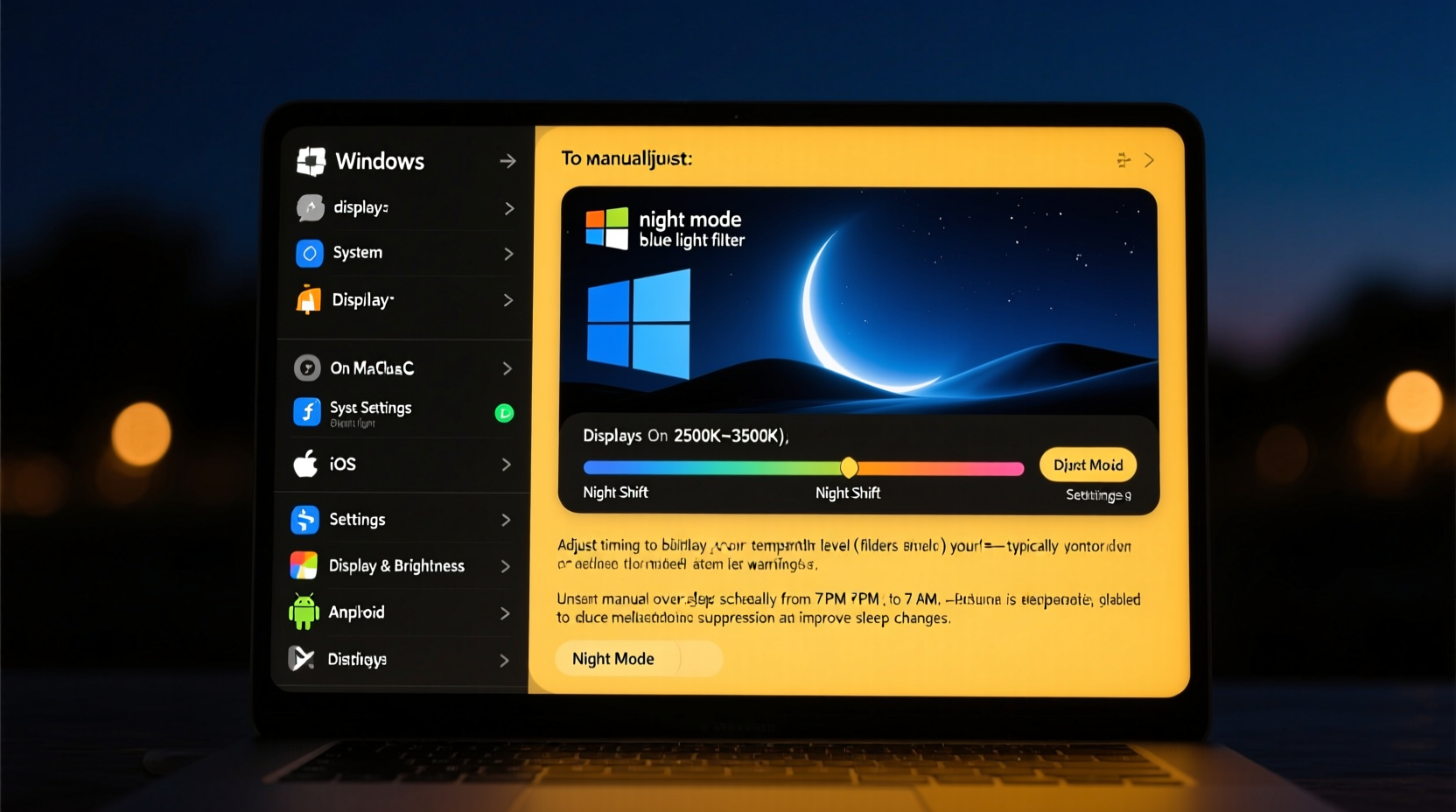
Modern digital devices come equipped with features that automatically adjust screen color temperature based on the time of day. The most common technologies include Apple’s Night Shift, Android’s Night Light, Windows’ Night Light, and third-party apps like f.lux. These systems rely on either a built-in clock or geolocation data to estimate sunset and sunrise times in your area.
The core reason for the yellow tint is the reduction of blue light. Blue light, which dominates the spectrum emitted by LED-backlit screens, has short wavelengths and high energy. Research shows that exposure to blue light in the evening can interfere with the body’s natural production of melatonin—a hormone critical for regulating sleep-wake cycles.
“Evening exposure to blue-rich light from screens can delay melatonin onset by up to 90 minutes, significantly disrupting sleep quality.” — Dr. Lisa Masteon, Sleep Neurologist, Harvard Medical School
By warming the screen tone—shifting it from cool white to amber or yellow—these features aim to minimize circadian disruption. However, not all users benefit equally. Some may work late shifts, prefer cooler tones for design tasks, or simply dislike the aesthetic change.
How Automatic Color Adjustment Works
Automatic screen warming uses a combination of software logic and hardware integration:
- Scheduling: Most systems allow you to set custom start and end times (e.g., 8 PM to 7 AM).
- Geolocation: Devices use GPS or network-based location to determine local sunset and sunrise times.
- Color Temperature Control: The display driver adjusts RGB values to suppress blue and enhance red/yellow components.
- Intensity Settings: Users can often control how strong the effect is, from mild warmth to deep amber.
While convenient, automation isn’t always accurate. Time zone errors, incorrect location permissions, or sudden changes in routine can lead to unwanted activation. That’s where manual control becomes essential.
Step-by-Step Guide to Manually Adjust Screen Color
Taking manual control ensures your screen matches your current environment and needs. Below are platform-specific instructions to disable, customize, or override automatic night modes.
On iPhone and iPad (iOS/iPadOS)
- Open the Settings app.
- Tap Display & Brightness.
- Select Night Shift.
- Toggle off Scheduled to disable automatic timing.
- Use the Color Temperature slider to manually set warmth (from “Less Warm” to “More Warm”).
- To activate instantly, tap Turn On Until Tomorrow.
You can also access Night Shift quickly via Control Center by long-pressing the brightness panel and tapping the moon-and-sun icon.
On Android Devices
- Go to Settings.
- Navigate to Display > Night Light.
- Disable Turn on on schedule if you want manual control.
- Adjust the Strength slider to set intensity.
- To toggle it on/off immediately, swipe down the notification panel and tap the Night Light quick setting.
Note: On Samsung devices, this feature may be labeled Blue Light Filter under Screen Comfort.
On Windows 10 and 11
- Click the Start menu and go to Settings.
- Select System > Display.
- Toggle off Automatically change brightness based on time of day (if enabled).
- Switch off Night Light to deactivate it completely.
- To adjust manually, click Night Light settings and use the Color temperature at night slider.
- Enable Turn on now for immediate application—even during daytime.
On macOS
- Open System Settings (or System Preferences on older versions).
- Click Displays.
- Select Night Shift.
- Set Schedule to “Off” for manual control.
- Use the Color Temperature slider to define warmth level.
- To apply immediately, click Turn On Until Tomorrow.
Do’s and Don’ts of Managing Nighttime Screen Color
| Action | Do | Don’t |
|---|---|---|
| Adjusting Intensity | Use moderate warmth to balance eye comfort and color fidelity. | Don’t set it too warm if doing photo or video editing. |
| Scheduling | Align start time with your actual wind-down routine. | Don’t rely solely on geolocation if your sleep schedule varies. |
| Multiple Devices | Sync settings across phone, tablet, and computer. | Don’t leave one device on cool mode while others are warm. |
| Brightness Levels | Lower brightness along with color adjustment for best results. | Don’t keep screen brightness high even with warm tones. |
| Manual Override | Temporarily disable at night if watching movies or coding. | Don’t forget to re-enable it after use if sleep is a priority. |
Real Example: A Freelancer’s Evening Workflow
Sophia, a freelance graphic designer based in Portland, began experiencing eye strain and difficulty falling asleep after working late into the night. Her MacBook and iPhone both used automatic Night Shift, but she found the aggressive warmth made color grading inaccurate. She’d disable it, only to forget turning it back on.
After researching, she adjusted her setup: she kept Night Shift active but dialed the temperature down to 50% warmth. She also set a reminder in her calendar to manually disable it only during client review sessions, then re-enable it afterward. Additionally, she lowered her room lighting and used f.lux on her secondary monitor for more granular control.
Within two weeks, Sophia reported improved sleep onset and reduced eye fatigue—without sacrificing design precision.
“Many creatives assume they must choose between eye health and color accuracy. With smart manual adjustments, you don’t have to.” — Jordan Lee, UX Designer and Digital Wellness Consultant
When to Disable or Modify the Yellow Tint
While reducing blue light is generally beneficial, there are legitimate reasons to override or disable the yellow screen effect:
- Professional Work: Designers, photographers, and video editors need accurate color representation.
- Nocturnal Schedules: Night shift workers may need cool, alertness-promoting light during their active hours.
- Medical Conditions: Some individuals with seasonal affective disorder (SAD) benefit from controlled blue light exposure at night under medical guidance.
- Preference: Not everyone finds warm tones relaxing; some report they feel dimmer or harder to read.
In such cases, manual control is not just helpful—it’s necessary for maintaining productivity and personal comfort.
Frequently Asked Questions
Does the yellow screen actually help with sleep?
Yes, for many people. Multiple studies, including research published in the Journal of Applied Physiology, show that reducing blue light in the evening can advance melatonin onset by 30–60 minutes, leading to faster sleep onset and improved sleep continuity. However, individual responses vary based on baseline light exposure, age, and sensitivity.
Can I use third-party apps instead of built-in features?
Absolutely. Apps like f.lux and Iris offer more customization than native tools, including per-application profiles, motion-based dimming, and advanced color calibration. They’re especially useful on desktop systems where built-in options are limited.
Why does my screen look orange, not just yellow?
An orange or amber tint indicates a very high warmth setting. This is common when the color temperature drops below 3500K. If the shift feels excessive, adjust the intensity slider in your Night Light or Night Shift settings to a milder level (around 4500K is often a comfortable compromise).
Checklist: Master Your Screen’s Night Mode
- ✅ Determine whether automatic scheduling fits your daily routine.
- ✅ Locate Night Shift/Night Light settings on each of your devices.
- ✅ Manually adjust color temperature to a comfortable warmth level.
- ✅ Test readability and color accuracy after changes.
- ✅ Sync settings across devices for visual consistency.
- ✅ Consider using third-party tools for advanced control.
- ✅ Re-evaluate settings monthly based on seasonal daylight changes.
Conclusion: Take Control of Your Digital Environment
Your screen’s yellow tint at night isn’t a glitch—it’s a feature designed with your health in mind. But like any automated system, it works best when fine-tuned to your lifestyle. By understanding how and why screens change color, and by learning to manually adjust these settings, you gain the power to balance eye comfort, sleep hygiene, and professional needs.
Don’t let default settings dictate your experience. Experiment with warmth levels, test different schedules, and tailor each device to your unique rhythm. Small adjustments today can lead to better sleep, reduced eye strain, and greater digital well-being tomorrow.




 浙公网安备
33010002000092号
浙公网安备
33010002000092号 浙B2-20120091-4
Comments
No comments yet. Why don't you start the discussion?