
There’s nothing more frustrating than setting up a cozy holiday ambiance with your smart bulb Christmas string, only to find the lights unresponsive in the morning. You’re not imagining it—this is a common issue affecting thousands of users during the festive season. While smart lighting promises convenience and automation, real-world performance can fall short when devices disconnect without warning. The root causes are often technical but fixable. Understanding why these disconnections happen—and how to prevent them—is essential for maintaining reliable control over your smart holiday setup.
The problem typically isn’t isolated to one brand or model. Whether you use Philips Hue, LIFX, TP-Link Kasa, or budget-friendly Amazon Smart bulbs, intermittent connectivity issues plague many users, especially during high-usage periods like winter evenings. These disruptions don’t just break the mood—they undermine trust in smart home technology. Fortunately, most causes are diagnosable and solvable with the right approach.
Common Causes of Overnight Disconnection
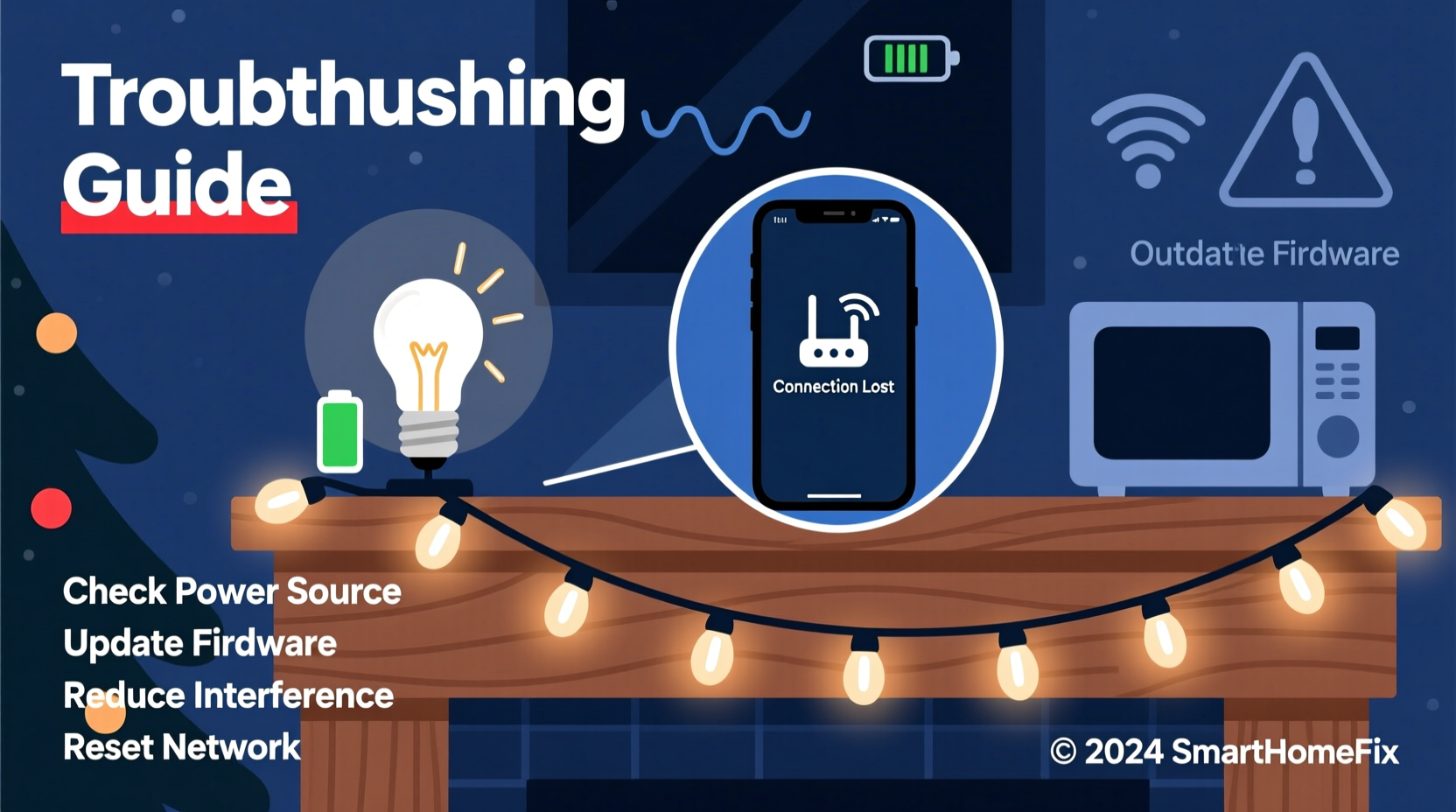
Smart bulb strings losing connection overnight is rarely due to a single factor. Instead, it's usually a combination of network instability, power fluctuations, device limitations, and environmental interference. Below are the primary culprits behind this recurring issue:
- Wi-Fi Network Instability: Many smart bulbs rely on your home Wi-Fi. If the router resets, throttles bandwidth at night, or experiences congestion, bulbs may drop off the network.
- Power-Saving Modes: Some smart bulbs enter low-power states after inactivity. Poor firmware implementation can cause them to fail rejoining the network upon waking.
- Overloaded Router: Homes with numerous connected devices (phones, tablets, smart TVs) may exceed router capacity, leading to dropped connections for lower-priority devices like decorative lights.
- Signal Interference: Physical obstructions, thick walls, or competing wireless signals (microwaves, cordless phones) weaken Wi-Fi strength, especially in corners where strings are often placed.
- Firmware Bugs: Outdated or buggy firmware in bulbs or hubs can result in memory leaks or crashes that manifest as disconnections.
- Power Supply Issues: Using extension cords, power strips with surge protection, or daisy-chained strings can introduce voltage drops or inconsistent current flow, triggering resets.
How Smart Bulbs Communicate: A Technical Overview
To fully grasp why disconnections occur, it helps to understand how smart bulbs operate within your network. Most modern smart Christmas strings use one of two communication protocols: Wi-Fi or Zigbee (often via a hub like Philips Hue Bridge).
Wi-Fi-based bulbs connect directly to your home network. Each bulb appears as a separate device on your router. This simplicity comes at a cost—each additional device increases network load. During peak usage hours (evenings), routers may struggle to maintain stable connections with all devices, especially if Quality of Service (QoS) settings aren’t optimized.
Zigbee-based systems reduce strain on Wi-Fi by using a mesh network. Bulbs communicate with a central hub, which then connects to your router. This method is generally more reliable, but only if the hub remains powered and within range of all bulbs. If the hub restarts overnight or loses internet access, the entire string becomes unreachable until manually restored.
“Smart bulbs are designed for efficiency, not resilience. Many prioritize low power consumption over robust network handling.” — Raj Mehta, IoT Network Engineer
Beyond protocol differences, latency and packet loss also play roles. When a command (e.g., “turn on”) fails to reach the bulb due to signal degradation, the system logs it as a timeout. Repeated failures lead to perceived disconnection. Firmware updates sometimes improve retry logic, but manufacturers often deprioritize bug fixes for seasonal products.
Troubleshooting Checklist: Regain Reliable Control
If your smart bulb string keeps dropping offline, follow this comprehensive checklist to identify and resolve the underlying cause.
- Reboot Your Router and Hub: Power cycle both your Wi-Fi router and any smart lighting hub. Unplug for 30 seconds, then reconnect. This clears temporary glitches and resets DHCP assignments.
- Check for Firmware Updates: Open your smart lighting app (e.g., Kasa, Hue, Alexa) and verify all bulbs and hubs are running the latest firmware.
- Test Signal Strength: Use a Wi-Fi analyzer app to measure signal strength at the location of your light string. Aim for at least -70 dBm; below -80 dBm indicates poor reception.
- Reduce Device Load: Temporarily disconnect non-essential devices from your network to see if stability improves.
- Use a Dedicated Access Point: Install a Wi-Fi extender or mesh node near the lights to boost coverage in weak areas.
- Inspect Power Source: Plug the string directly into a wall outlet—avoid power strips, timers, or multi-plug adapters unless rated for continuous smart device use.
- Reset and Re-Pair Bulbs: Factory reset the string and go through setup again. This clears corrupted network credentials.
- Set a Static IP (Advanced): Assign a reserved IP address to the bulb or hub via your router settings to prevent IP conflicts.
Real-World Example: A Case Study in Holiday Lighting Failure
Sarah in Portland installed a 50-light smart LED string along her mantelpiece before Thanksgiving. She programmed gentle color shifts every evening using her Alexa app. For the first week, everything worked perfectly. Then, one morning, she found the lights off and unresponsive. She turned them back on manually through the app, assuming it was a fluke. But the same thing happened the next night—and the next.
Frustrated, Sarah began investigating. She noticed her router occasionally flashed amber at night. After checking her ISP account, she discovered her provider scheduled routine maintenance between 1:00–3:00 AM weekly. This brief outage caused her smart plug (which powered the router) to reboot—but the lights, lacking battery backup, couldn't reconnect automatically once Wi-Fi returned.
The solution? Sarah purchased an inexpensive UPS (uninterruptible power supply) for her router and smart hub. She also updated the bulb firmware and moved the string closer to the living room access point. Since then, her lights have remained online consistently—even during outages.
This case highlights a subtle but critical point: smart lighting depends on upstream infrastructure. Even minor disruptions ripple down to endpoint devices.
Do’s and Don’ts: Best Practices Summary
| Do | Don’t |
|---|---|
| Plug smart strings directly into wall outlets | Use mechanical timers or switched outlets |
| Keep firmware updated monthly | Ignore update notifications in your app |
| Use a mesh Wi-Fi system for large homes | Rely solely on a single router in multi-floor setups |
| Label circuits and test connectivity seasonally | Assume last year’s setup will work unchanged |
| Monitor device count on your network | Connect 50+ IoT devices without upgrading hardware |
Step-by-Step Fix: Restore and Stabilize Your Connection
If your smart bulb string has been unreliable, follow this step-by-step process to restore and maintain consistent connectivity:
- Unplug the Light String: Remove power completely for at least 30 seconds.
- Restart Your Router and Hub: Power down your Wi-Fi router and any smart lighting bridge. Wait 30 seconds, then power them back on.
- Wait for Full Network Recovery: Allow 3–5 minutes for all devices to reconnect to the internet.
- Replug the Lights: Insert the string into a known-good wall outlet—not a power strip.
- Open Your Smart Home App: Check if the bulbs appear online. If not, initiate a search for new devices. <6> Perform a Factory Reset (if needed): Refer to the manual—typically involves rapid on/off cycles (e.g., turn on/off five times within 5 seconds).
- Reconnect Through Setup Mode: Follow the app’s pairing instructions to re-add the string to your network.
- Run a 24-Hour Test: Set a simple automation (e.g., dim at 10 PM, bright at 7 AM) and monitor for failures.
- Optimize Placement: If possible, relocate the string or add a Wi-Fi extender to improve signal quality.
After completing these steps, most users report significantly improved reliability. Persistence of issues may indicate defective hardware or deeper network configuration problems.
Frequently Asked Questions
Can cold temperatures affect smart bulb performance?
Yes. While indoor-rated strings aren’t exposed to extreme cold, drafts near windows or fireplaces can impact electronics. More importantly, temperature swings cause expansion and contraction in solder joints, potentially weakening connections over time. Always use bulbs rated for your environment and avoid placing strings near heat sources or air vents.
Why do my lights reconnect slowly after a power outage?
Smart bulbs boot up slower than traditional ones. They must initialize internal processors, scan for Wi-Fi, authenticate with the network, and sync with the cloud server. This process can take 15–60 seconds per bulb. Strings with multiple nodes may stagger their startup, delaying full responsiveness. Consider using local execution automations to speed recovery.
Is it safe to leave smart light strings plugged in all year?
Only if they are UL-listed for continuous operation and used according to manufacturer guidelines. Most holiday strings are intended for seasonal use (max 6 hours/day). Extended use increases risk of overheating, especially if coiled or covered. Inspect wires annually for brittleness, discoloration, or fraying.
Conclusion: Take Control of Your Smart Lighting Experience
Your smart bulb Christmas string shouldn’t be a source of frustration. With a few strategic adjustments—better power management, stronger Wi-Fi, and proactive maintenance—you can enjoy seamless, reliable lighting throughout the season. The key is recognizing that smart devices depend on ecosystem health, not just individual functionality. A disconnected string is rarely about the bulb itself; it’s a symptom of broader network or environmental conditions.
Start today by auditing your setup. Test signal strength, update firmware, and eliminate risky power sources. Small changes yield outsized results in stability. Share your experience in the comments—what worked for you might help another homeowner keep their holiday glow alive all season long.




 浙公网安备
33010002000092号
浙公网安备
33010002000092号 浙B2-20120091-4
Comments
No comments yet. Why don't you start the discussion?