
Smart bulbs offer convenience, energy efficiency, and dynamic lighting control. But when they start flickering without warning—especially in the middle of the night or during a movie—it’s more than just annoying. It can signal deeper electrical issues, compatibility problems, or software glitches. Unlike traditional bulbs, smart bulbs rely on complex circuitry, wireless communication, and firmware that can all contribute to erratic behavior. Understanding the root causes and knowing how to troubleshoot them is essential for restoring smooth, reliable lighting.
Flickering isn’t always a sign of a failing bulb. In many cases, the issue lies in setup, environment, or interaction with other components in your home’s electrical system. This guide breaks down the most common reasons behind random flickering in smart bulbs and provides actionable steps to resolve each one effectively.
Common Causes of Smart Bulb Flickering
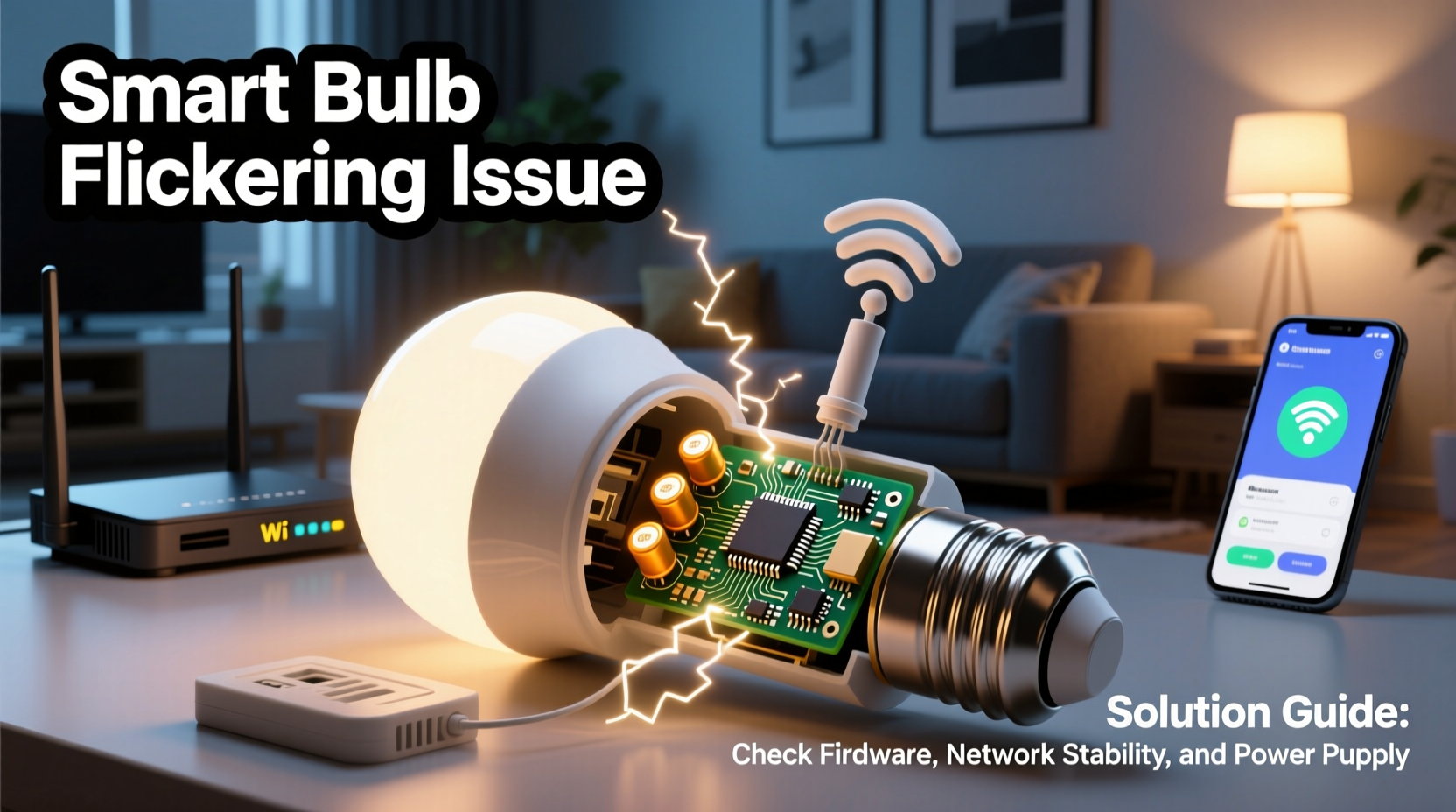
Smart bulb flickering rarely has a single cause. Instead, it's often the result of overlapping factors ranging from power supply inconsistencies to software bugs. Identifying the underlying reason is the first step toward a permanent fix.
- Incompatible dimmer switches: Many homes use trailing-edge (ELV) or leading-edge dimmers designed for incandescent bulbs. Smart bulbs operate at much lower wattages and may not draw enough current to work properly with older dimmers, causing flickering.
- Low standby power: Some smart bulbs require a small trickle of electricity to stay connected to Wi-Fi or Bluetooth. If the switch cuts off all power, the bulb may reboot repeatedly, creating a flicker effect.
- Wi-Fi interference or instability: Signal drops or network congestion can interrupt communication between the bulb and hub/app, leading to erratic behavior including blinking or color shifts.
- Firmware bugs: Outdated or corrupted firmware can cause timing errors, inconsistent brightness levels, or unresponsive controls.
- Electrical noise or voltage fluctuations: Nearby appliances like refrigerators, HVAC systems, or washing machines can introduce surges or dips in voltage that affect sensitive electronics.
- Overloaded circuits: Running too many devices on one circuit may lead to unstable voltage delivery, especially noticeable in LED-based smart bulbs.
- Bulb placement in enclosed fixtures: Poor ventilation can cause overheating, triggering thermal protection features that cycle the light on and off.
Step-by-Step Guide to Diagnose and Fix Flickering
Resolving flickering requires a methodical approach. Jumping to conclusions—like replacing the bulb immediately—can waste time and money. Follow this timeline to isolate and correct the cause efficiently.
- Verify the bulb works elsewhere: Remove the flickering bulb and install it in a known working fixture (e.g., a table lamp). If it stops flickering, the problem is environmental, not the bulb.
- Check the wall switch type: Determine if the switch is a standard toggle or a dimmer. If it’s a dimmer, confirm whether it’s compatible with LED or smart bulbs. Look for labels like “LED-compatible” or “CL” (for CFL/LED).
- Turn off the switch and inspect wiring: With power off, remove the switch plate and examine connections. Loose wires or backstabbed terminals can cause intermittent contact and flickering.
- Test with the switch fully on: Bypass dimming by turning the dial to maximum brightness. If flickering stops, the dimmer is incompatible.
- Use a multimeter to check voltage stability: Measure voltage at the socket while turning on high-power appliances. A drop below 110V or spike above 130V indicates electrical issues needing professional attention.
- Update the bulb’s firmware: Open your smart lighting app (e.g., Philips Hue, LIFX, or Kasa) and check for updates. Install any available firmware patches.
- Reboot your router and hub: Network instability can manifest as flickering. Restart your Wi-Fi router and any central hubs (like a Hue Bridge) to refresh connections.
- Reduce signal interference: Move routers, cordless phones, or microwaves away from the bulb’s location. Consider switching to a less congested Wi-Fi channel via your router settings.
Do’s and Don’ts When Troubleshooting Smart Bulbs
| Do’s | Don’ts |
|---|---|
| Use smart bulbs only in open or well-ventilated fixtures unless rated for enclosed use. | Install smart bulbs in totally sealed enclosures without checking manufacturer specs. |
| Pair bulbs with compatible LED-rated dimmer switches (e.g., Lutron Caséta). | Use old incandescent-only dimmers with smart bulbs. |
| Keep firmware updated through the official app. | Ignore firmware update notifications for months. |
| Ensure neutral wire availability for Zigbee/Z-Wave hubs requiring constant power. | Assume all switches provide neutral wires; many don’t in older homes. |
| Group bulbs on stable 2.4 GHz Wi-Fi networks (avoid 5 GHz). | Connect smart bulbs to 5 GHz bands, which most cannot support. |
Real-World Example: The Case of the Kitchen Flicker
Mark, a homeowner in Portland, noticed his kitchen smart bulbs flickered every time the dishwasher turned on. The lights were LIFX A19 bulbs controlled via Wi-Fi, installed in recessed ceiling fixtures. Initially, he assumed the bulbs were defective and replaced two of them—only for the flickering to return within days.
After researching, Mark used a multimeter to measure voltage at the fixture. He discovered a 15-volt drop whenever large appliances cycled on. Further inspection revealed the kitchen lights and major appliances shared an overloaded 15-amp circuit. By consulting an electrician, he had the lighting moved to a dedicated circuit. The flickering stopped immediately, and his bulbs have operated smoothly for over a year.
This case highlights how flickering can stem from broader electrical design flaws rather than faulty bulbs. Without proper diagnostics, users risk replacing hardware unnecessarily.
“Many flickering complaints we see are actually symptoms of poor circuit design or outdated dimmers. The bulb is often the messenger, not the problem.” — David Tran, Electrical Systems Engineer at SmartHome Labs
Expert Solutions for Persistent Flickering
When basic troubleshooting fails, advanced interventions may be necessary. These strategies go beyond user manuals and address systemic issues affecting smart lighting performance.
Replace Incompatible Dimmers
Traditional dimmers reduce voltage using phase-cutting methods that don’t play well with low-wattage LEDs. Upgrading to a smart dimmer designed for modern loads—such as the Lutron Caséta DLV-153P or Leviton DZS15—can eliminate flickering while enabling app and voice control.
These dimmers provide smoother power regulation and include features like adjustable minimum brightness, which prevents dropout at low levels—a common trigger for flicker.
Install a Neutral Wire Adapter or Bypass
Some smart switches and bulbs require a neutral wire to maintain a constant power supply for connectivity. In older homes without neutrals at the switch box, this can cause the bulb to search for power, resulting in micro-flickers or pulsing.
A licensed electrician can run a neutral wire or install a compatible bypass device that allows a small current to flow without tripping safety mechanisms. Never attempt this modification yourself unless qualified.
Add Surge Protection
Voltage spikes from lightning or grid fluctuations can damage sensitive electronics inside smart bulbs. Installing whole-house surge protectors or outlet-level suppressors helps stabilize input power.
Look for UL 1449-certified devices with a clamping voltage under 400V and energy absorption rating above 1000 joules.
Essential Checklist to Stop Smart Bulb Flickering
Follow this checklist systematically to identify and resolve flickering issues:
- ✅ Test the bulb in another fixture to rule out bulb failure.
- ✅ Confirm the wall switch is not an incompatible dimmer.
- ✅ Replace old dimmers with LED-compatible or smart models.
- ✅ Ensure your Wi-Fi signal strength is strong near the bulb (minimum -70 dBm).
- ✅ Update all bulbs and hubs to the latest firmware version.
- ✅ Check for loose wiring in the fixture or switch box.
- ✅ Avoid placing smart bulbs in fully enclosed fixtures unless specified.
- ✅ Verify circuit load isn’t exceeding capacity (use a plug load meter).
- ✅ Reboot your router, hub, and smart home ecosystem weekly.
- ✅ Consult an electrician if flickering persists after all checks.
Frequently Asked Questions
Can Wi-Fi problems really make my smart bulb flicker?
Yes. While not true flickering in the electrical sense, network latency or disconnections can cause the bulb to reset, change state unexpectedly, or blink rapidly. This is especially common with Wi-Fi-dependent bulbs during router reboots or interference events. Using mesh networks or relocating access points can help.
Is it dangerous if my smart bulb flickers?
Occasional flickering due to software glitches is usually harmless. However, persistent flickering linked to arcing wires, overheating, or voltage instability can pose fire risks. If you notice buzzing sounds, burning smells, or warm switch plates, turn off the circuit immediately and call an electrician.
Why do my smart bulbs flicker only at night?
This often occurs when nearby streetlights or neighbors’ security systems activate, causing minor voltage sags on the shared grid. It can also happen if your home automation routines adjust brightness gradually (ramping), which may appear as flicker in low-light conditions.
Final Thoughts and Action Plan
Random flickering in smart bulbs is a solvable issue, but it demands attention to both technology and infrastructure. Most fixes don’t require expensive replacements—just smarter configuration. Start with simple tests: move the bulb, update firmware, and verify your switch type. If those fail, dig deeper into circuit health and compatibility.
Remember, smart bulbs are sophisticated devices, not just light sources. Treating them like any other electronic—giving them clean power, stable networks, and proper ventilation—ensures long-term reliability.




 浙公网安备
33010002000092号
浙公网安备
33010002000092号 浙B2-20120091-4
Comments
No comments yet. Why don't you start the discussion?