
Smart bulbs promise convenience, automation, and energy efficiency—until they start dropping off your Wi-Fi network unexpectedly. One moment your lights respond instantly to voice commands; the next, they’re unresponsive, grayed out in your app, or flashing erratically. This kind of instability doesn’t just disrupt routines—it raises questions about reliability. The good news? Most disconnection issues are solvable with systematic troubleshooting. Understanding the root causes—from router limitations to firmware bugs—can save time, frustration, and unnecessary replacements.
Common Causes of Smart Bulb Wi-Fi Disconnections
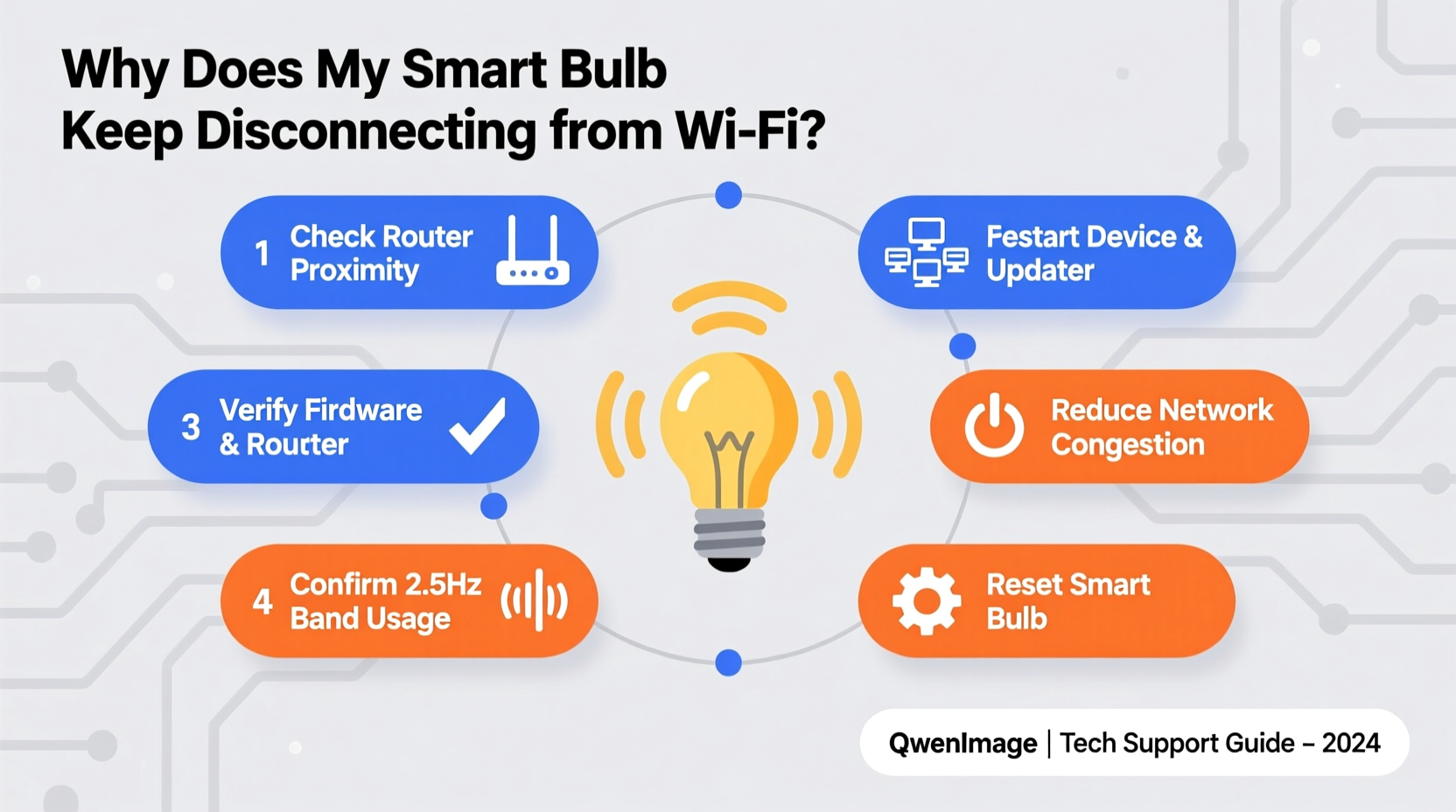
Before diving into fixes, it’s essential to identify what might be triggering the problem. Smart bulbs rely on stable two-way communication between the device, your router, and the cloud service powering the app. Any weak link in that chain can cause dropouts.
- Weak Wi-Fi signal strength: If the bulb is far from the router or blocked by walls, metal, or appliances, signal degradation occurs.
- Network congestion: Too many connected devices can overwhelm a router, especially on older models or crowded 2.4 GHz bands.
- Incompatible router settings: Features like AP isolation, MAC filtering, or aggressive power-saving modes may block smart bulb traffic.
- Firmware bugs: Outdated or buggy firmware in either the bulb or the hub (if used) can lead to instability.
- IP address conflicts: Dynamic IP assignment (DHCP) can sometimes assign duplicate addresses, causing connectivity loss.
- Power fluctuations: Poor electrical connections or unstable voltage can reset the bulb mid-operation.
- App or cloud server issues: Rarely, the issue lies not with your setup but with the manufacturer’s servers being down.
“Over 60% of smart home device issues reported to support teams stem from network configuration errors, not hardware failure.” — David Lin, IoT Network Engineer at HomeTech Labs
Step-by-Step Troubleshooting Process
Follow this structured approach to diagnose and resolve disconnection problems efficiently. Start with the simplest checks and progress to more advanced configurations.
Step 1: Reboot Your Devices
Sounds basic, but often overlooked. Power cycling clears temporary glitches.
- Turn off the smart bulb at the switch for 30 seconds.
- Restart your Wi-Fi router by unplugging it for 30 seconds, then plugging it back in.
- Wait for the router to fully reconnect before turning the bulb back on.
- Check if the bulb reappears in the app within 1–2 minutes.
Step 2: Check Signal Strength
Use your phone to test Wi-Fi strength where the bulb is installed. Open any speed test app or go to Settings > Wi-Fi and view signal bars.
- Strong signal: -50 dBm to -60 dBm
- Adequate: -60 dBm to -70 dBm
- Poor: Below -75 dBm (likely problematic)
If signal is weak, consider relocating the router or adding a Wi-Fi extender.
Step 3: Verify Router Compatibility
Not all routers play well with IoT devices. Confirm the following settings are correctly configured:
- SSID broadcast is enabled (not hidden).
- AP (Access Point) isolation is turned OFF—this prevents devices from communicating with each other.
- MAC address filtering is disabled or includes your bulb’s MAC.
- WPA2 or WPA3 security is used (avoid WEP or open networks).
- Channel width set to 20 MHz on 2.4 GHz band for better compatibility.
Step 4: Assign a Static IP Address
Dynamic IPs can change during router restarts, breaking the bulb’s connection. Assigning a static IP ensures consistency.
- Find the bulb’s current IP via your router’s admin panel (look under connected devices).
- Note its MAC address and current IP.
- Log into your router (usually http://192.168.1.1 or similar).
- Navigate to DHCP settings and reserve an IP for that MAC address.
- Save and reboot the bulb.
Step 5: Update Firmware
Manufacturers release updates to patch bugs and improve stability.
- Open your smart lighting app (e.g., Philips Hue, LIFX, TP-Link Kasa).
- Go to device settings and check for firmware updates.
- If available, install them—ensure the bulb stays powered during the process.
Do’s and Don’ts When Managing Smart Bulbs
| Action | Do | Don't |
|---|---|---|
| Wi-Fi Band | Use 2.4 GHz (most smart bulbs don’t support 5 GHz) | Assume dual-band routers automatically connect bulbs correctly |
| Power Cycling | Wait 30+ seconds between on/off cycles | Flip switches rapidly—this can corrupt firmware |
| Router Placement | Keep central, elevated, away from metal objects | Place behind TVs, microwaves, or refrigerators |
| Device Load | Limits connected devices to 70% of router capacity | Connect 50+ IoT devices without upgrading hardware |
| Updates | Enable auto-updates if available | Ignore update notifications for months |
Real-World Case: Persistent Disconnects in a Multi-Floor Home
Mark, a homeowner in Portland, installed ten smart bulbs across three floors using a single router in the basement. While downstairs bulbs worked fine, upstairs ones frequently disconnected, especially after Wi-Fi router reboots.
After testing, he discovered two key issues:
- The upper-floor signal was -82 dBm—too weak for reliable operation.
- His router’s DHCP lease time was set to 1 hour, causing frequent IP changes.
He resolved the issue by:
- Installing a mesh Wi-Fi system with nodes on each floor.
- Reserving static IPs for all smart bulbs.
- Disabling AP isolation, which had been enabled for “security.”
Result: All bulbs remained online for over six months without a single dropout.
Expert Tips for Long-Term Stability
Maintaining consistent connectivity isn’t just about fixing problems—it’s about preventing them.
- Use a dedicated SSID for IoT devices: Create a separate network (e.g., “Home_IoT”) to isolate smart bulbs from high-bandwidth activities like streaming.
- Limit use of dimmer switches: Traditional dimmers can reduce voltage below what smart bulbs need to stay connected. Use app-based dimming instead.
- Monitor device count: Most consumer routers handle 25–30 devices reliably. Exceeding that leads to packet loss and timeouts.
- Choose reputable brands: Philips Hue, LIFX, and Nanoleaf tend to have better firmware support than budget alternatives.
“Think of your router as the foundation of your smart home. No matter how good your bulbs are, they’ll underperform on a shaky network.” — Sarah Kim, Senior IoT Consultant at Connective Living
Quick Fix Checklist
Use this checklist when your smart bulb disconnects:
- ✅ Restart the bulb and router.
- ✅ Confirm you're on the 2.4 GHz Wi-Fi network.
- ✅ Test Wi-Fi signal strength near the bulb.
- ✅ Check for firmware updates in the app.
- ✅ Ensure AP isolation is disabled.
- ✅ Assign a static IP to the bulb.
- ✅ Remove and re-add the bulb in the app if needed.
- ✅ Consider a Wi-Fi extender or mesh system for large homes.
Frequently Asked Questions
Can a smart bulb disconnect if the light switch is turned off?
Yes. Most smart bulbs require constant power to maintain Wi-Fi connectivity. If the wall switch cuts power, the bulb goes offline. For full functionality, leave the switch on and control brightness via the app or voice assistant.
Why do my bulbs disconnect only at night?
This often points to network congestion. Evening hours typically see higher bandwidth usage (streaming, gaming, downloads), which can overload older routers. Try scheduling heavy downloads for off-peak times or upgrading your router.
Is it safe to factory reset a smart bulb frequently?
While occasional resets are fine, doing so repeatedly may indicate a deeper issue. Frequent resets can also wear out flash memory over time. Focus on resolving the underlying cause rather than relying on resets.
Conclusion: Take Control of Your Smart Lighting Experience
Smart bulbs that keep disconnecting aren’t inherently faulty—they’re signaling a mismatch in your ecosystem. Whether it’s a weak signal, misconfigured router, or outdated firmware, each issue has a solution. By methodically testing and adjusting your setup, you can achieve seamless, reliable control over your lighting. Don’t settle for intermittent performance. Apply these strategies today to build a smarter, more stable home environment.




 浙公网安备
33010002000092号
浙公网安备
33010002000092号 浙B2-20120091-4
Comments
No comments yet. Why don't you start the discussion?