
Smart bulbs promise convenience, automation, and energy efficiency—until they start dropping off the network unexpectedly. One moment your living room lights respond instantly to voice commands; the next, they’re unresponsive, grayed out in the app, or require constant reboots. If you’ve found yourself asking, “Why does my smart bulb keep disconnecting?” the issue may not lie with the bulb itself—but with your router’s configuration. Many modern routers have default settings that inadvertently disrupt low-bandwidth IoT devices like smart bulbs. Understanding how your router interacts with these devices is key to achieving a stable, seamless smart home experience.
Understanding the Root Causes of Disconnections
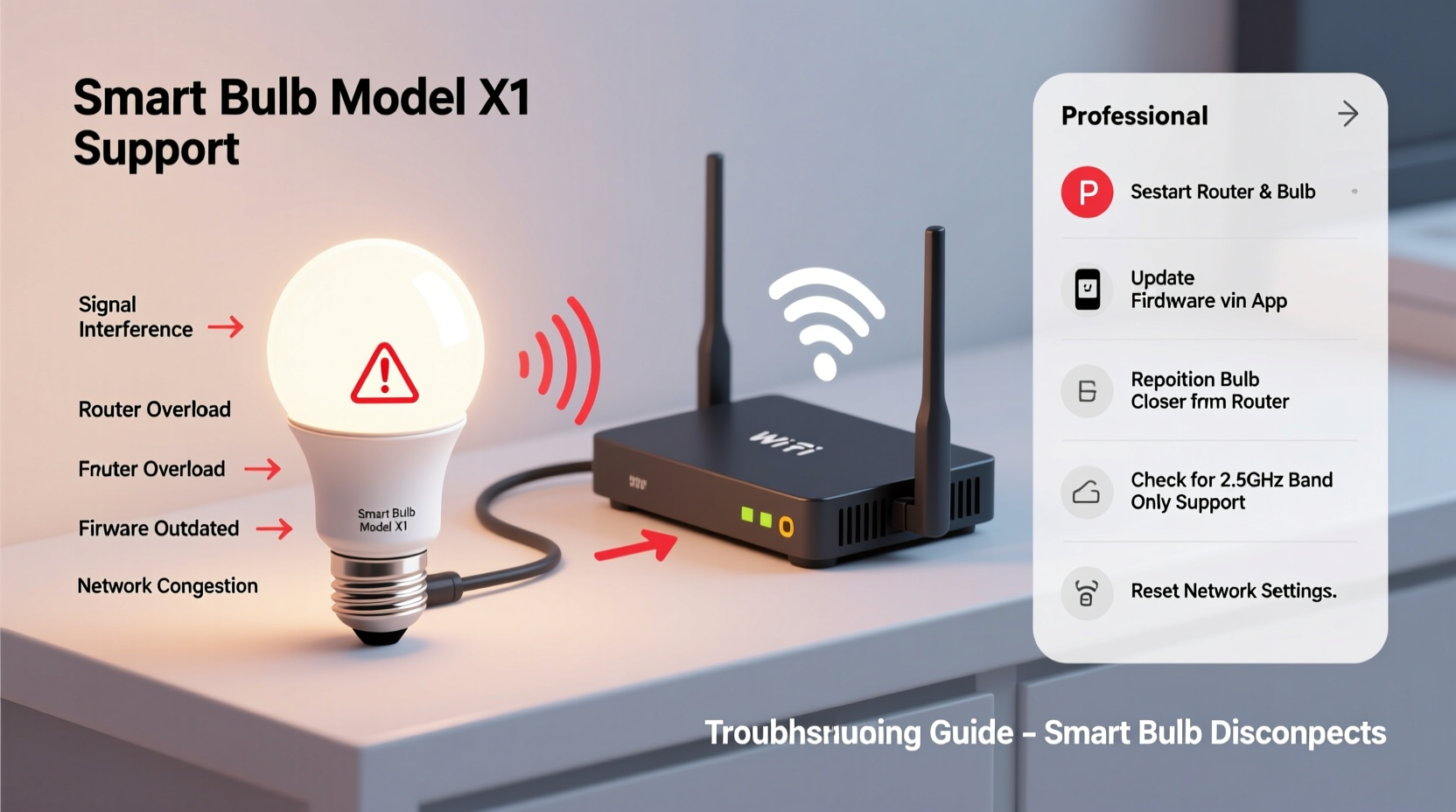
Smart bulbs rely on consistent Wi-Fi connectivity to function properly. Unlike smartphones or laptops, they operate on minimal bandwidth and often communicate infrequently with the cloud or local hub. This behavior can trigger certain router features designed for high-performance devices, leading to disconnections. Common culprits include aggressive power-saving modes, poor signal strength, outdated firmware, and incompatible security protocols.
One major factor is how routers manage device timeouts. When a smart bulb sends data only every few minutes (or less), some routers interpret this as an idle or inactive device and forcibly disconnect it to free up resources. Additionally, dual-band routers that combine 2.4 GHz and 5 GHz networks under one SSID can cause confusion, as most smart bulbs only support the older, more reliable 2.4 GHz band.
Interference from other wireless devices—microwaves, cordless phones, baby monitors—can also degrade signal quality on the 2.4 GHz spectrum, further destabilizing connections. Physical obstructions like thick walls or metal fixtures between the router and bulb exacerbate the problem, especially in larger homes.
Router Settings That Affect Smart Bulb Stability
The solution often lies in adjusting specific router configurations. Below are the most impactful settings to review and modify for improved smart bulb performance.
1. Separate 2.4 GHz and 5 GHz Networks
If your router broadcasts a single SSID for both frequency bands (often labeled “Smart Connect” on ASUS, Netgear, or TP-Link models), disable this feature. Smart bulbs cannot connect to 5 GHz networks, but when bands are merged, devices may attempt to roam to the faster band and fail silently. This leads to dropped connections or inability to reconnect after power cycles.
Instead, create two distinct network names—e.g., “HomeWiFi_2.4G” and “HomeWiFi_5G”—so you can manually assign your smart bulbs to the correct band.
2. Adjust DHCP Lease Time
DHCP (Dynamic Host Configuration Protocol) assigns IP addresses to devices on your network. The default lease time is typically 24 hours, meaning devices must renew their IP address daily. For smart bulbs, frequent renewals can lead to conflicts or temporary loss of connectivity.
Increase the DHCP lease time to 7 days (604800 seconds) or even longer if supported. This reduces the frequency of reauthorization and helps maintain persistent connections.
3. Disable AP Isolation (Client Isolation)
AP isolation prevents devices on the same network from communicating with each other—a useful security feature in public hotspots, but detrimental in smart homes. Some smart bulbs require communication with a local hub or phone on the LAN for fast response times. If AP isolation is enabled, this local control fails, forcing reliance on cloud servers, which increases latency and vulnerability to internet outages.
Ensure AP isolation is turned off in your router’s wireless settings.
4. Reduce Channel Congestion on 2.4 GHz
The 2.4 GHz band has only three non-overlapping channels: 1, 6, and 11. In dense neighborhoods, multiple overlapping networks can cause interference. Use a Wi-Fi analyzer app (like Wi-Fi Analyzer for Android or NetSpot for desktop) to identify the least congested channel and manually set your 2.4 GHz network to use it.
Avoid auto-channel selection if your router frequently switches channels, as this can force all connected devices—including bulbs—to reconnect repeatedly.
5. Disable Airtime Fairness and Band Steering
Airtime fairness allocates equal transmission time to all devices, which disadvantages slower ones like smart bulbs. Since these devices transmit at lower speeds, they end up getting starved of airtime, leading to timeouts and disconnections.
Band steering actively pushes devices toward the 5 GHz band, which again causes problems for bulbs that can’t connect there. Turn both features off in advanced wireless settings.
| Router Setting | Recommended Value | Purpose |
|---|---|---|
| 2.4 GHz / 5 GHz SSID | Separate networks | Prevent band roaming errors |
| DHCP Lease Time | 7 days (604800 sec) | Reduce IP renewal frequency |
| AP Isolation | Disabled | Enable local device communication |
| 2.4 GHz Channel | 1, 6, or 11 (least crowded) | Minimize interference |
| Airtime Fairness | Disabled | Prevent slow device throttling |
| Band Steering | Disabled | Stop forced 5 GHz migration |
Step-by-Step Guide to Optimizing Router Settings
Follow this sequence to systematically improve smart bulb connectivity through router adjustments.
- Access Your Router Admin Panel
Open a browser and enter your router’s IP address (commonly 192.168.1.1 or 192.168.0.1). Log in with your admin credentials. - Check Firmware Version
Navigate to the administration or system section. Update firmware if a newer version is available—many updates include IoT compatibility fixes. - Split Dual-Band Networks
Go to Wireless Settings. If SSIDs are combined, disable “Smart Connect,” “Band Steering,” or similar. Assign unique names to 2.4 GHz and 5 GHz bands. - Set Static Channel for 2.4 GHz
In the 2.4 GHz wireless settings, change channel selection from “Auto” to a fixed channel (1, 6, or 11) based on your Wi-Fi scan results. - Adjust DHCP Settings
Find LAN or DHCP settings. Change the lease time to 604800 seconds (7 days). - Disable AP Isolation and Airtime Fairness
Look under Advanced Wireless or Client Management. Turn off AP Isolation, Airtime Fairness, and any client prioritization features. - Save and Reboot
Apply changes and restart the router. Wait 2–3 minutes for full initialization. - Reconnect Smart Bulbs
Use your smart lighting app to reconnect bulbs to the new 2.4 GHz network. Power cycle each bulb if necessary.
Real-World Example: Fixing Persistent Disconnections in a Two-Floor Home
Mark, a homeowner in Austin, installed ten Philips Hue bulbs across his house. While the downstairs lights remained stable, upstairs bulbs would disconnect every few hours. His router was located in the basement, and he had “Smart Connect” enabled on his Netgear Nighthawk router.
After reading about band steering issues, Mark logged into his router and split the 2.4 GHz and 5 GHz networks. He renamed them clearly and updated his Hue app to connect only to the 2.4 GHz network. He then used a Wi-Fi analyzer app and discovered that neighboring networks were saturated on channel 6. He switched his 2.4 GHz band to channel 1.
He also increased the DHCP lease time to one week and disabled AP isolation. After rebooting, all bulbs stayed online for over two weeks without a single drop. The fix wasn’t hardware-related—it was entirely a matter of router configuration.
“Most smart home failures aren’t due to faulty devices—they stem from mismatched network expectations. Routers treat IoT gadgets like legacy clients, but they need persistent, low-latency access.” — David Lin, Network Engineer & Smart Home Consultant
Additional Best Practices for Reliable Connectivity
Beyond router settings, several proactive steps can enhance stability.
- Use a Wi-Fi Range Extender or Mesh System: If bulbs are far from the router, consider upgrading to a mesh network (like Google Nest Wifi or Eero) for seamless coverage.
- Limit Connected Devices: Too many devices strain the router’s capacity. Prioritize essential IoT gear and disconnect unused gadgets.
- Update Bulb Firmware: Check your lighting app regularly for firmware updates. Manufacturers often release patches for connectivity bugs.
- Hardwire Where Possible: For critical zones, use a smart plug with Ethernet backhaul or install an access point near the bulb cluster.
- Power Cycle Periodically: Restart your router monthly to clear memory leaks and refresh connections.
Troubleshooting Checklist
Use this checklist to diagnose and resolve recurring disconnection issues:
- ✅ Confirm the smart bulb supports 2.4 GHz Wi-Fi
- ✅ Ensure 2.4 GHz and 5 GHz networks have separate SSIDs
- ✅ Verify AP isolation is disabled
- ✅ Set 2.4 GHz channel to 1, 6, or 11 (least congested)
- ✅ Increase DHCP lease time to 7 days
- ✅ Disable airtime fairness and band steering
- ✅ Update router and bulb firmware
- ✅ Test signal strength near the bulb location
- ✅ Assign static IP via DHCP reservation
- ✅ Reboot router and reconnect bulbs
Frequently Asked Questions
Can using a 5 GHz network cause smart bulb disconnections?
Yes. Most smart bulbs do not support 5 GHz Wi-Fi. If your router uses a single SSID for both bands, the bulb may fail to reconnect after a dropout because it’s being directed to the wrong frequency. Always use a dedicated 2.4 GHz network for smart lighting.
Why do my smart bulbs disconnect when I’m not home?
This often occurs due to router power-saving features or ISP-related IP changes. If your external IP changes frequently, cloud-dependent bulbs may lose sync. Consider enabling DDNS (Dynamic DNS) or switching to local-control systems like Matter or Thread for offline reliability.
Do smart bulbs need strong Wi-Fi signal?
They don’t need high speed, but they do require consistent signal strength. A minimum RSSI (Received Signal Strength Indicator) of -70 dBm is recommended. Below -80 dBm, disconnections become common. Use a Wi-Fi analyzer app to measure signal at the bulb’s location.
Final Thoughts: Stability Starts with the Router
Smart bulbs are only as reliable as the network they depend on. While manufacturers focus on color accuracy and app design, the real bottleneck often lies in overlooked router settings. By separating bands, optimizing DHCP, disabling restrictive features, and managing interference, you can transform a flaky smart lighting system into a dependable part of your daily routine.
The effort required is minimal—just a few minutes in your router’s admin panel—but the payoff is significant: lights that stay on when you need them, respond instantly to commands, and integrate smoothly with automations and voice assistants.




 浙公网安备
33010002000092号
浙公网安备
33010002000092号 浙B2-20120091-4
Comments
No comments yet. Why don't you start the discussion?